This guide walks you through creating your SaleMag account and keeping it safe. At the end you will be logged in, with the app in your language and your own free workspace ready to set up.
Step 1 — Fill in the sign-up form
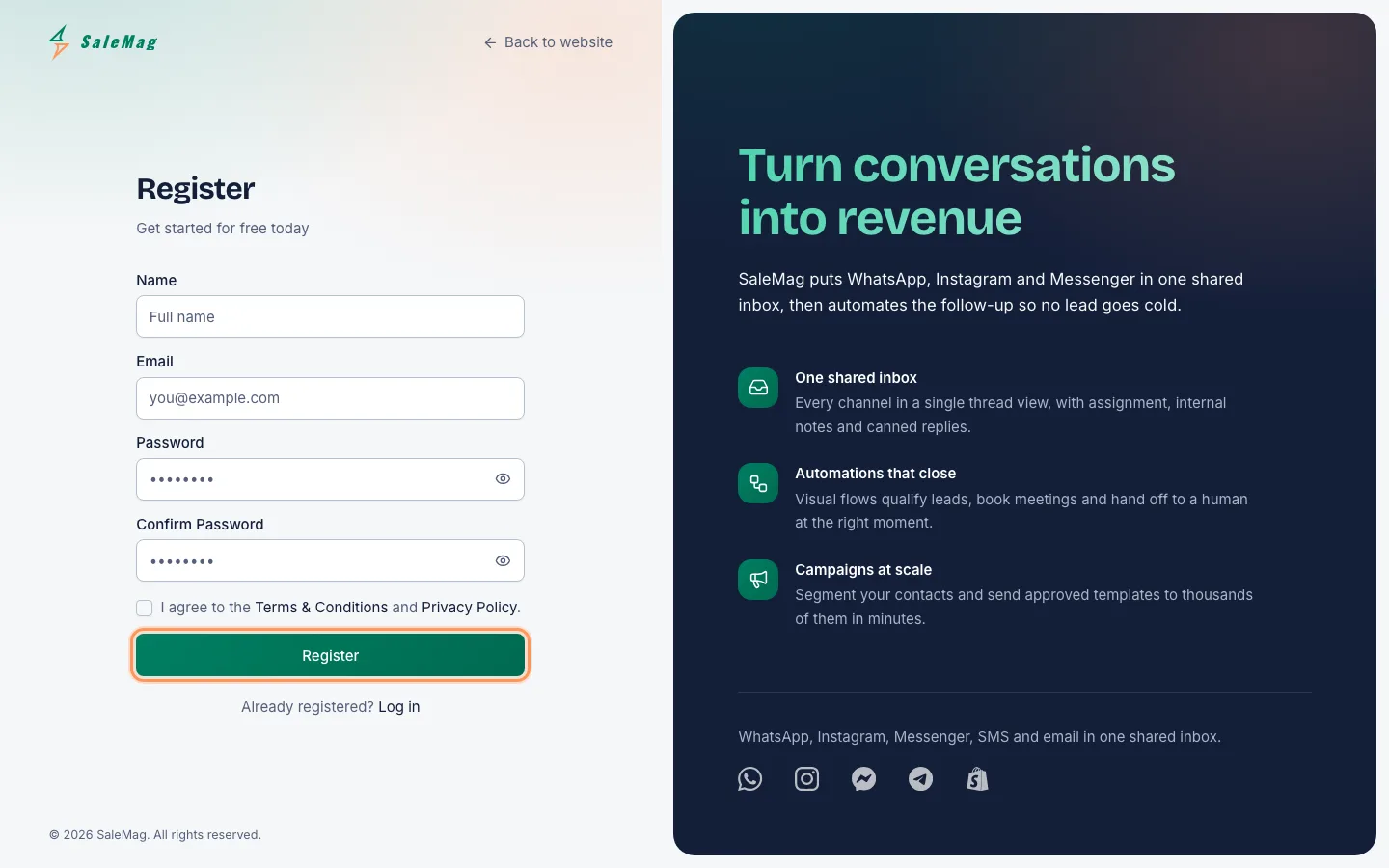
Open salemag.net/register. Fill in:
- Name: your full name.
- Email: the address you will log in with.
- Password: at least 8 characters.
- Confirm Password: the same password again.
Tick the box to agree to the Terms & Conditions and Privacy Policy, then press Register.
If you see a Continue with Google button, you can use it instead of the form.
You will see "Account created! Check your inbox to verify your email." SaleMag also creates your first workspace, named after you (for example "Rahim's Workspace"). This workspace is free.
Step 2 — Verify your email
SaleMag now shows the Email Verification page. You can't open the app until your email is verified.
Open your mailbox, find the email from SaleMag and click the verify link. The link works for 24 hours. You will see "Your email address has been verified." Press Continue to dashboard.
Tip: No email after a few minutes? Look in your spam folder, then press Resend Verification Email.
Step 3 — Log in next time
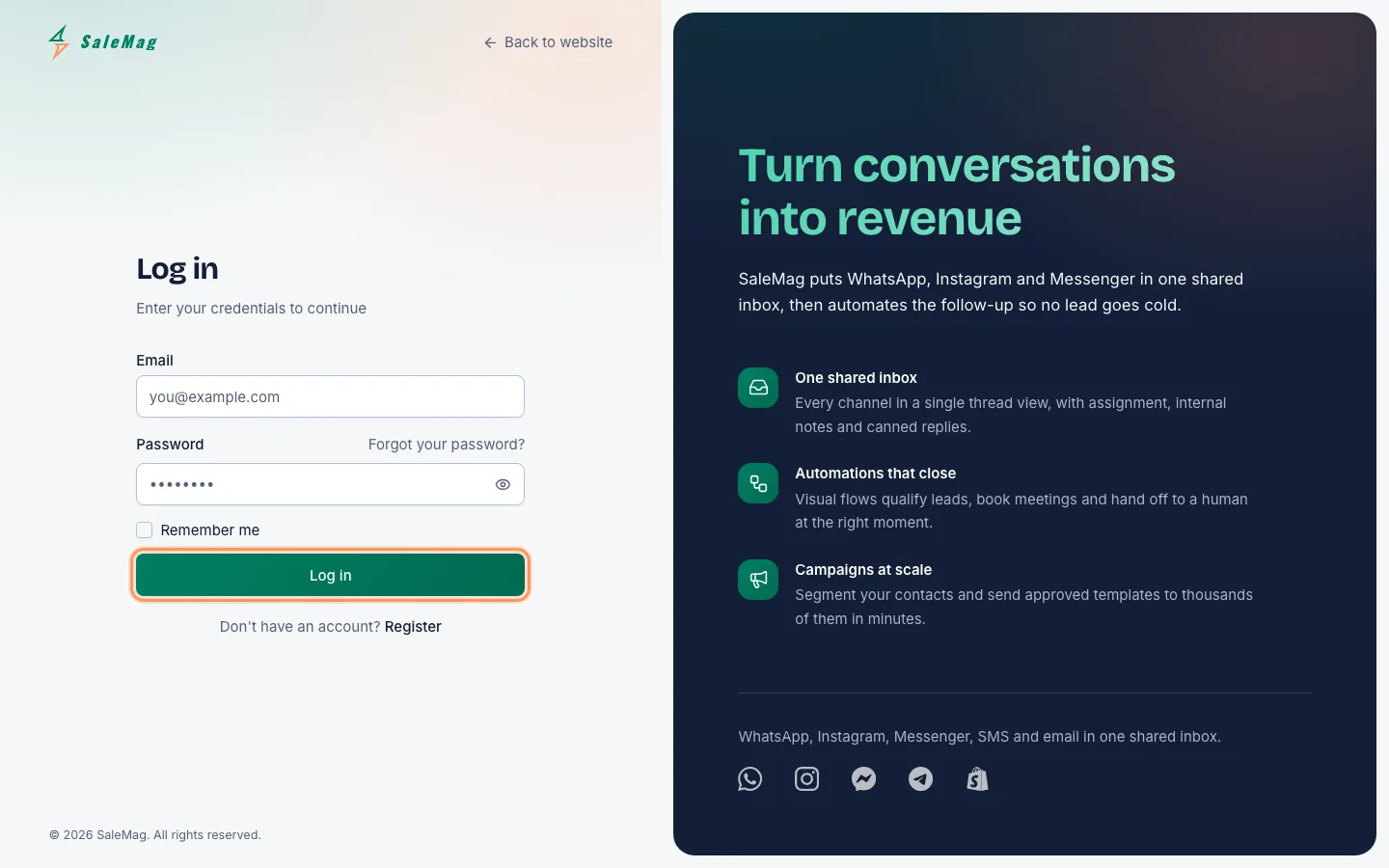
Go to salemag.net/login. Type your Email and Password and press Log in. Tick Remember me on your own phone or computer so you stay logged in.
Step 4 — Set your language and timezone
To switch between English and Bangla at any time, press the language button in the top bar (the button called Change language) and pick a language. The app changes at once.
To set your timezone, press your photo or initials at the top right and choose Profile. On the Profile tab, under Profile Information, pick your Language and Timezone (for Bangladesh, choose Asia/Dhaka), then press Save changes.
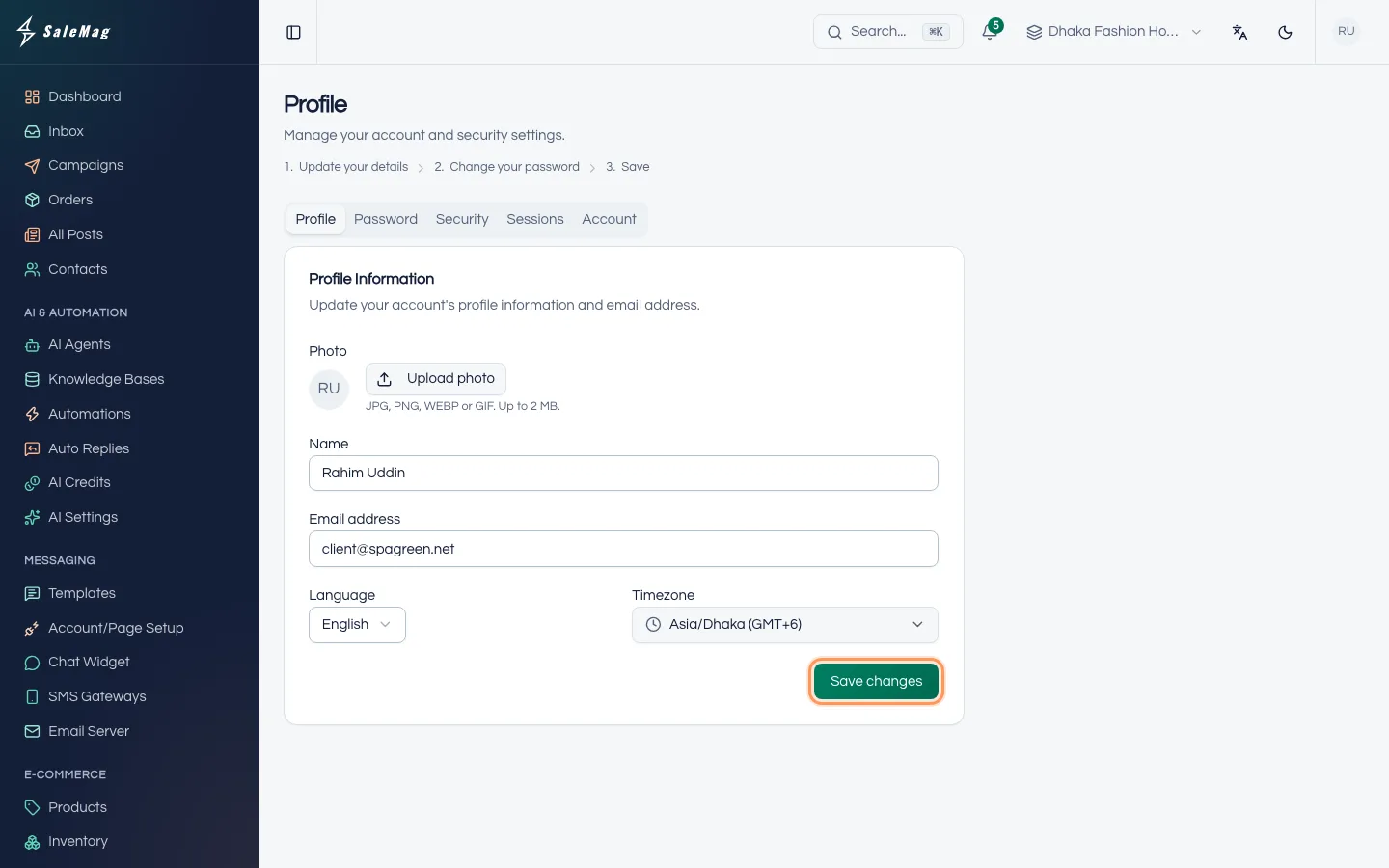
SaleMag reads your timezone from your browser when you sign up, so it is often already right. You will see "Profile updated." when it is saved.
Step 5 — Turn on two-factor authentication
Two-factor authentication (2FA) means that logging in needs your password and a 6-digit code from your phone. Someone who steals your password still can't get in.
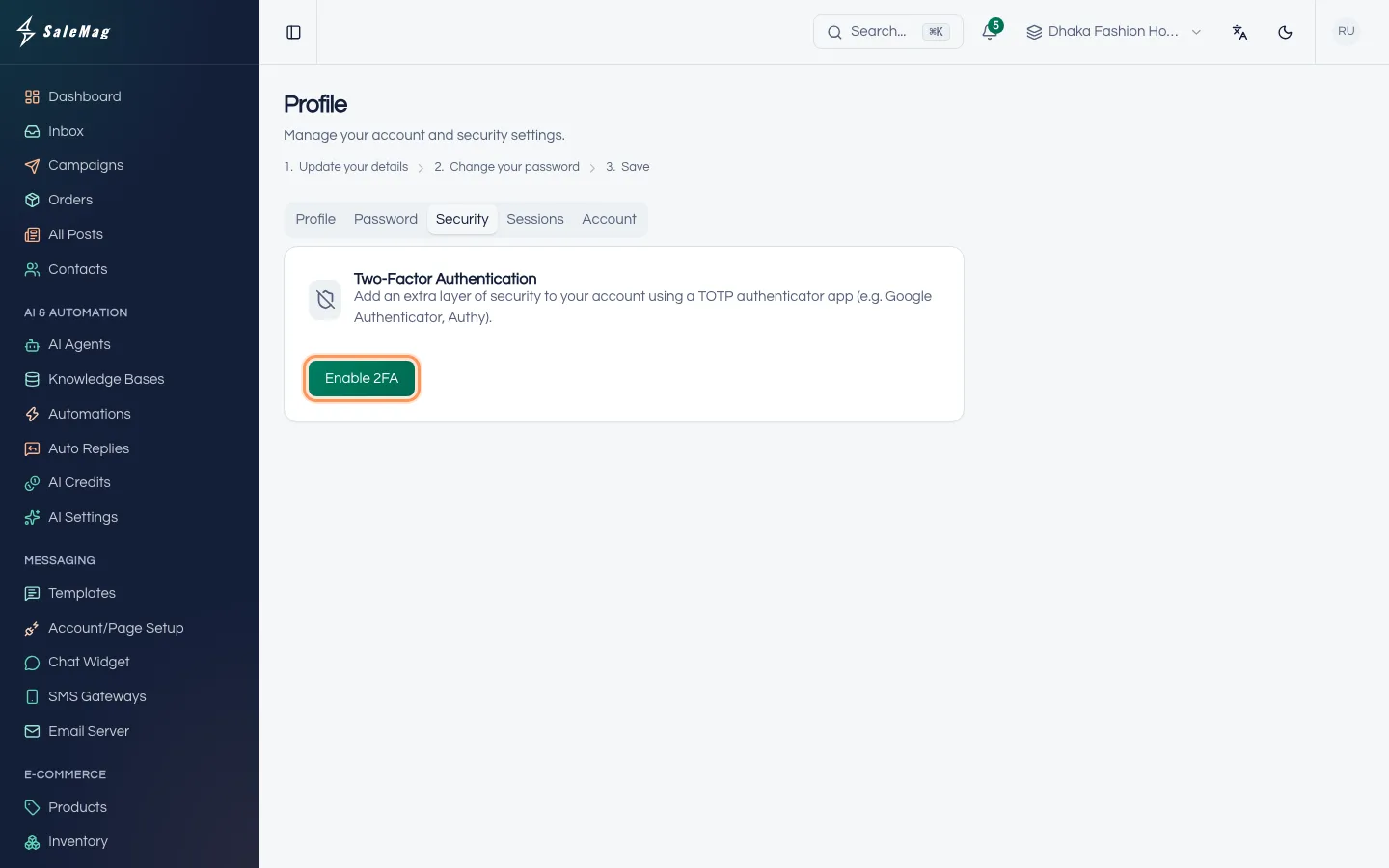
On the Profile page, open the Security tab and press Enable 2FA.
A QR code appears. Open your authenticator app and scan it. If you can't scan, type the code shown under Or enter manually: into the app. Then type the 6-digit code from the app into Verification code and press Confirm.
Step 6 — Save your recovery codes
After you confirm, SaleMag shows your Recovery Codes. Each one lets you log in once if you lose your phone.
Write them down or save them somewhere safe, away from your phone. You can see them again with Show codes, or make a new set with Regenerate recovery codes.
From now on, after your password, SaleMag asks you to "Enter your authentication code." Type the code from the app and press Verify.
Forgot your password?
On the Log in page, press Forgot your password?. Type your Email and press Email Password Reset Link.
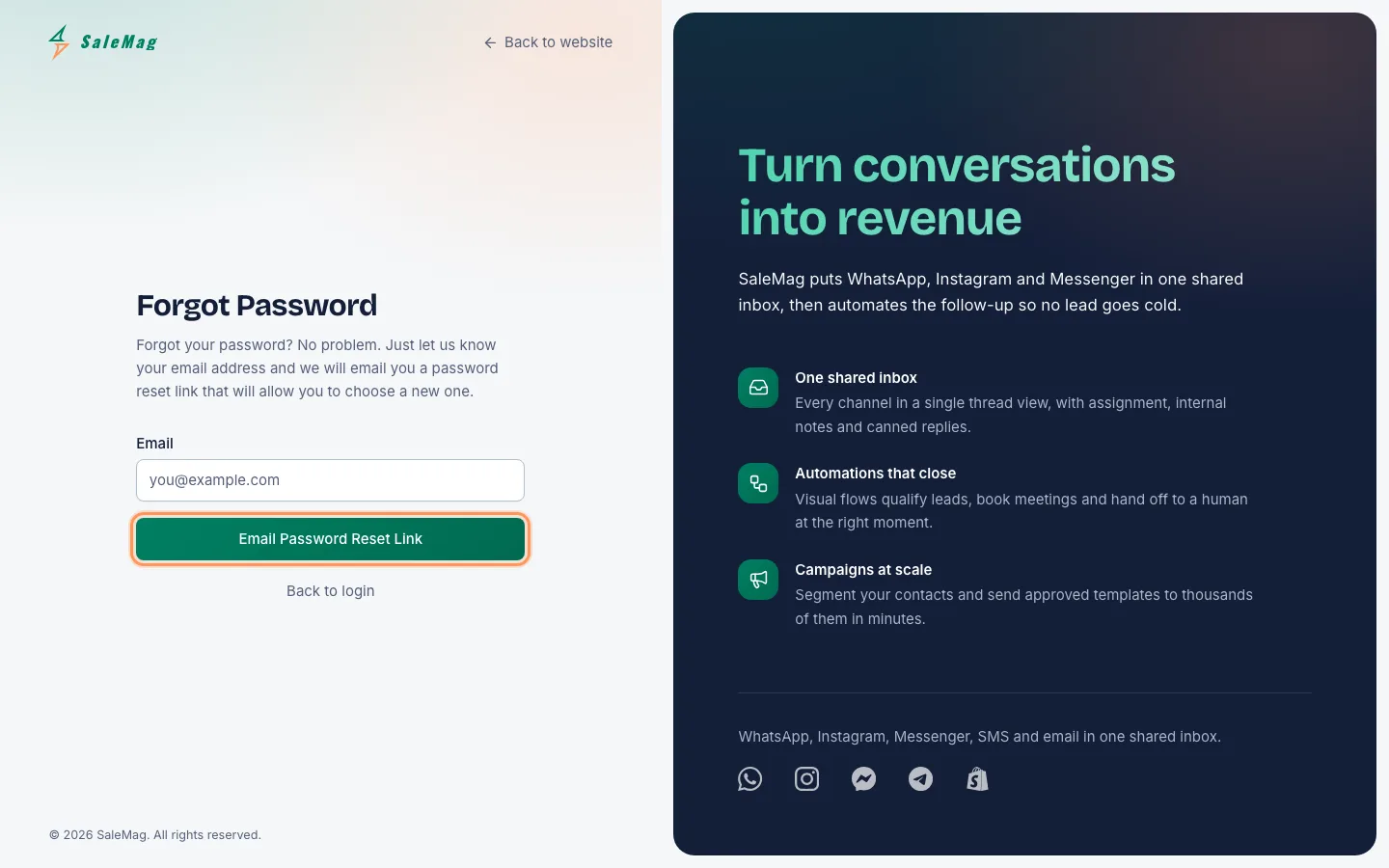
Open the email and click the link within 60 minutes. On the Reset Password page, type your new password twice and press Reset Password. Then log in with the new password.
What happens next
Your account is ready. Open the Getting Started checklist to see what to set up next, or read how SaleMag works for the full picture.
If something goes wrong
"This email is already registered.": you already have an account. Log in, or use Forgot your password?.
"We could not verify this link. It may have expired.": the link is older than 24 hours or was already used. Press Resend Verification Email and use the newest email.
"Invalid email or password.": check for typing mistakes and that Caps Lock is off. If you still can't log in, reset your password.
"Invalid authentication code.": the code changes every 30 seconds, so type the newest one. If it keeps failing, make sure the time on your phone is set automatically.
"Too many attempts.": wait the number of seconds shown, then try again.
Frequently asked questions
I didn't get the verification email. What should I do?
Check your spam or promotions folder first. If it is not there, press Resend Verification Email on the Email Verification page. The link in the email works for 24 hours.
How do I change my password when I am logged in?
Open your photo or initials at the top right, choose Profile, then the Password tab. Enter your current password and the new one twice, then press Update Password.
I lost my phone and can't get the two-factor code. How do I log in?
On the Two-Factor Authentication page, type one of your recovery codes instead of the 6-digit code. Each recovery code works once. If you have no recovery codes, contact SaleMag support.
Can my staff use my login?
Please don't share your login. Invite each person from the Team page instead, so everyone has their own account and the right role.
Can I change the email address on my account?
Yes. Change it under Profile → Profile Information and press Save changes. You will need to verify the new address before you can keep using the app.
Was this article helpful?