Your AI agent can take an order from start to finish: it helps the customer choose, collects the delivery details, shows the exact total and saves the order. This guide shows how to turn it on, what each setting does, and what your customer sees.
Step 1 — Set up your delivery zones
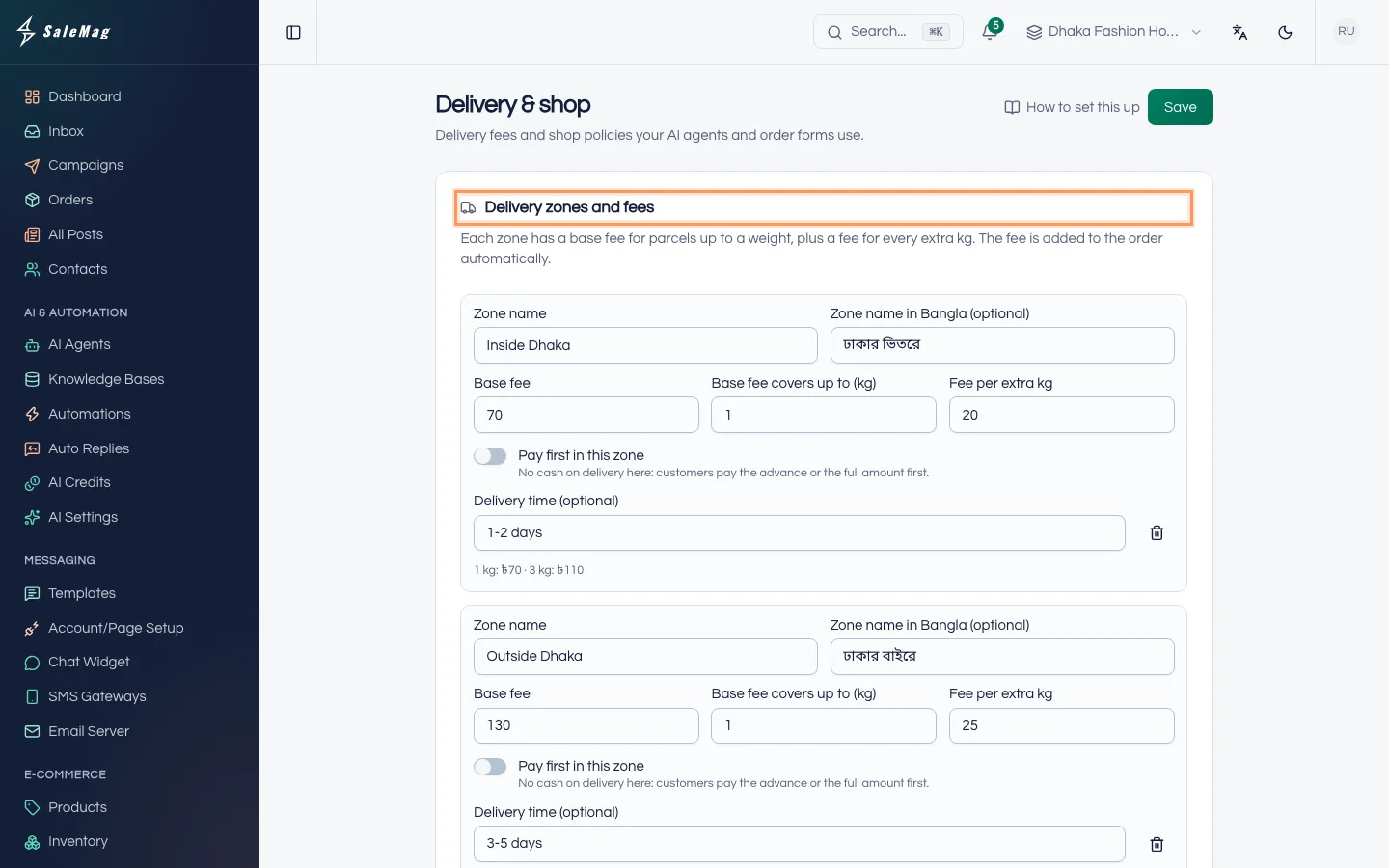
The AI agent needs delivery zones to work out the delivery fee. In the left menu, go to E-Commerce → Delivery & shop. Under Delivery zones and fees, add at least one zone, for example "Inside Dhaka" and "Outside Dhaka", each with its fee. Click Save.
Payment numbers and online payment are set on the same page. See delivery and payment settings.
Step 2 — Turn on Take orders in chat
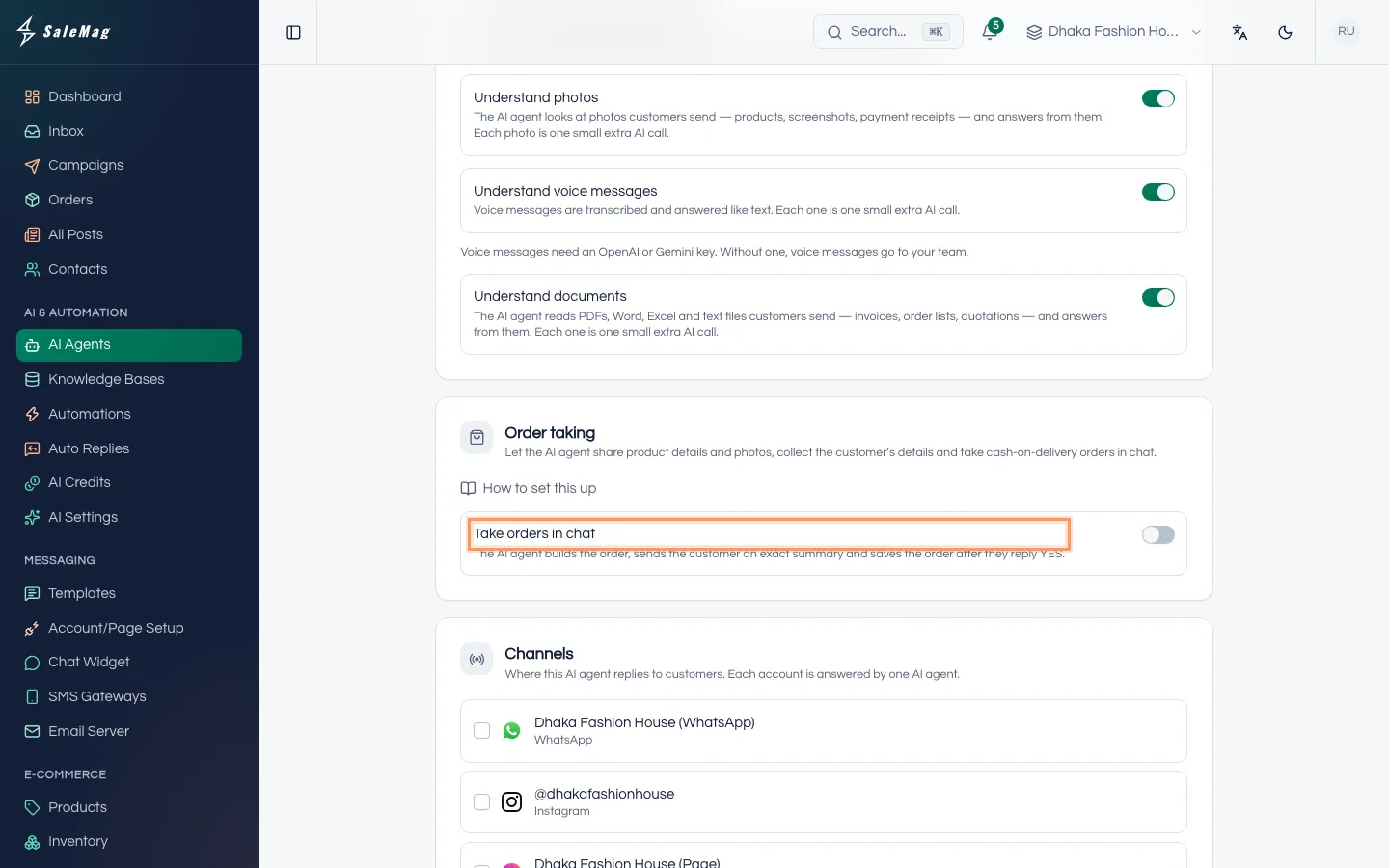
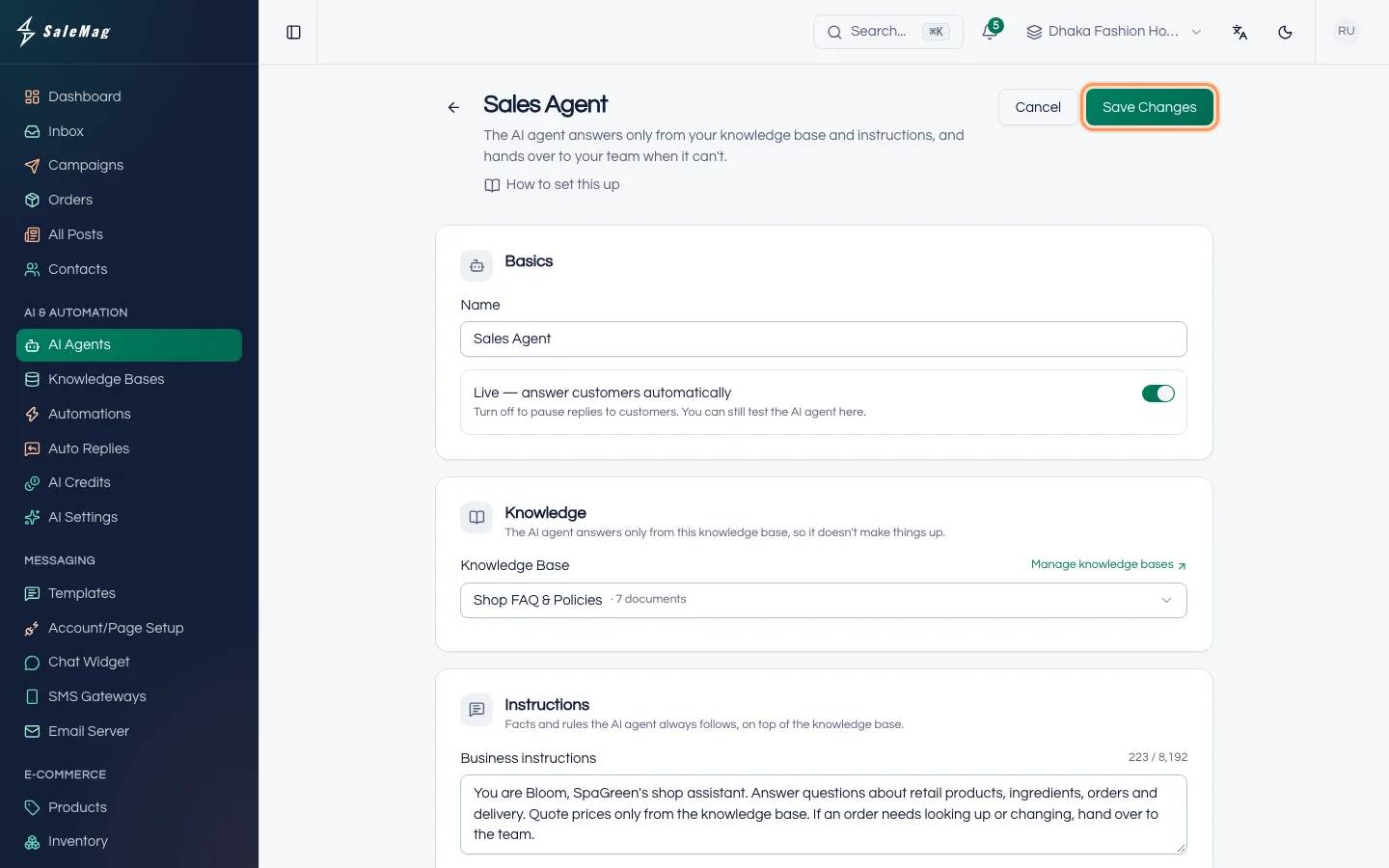
Go to AI & Automation → AI Agents and click Edit on your AI agent. Scroll to Order taking and turn on Take orders in chat.
The AI agent builds the order, sends the customer an exact summary and saves the order only after the customer confirms.
If you see "No knowledge base is linked: the AI agent can sell any listed product.", it may offer every product you have. To limit what it sells, link a knowledge base that holds only those products.
Step 3 — Choose how customers give delivery details
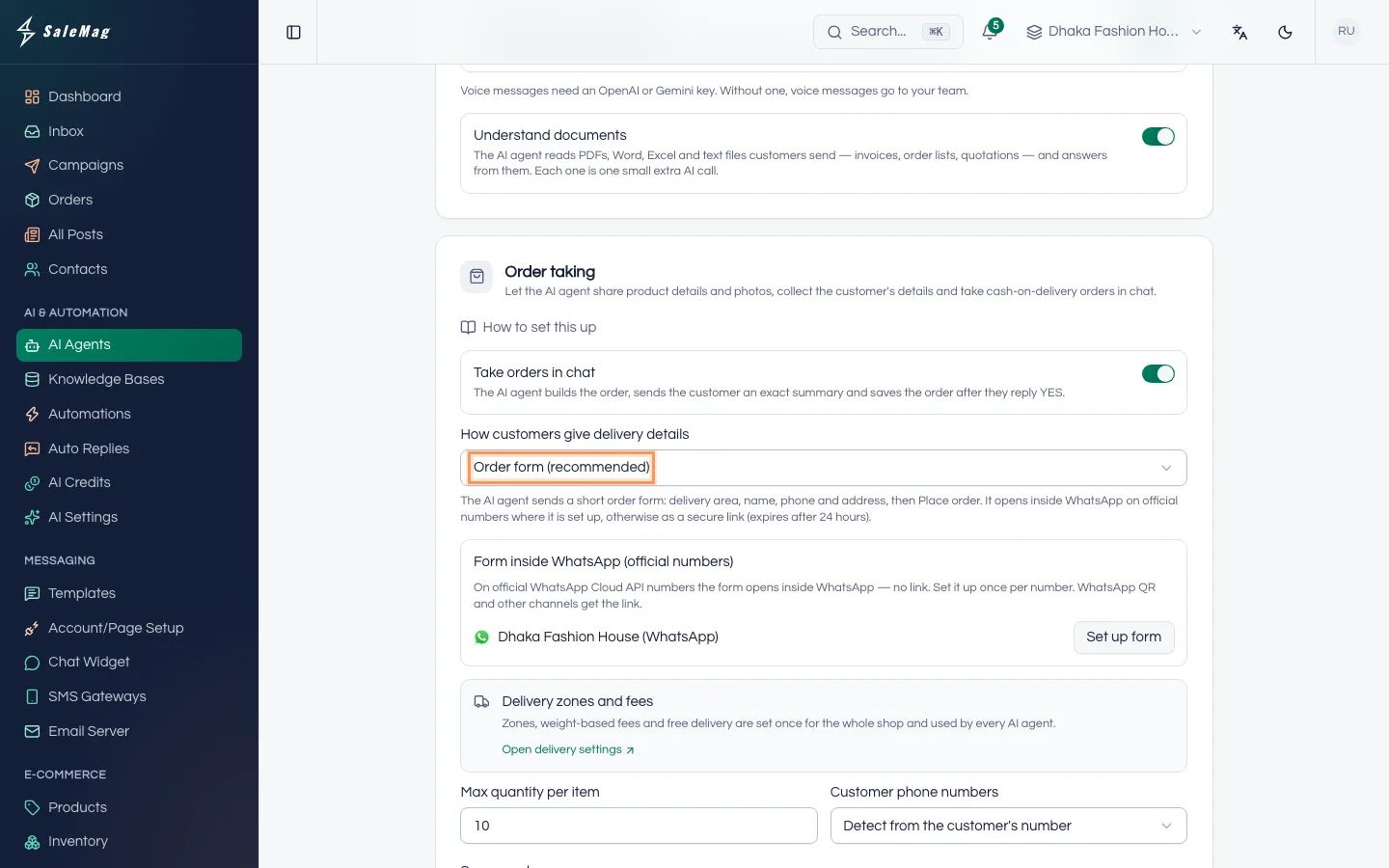
Under How customers give delivery details, choose one:
- Order form (recommended): the AI agent sends a short form. The customer picks a delivery area, types name, phone and address, and taps Place order. Fewer typing mistakes, and it's quicker for the customer.
- In the chat: the AI agent asks for each detail in the chat, sends a summary and places the order when the customer replies YES. Good for customers who don't like opening links.
Step 4 — Check the order settings
Below that:
- Delivery zones and fees shows a link, Open delivery settings. Zones are set once for the whole shop. If you see "No delivery zones are set up yet…", go back to Step 1. Without zones the AI agent hands orders to your team.
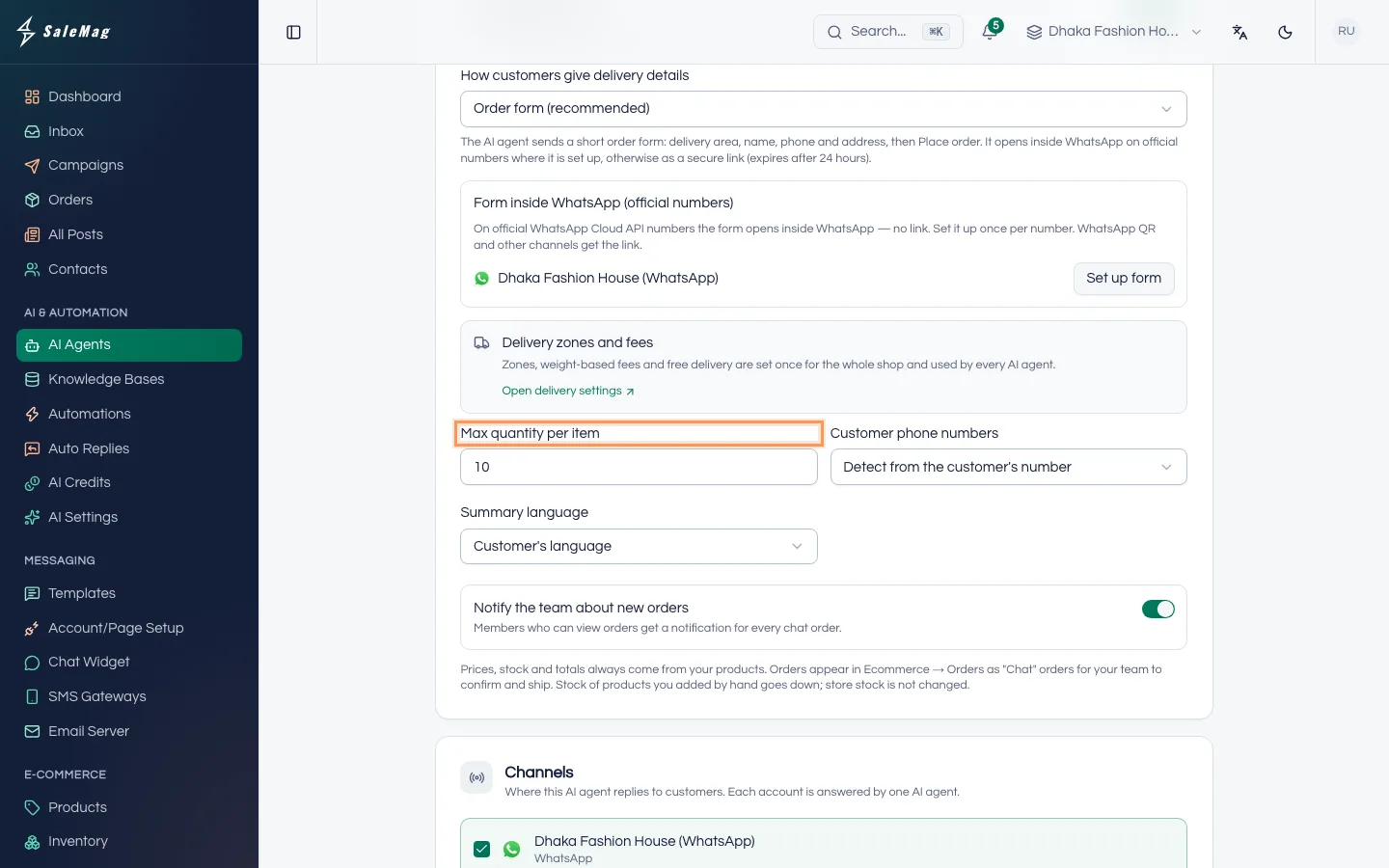
- Max quantity per item: the most of one item a customer can order, from 1 to 1000. The default is 10.
- Customer phone numbers: Detect from the customer's number, or Bangladesh (01XXXXXXXXX) to accept only Bangladeshi mobile numbers.
- Summary language: Customer's language (recommended), English or বাংলা. This sets the language of the summary, the order form and the order messages.
- Notify the team about new orders: everyone who can view orders gets a notification for each chat order.
Step 5 — Save your changes
Click Save Changes. You see "AI agent updated."
Step 6 — Set up the form inside WhatsApp (official numbers only)
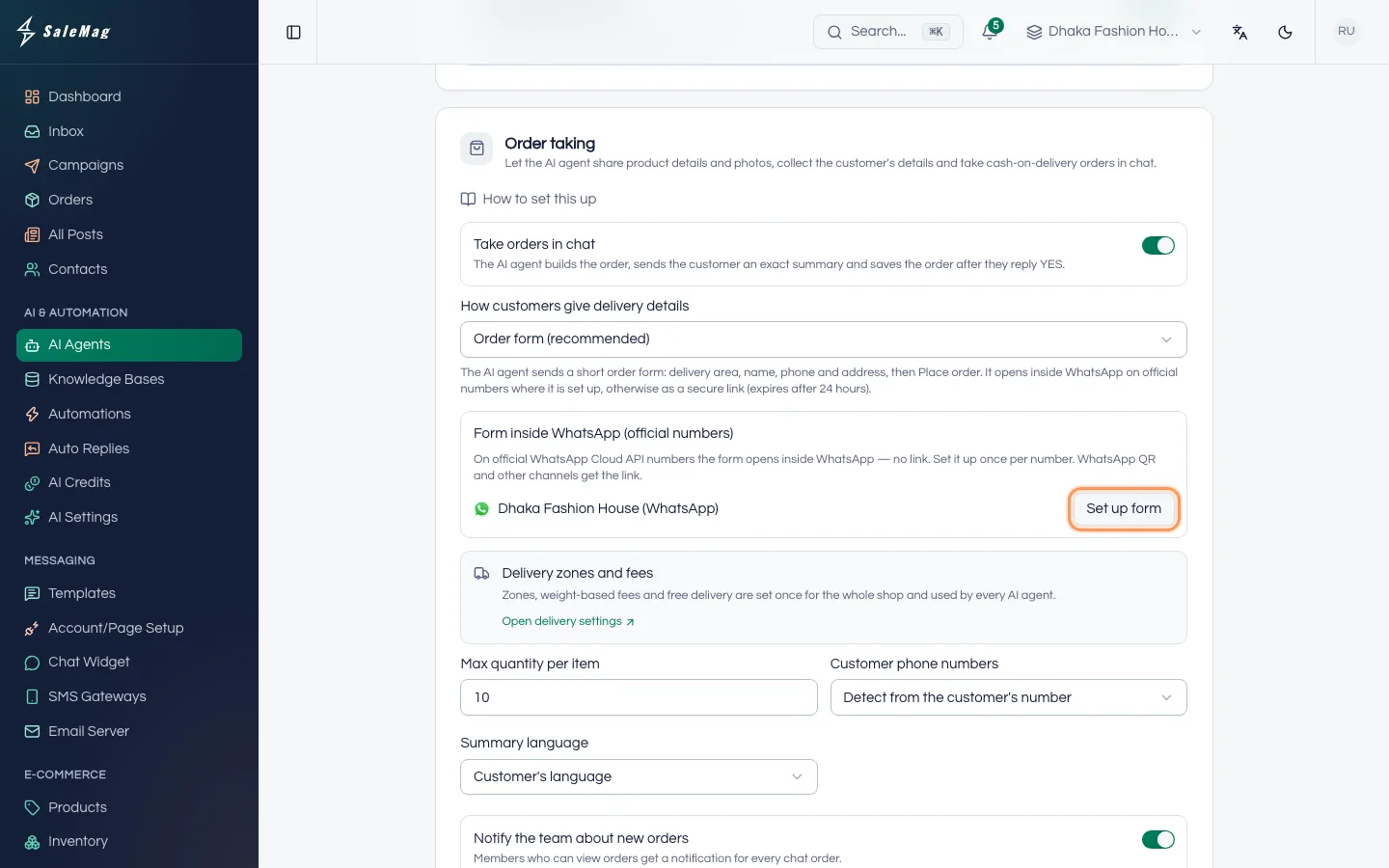
With Order form (recommended) on an official WhatsApp number, the form can open inside WhatsApp, with no link. In Order taking, find Form inside WhatsApp (official numbers) and click Set up form next to your number. When it says Ready, it's done. Do this once per number.
You only see Set up form after the AI agent is saved. Until then it says "Save the AI agent first". WhatsApp numbers connected by QR code, Messenger and Instagram get the form as a secure link instead.
Step 7 — Place a test order
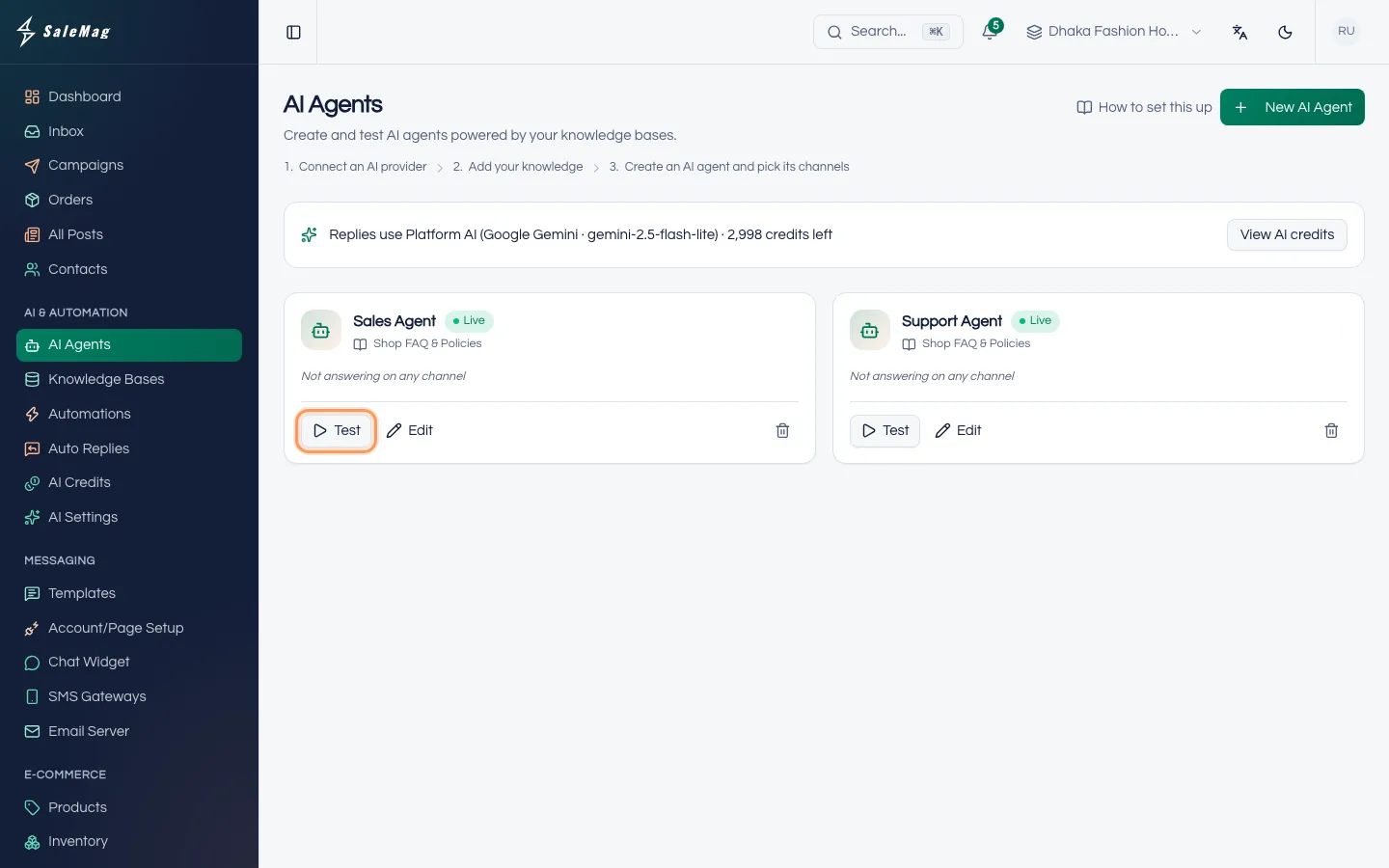
Go back to AI Agents and click Test on the card. Type something like "2 ta black kurti L size nibo" and follow the conversation. You see "Test order: waiting for YES" when the summary is sent. Reply YES, and you see "Test order … — not saved". Nothing is saved and stock doesn't change. Click Reset order to try again.
With Order form (recommended), the Playground shows a sample link that doesn't open. To try the real form, message your own business number from your phone. More in test and go live.
What the customer sees
With Order form (recommended):
- The customer asks about a product. The AI agent answers with the price and photos. On official WhatsApp numbers a product card can have a 🛒 Order now button.
- When the customer is ready, the AI agent sends the cart with a link: "Tap the link to add your delivery details and place the order". The link works for 24 hours. On official WhatsApp it is an 📝 Order form button.
- The Complete your order page shows the items and asks for Delivery area, Full name, Phone number, Full delivery address and Note for the seller (optional). The delivery fee and total update when they choose an area.
- The customer taps Place order. The order is saved and a confirmation with the order number arrives in the chat.
With In the chat:
- The AI agent asks for name, phone, address and delivery area, one or two at a time.
- It sends an Order summary: items, subtotal, delivery, total, name, phone, address and payment, ending with "Reply YES to confirm, or tell me what to change." On official WhatsApp the summary has ✅ Confirm order and ✏️ Change buttons.
- The customer replies YES. The order is saved and the customer gets "✅ Your order #… is placed."
If a price or stock changed in between, the AI agent says so and sends the updated order first. In Bangla chats all of these messages and buttons are in Bangla.
Paying before delivery: if you added wallet numbers or an online gateway in Delivery & shop, the customer can choose to pay first (the form shows How do you want to pay?). After the order is placed, the chat gets the amount and your bKash or Nagad numbers with "Then reply here with the Transaction ID (TrxID).", and/or "Or pay online:" with a pay link. The AI agent saves the TrxID in the order, and your team checks it there. See manage orders.
What happens next
- New orders appear in Orders in the left menu, with Chat (AI) under the order number. Your team confirms and ships them: manage orders.
- Stock of products you added by hand goes down. Stock in a connected online store is not changed.
- When a customer asks "where is my order?", the AI agent answers from their last 3 orders: status, and the tracking link if you added one.
If something goes wrong
"No delivery zones are set up yet, so the AI agent cannot price orders and will hand them to your team.": add zones in E-Commerce → Delivery & shop and click Save.
"Save the AI agent first": save the AI agent, then click Edit again to see Set up form.
"Could not set up the WhatsApp form.": check the number is still connected in Account/Page Setup, then try again. Customers get the form link in the meantime.
"This order link has expired. Ask in the chat for a new one.": the link is older than 24 hours. The customer asks in the chat, and the AI agent sends a new one.
The AI agent offers products you don't sell any more: open each product and set its status to Draft or Archived. Only active products are offered.
Frequently asked questions
Can the AI agent change a price or give a discount?
No. Prices, delivery fees and totals are calculated by SaleMag from your products and Delivery & shop settings. The AI agent can't change them.
What if the customer writes "হ্যাঁ" or "ok" instead of YES?
That works too. The AI agent understands a clear yes in Bangla, English or Banglish, such as হ্যাঁ, ji or ok. On official WhatsApp numbers the customer can also tap ✅ Confirm order.
Does SaleMag book the courier for me?
No. Your team books the courier as usual. You can add the tracking number and link to the order yourself, and the AI agent shares it when the customer asks where the order is.
Does the customer get a message when we confirm the order?
No. Pressing Confirm on an order doesn't message the customer. If you want to tell them, reply in the chat.
Which products can the AI agent sell?
The products in the AI agent's knowledge base. If no knowledge base is linked, it can sell any listed product. Draft and archived products are never offered.
Was this article helpful?