SaleMag is one place to run the chats of your business. Customers write to you on WhatsApp, Facebook Messenger or Instagram, and all of those messages land in one inbox. An AI agent can answer questions about your products, take orders in the chat, and pass the chat to a person when it needs help.
This page explains the words you will see in the app and the order to set things up.
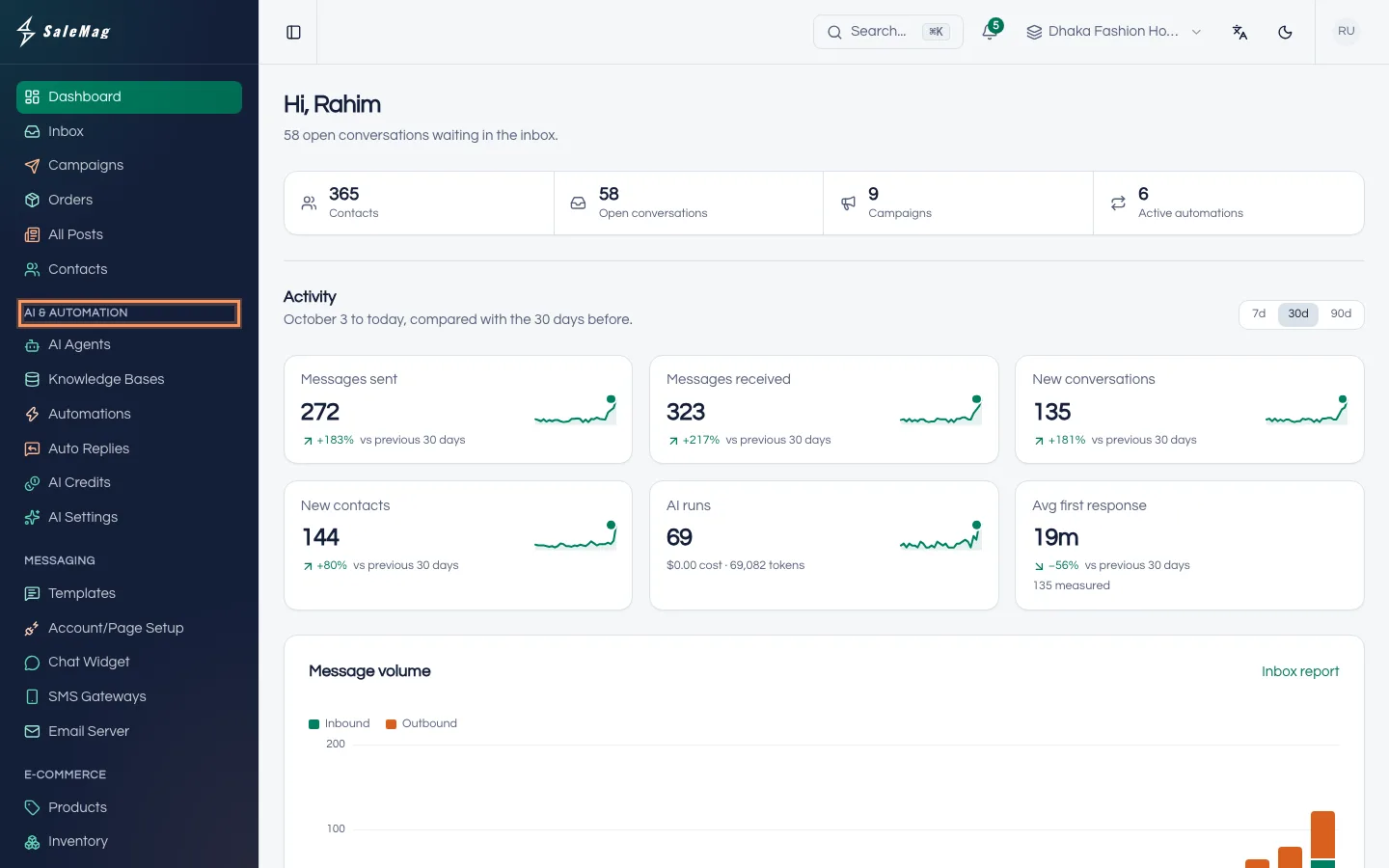
The words you will see
- Workspace: one business inside SaleMag. Your channels, contacts, chats, products, AI agents, team and plan all belong to a workspace. When you sign up you get one workspace, and it is free. You can switch workspaces from the Workspace button at the top of the app.
- Channel: a place where customers talk to you, such as your WhatsApp number, your Facebook Page (Messenger) or your Instagram account. You connect channels on the Channel Setup page (Messaging → Account/Page Setup in the menu).
- AI agent: an automatic assistant that replies to customers for you. It reads your products and your knowledge base, answers in the customer's language, and can take orders. You find it under AI & Automation → AI Agents.
- Knowledge base: the information the AI agent learns from, such as your delivery charges, return rules, shop timings or a price list. You add it under AI & Automation → Knowledge Bases.
- AI credits: what the built-in AI uses up each time it does work for you, like writing a reply. Plans can include credits every month, and you can buy more. If you use your own API key from an AI company in AI & Automation → AI Settings, replies don't use credits. An API key is a password that lets SaleMag use your account at that AI company.
- Plan: what you pay for one workspace. Each workspace has its own plan. Your first workspace is free, and paid plans give higher limits. Prices and limits are on the Plans page.
The recommended setup order
Follow this order. Each step needs the one before it.
- Create your account and verify your email. See create your account.
- Choose a plan, or continue on the free plan. See plans and billing.
- Connect a channel. Use the official WhatsApp connection through Meta (connect WhatsApp), link a WhatsApp number by scanning a QR code (connect WhatsApp with a QR code), or connect your Page and Instagram (connect Facebook and Instagram).
- Add your products and knowledge. Add products by hand (add products) or bring them from your website (connect your online store). Then set delivery charges and payment methods (delivery and payment settings).
- Create your AI agent and connect it to your channel. See create an AI agent, then train your AI agent with a knowledge base.
- Test it. Chat with the AI agent yourself before customers do.
- Go live. Turn the AI agent on for real customers. Steps 6 and 7 are in test and go live.
- Work from the inbox. Your team reads every chat, steps in when needed and checks orders. See use the inbox, turn the AI on or off in a chat and manage orders.
Tip: Want help from your staff? Invite your team at any point. Each person gets a role that decides what they can see.
Where to find things
The left menu holds everything. The pages you use every day sit at the top: Dashboard, Inbox, Campaigns, Orders, All Posts and Contacts. Below them are groups for setup work, such as AI & Automation, Messaging, E-Commerce, Workspace and Billing.
You only see the menu items your role allows. The workspace owner and Administrators see everything.
What happens next
Open Support → Getting started in the left menu. The Getting Started checklist shows the setup steps, ticks them off as you go, and has a Go button that opens the right page for each one.
If something goes wrong
A menu item is missing: your role does not include it. Ask the workspace owner or an Administrator to change your role on the Team page.
A yellow bar says the workspace is read-only: this workspace has no plan. You can still look at everything and export, but sending messages, AI replies, automations, campaigns and scheduled posts are paused. Press Choose a plan, or ask a workspace admin to do it.
The AI agent is not replying: check that the agent is turned on and connected to the channel, that the AI switch is on in that chat, and that you have AI credits left. A reply from a person turns the AI off in that chat until someone turns it back on.
Frequently asked questions
Do I need to know coding to use SaleMag?
No. Everything is done with buttons and forms in the app. Each help article walks you through one job, step by step.
Can SaleMag reply to customers in Bangla?
Yes. The AI agent replies in the language the customer writes in, so a customer who writes in Bangla gets a Bangla answer.
Will the AI agent reply on its own as soon as I connect a channel?
Only after you create an AI agent, connect it to the channel and turn it on. Until then, messages simply arrive in your inbox and your team replies.
What if I run two shops?
Create a second workspace for the second shop. Each workspace has its own channels, contacts, AI agents and plan. Your first workspace is free; each extra workspace needs its own paid plan.
Where do I see what is left to set up?
Open Support → Getting started in the left menu. It lists seven setup steps and ticks them off as you finish them.
Was this article helpful?