This guide shows you how to handle orders in SaleMag, from a new order to a delivered one. It covers orders your AI agent takes in chat, orders you create yourself, and orders from a connected online store.
How an order moves
Each order has three things tracked separately: its Status, its Payment and its Fulfillment (whether it has shipped).
- Pending: a new order nobody has confirmed yet.
- Processing: confirmed, being packed or on its way.
- Completed: delivered.
- Cancelled: stopped before it shipped. Its stock went back.
- Returned: the parcel came back.
- Returned, waiting to restock: the parcel is on its way back, and its stock goes back when it arrives.
Step 1 — Open your orders
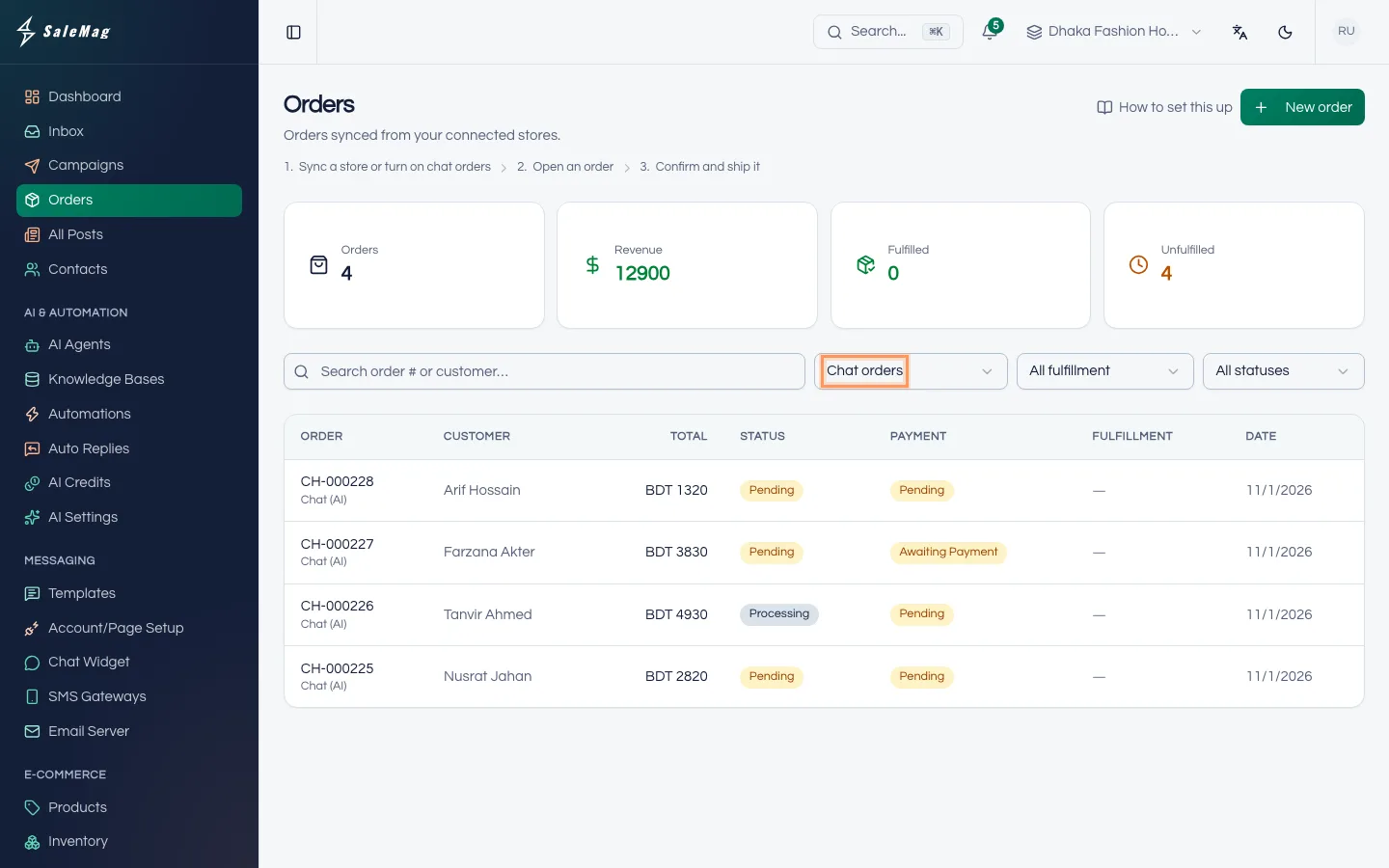
In the left menu, click Orders. Use the filters at the top to find what you need:
- All stores / Chat orders: chat orders are the ones taken by your AI agent or created in SaleMag.
- All statuses: for example, choose Pending to see new orders to confirm.
- All fulfillment / Fulfilled.
- The search box: type an order number or a customer's name.
Step 2 — Open an order
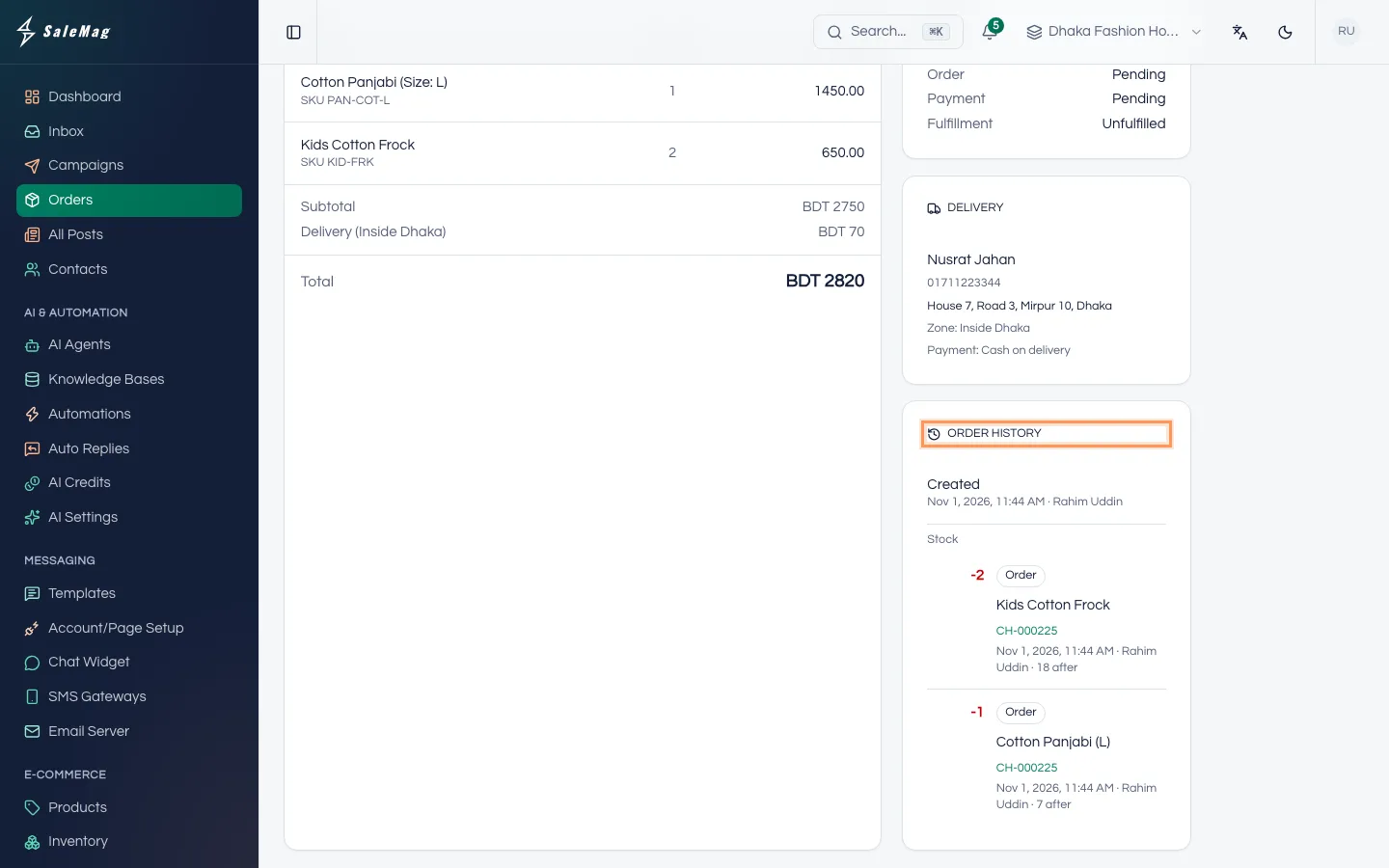
Click an order. The order page shows the items, a Status card, the Delivery details (name, phone, address, zone, payment method), a Payment card, the Order history and the Customer card. The buttons at the top change with the order's status.
Step 3 — Confirm the order
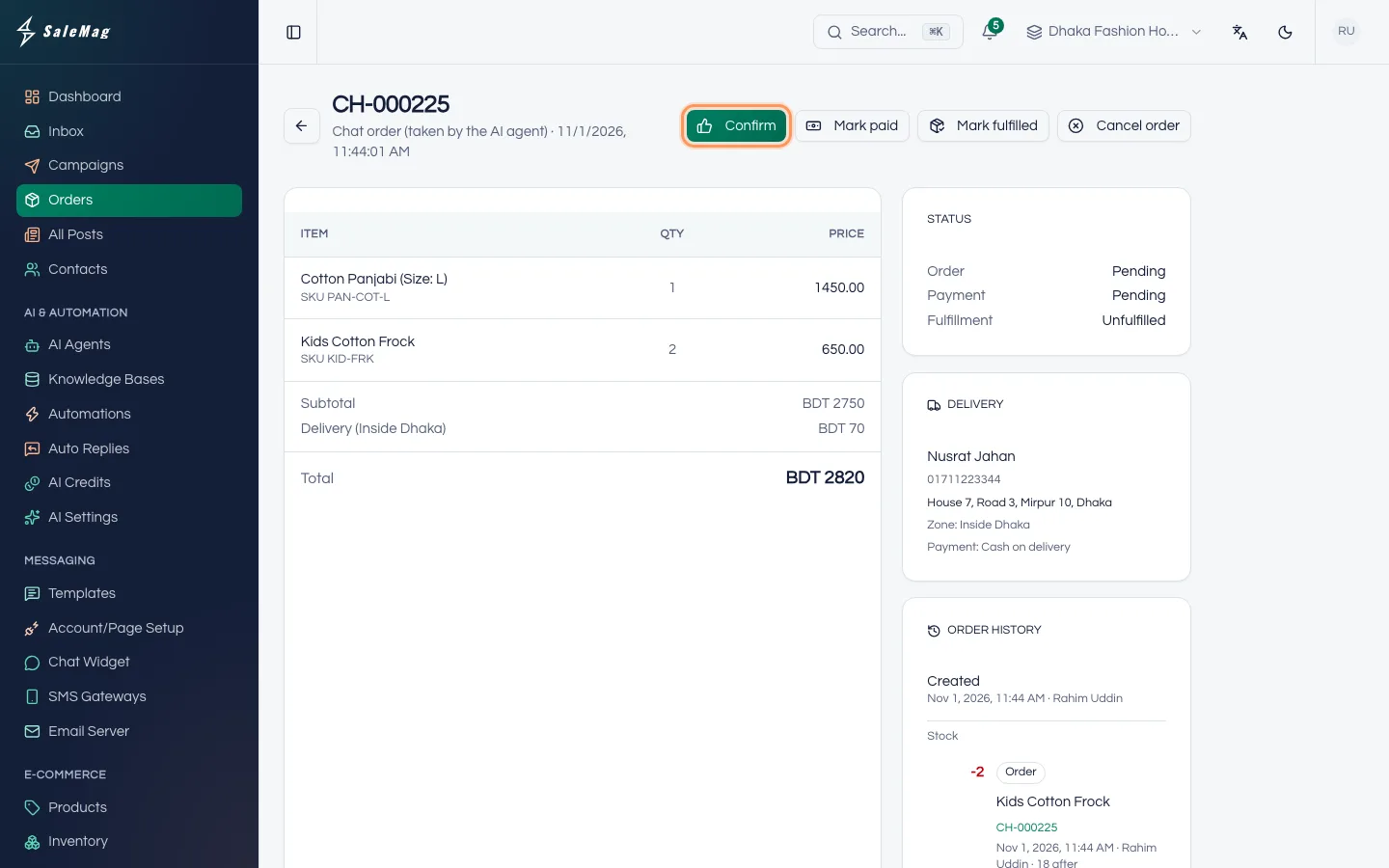
Check the items, the address and the phone number. If you need to, call the customer. Then click Confirm. The status changes to Processing.
Warning: If you set Cancel unconfirmed cash-on-delivery orders after (hours) in Delivery & shop settings, cash-on-delivery orders that are not confirmed in time are cancelled on their own.
Step 4 — Verify a bKash or Nagad payment
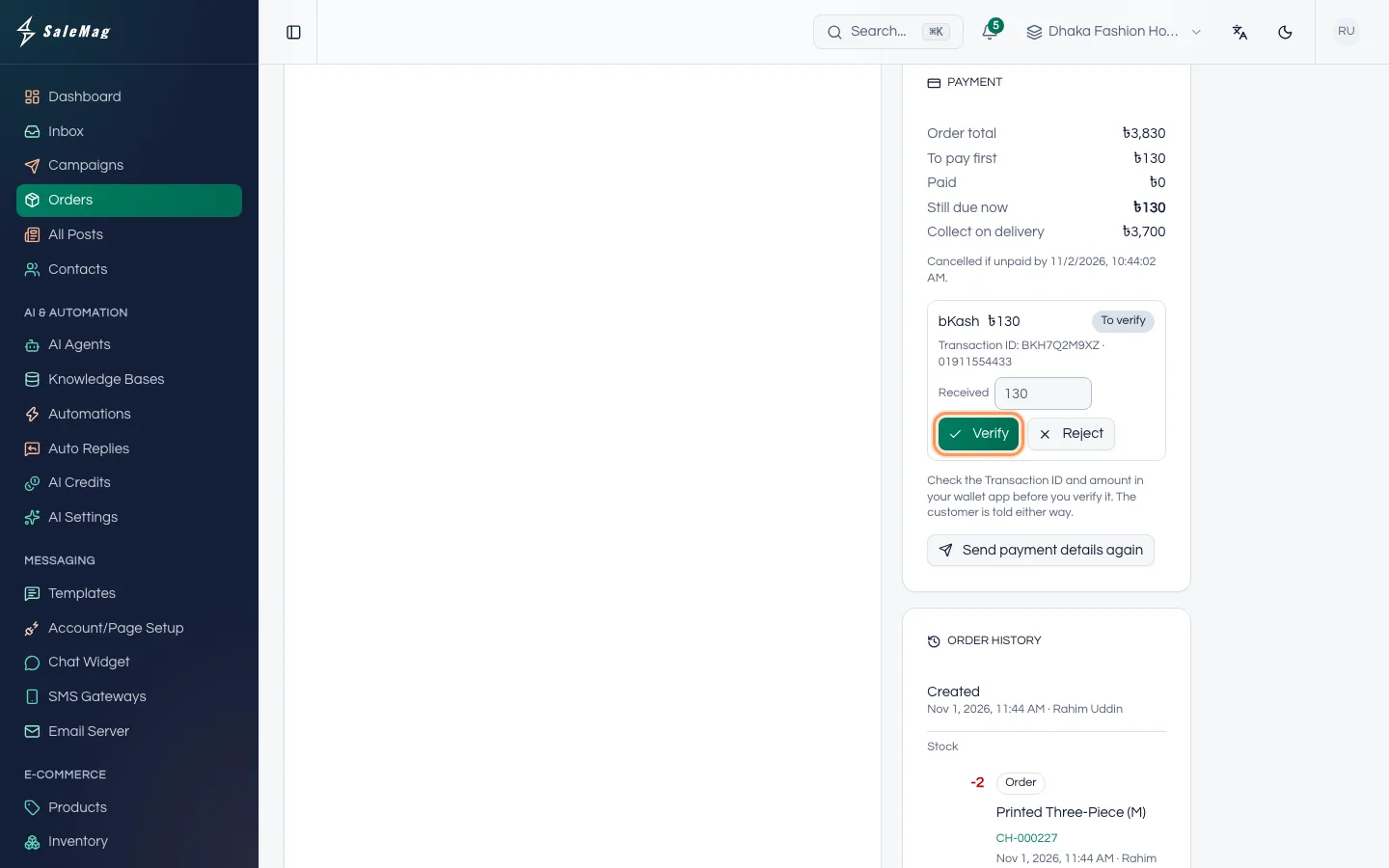
When a customer pays an advance or the full amount to your wallet number, they send the Transaction ID in chat. It appears in the order's Payment card with the badge To verify, showing the wallet, the amount and "Transaction ID: …".
- Open your bKash, Nagad, Rocket or Upay app and find that Transaction ID.
- Check the amount. In Received, type what really arrived if it is different.
- Click Verify if the money is there, or Reject if it isn't.
The customer is told either way. After a reject, they are asked to check the Transaction ID. If the customer still owes money, Send payment details again sends them your payment details once more.
Payments through SSLCommerz or the bKash Payment Gateway are marked paid on their own.
Step 5 — Ship it and add the tracking
SaleMag does not book couriers. Book the parcel with your courier as usual, then:
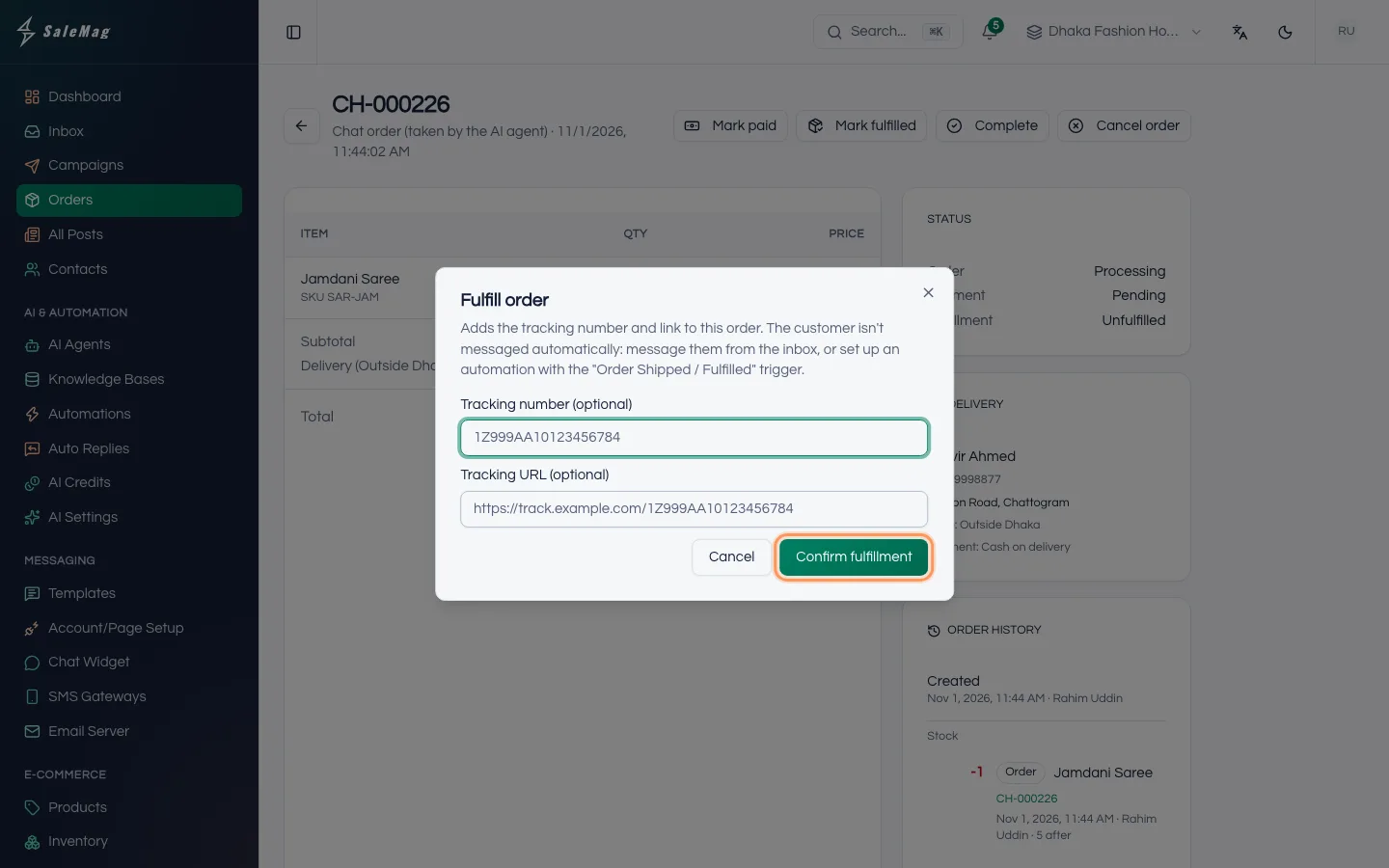
- Click Mark fulfilled.
- Paste the Tracking number (optional) and the Tracking URL (optional) from your courier.
- Click Confirm fulfillment.
The order shows as fulfilled. If you added a tracking URL, a Track shipment link appears in the Status card.
Step 6 — Tell the customer it has shipped
SaleMag does not message the customer when you click Confirm or Mark fulfilled. To let them know:
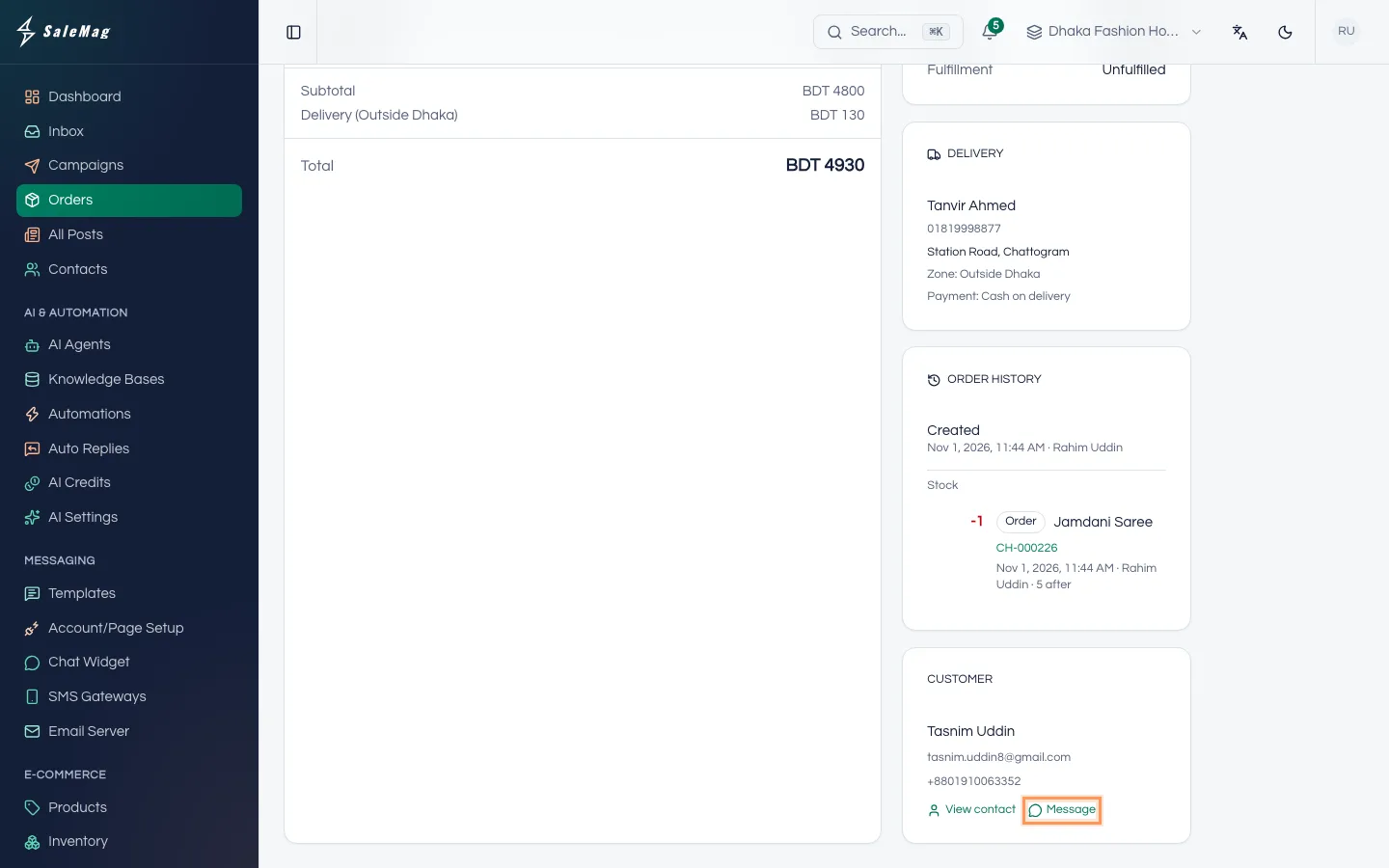
- In the Customer card, click Message. The customer's chat opens in the inbox.
- Send a short message with the tracking link.
When you reply in a chat yourself, the AI agent turns off for that chat until someone turns it back on. See AI on/off and human handover. If the AI agent is on in a chat and the customer asks where their order is, it can share the tracking link you saved. You can also send shipping messages with an automation that uses the Order Shipped / Fulfilled trigger, under AI & Automation → Automations.
Step 7 — Mark it paid and complete it
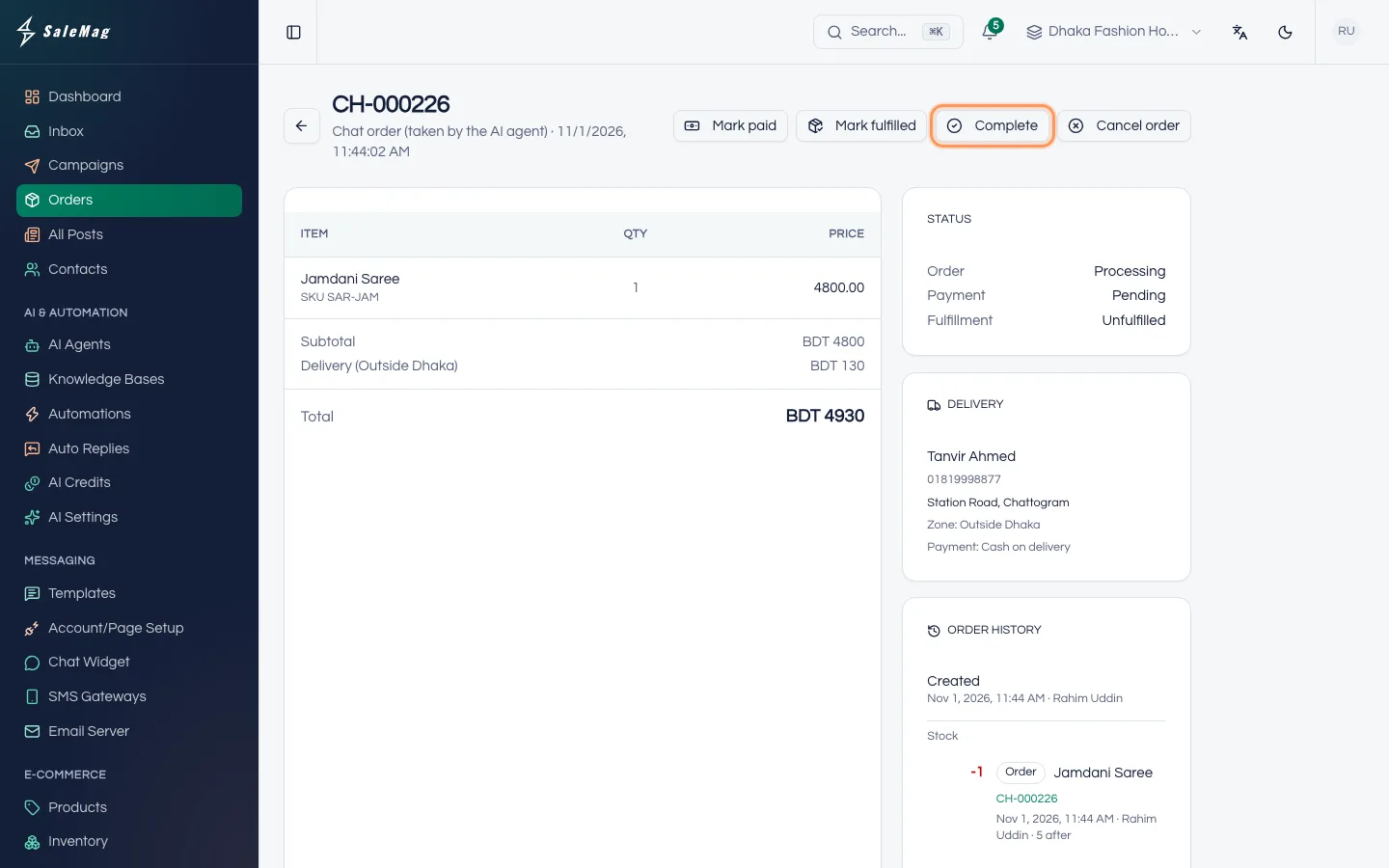
For cash on delivery, click Mark paid when your courier pays you. This records the whole order as paid.
When the customer has the parcel, click Complete. The status changes to Completed.
Step 8 — Create an order yourself
Use this when a customer orders by phone, or in a chat where you took the order yourself.
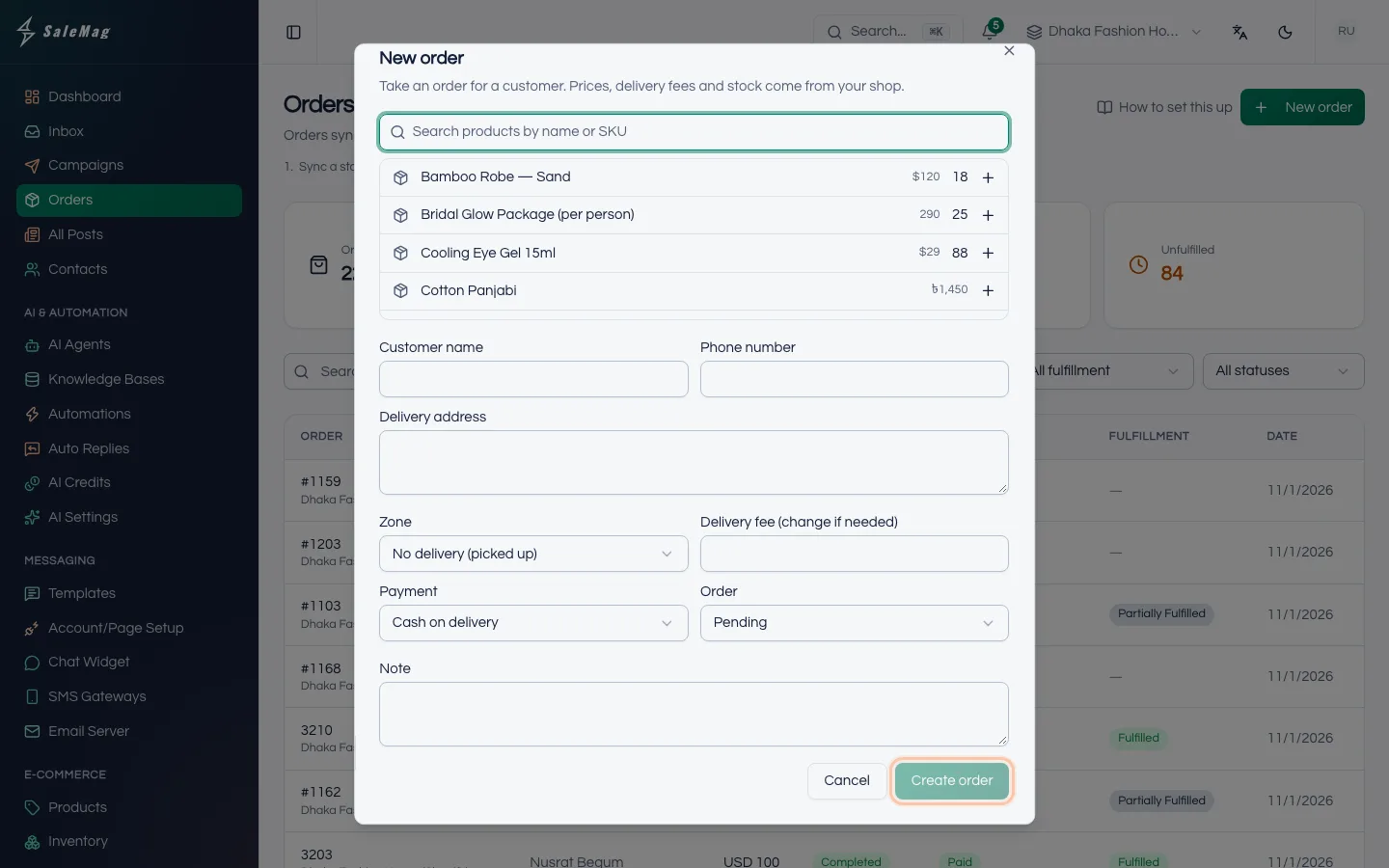
- On the Orders page, click New order. From a chat, open the Orders tab and click New order there instead.
- Under Search products by name or SKU, find each product, choose its options and the quantity.
- Fill in Customer name, Phone number and Delivery address.
- Choose the delivery Zone, or No delivery (picked up). Managers can also change Delivery fee (change if needed).
- Choose the Payment option and the Order status: Pending or Processing.
- From a chat, tick Send the order confirmation to the customer's chat if you want SaleMag to send it.
- Click Create order. You see "Order … created."
Prices, delivery fees and stock come from your shop.
Cancel an order or record a return
Before it ships: click Cancel order, then Cancel order again to confirm (or Keep order to go back). The stock goes back. The customer is not messaged, so tell them yourself. To undo, click Reopen order.
After it ships: click Record return and type how many of each item came back.
- If everything came back, choose Put the stock back now if the parcel is with you, or Put the stock back later if it is still on the way. With "later", the order shows Returned, waiting to restock. When the parcel arrives, click Put stock back.
- If only some items came back, they go back into stock now and the order stays as it is.
Orders from your online store
Orders from Shopify, WooCommerce or BigCommerce show your store's name. Manage them in your store. In SaleMag you only have Refresh, to get the latest details, and Mark fulfilled, which also marks the order shipped in your store.
What happens next
The order's Order history shows when it was created, cancelled, returned, restocked or reopened, and by whom, plus every stock change it caused. All stock changes are also listed on the Inventory page. To see how your AI agent takes orders in the first place, read take orders in chat.
If something goes wrong
"This order can no longer be changed that way.": someone else changed the order at the same moment. Refresh the page and look at its status.
"This order has shipped. Record it as returned instead of cancelling it.": use Record return, not Cancel.
"Not enough stock to reopen this order.": the items were sold meanwhile. The message lists how many are left. Add stock on the Inventory page, or create a new order.
I don't see Verify and Reject: only Administrators and Managers can verify payments.
"The store rejected the fulfillment: …": your online store refused the change. Mark the order shipped in your store instead. For Shopify, check that your app has write access to orders and fulfillments.
Frequently asked questions
Does the customer get a message when I click Confirm or Mark fulfilled?
No. Send the customer a message yourself from the inbox, for example with the tracking link. If the AI agent is on in that chat and the customer later asks where their order is, it can share the tracking link you saved.
Can SaleMag book my courier?
No. Book the parcel with your courier as usual, then paste the tracking number and tracking link into Mark fulfilled.
What happens to stock when I cancel an order?
The stock goes back straight away. If you reopen the order later, it takes the stock again, as long as enough is left.
Can a Chat Agent take an order for a customer?
Yes. Chat Agents and Moderators can create orders with New order. Confirming, verifying payments, shipping and cancelling need the Administrator or Manager role.
Why can't I confirm an order from my Shopify or WooCommerce store?
Store orders are managed in your store. In SaleMag you can only click Refresh to get the latest details, or Mark fulfilled to mark the order shipped in your store.
Was this article helpful?