Before your AI agent talks to real customers, chat with it yourself. This guide shows how to test it in the Playground, read what each reply tells you, fix weak answers, and switch it on safely. At the end your AI agent is live and you know what to watch in the first days.
Step 1 — Open the Playground
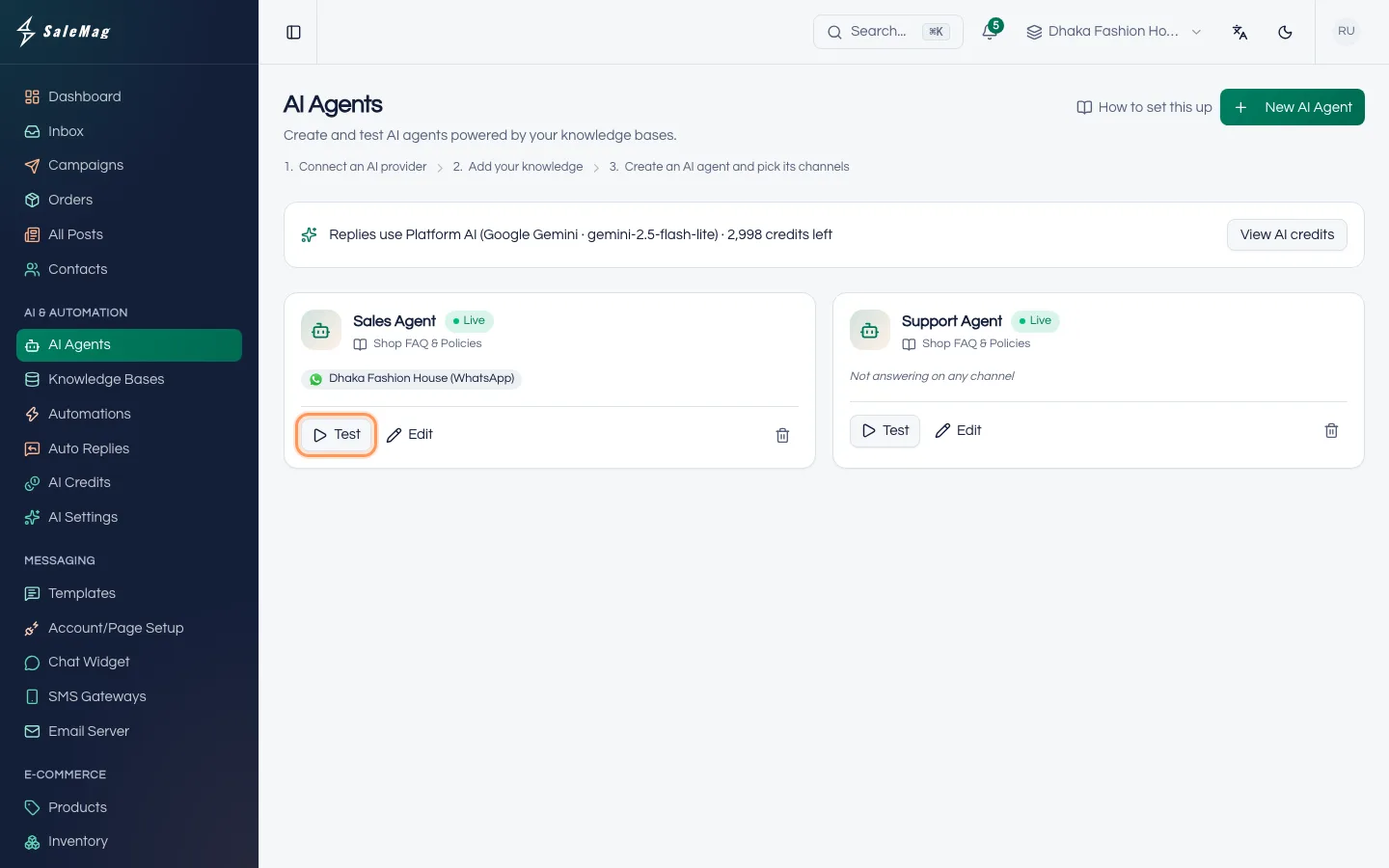
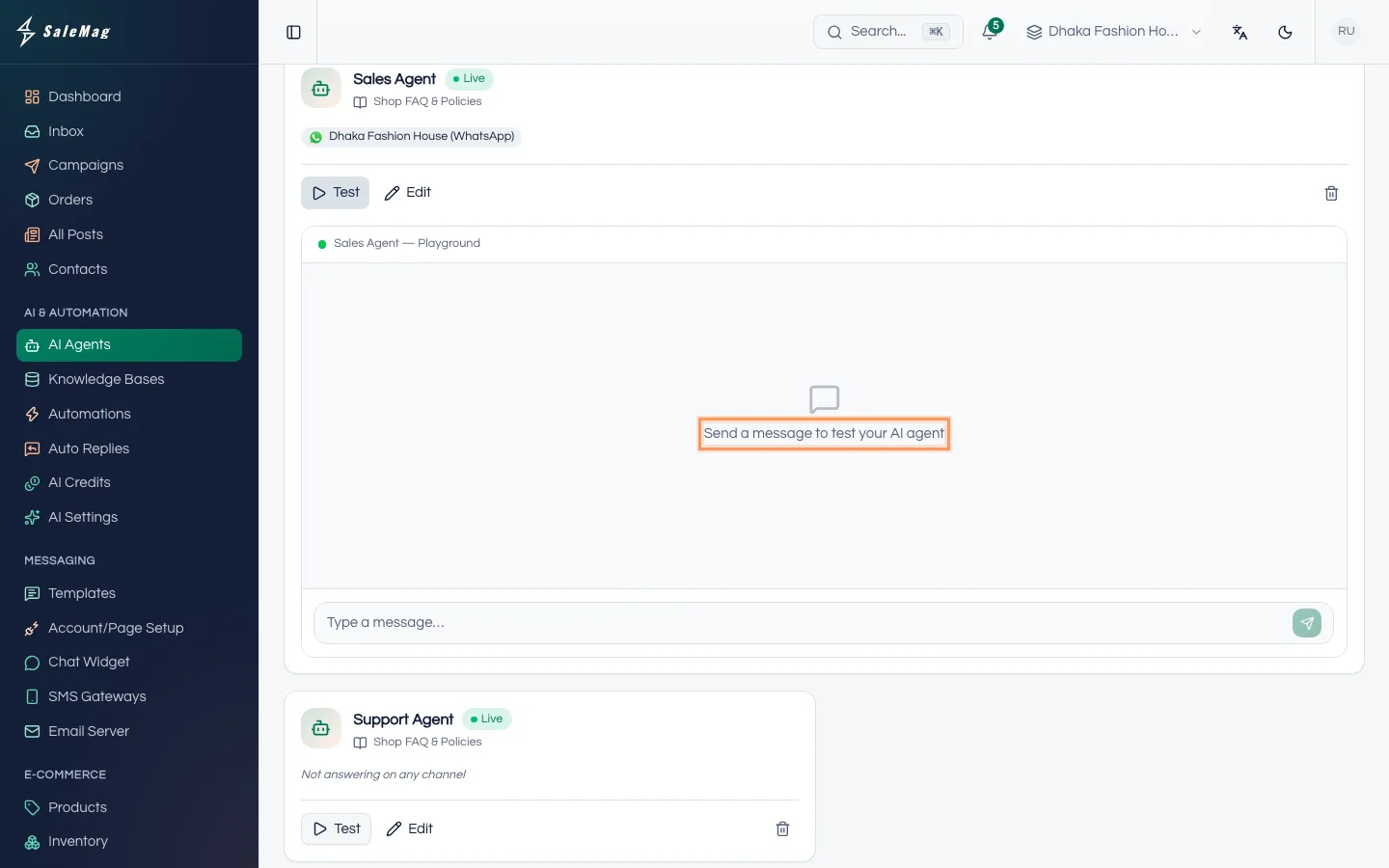
In the left menu, go to AI & Automation → AI Agents. On your AI agent's card, click Test. A chat panel opens under the card with the title "… — Playground".
Nothing you type here is saved, and no customer sees it. If the AI agent is Off, a yellow note says "This AI agent is off. Testing still works here, but customers don't get replies."
Step 2 — Ask what your customers ask
The panel says "Send a message to test your AI agent". Type a message and press Enter. Write the way your customers really write. Try these:
- Bangla: "ঢাকার বাইরে ডেলিভারি চার্জ কত?"
- Banglish: "apu ei kurti ta L size e ache?"
- English: "Do you deliver to Chattogram? How many days?"
- Price: "Black three-piece er dam koto?"
- Returns: "Size na mille change kora jabe?"
- Something you never wrote down: "Do you have a shop in Sylhet?" It should hand over or send your fallback message, not guess.
- If order taking is on: "2 ta black kurti L size nibo".
It should reply in the language of each question. Prices must match your products exactly.
Step 3 — Read the line under each reply
Under each reply, small text tells you what happened:
- Model and tokens: which AI answered and how big the reply was.
- "Sources: …": the knowledge base documents the answer came from. No sources line means the answer came only from your instructions or shop information.
- "Would hand over to a human": in a real chat, this conversation would move to your team now.
- "Test order … — not saved": the AI agent placed a practice order. "Test order: waiting for YES" means it sent the summary and waits for you to confirm. Click Reset order to start the order again.
- Red text, "The AI provider didn't answer, so this is the fallback message.": check your AI settings or credits.
Click Clear to start a new chat.
Step 4 — Fix weak answers
When an answer is wrong or missing:
- Wrong or missing fact (a price, a delivery time, a policy): add it to the knowledge base, for example as an FAQ in Bangla and English. See train your AI agent.
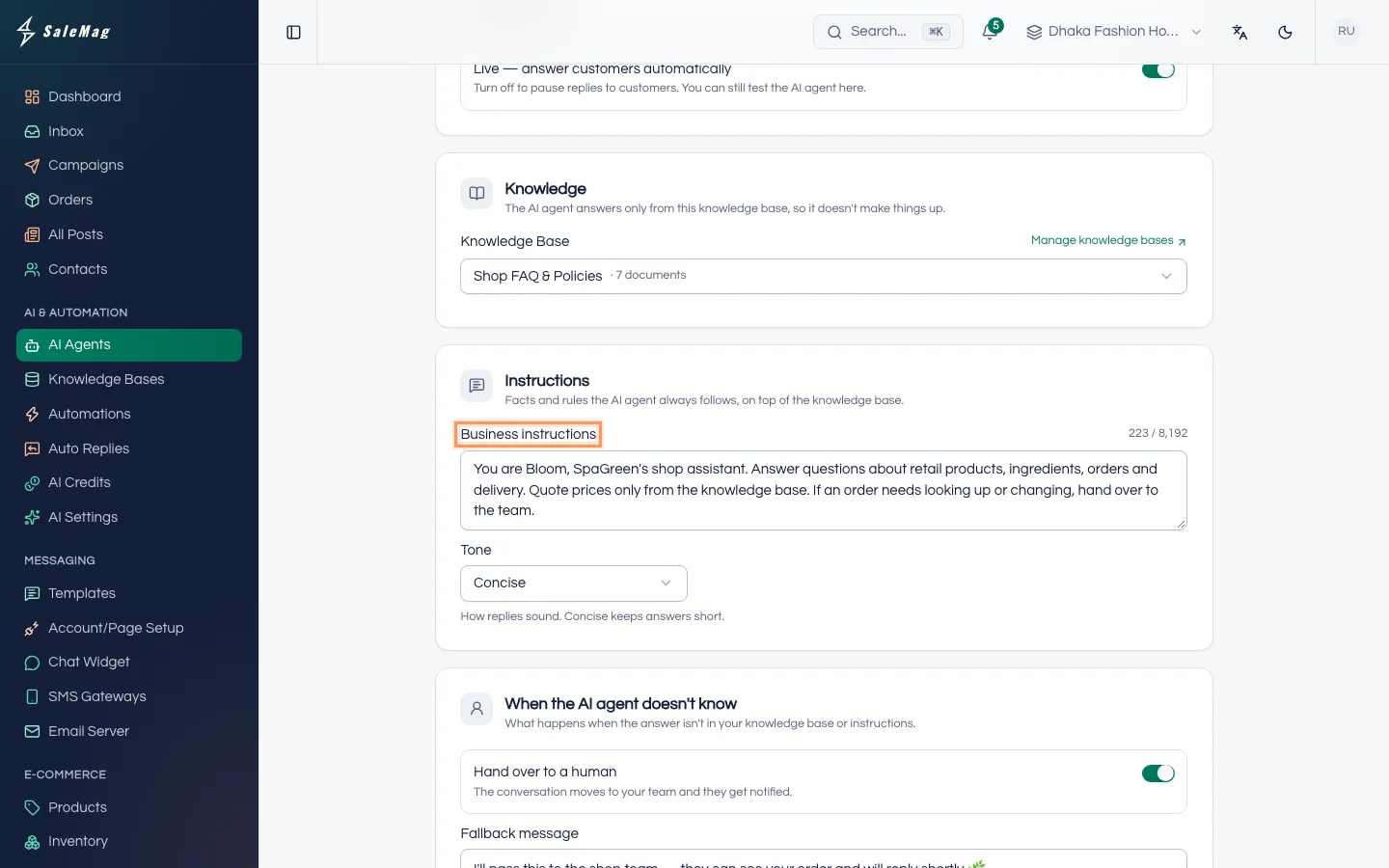
- Wrong behaviour (too long, too pushy, promises a discount): click Edit on the AI agent and add a rule to Business instructions, such as "Never promise free delivery." Or change the Tone. Click Save Changes.
Then open Test again, click Clear and ask the same question. Repeat until the answers are right.
Step 5 — Turn on Live and tick your channels
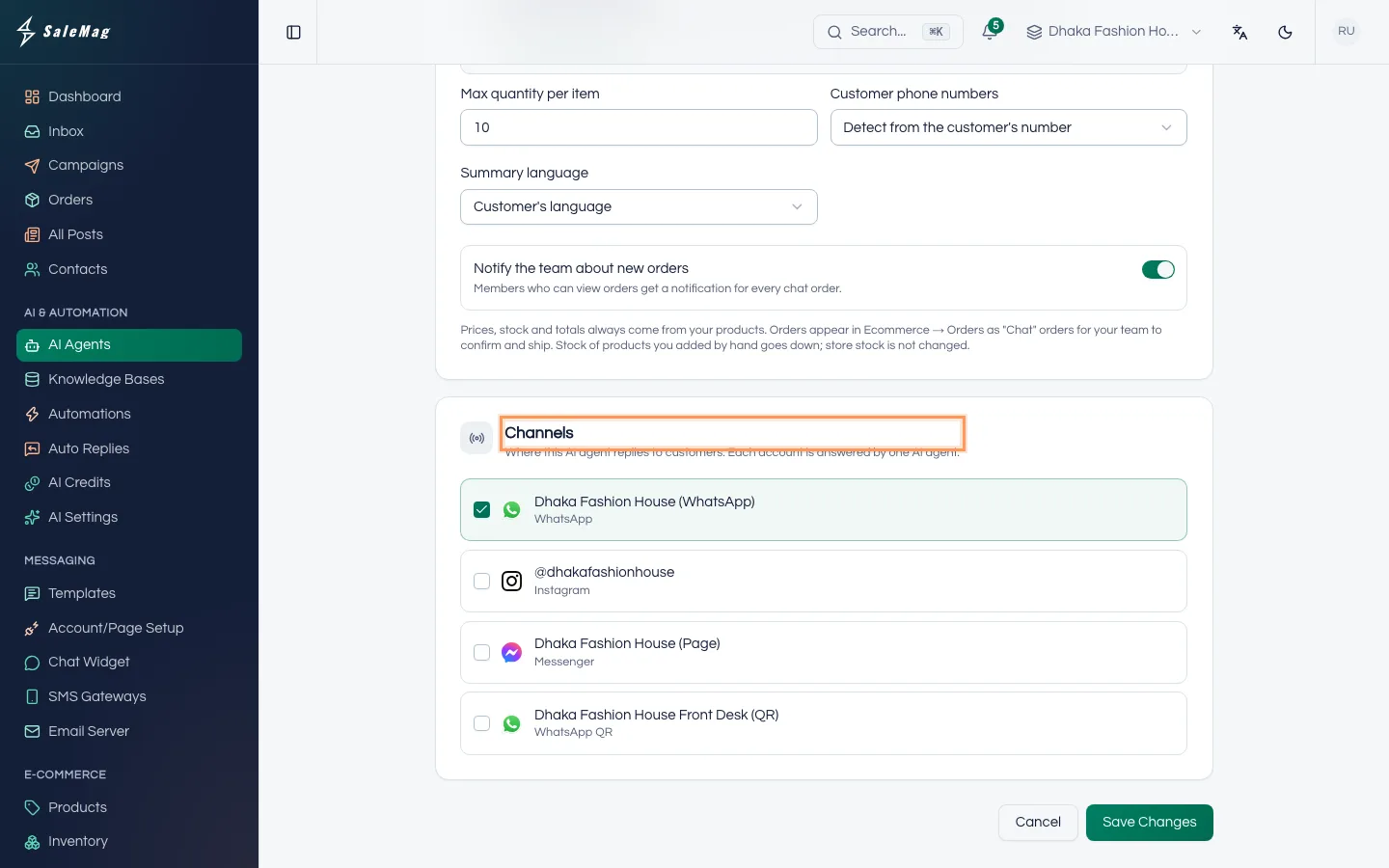
Click Edit on the AI agent and check two things:
- In Basics, Live — answer customers automatically is on.
- In Channels, the WhatsApp number, Facebook Page or Instagram account it should answer is ticked.
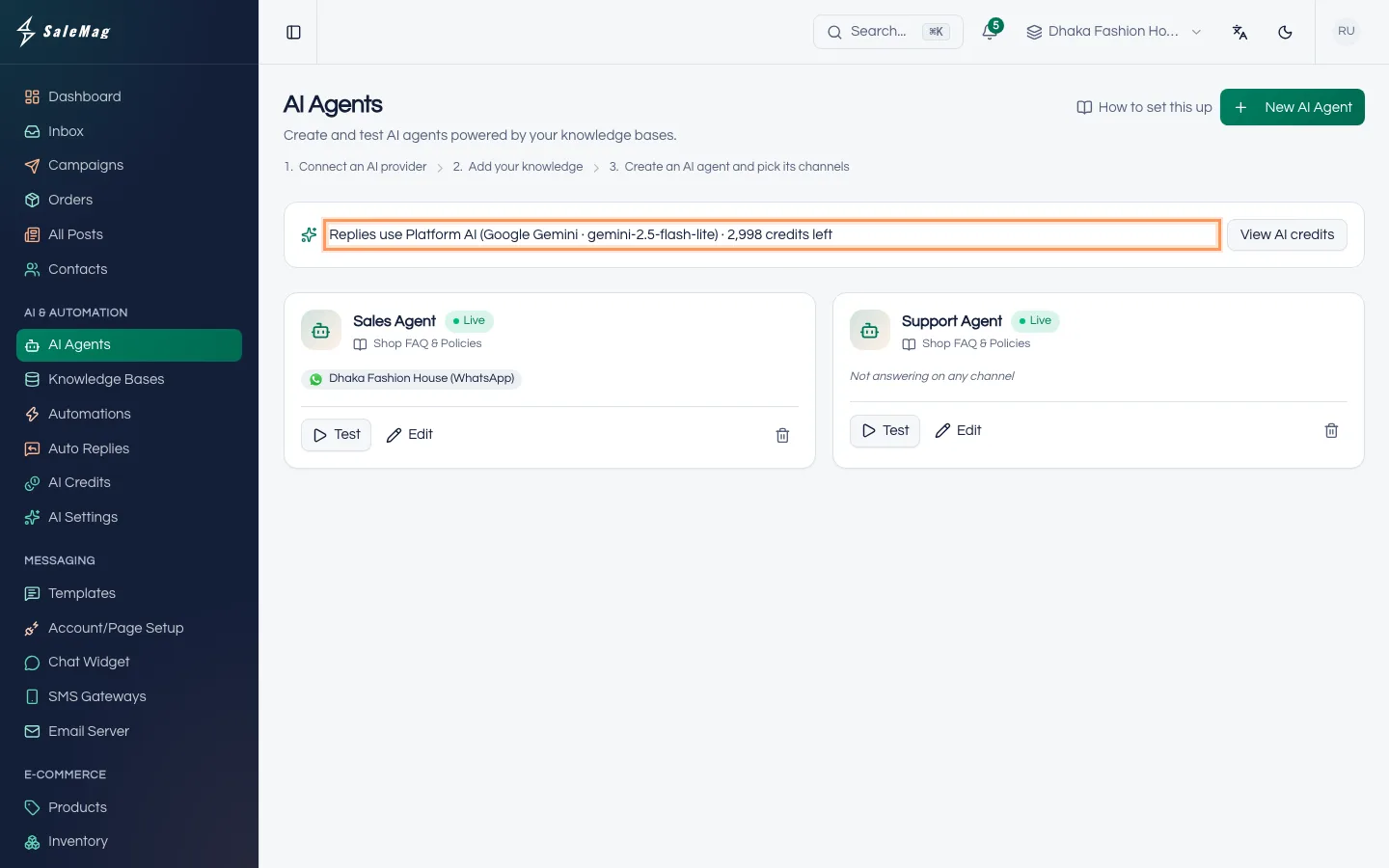
Click Save Changes. The card now shows Live and the channel names. If it says "Not answering on any channel", no channel is ticked.
Step 6 — Check the AI can pay for replies
On the AI Agents page, read the line under the title:
- "Replies use Platform AI … · N credits left": you use SaleMag's AI credits. A yellow "AI credits are running low" box or a red "You're out of AI credits" box means it's time to top up: click Buy credits.
- "Replies use OpenAI · …" (or another provider): you use your own key. Make sure your account with that provider has money on it.
- "Connect an AI provider so your AI agent can answer": nothing is connected. Click Connect provider.
Also make sure your workspace has an active plan. Without one, the workspace is read-only and has no AI credits. See AI credits and AI settings and plans and billing.
Step 7 — Send real messages from your phone
From a personal phone, message your business WhatsApp number or Facebook Page:
- Ask a simple question in Bangla.
- Send a product photo and ask "eta ache?".
- Send a short voice message.
The AI agent should reply within a few seconds. Then open Inbox in SaleMag and find your chat. Under the photo you see AI saw, under the voice message Transcript: what the AI understood.
Go-live checklist
- The Playground answers your top 10 questions correctly, in Bangla and English.
- Live is on, and the right channels are ticked.
- AI credits or your own key are in place, and your plan is active.
- Hand over to a human is on, so unsure chats reach your team.
- If you take orders, a test order worked: see take orders in chat.
What happens next
For the first few days, open the Inbox a few times a day:
- Read the AI agent's replies. When one is wrong, add the missing fact to the knowledge base the same day.
- Answer chats the AI agent handed over. They wait for a person to reply.
- When someone on your team replies in a chat, the AI turns off for that chat until someone turns it back on. Learn how in AI on/off and human handover.
Read more about the inbox in use the inbox.
If something goes wrong
"Your plan's monthly AI token limit has been reached. Upgrade to keep testing.": your plan's AI limit for this month is used up. Upgrade your plan, or wait for next month.
"Something went wrong. Check your AI provider settings.": the AI key isn't working. Check AI & Automation → AI Settings.
The AI agent doesn't reply to your phone: check the card shows Live and your channel. Then open the chat in the Inbox: if someone on your team replied there, the AI is off for that chat. Turn it back on.
Voice messages go to your team instead of an answer: voice needs an OpenAI or Gemini key, or Platform AI.
Every answer says it will connect you with the team: the AI agent has nothing to answer from. Link a knowledge base or write business instructions.
Frequently asked questions
Do Playground tests cost anything?
Each test reply is a real AI call. On Platform AI it uses AI credits, listed as "Playground tests" on the AI Credits page. With your own key, your provider bills you. Your plan's monthly AI token limit also applies to tests.
Can I test an AI agent that is Off?
Yes. The Playground works when the AI agent is Off, and customers don't get replies while it is Off.
Can I send a photo or voice message in the Playground?
No, the Playground takes typed messages only. To test photos and voice messages, send them from your own phone to your connected number or Page.
Does a test order create a real order?
No. The Playground shows "Test order … — not saved". Nothing appears in Orders and stock doesn't change.
I changed the instructions but the Playground still answers the old way. Why?
The Playground uses the saved AI agent. Click Save Changes in the editor, go back to AI Agents, click Test and then Clear to start a fresh chat.
Was this article helpful?