Give every person who helps with your business their own SaleMag login. You choose a role for each person, and the role decides which menus they see and what they can change. At the end of this guide your teammates will be able to log in and work in your workspace.
Step 1 — Open the Team page
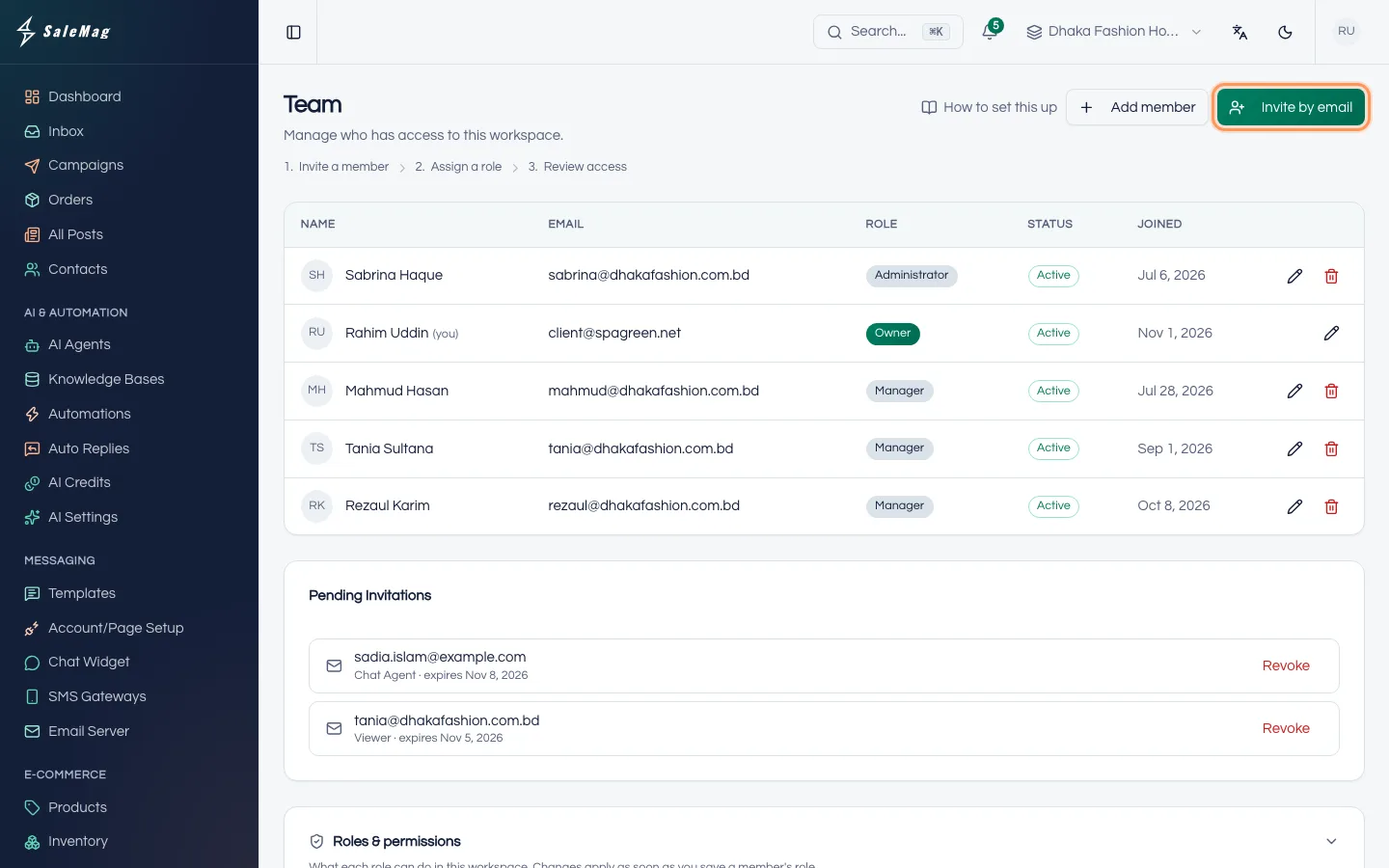
In the left menu, go to Workspace → Team. You see everyone who has access to this workspace, with their role and status.
Step 2 — Send an invitation
Press Invite by email. In the Invite by Email box:
- Type the person's Email address.
- Choose a Role. A short line under the list explains what the role can do. The usual choice for staff who answer customers is Chat Agent.
- Press Send Invitation.
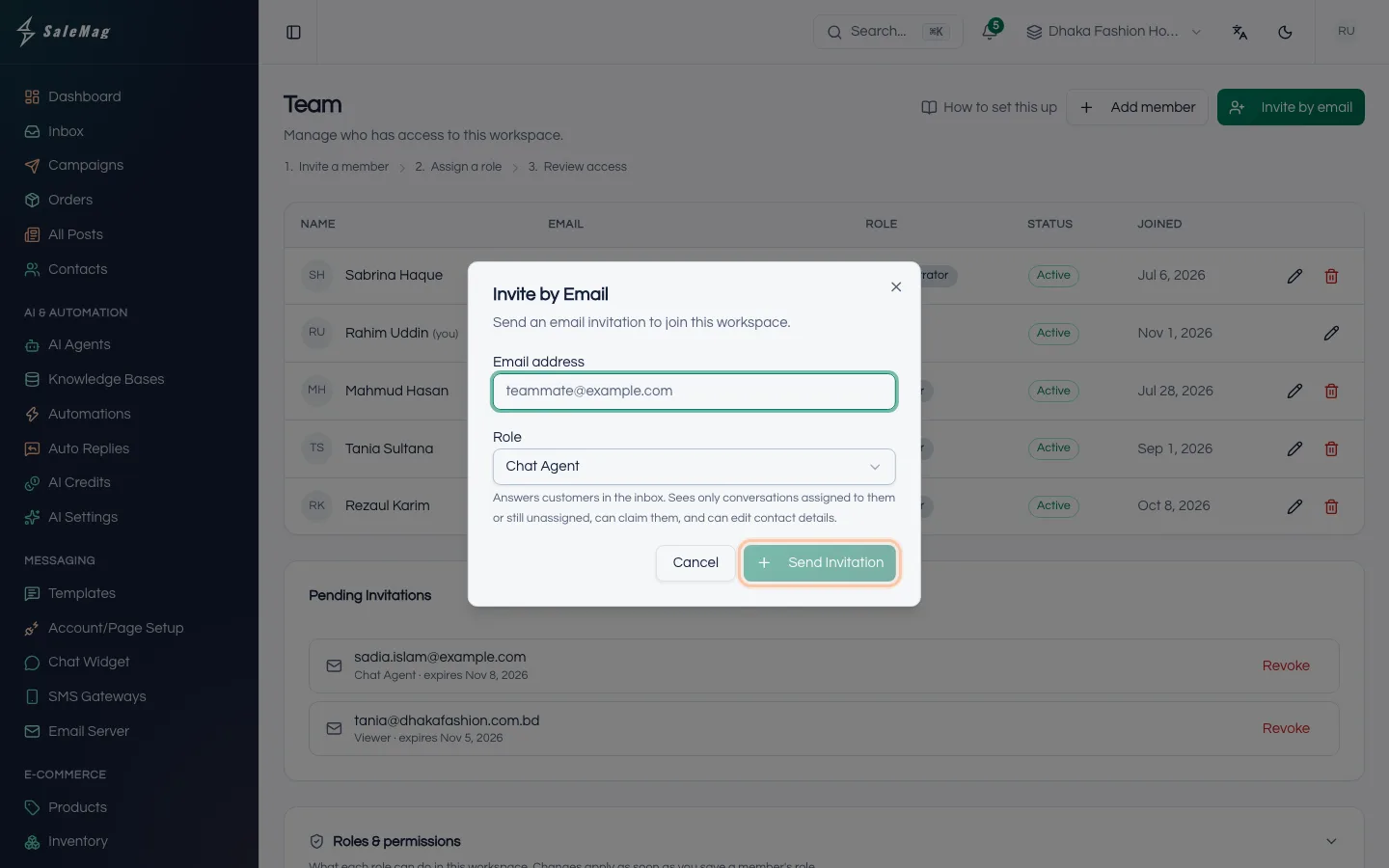
You will see "Invitation sent to …", and the email appears under Pending Invitations.
Step 3 — Your teammate accepts
Your teammate gets an email from SaleMag. They click the link inside within 7 days. A page opens that says "You're invited!". They fill in Your name, Password and Confirm Password, then press Accept Invitation.
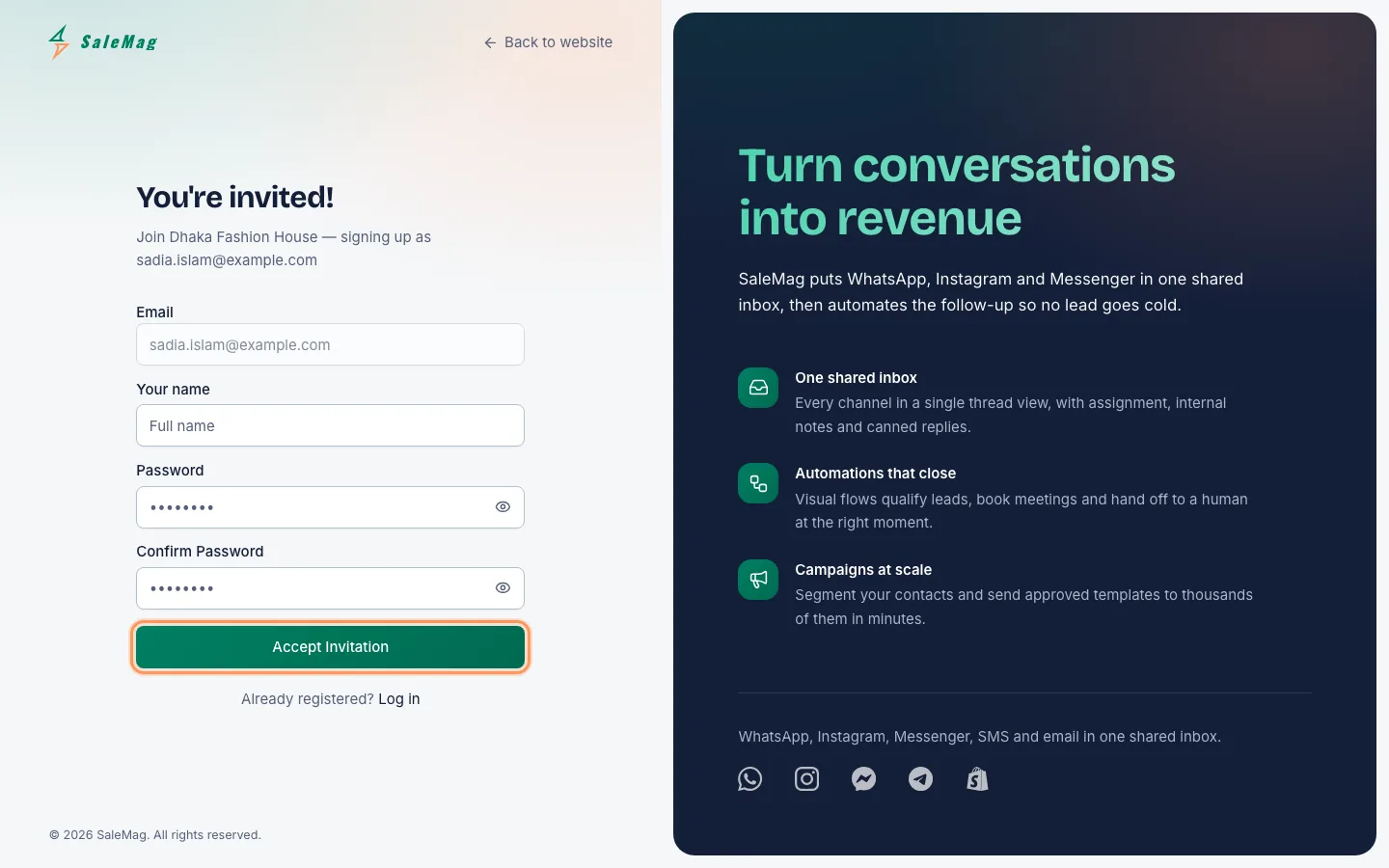
They are logged in straight away and see "Welcome to the team!". Next time, they log in at salemag.net/login with that email and password.
Step 4 — Or add a member with a password
If your teammate can't check email easily, you can create the account yourself. Press Add member and fill in Name, Email address, Password, Confirm password, Role and Status. Press Add member.
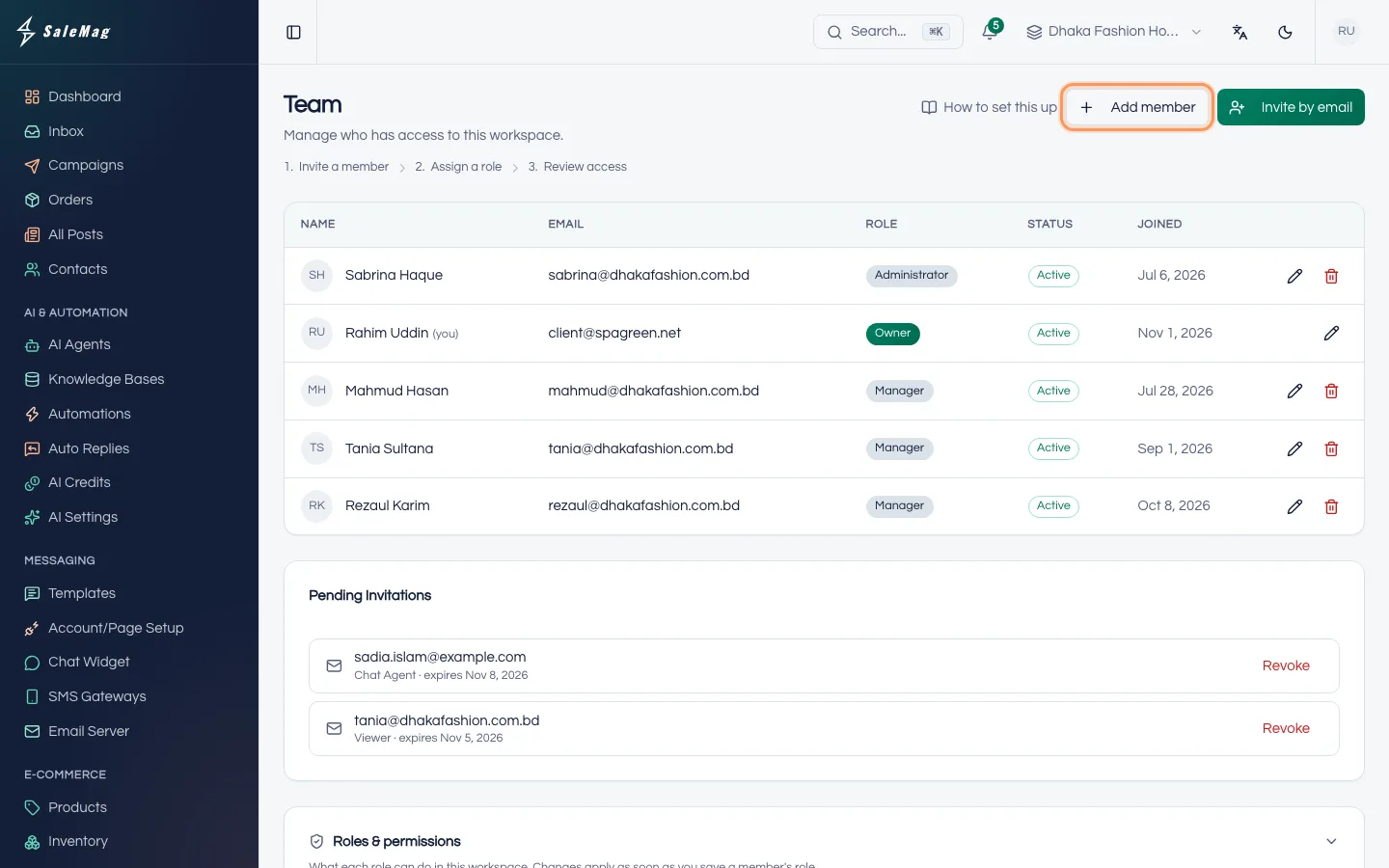
Give the password to your teammate in person or by phone, and ask them to change it under Profile → Password after their first login.
Step 5 — Check pending invitations
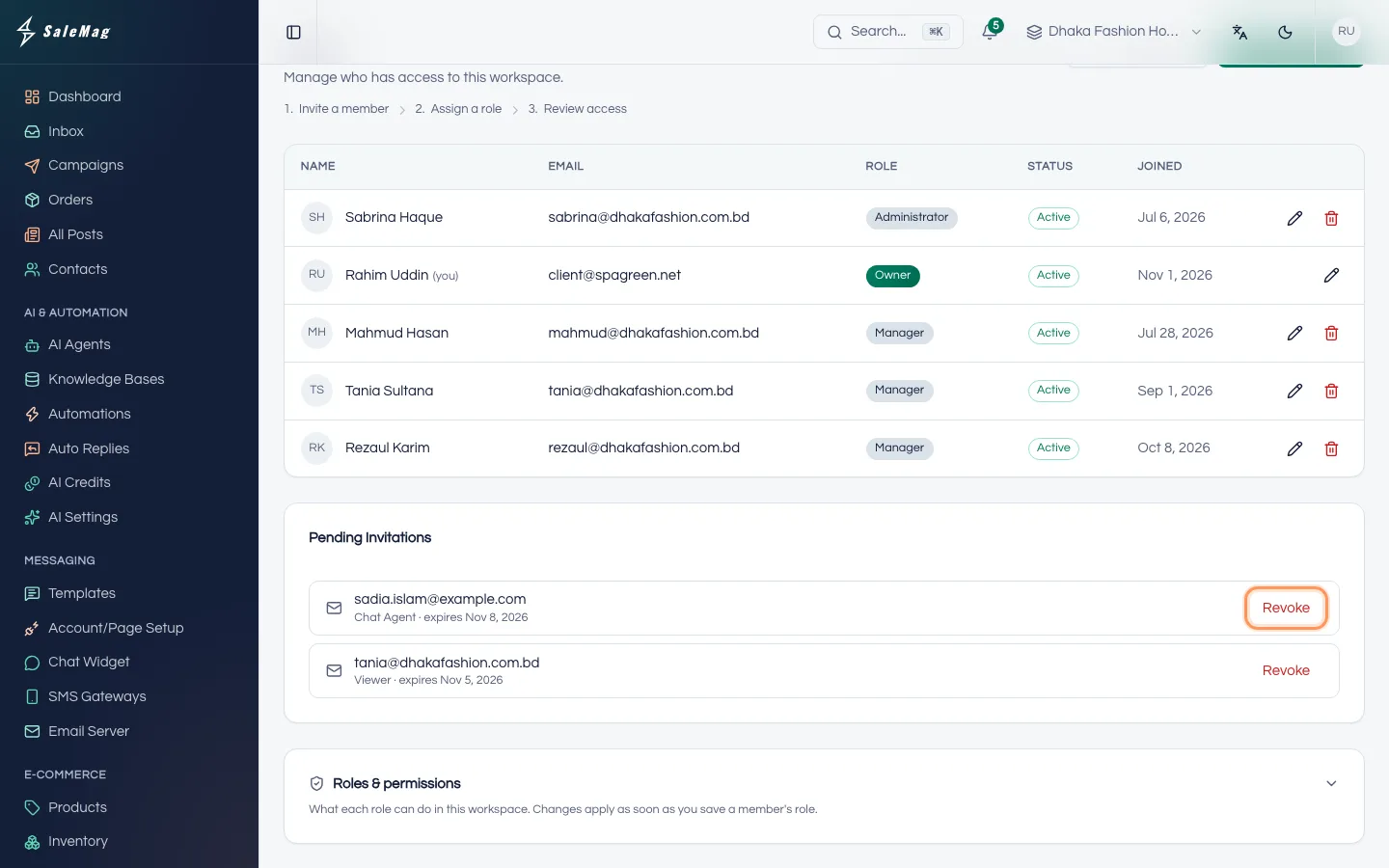
Invitations that are not accepted yet are listed under Pending Invitations, with the role and the expiry date. To cancel one, press Revoke.
Step 6 — Change a role or remove someone
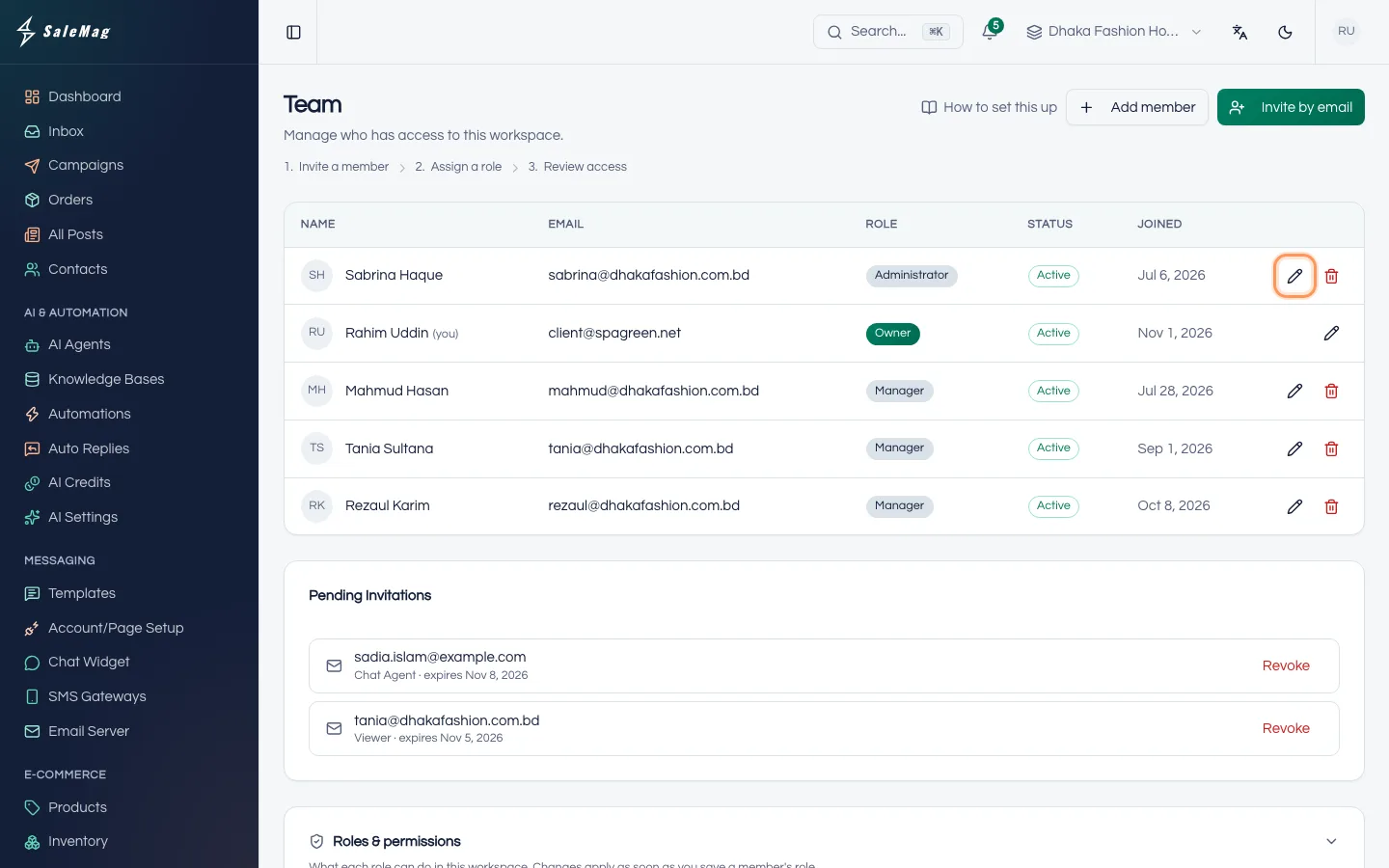
To change a person's role, name, password or status, press the pencil button (Edit member) on their row. Make your change and press Save. Set Status to Inactive to block a login for a while without removing the person.
To take away access for good, press the bin button (Remove member), then press Remove. The person can no longer open this workspace.
The six roles in plain words
The Roles & permissions table at the bottom of the Team page shows every detail. In short:
- Administrator: can do everything, including the team, billing, workspace settings, developer tools and the audit log.
- Manager: runs day-to-day work across every feature and can connect channels and stores. Can't manage the team, billing, workspace settings, API tokens or the audit log.
- Editor: creates marketing content: campaigns, social posts, WhatsApp templates, contacts and segments, media and knowledge bases. No inbox access.
- Moderator: supervises the inbox. Sees and replies to every chat, assigns chats to teammates, and manages labels, canned replies and auto-replies. Can also create orders and view leads and reports.
- Chat Agent: answers customers in the inbox. Sees only chats assigned to them or still unassigned, can take a chat, can edit contact details and can create orders.
- Viewer: can look at contacts, campaigns, posts, automations, store data, leads and reports, but can't change anything or read chats.
The workspace owner always has every permission.
Warning: An Administrator is an administrator of your whole organisation, so they get full access to every workspace you own, not only this one. Give this role only to people you fully trust.
What happens next
Your teammates see only the menus their role allows. Share out chats with the Assign button in the inbox; see use the inbox. Assigning a chat does not stop the AI agent; read turn the AI on or off in a chat to see how a person takes over.
If something goes wrong
"This email is already registered." when you press Add member: that email already has a SaleMag account. Use Invite by email instead.
"An invitation has already been sent to this email.": an invitation is still pending. Press Revoke and send a new one.
"This invitation is invalid or has expired.": the link is older than 7 days, was revoked, or was already used. Send a new invitation.
A teammate added with a password is asked to verify their email: they press Resend Verification Email and click the link in that email.
A teammate can't see the Inbox: Editors and Viewers have no inbox access. Change their role to Chat Agent or Moderator.
Frequently asked questions
Which role should I give a staff member who only answers customers?
Chat Agent. They can reply in the inbox and create orders, but they only see chats assigned to them or not yet assigned. Give Moderator to the person who supervises the inbox and shares out chats.
How long does an invitation link work?
7 days. After that, send a new invitation from the Team page.
Can I resend an invitation?
Not while the old one is still pending. Press Revoke next to it under Pending Invitations, then invite the same email again.
Does the person need their own email address?
Yes. Each person logs in with their own email, so every reply and change in the app shows who did it.
Can a teammate work in more than one workspace?
Yes. Switch to each workspace in the top bar and invite them from its Team page. Administrators already have access to every workspace in your organisation.
Was this article helpful?