This guide shows you how to add a product to SaleMag yourself: its photos, price, stock, sizes and colours. When you finish, your AI agent can answer questions about the product and take orders for it in chat.
If your products are already in a Shopify, WooCommerce or BigCommerce store, you don't need to type them again. Connect your online store instead.
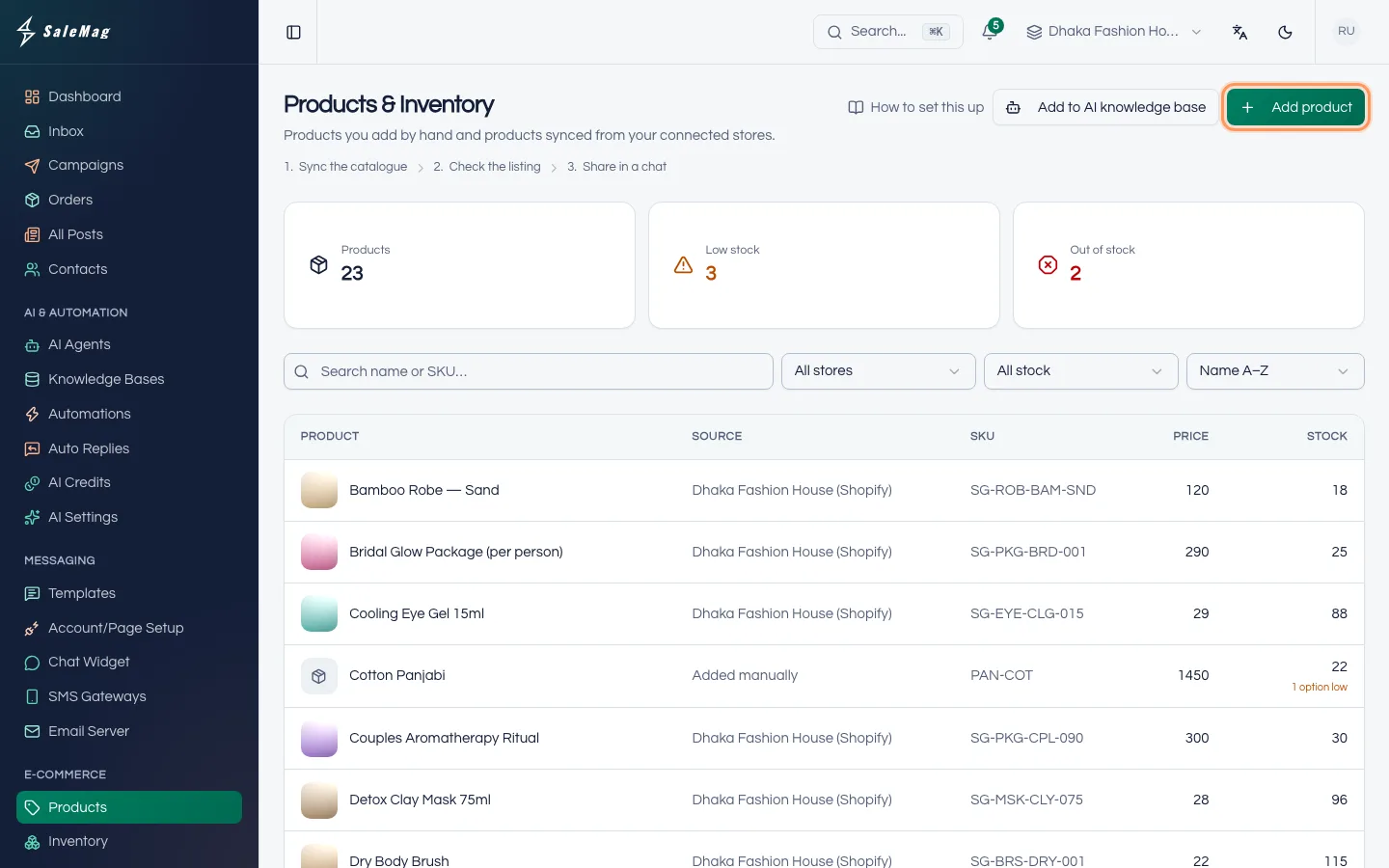
Step 1 — Open the Add product page
In the left menu, go to E-Commerce → Products. Click Add product at the top right.
Step 2 — Write the title and description
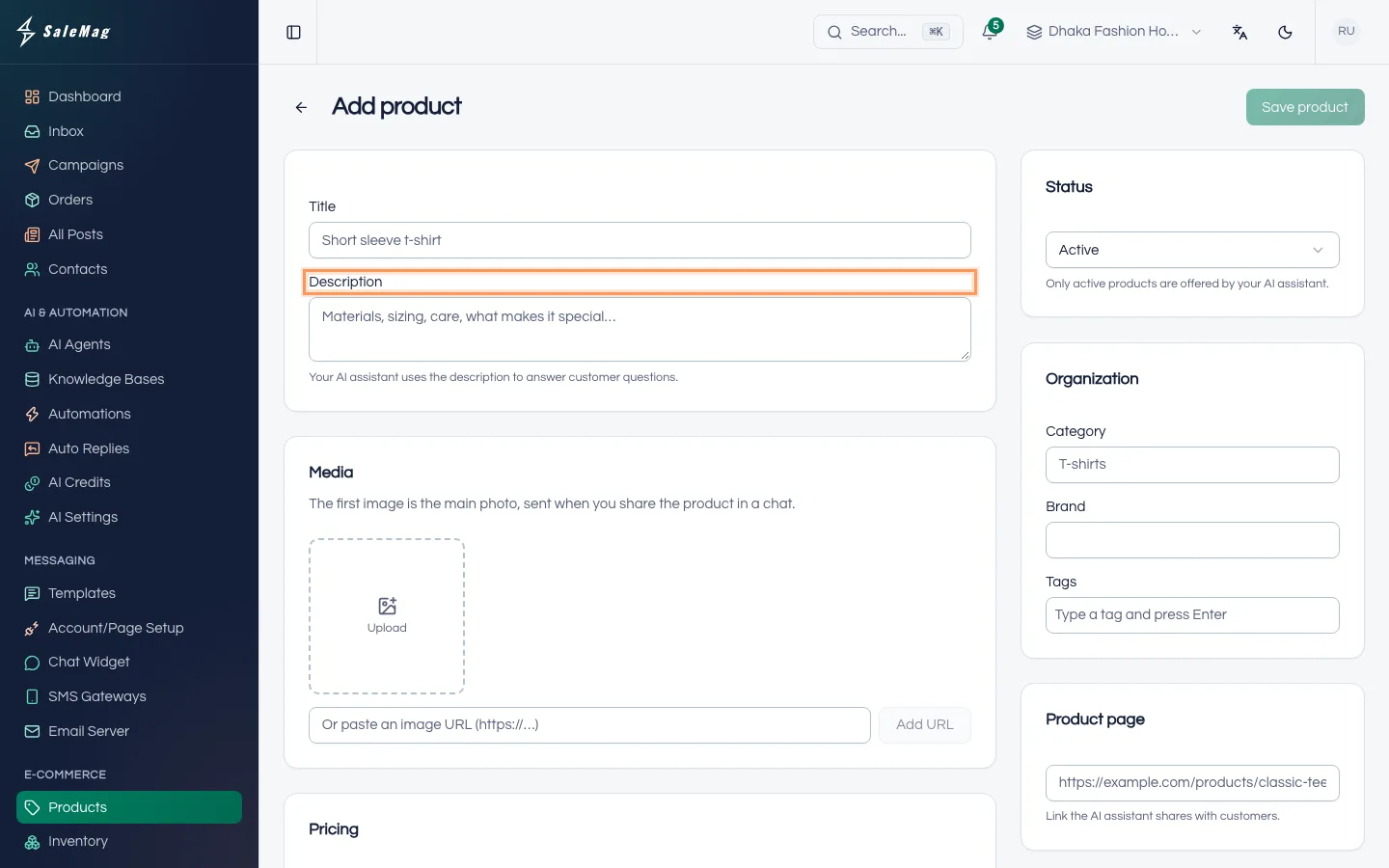
In Title, type the product name the way customers say it, for example "Short sleeve t-shirt".
In Description, write everything a customer might ask: material, sizes, measurements, care, what is special about it. Your AI agent uses the description to answer customer questions, so a good description means fewer chats for you.
Step 3 — Add photos
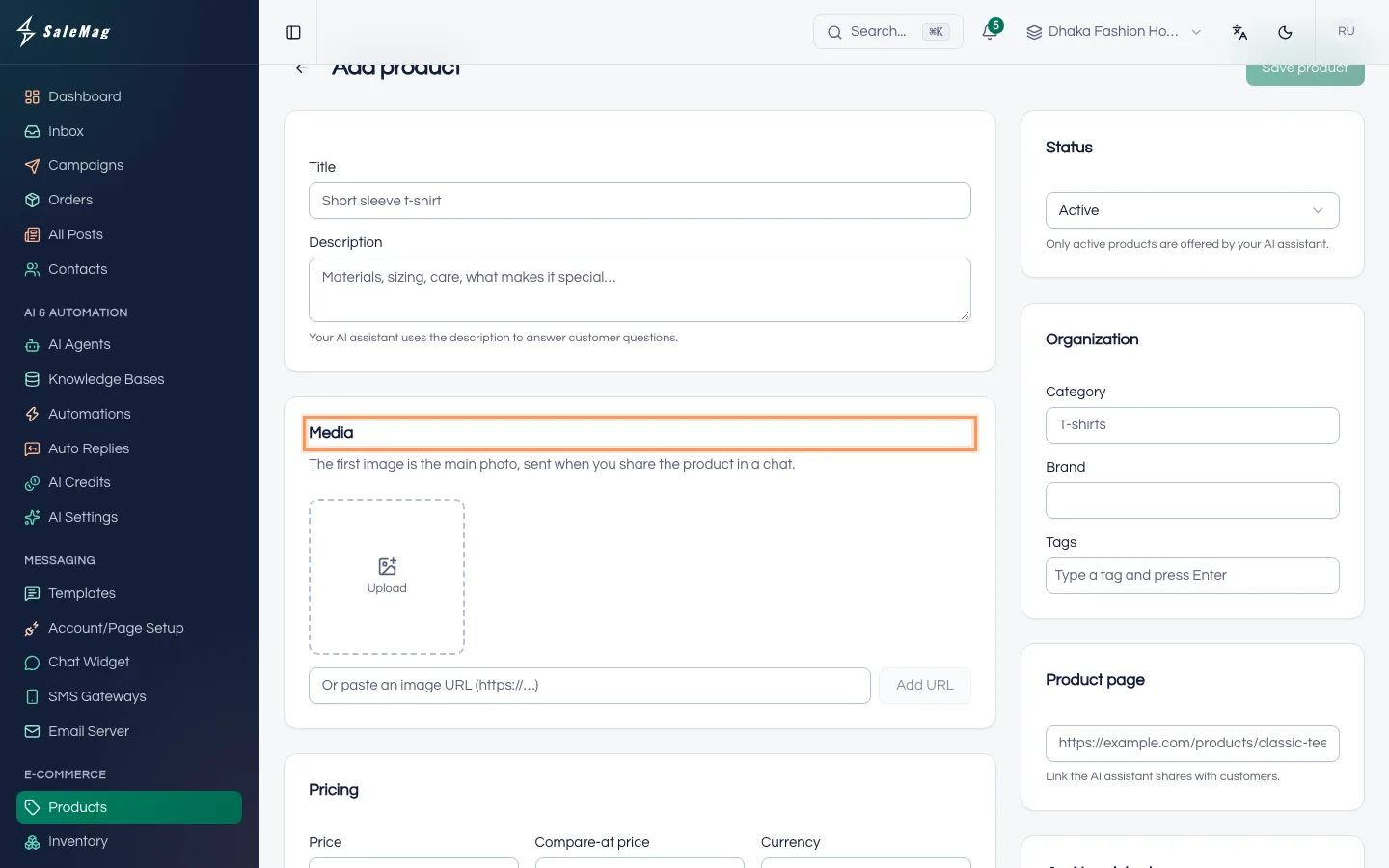
In the Media card, click Upload and choose your photos (PNG, JPG, GIF or WebP). You can add up to 21. You can also paste a photo link in the box below and click Add URL.
The first photo is marked Main. It is the photo that is sent when the product is shared in a chat. To change it, point at another photo and click the star (Make main image).
Step 4 — Set the price
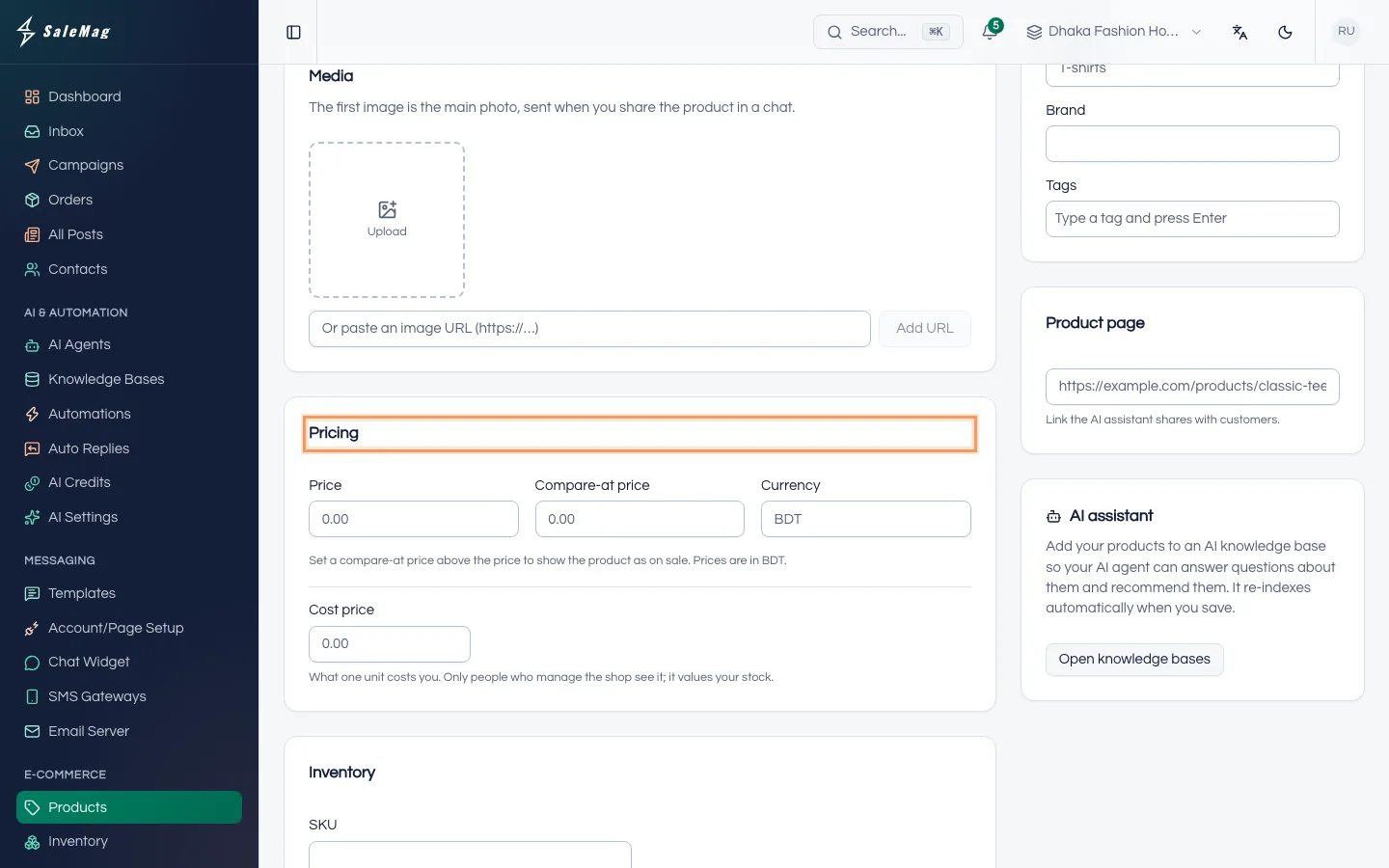
In the Pricing card:
- Price: what the customer pays.
- Compare-at price (optional): the old, higher price. Fill it in to show the product as on sale.
- Currency: leave it empty to use your workspace currency.
- Cost price (optional): what one item costs you. Only people who manage the shop see it. SaleMag uses it to show the value of your stock.
Step 5 — Set the stock
In the Inventory card, turn on Track quantity if you want SaleMag to count your stock. When it is off, the product is always shown as available.
With tracking on, fill in:
- SKU (optional): your own product code.
- Quantity: how many you have now.
- Low-stock level (optional): the number at which the product counts as low on stock. Leave it empty to use the shop's level (5 unless you changed it).
To sell even when stock runs out, turn on Keep selling when out of stock (pre-order). The AI agent then tells customers it is a pre-order. Write what they should expect in Pre-order note for customers, for example "Ships in 7–10 days".
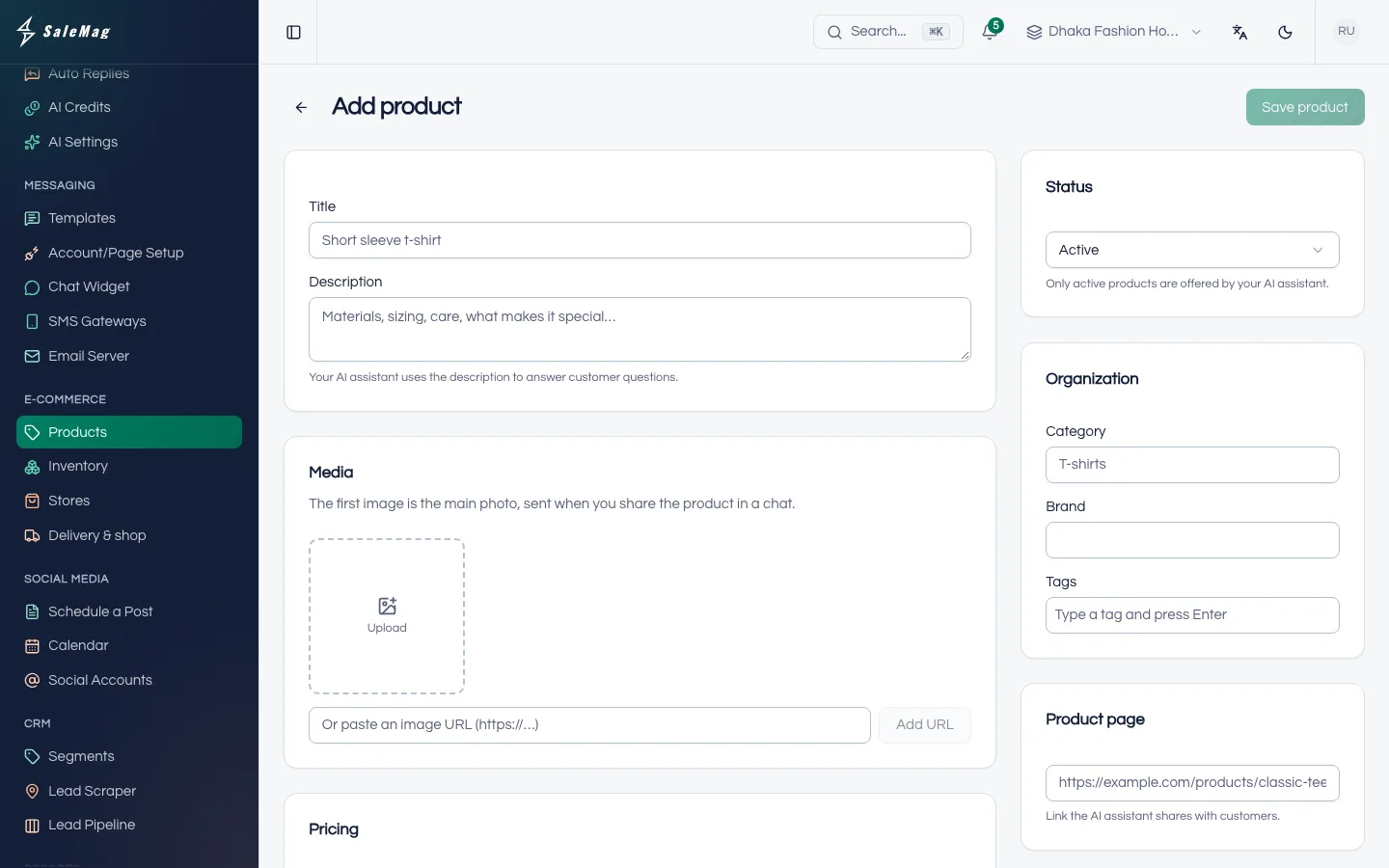
Step 6 — Choose how customers can pay
The Payment options card is set to Use the shop's payment options by default. That means the options you chose on the Delivery & shop page.
To change it for this product only, turn that switch off and tick the options you allow: Cash on delivery, Advance, rest on delivery or Full payment first. For pre-orders, it is a good idea to allow only advance or full payment.
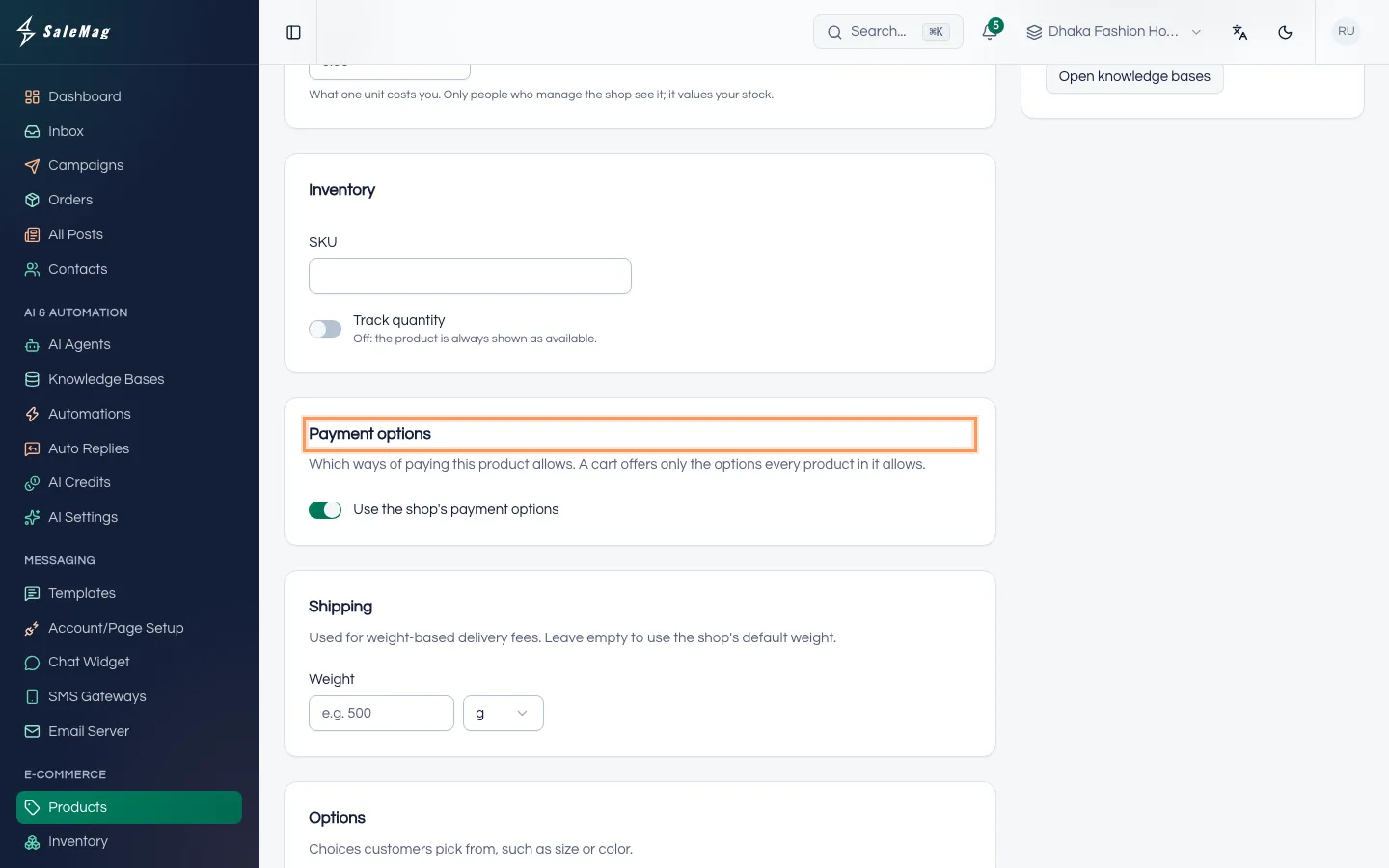
Step 7 — Add the weight
In the Shipping card, type the Weight of one item and pick g or kg. SaleMag uses it to work out weight-based delivery fees. If you leave it empty, the shop's default weight is used.
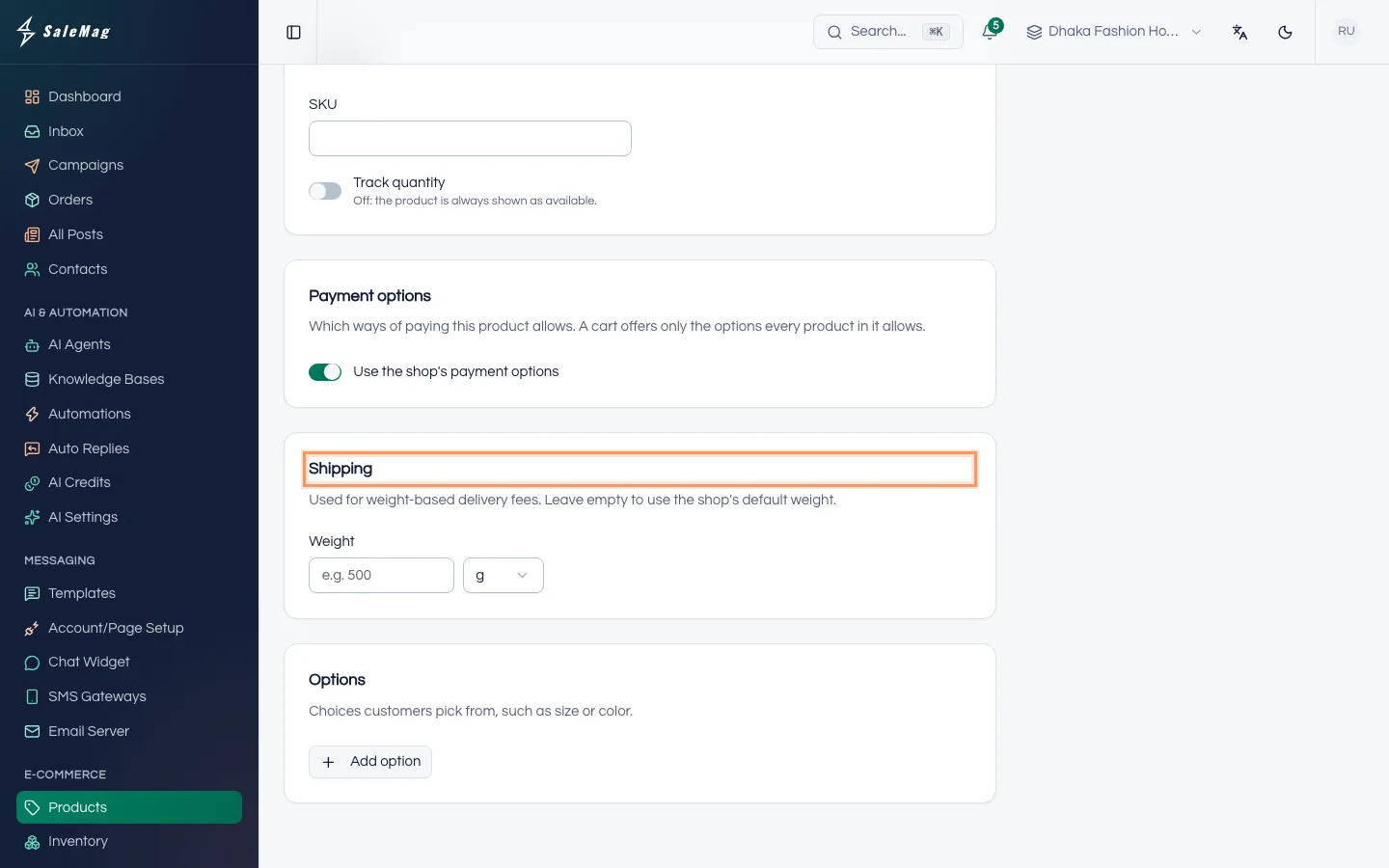
Step 8 — Add sizes, colours and other options
Skip this step if the product comes in one version only.
- In the Options card, click Add option.
- Type the option name, such as "Size".
- Type each value and press Enter, for example S, M, L, XL. You can add up to 10 options, such as Size and Color.
If every version has the same price and you count stock for the product as a whole, you are done. If not, go to the Variants card and turn on Set price, stock or weight per combination. A row appears for each combination, such as Red / XL (up to 100). For each row you can set Price, SKU, Stock and Weight (g). Turn off Sold for a combination you don't sell. To fill many rows at once, type a value in the top row and click Apply to all.
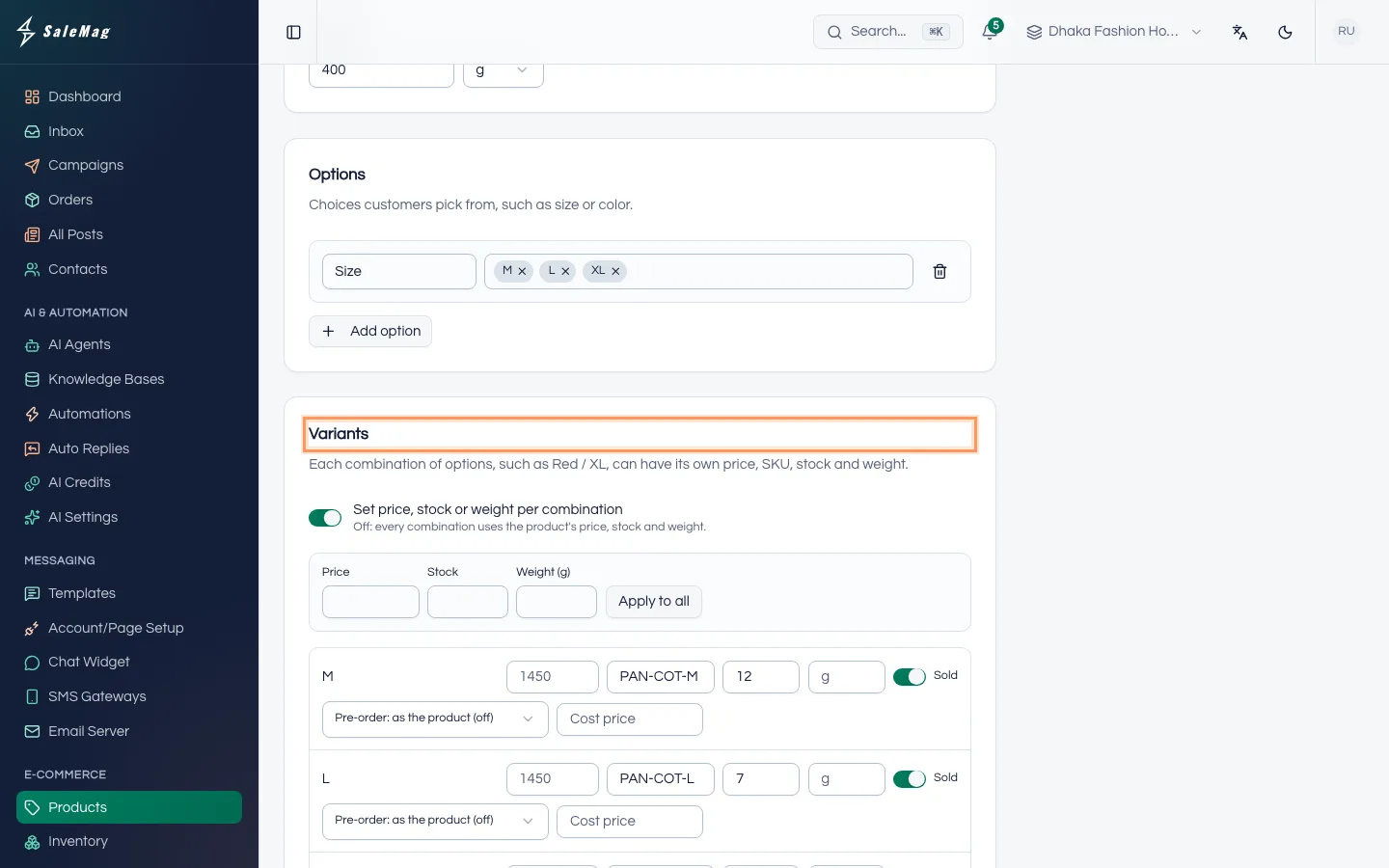
Step 9 — Check the status and details
In the right column:
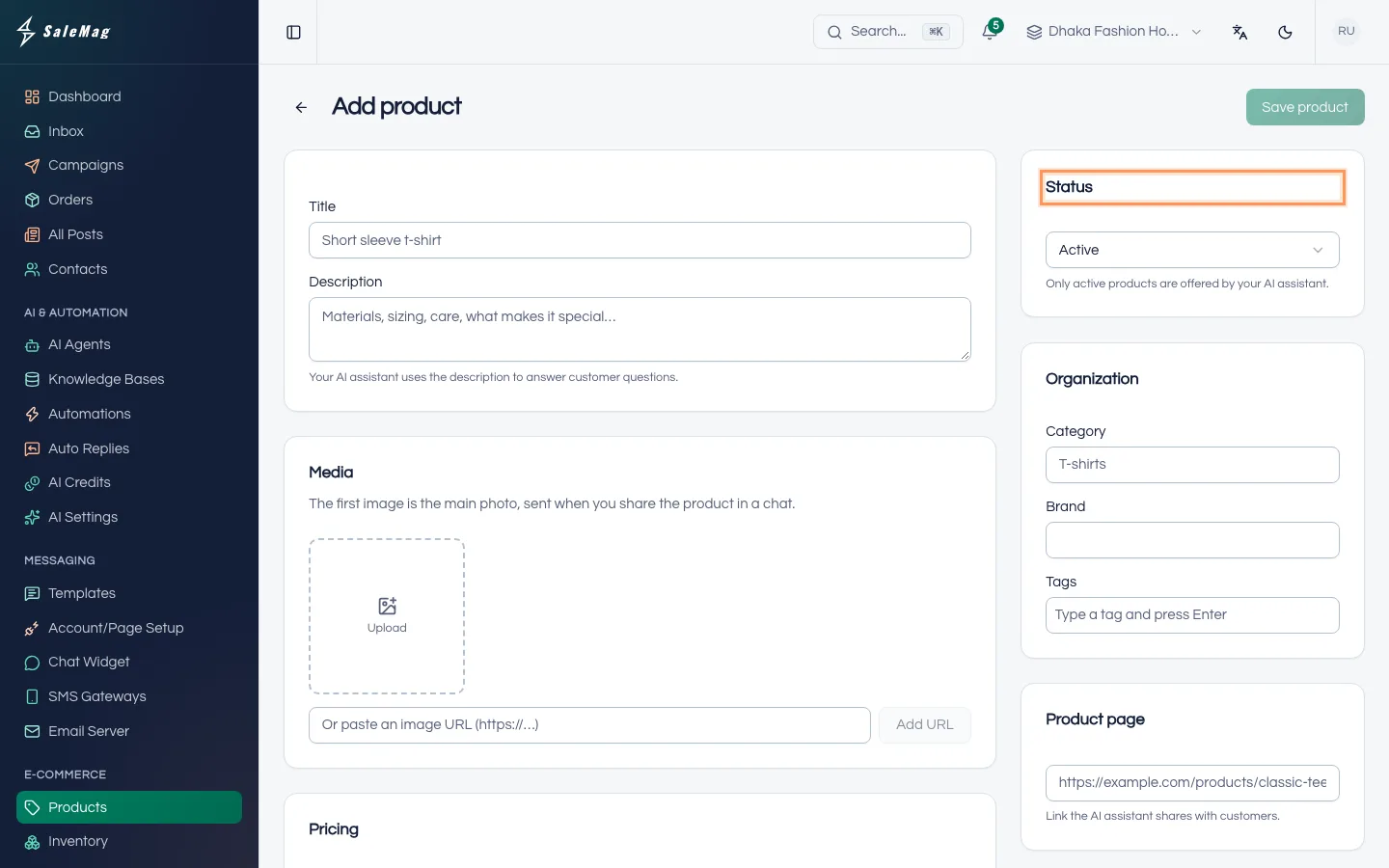
- Status: keep it on Active. Only active products are offered by your AI agent. Choose Draft while you are still preparing a product, or Archived for one you no longer sell.
- Organization: add a Category, Brand and Tags if you like. They help you find products later.
- Product page: if the product has a page on your website or Facebook shop, paste the link. The AI agent shares this link with customers.
Step 10 — Save the product
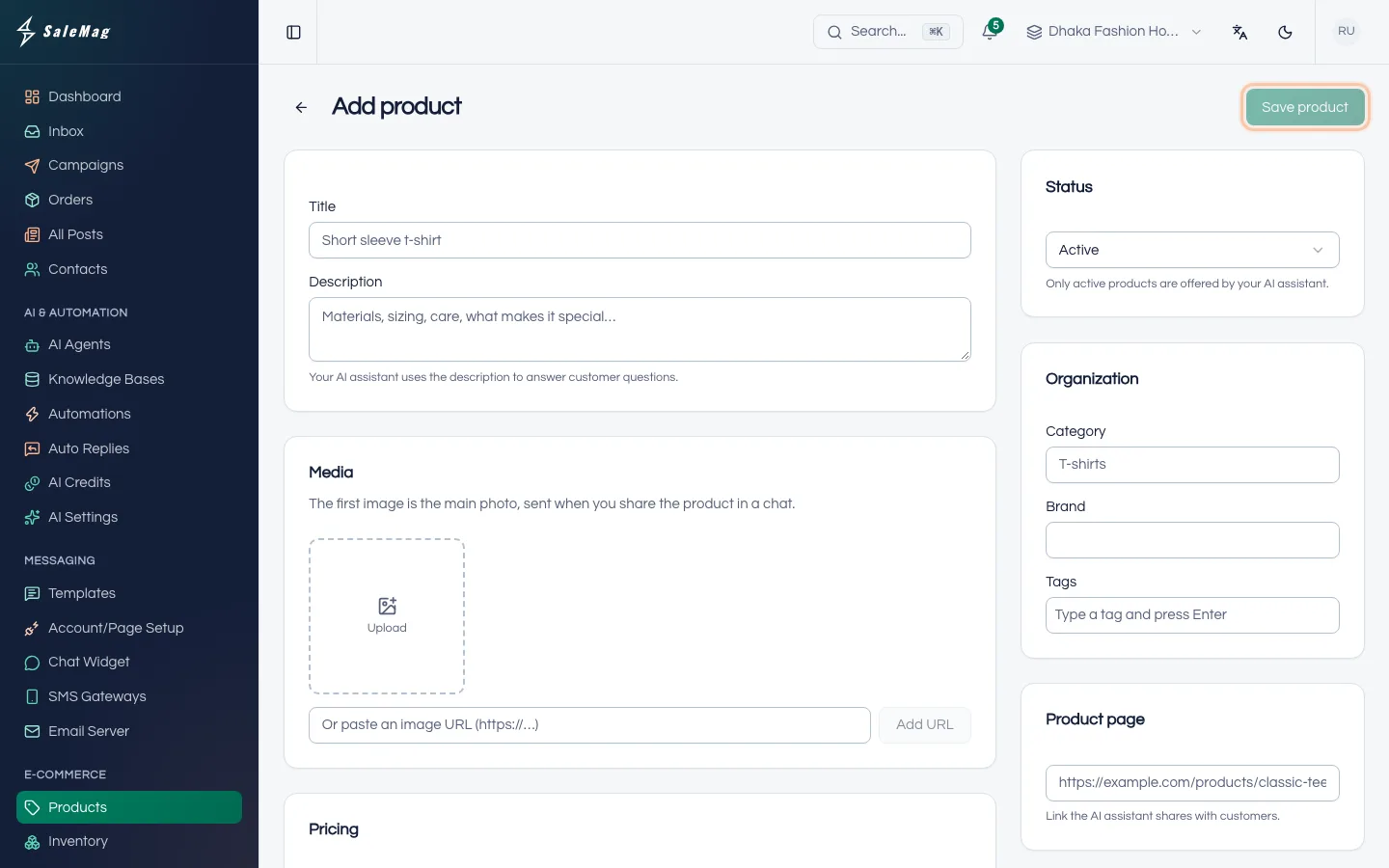
Click Save product at the top right. You see "Product created." and the product page opens. From now on, the button is called Save.
Step 11 — Add your products to the AI knowledge base
Your AI agent answers product questions (price, stock, options, links) from a knowledge base. You only need to do this once.
- Go back to E-Commerce → Products.
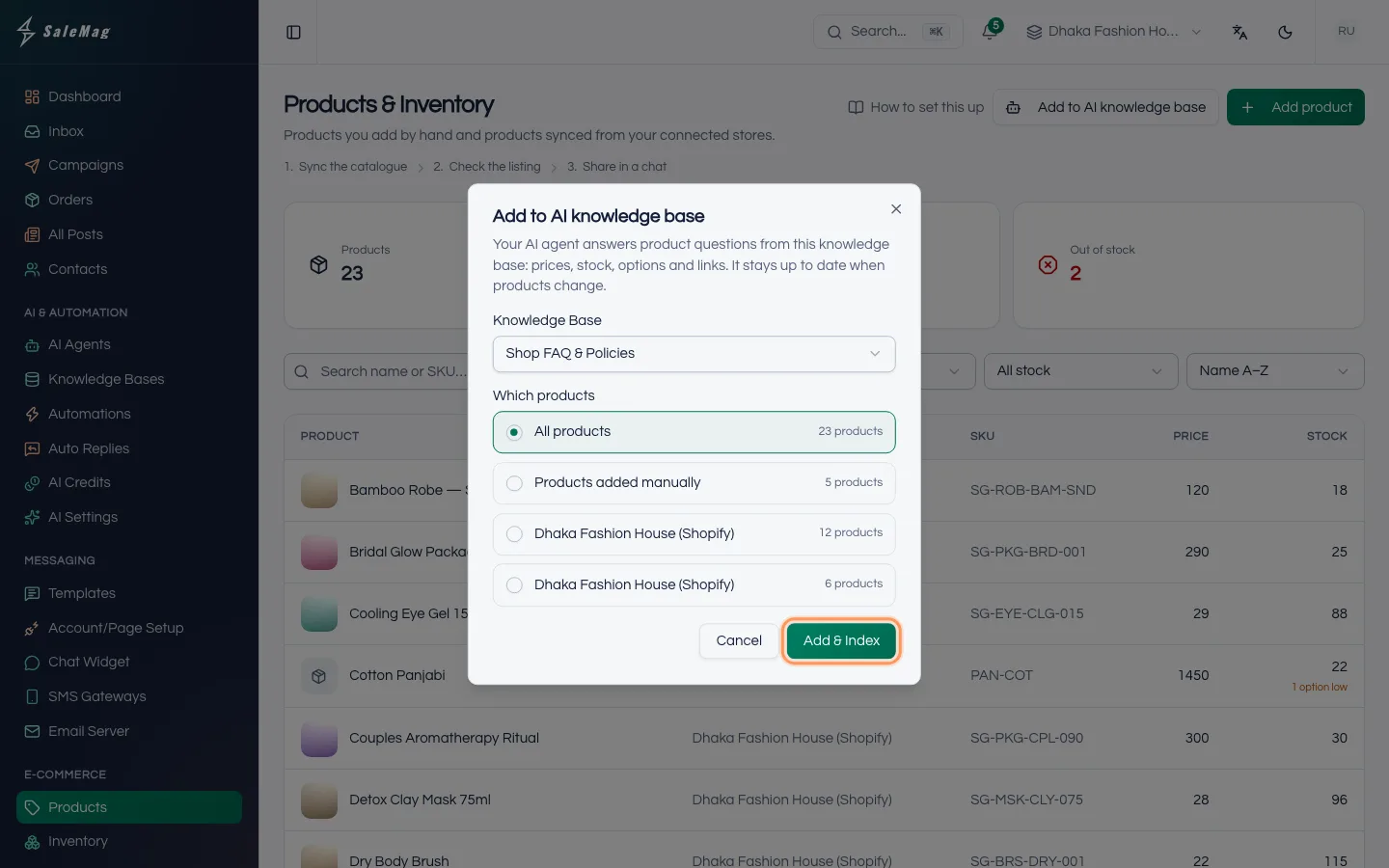
- Click Add to AI knowledge base.
- Under Knowledge Base, pick the knowledge base your AI agent uses.
- Under Which products, choose All products or Products added manually.
- Click Add & Index.
You see "Products added. Indexing has started." After this, the knowledge base updates itself whenever you add or change a product.
Tip: Not sure which knowledge base your AI agent uses? See train your AI agent.
Changing stock later
Don't edit the quantity by hand every time something sells. Orders taken in chat lower the stock on their own. For new deliveries, damaged items or a stock count, go to E-Commerce → Inventory and click Adjust, or, for a product without variants, use the Adjust button in its Inventory card. Every change is saved in the stock History, so you can see why a number changed.
What happens next
The product appears on the Products page with the source Added manually. Customers can ask your AI agent about it, and the agent can take orders for it in chat. If you haven't set delivery fees yet, do that next in Delivery & shop settings.
If something goes wrong
I don't see the Add product button: your role can only view products. Ask an Administrator to give you the Manager role, or ask them to add the product.
"Upload failed. Please try again.": the photo did not upload. Check your internet connection, or try a smaller JPG or PNG file.
"Enter an image URL that starts with http:// or https://.": the link you pasted is not a full web address. Open the photo in your browser and copy the address from the top bar.
"Choose at least one payment option, or use the shop's.": in the Payment options card, tick at least one option or turn Use the shop's payment options back on.
"Stock changed while you were editing (an order may have taken some).": a customer ordered while you had the page open. Check the marked numbers, then save again.
Add to AI knowledge base says "Create a knowledge base first": you have no knowledge base yet. Click Create a knowledge base, create one, then come back and repeat Step 11.
Frequently asked questions
Can I import my products from a CSV or Excel file?
No. You add products one by one on this page, or connect your Shopify, WooCommerce or BigCommerce store to bring them in automatically. The Import button on the Inventory page only updates the stock of products that already exist.
Why doesn't my AI agent offer this product?
Check three things: the product's Status is Active, the product is in the knowledge base your AI agent uses, and it is not out of stock. Only active products are offered. A product that is out of stock is offered only if you turned on pre-order.
What happens if I turn off Track quantity?
The product is always shown as available, and orders don't lower any stock number. Turn it off only for things you can always supply.
Can my team members add products?
Only people with the Administrator or Manager role can add or change products. Other roles that can see the shop can open products but not change them.
How do I delete a product?
Open the product and click Delete at the top. It is removed from your catalogue and from your AI knowledge bases. If you only want to stop selling it for now, set its Status to Draft instead.
Was this article helpful?