The inbox is where your team reads and answers every customer chat. WhatsApp, Messenger and Instagram messages all arrive here, next to the replies your AI agent sends. This guide shows you how to find chats, reply, hand chats to teammates and keep the inbox tidy.
Step 1 — Open the inbox and pick a folder
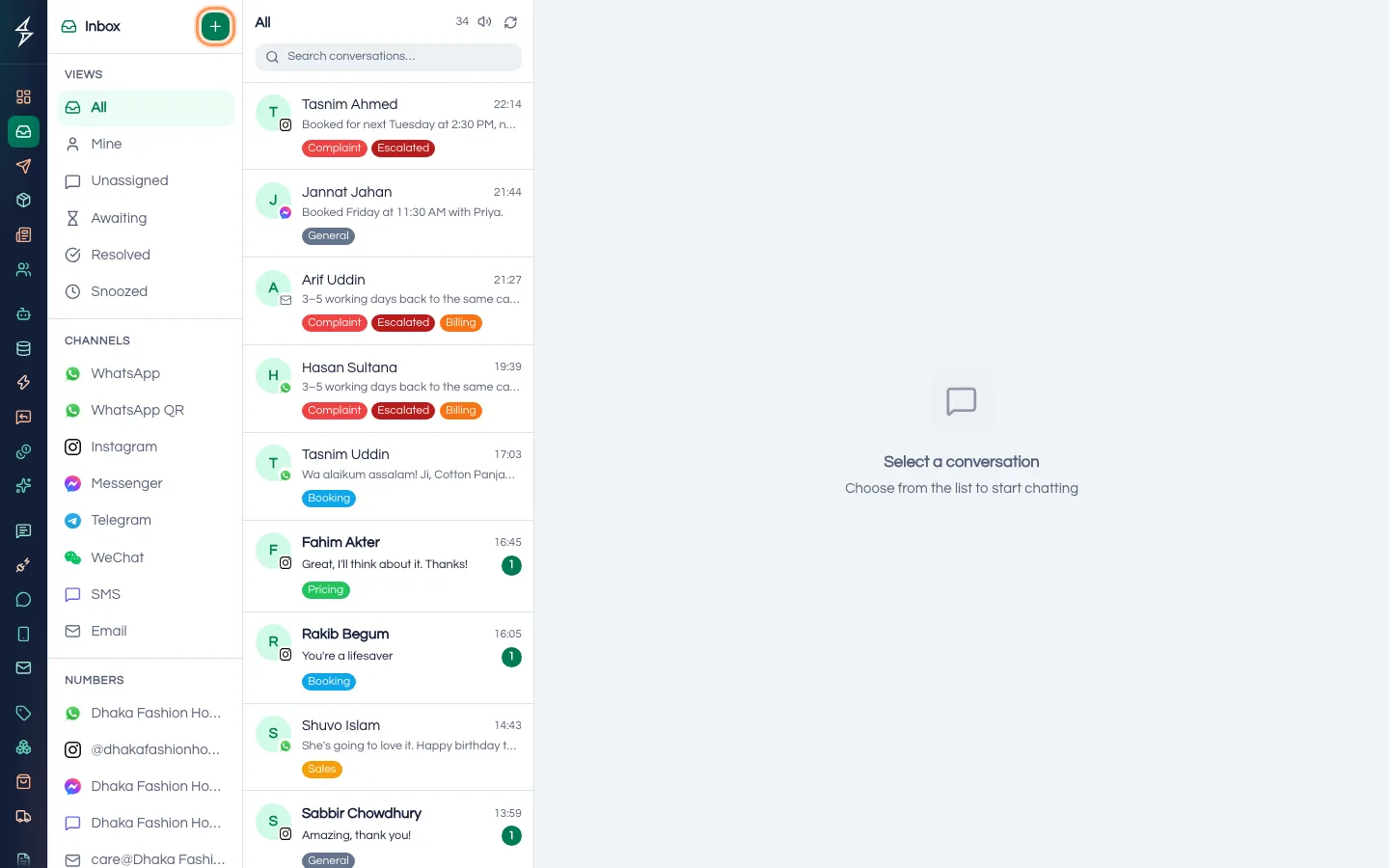
In the left menu, press Inbox. Folders on the left sort your chats:
- All: every open chat.
- Mine: open chats assigned to you.
- Unassigned: open chats nobody has taken yet.
- Awaiting: chats the AI agent handed over, waiting for a person. A number shows how many are waiting.
- Resolved: chats marked as done.
- Snoozed: chats you put aside for later.
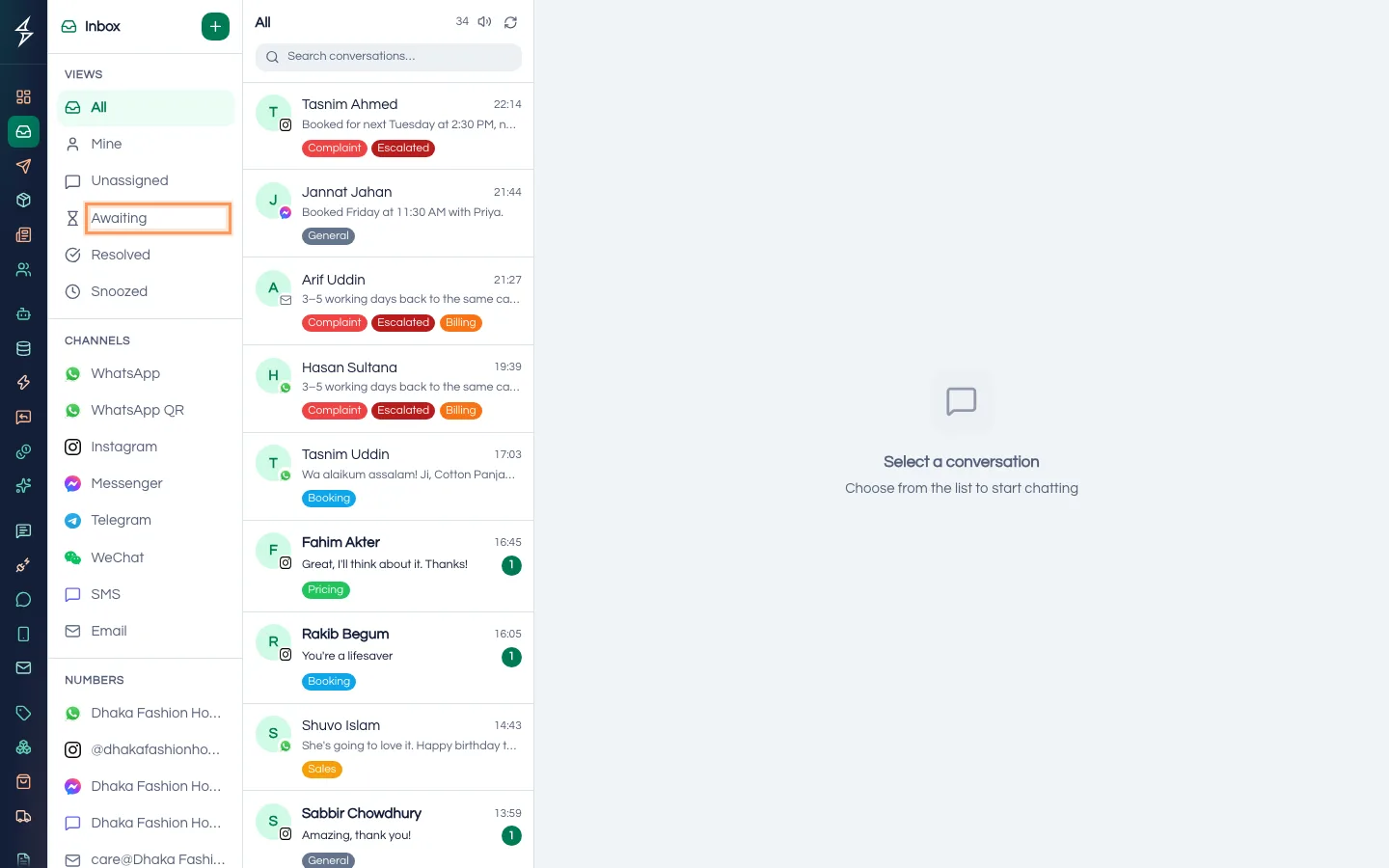
Tip: Check Awaiting often. These customers asked for a person, or the AI agent could not answer them.
Step 2 — Filter and search
Under the folders, use Channels to see only WhatsApp, Messenger or Instagram chats, Numbers to see one connected number or page, and Labels to see chats with one label. Type in Search conversations… to narrow the list to a name or phone number. Press Refresh to load the newest chats.
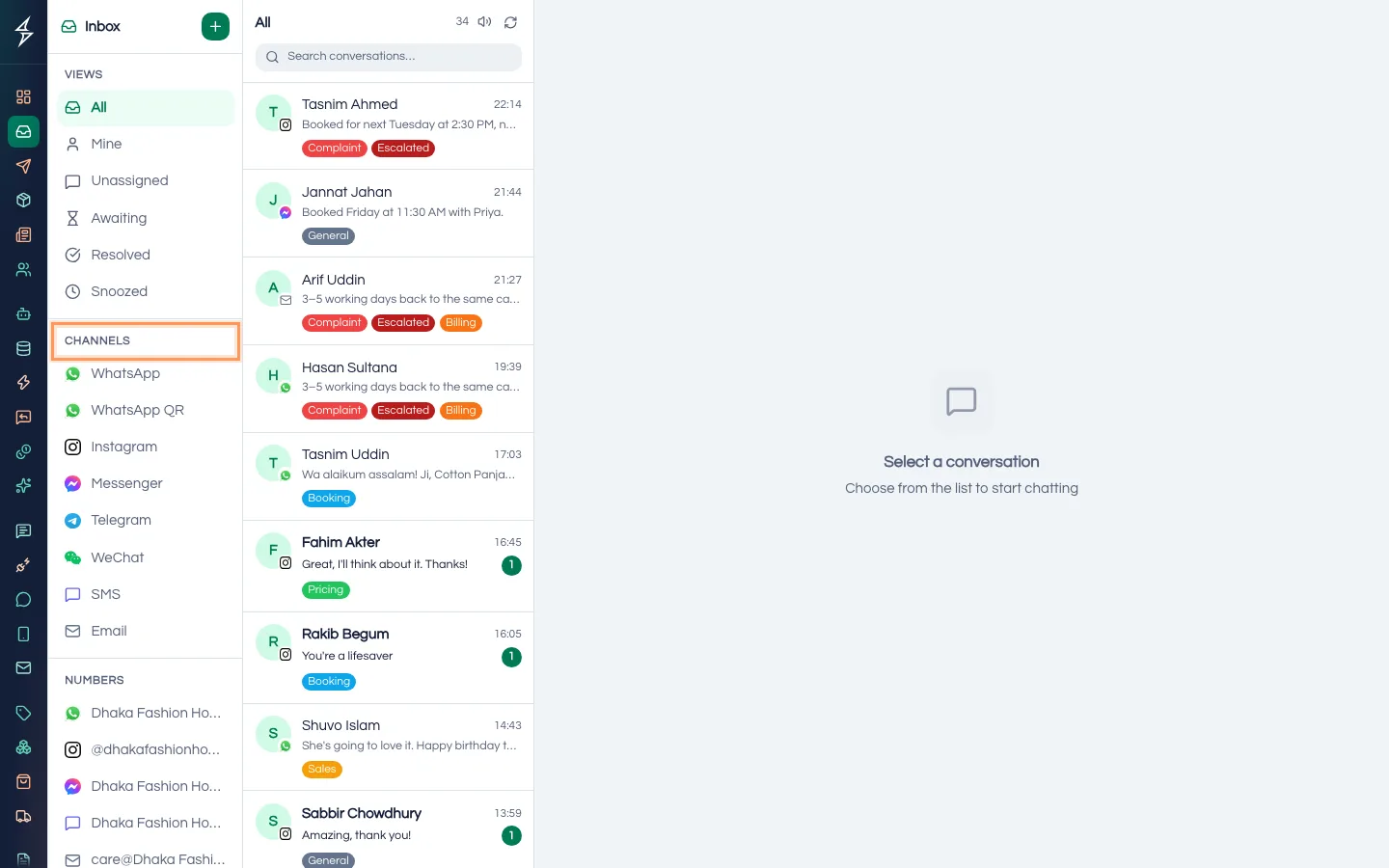
Step 3 — Open a chat and assign it
Click a chat to open it. At the top you see the customer, the channel and some buttons. Press Assign and pick a teammate, or yourself. Choose Unassign to clear it.
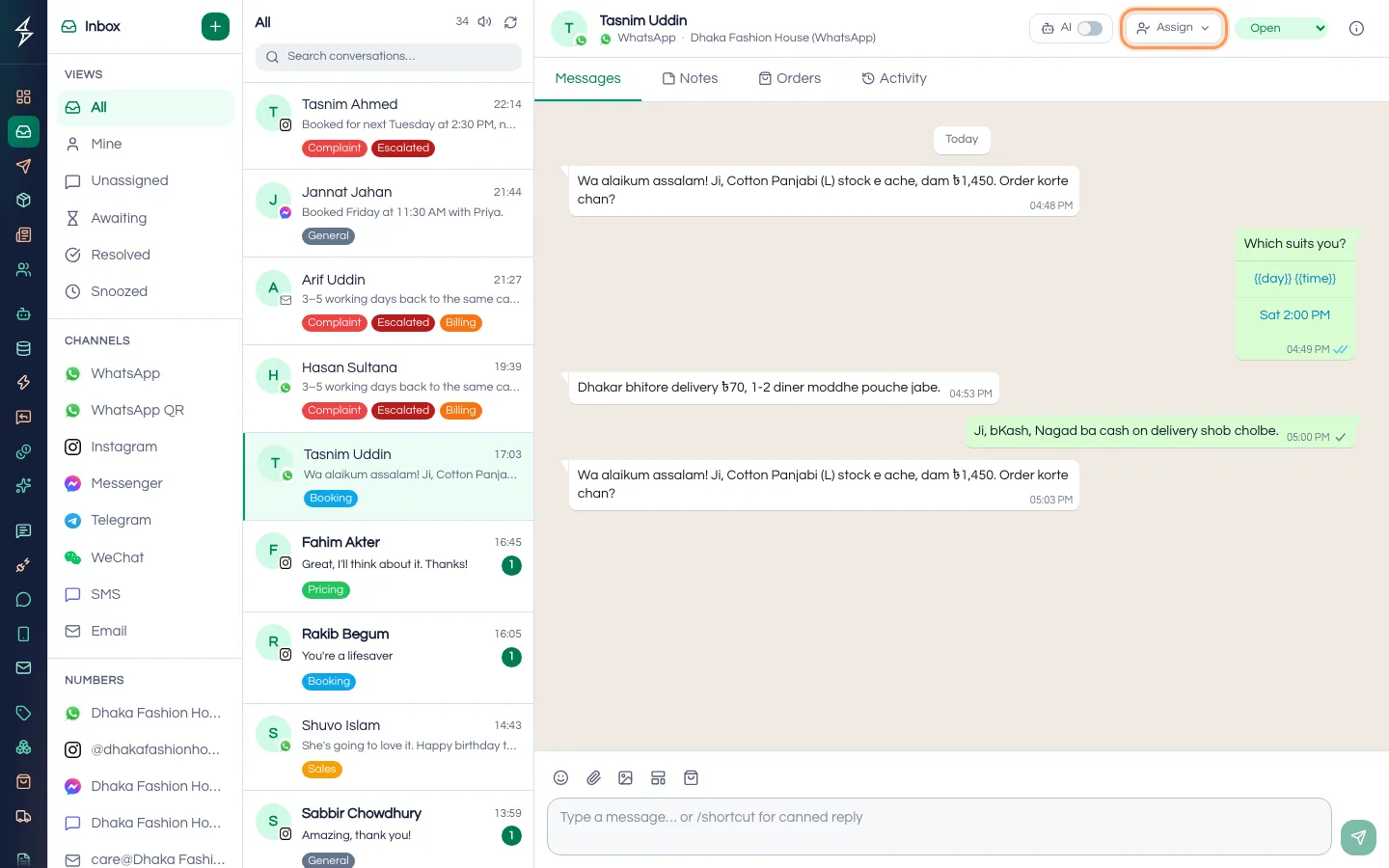
Chat Agents can only take a chat themselves. Moderators, Managers and Administrators can assign chats to anyone.
Step 4 — Take over from the AI agent
The AI switch at the top shows who is answering this chat. When it is on, "AI is replying. Turn off to take over." When it is off, "AI is paused. Turn on to hand back to the AI agent."
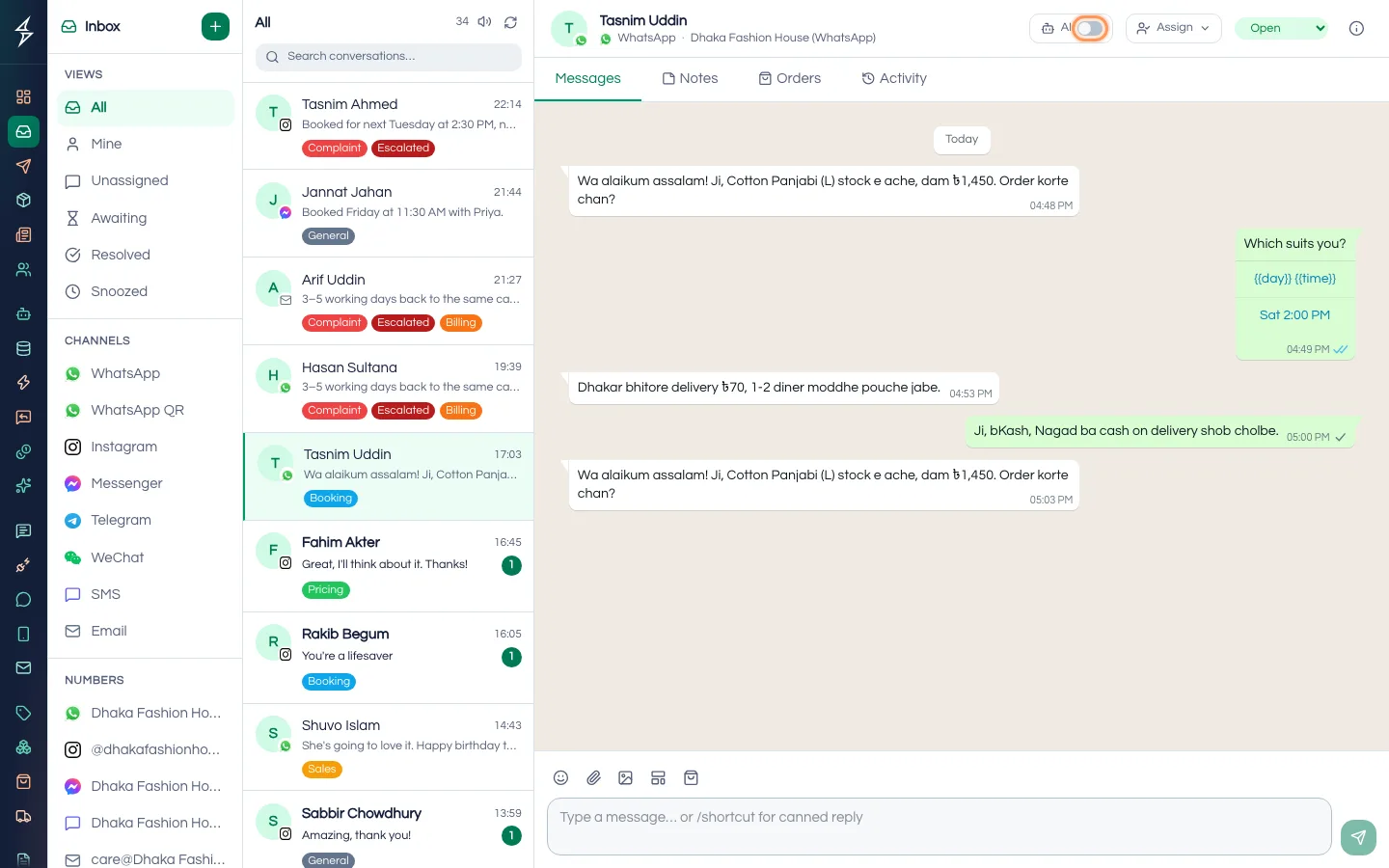
Important: When a person replies, the AI turns off for that chat until someone turns it back on. This includes replies from the inbox, the WhatsApp Business app on your business phone, a QR-linked phone or the Instagram app. Assigning a chat does not stop the AI. See turn the AI on or off in a chat.
Step 5 — Write a reply
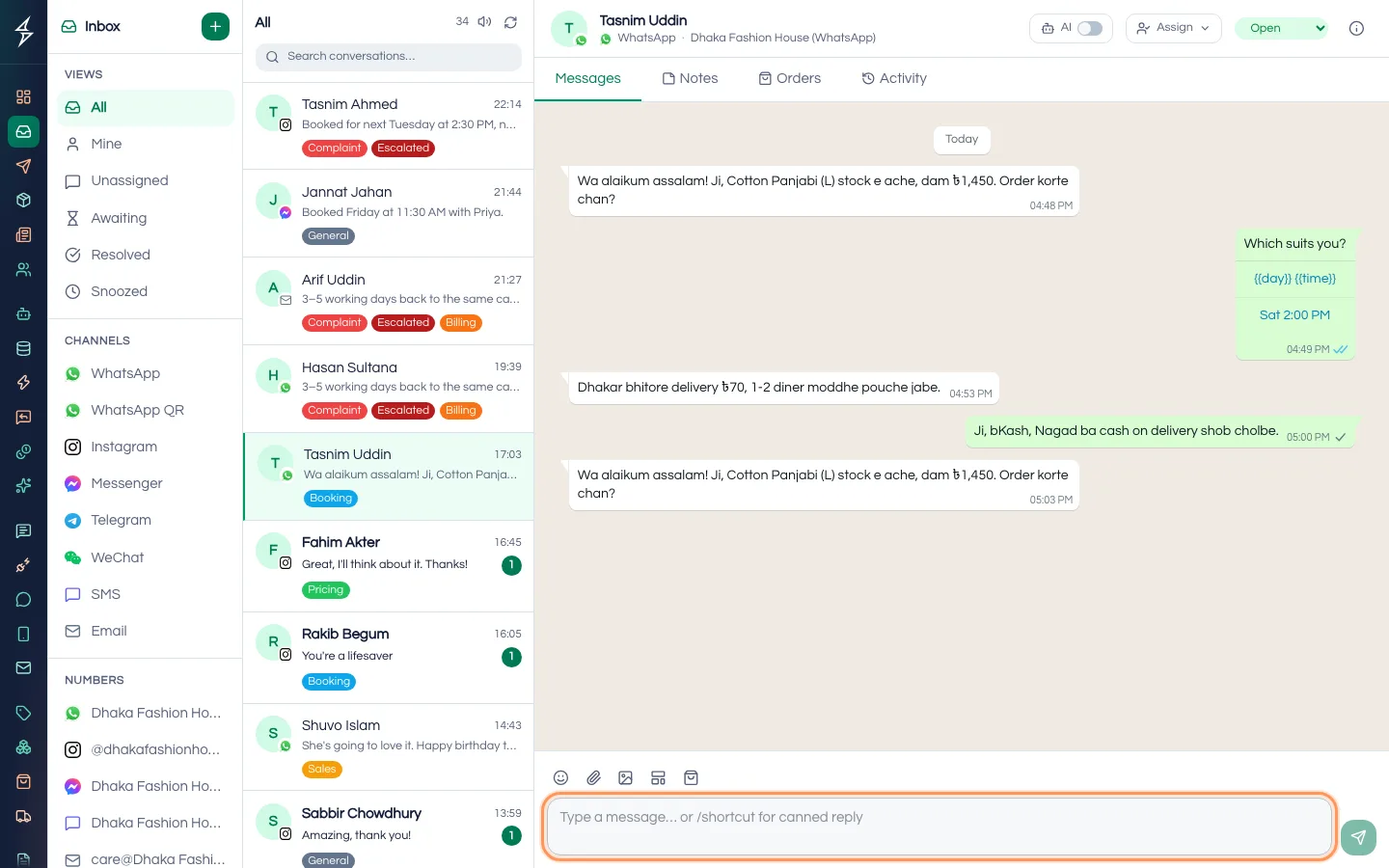
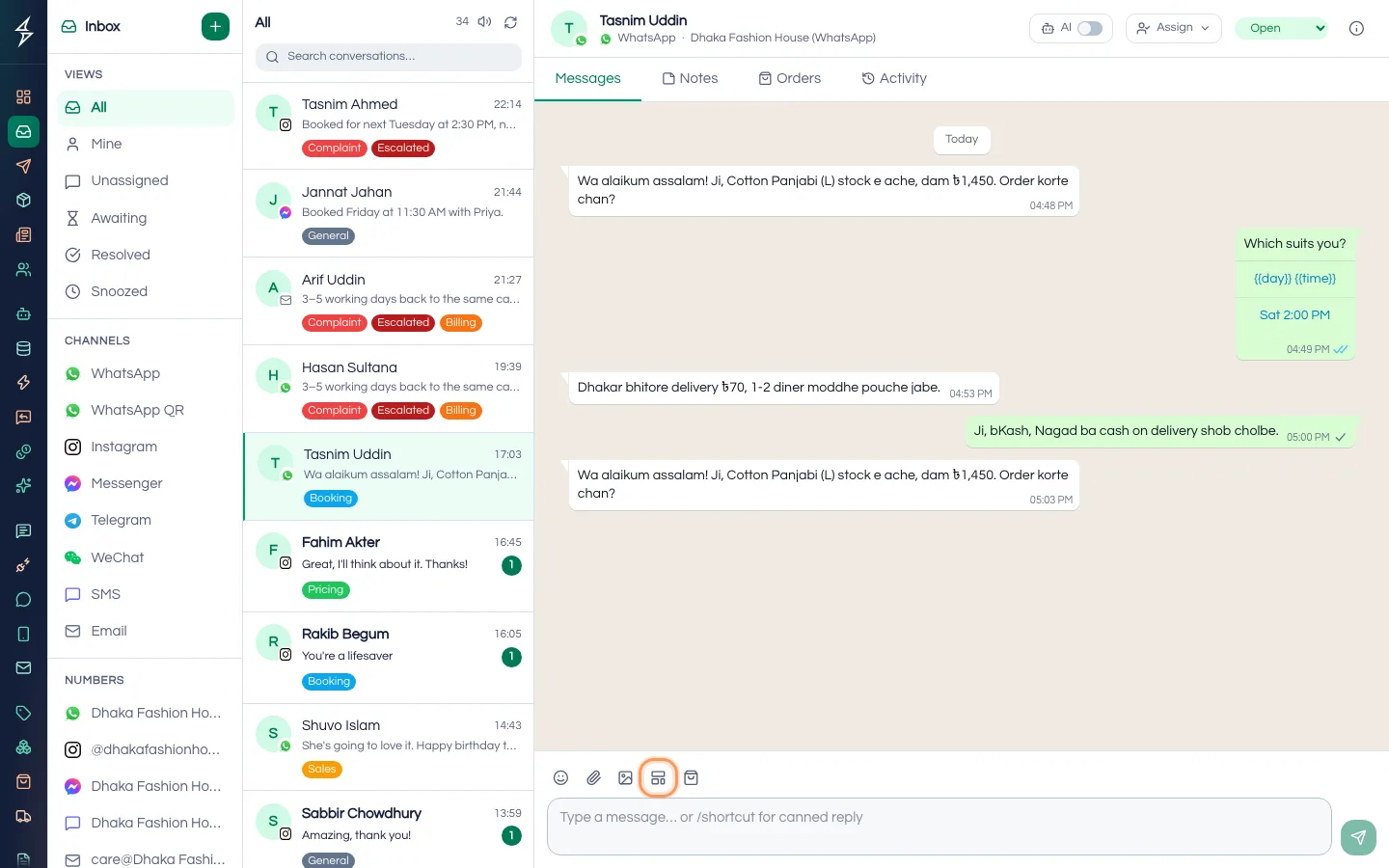
Type in the box at the bottom and press Enter to send. Press Shift + Enter for a new line. The buttons next to the box let you add an Emoji, Attach file, Attach image or Share a product (when you have products).
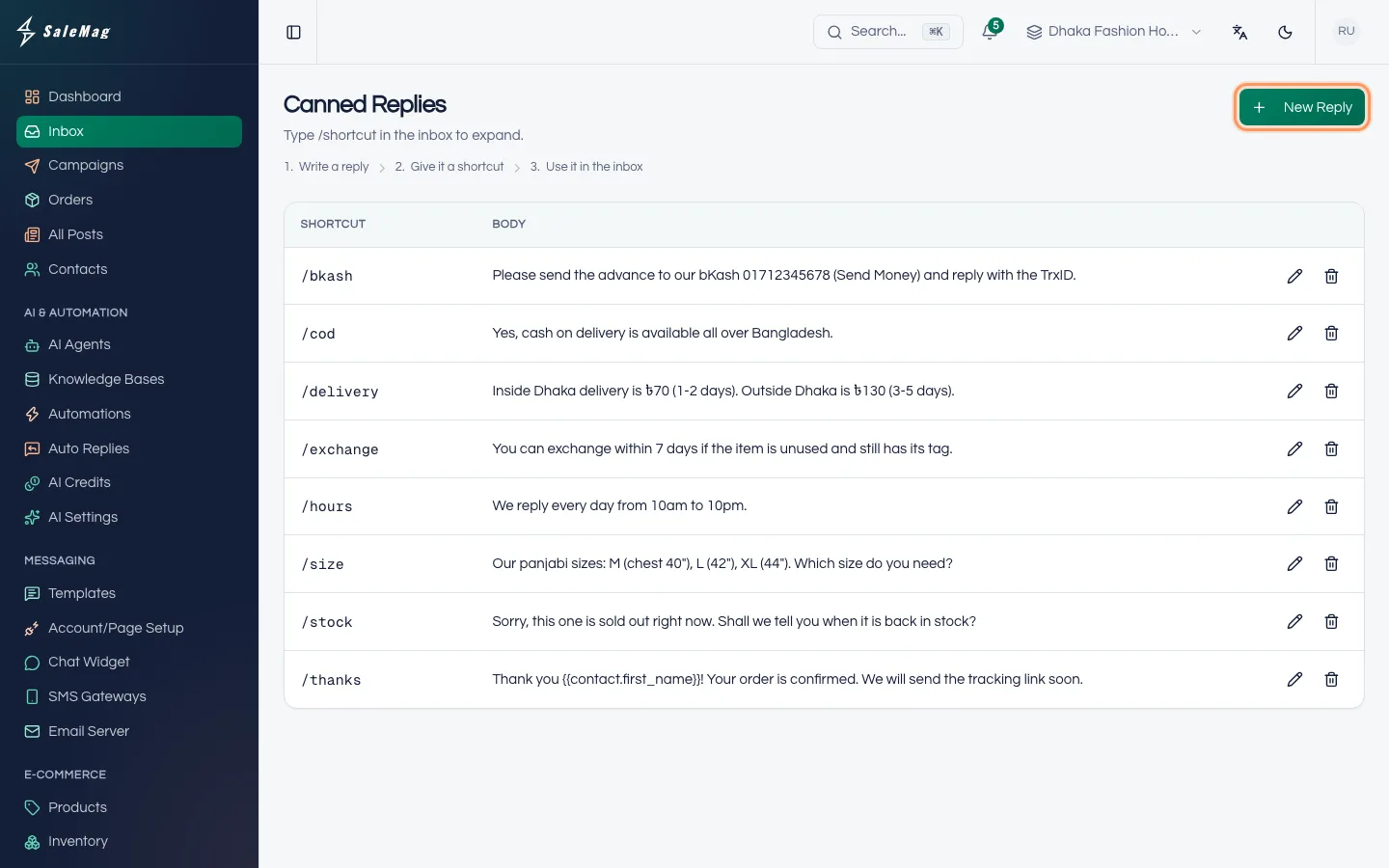
To use a saved answer, type / and the start of its shortcut, for example /delivery, then click the reply in the list. The customer's name is filled in for you.
When a customer sends a photo, voice note or document, the AI shows what it understood under the message: AI saw for a photo, Transcript for a voice note and AI read for a document.
Step 6 — Re-open an old WhatsApp chat with a template
This applies only to the official WhatsApp connection. You can send normal messages for 24 hours after the customer's last message. After that, the inbox shows "24-hour session closed — use a WhatsApp template to re-engage this contact."
Press Send template (it shows the word Template when the session is closed), pick an approved template and send it. When the customer answers, you can chat freely again.
Step 7 — Set the status
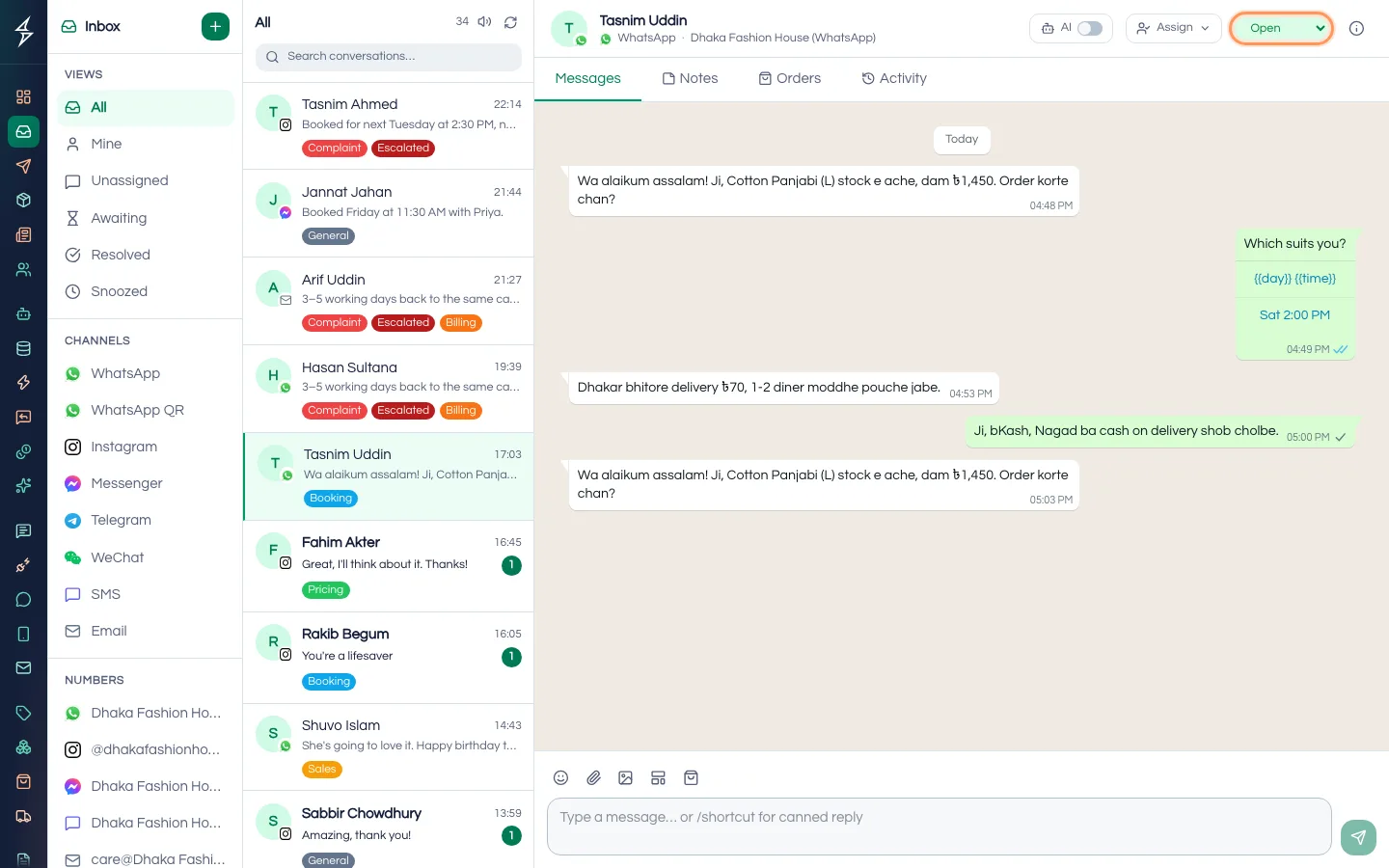
Use the status menu at the top: Open, Pending, Resolved or Snoozed. Mark a chat Resolved when the customer's question is answered. If the customer writes again, the chat goes back to Open by itself.
Step 8 — Use notes, labels and orders
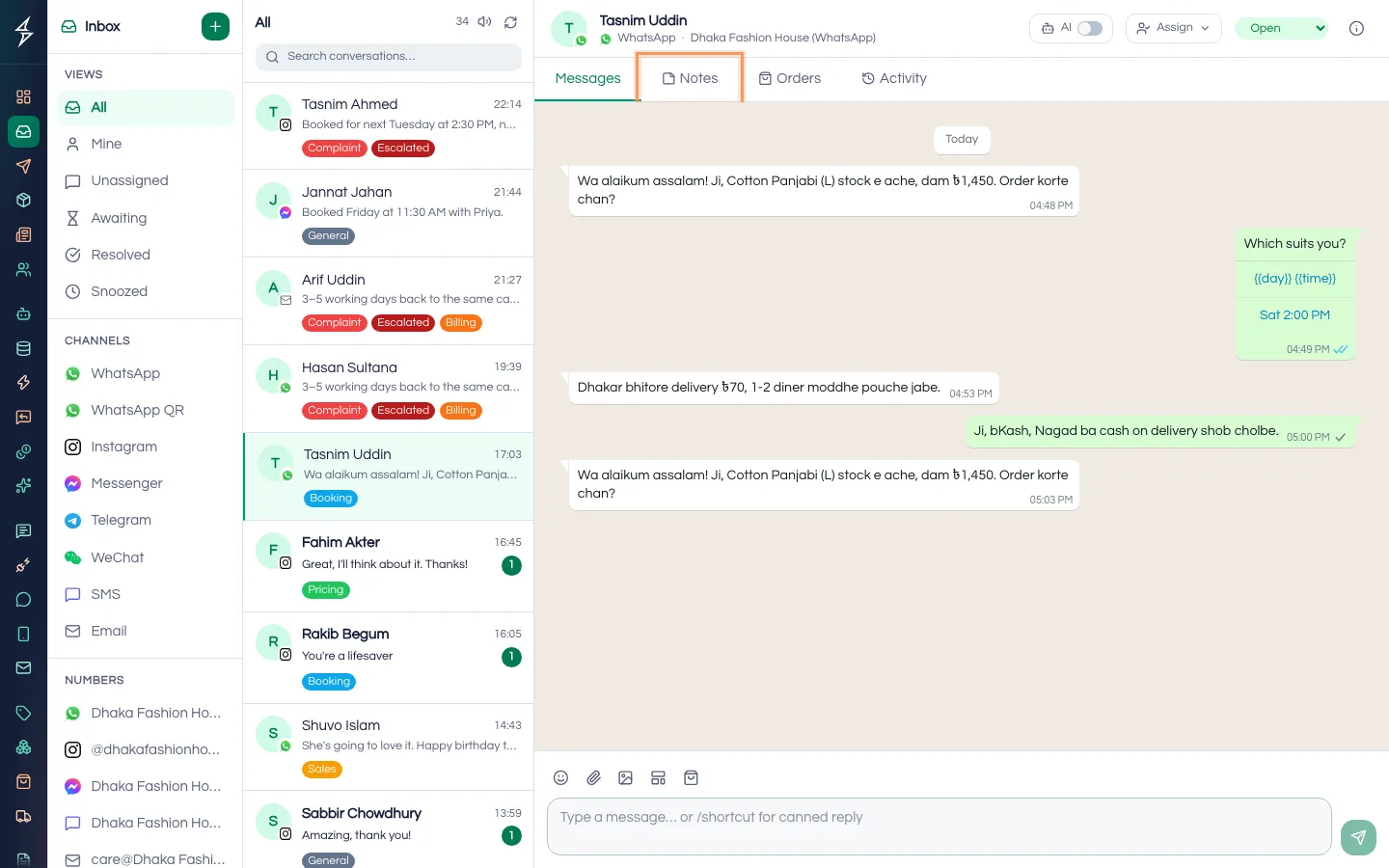
Above the messages are tabs:
- Notes: write internal notes that customers never see. Type
@and a name to mention a teammate. - Orders: the customer's orders, with New order to create one. This tab shows once you have products or a connected store. See take orders in chat.
- Activity: who assigned, resolved or handed over the chat, and when.
Press the Contact Details button (the small "i" at the top right) to see the customer's details. Under Tags, click a label to add it to the chat, or click it again to remove it. Under Opt-ins, you can see and change whether the customer agreed to receive campaigns.
Step 9 — Create labels and canned replies
Under Labels in the filter list, press Manage labels. Press New Label, type a Name, pick a Color and press Save.
To save answers you type often, type / in the reply box. At the bottom of the list that opens, press Manage canned replies. Press New Reply, type a Shortcut (without the /) and the Body, then press Save. You can put {{contact.first_name}} in the body to insert the customer's first name.
Step 10 — Start a new chat
Press New Conversation at the top of the chat list. Pick the Contact, then the Channel, then write the message under Compose and press Start Conversation.
On WhatsApp, a free message reaches the customer only if they wrote to you in the last 24 hours. Otherwise, send a template.
What happens next
Keep Awaiting and Unassigned close to empty, and resolve chats when they are done. To learn how the AI agent passes chats to your team, read turn the AI on or off in a chat.
If something goes wrong
"This workspace is read-only. Choose a plan to reply.": the workspace has no plan. Messages still arrive, but you can't send until a plan is chosen. See plans and billing.
"Your role can only assign conversations to yourself.": Chat Agents can only take chats. Ask a Moderator or Administrator to assign it.
The Manage labels or Manage canned replies link is missing: your role can't manage them. Ask a Moderator, Manager or Administrator.
Frequently asked questions
Does assigning a chat to a teammate stop the AI agent?
No. Assigning only says who is responsible. The AI keeps replying until someone turns the AI switch off or a person sends a reply in that chat.
I replied from the WhatsApp Business app on my phone. Will the AI agent still reply?
No. A reply from a person turns the AI off for that chat, whether it comes from the inbox, the WhatsApp Business app, a QR-linked phone or the Instagram app. Turn the AI switch back on when you want the AI agent to take over again.
Why can't I type a normal message to an old WhatsApp chat?
On the official WhatsApp connection, you can send free messages only within 24 hours of the customer's last message. After that, send an approved WhatsApp template. When the customer replies, the chat opens again.
Where did a resolved chat go?
Open the Resolved folder. If the customer writes again, the chat opens again and comes back to All.
Why do I see only some chats?
Chat Agents see only chats assigned to them or still unassigned. Ask an Administrator to change your role if you need to see every chat.
Was this article helpful?