Your AI agent answers customers for you, but a person can step in at any time. This guide shows how the AI switch in each chat works, when the AI hands a chat to your team on its own, and how to hand the chat back to the AI.
How the AI switch works
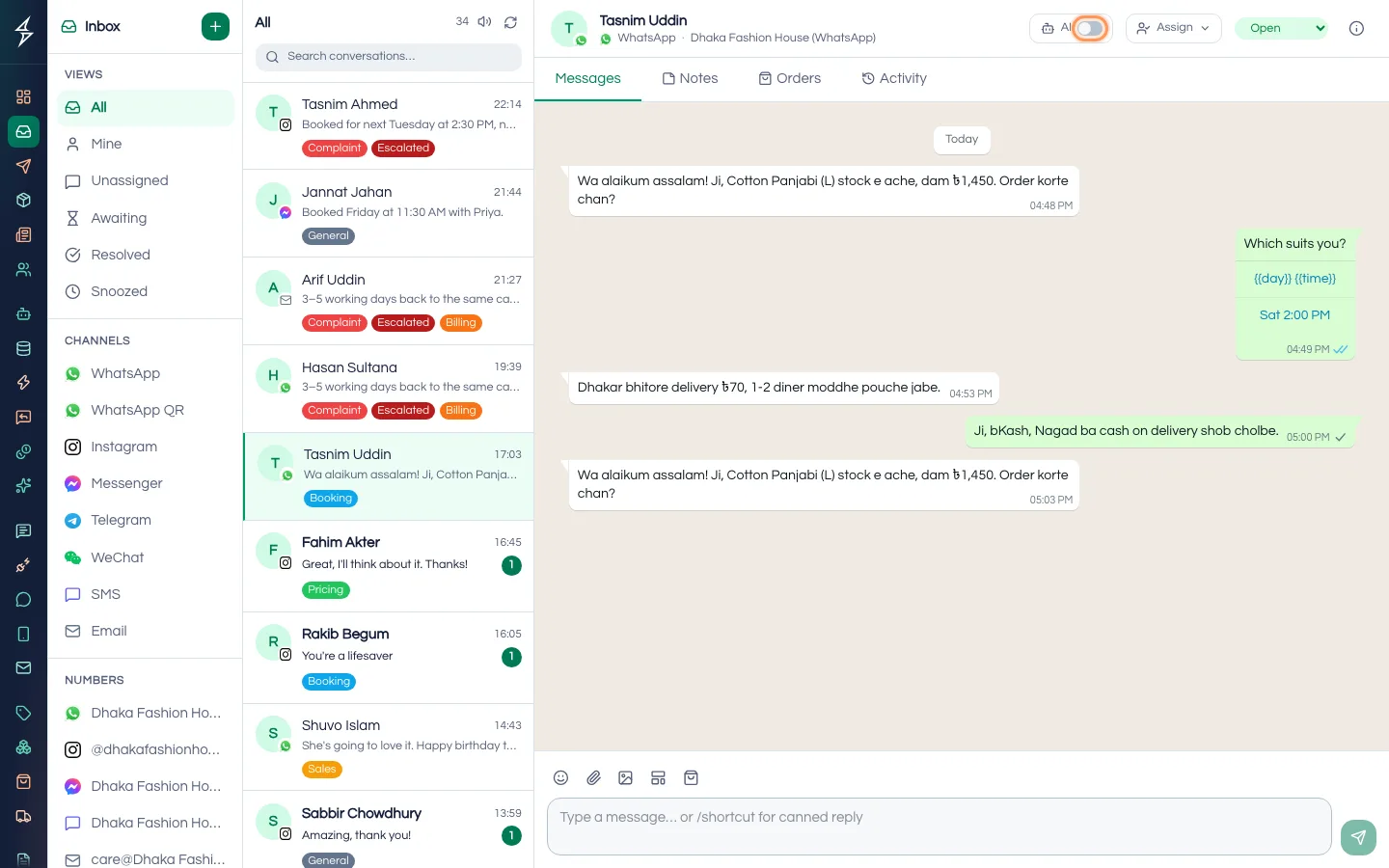
Each chat has its own AI switch at the top of the conversation.
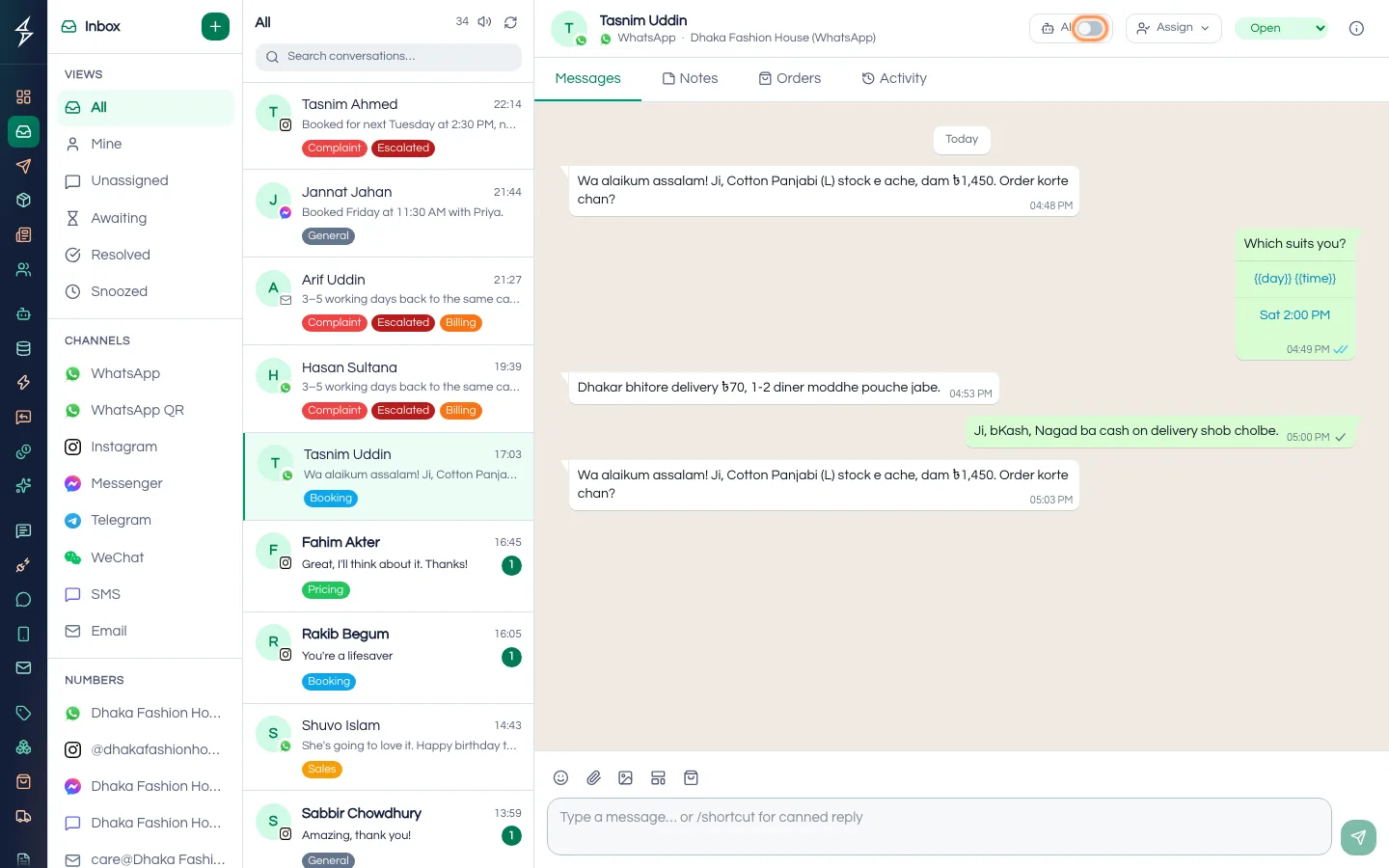
- On: your AI agent answers new messages in this chat. Hover over the switch to see AI is replying. Turn off to take over.
- Off: only people answer. Hover shows AI is paused. Turn on to hand back to the AI agent.
The switch turns off by itself when someone on your team replies, and when the AI hands the chat over. It never turns back on by itself.
Step 1 — Find chats that need a person
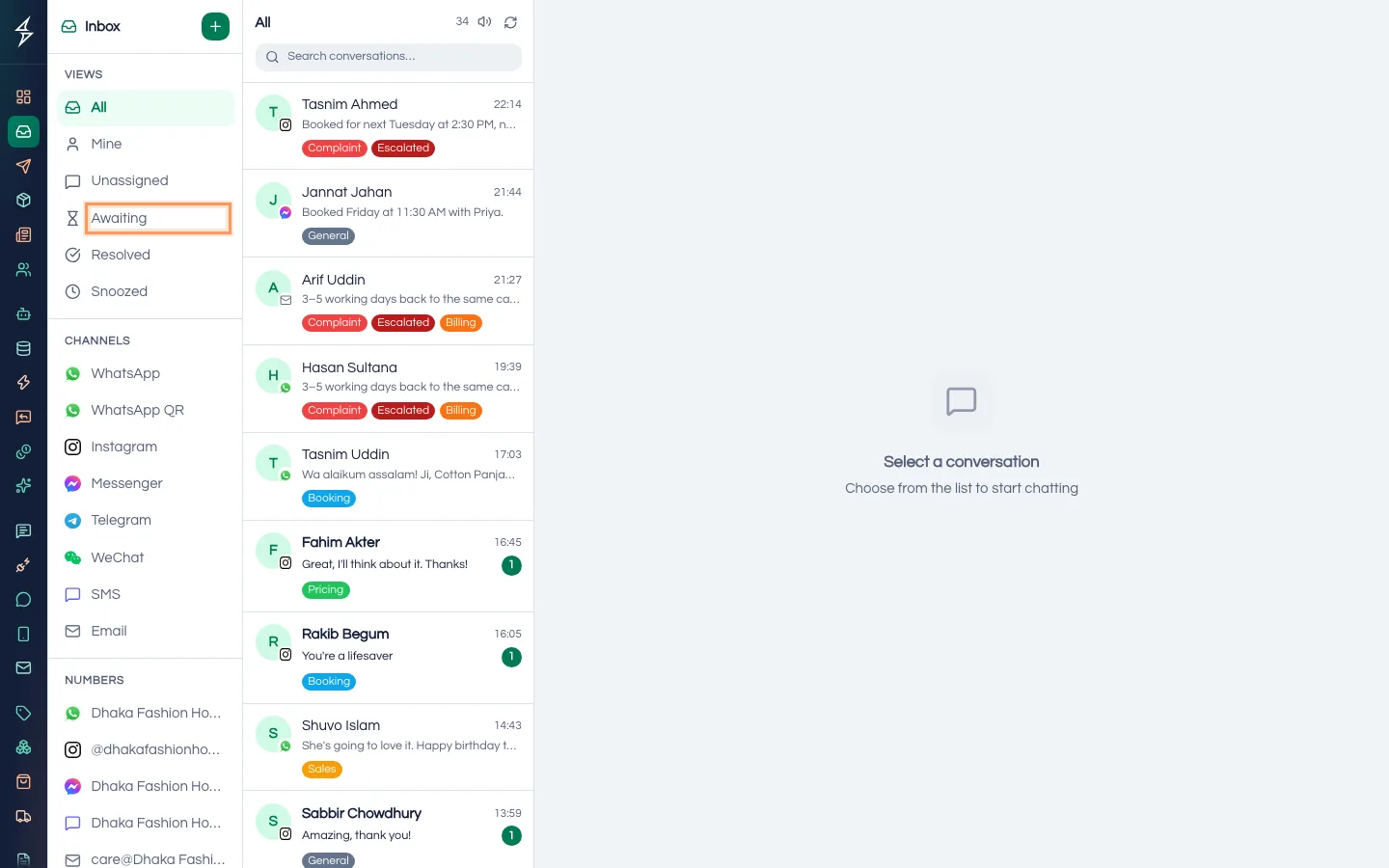
Open Inbox. In the left column, click Awaiting. These are chats your AI agent handed over that no one has answered yet. In the chat list they also carry an Awaiting badge. Chats the AI is answering right now carry an AI badge.
Step 2 — Open the chat and turn the AI off
Click a chat to open it. At the top, click the AI switch so it turns off. Now the AI won't answer new messages in this chat.
You can skip this step: sending a reply turns the AI off anyway. Turning it off first is useful when you need a minute to check something before you answer.
Step 3 — Reply to the customer
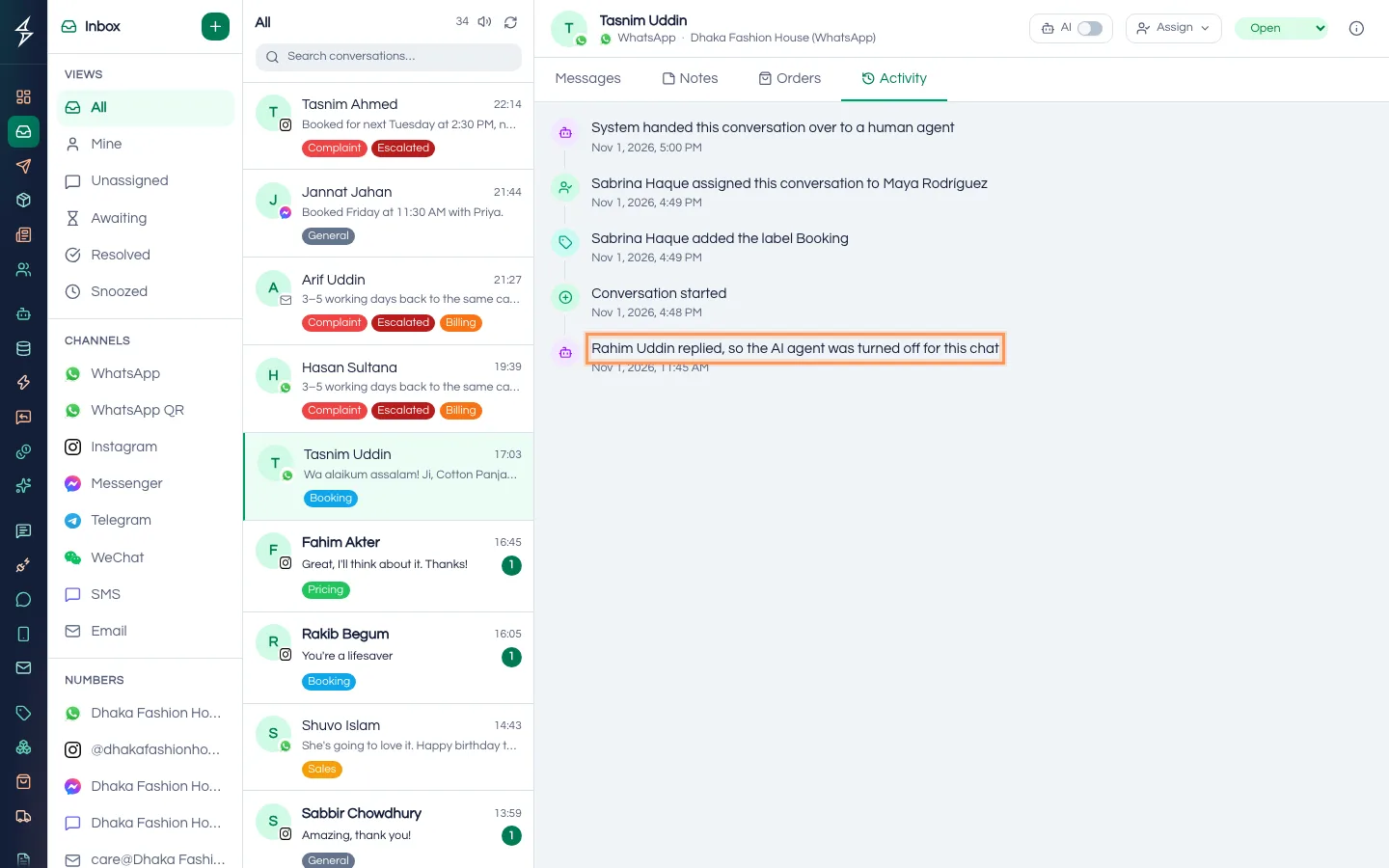
Type your reply and send it, as usual. If the AI was still on, the chat shows a line such as Rahim replied, so the AI agent was turned off for this chat. The chat also leaves the Awaiting folder.
Step 4 — Turn the AI back on
When you are done, click the AI switch again so it turns on. The AI agent answers the customer's next message. It doesn't go back and answer older messages.
Replies from outside SaleMag count too
The AI also turns off when someone replies from:
- the WhatsApp Business app on the same number,
- a phone linked with WhatsApp QR,
- the Instagram app.
The chat then shows A reply from the business phone or app turned the AI agent off for this chat.
These don't turn the AI off: emoji reactions, private notes, and assigning the chat with Assign.
Important: Replies typed in Facebook's own Page inbox (Meta Business Suite) don't reach SaleMag, so the AI stays on. Turn the AI off in SaleMag before you answer a Messenger chat there.
When the AI hands over by itself
Your AI agent gives a chat to your team in three cases:
- The customer asks for a person in English. The phrases are: "talk to human", "talk to agent", "speak to agent", "speak to human", "human please", "real person", "live agent", "live support", "need a human", "connect me to" and "transfer me". They count anywhere in the message, in any capital letters. A voice note that says one counts too, if your AI agent understands voice messages. Bangla phrases don't trigger a handover.
- The AI can't answer from your knowledge base and instructions, and Hand over to a human is on. It sends the Fallback message, then hands over. Both settings are in the AI agent, under When the AI agent doesn't know. If Hand over to a human is off, the AI sends the fallback message and stays on.
- Your AI credits run out. On Platform AI, every chat goes to your team until you buy credits. See AI credits and AI settings.
When this happens, the AI switch in that chat turns off and the chat goes into Awaiting. Your team gets a notification: AI handover — action needed. The chat leaves Awaiting when a person replies or someone turns the AI back on.
Turning the AI off yourself doesn't put the chat in Awaiting: you are already handling it.
The agent's Live switch is different
The AI switch in a chat affects only that chat. To pause an AI agent everywhere, go to AI & Automation → AI Agents, open the agent and turn off Live — answer customers automatically under Basics. Click Save Changes. The agent stops answering on all its channels, but you can still test it.
What happens next
Your team answers the chats you took over, and the AI keeps handling the rest. To make the AI hand over less often, add the missing answers to its knowledge: see train your AI agent.
If something goes wrong
The AI doesn't answer although the switch is on: check that the channel has an AI agent on Messaging → Account/Page Setup, that the agent is live, and that you have AI credits or your own API key. If your workspace has no active plan, the AI doesn't answer at all.
The AI answered after I replied from Facebook: see the important note above about Meta Business Suite.
A customer asked for a person but the chat wasn't handed over: they used words that aren't in the list, or wrote in Bangla. Watch your inbox, or turn the AI off for that chat yourself.
Frequently asked questions
Does the AI turn back on by itself after a while?
No. Once a person replies, or someone switches the AI off, it stays off in that chat until someone turns the AI switch back on. There is no timer.
If I assign a chat to a teammate, does the AI stop?
No. Assigning only says who is responsible. To stop the AI, turn off the AI switch in that chat, or just reply.
Can customers ask for a human in Bangla?
The automatic handover only reacts to the English phrases listed in this article. A request in Bangla doesn't hand the chat over by itself, so keep an eye on your inbox.
Why did the AI turn off in a chat when nobody touched the switch?
Someone replied, maybe from the WhatsApp Business app or the Instagram app, or the AI handed the chat over. Check the activity lines in the chat to see which.
How do I stop the AI everywhere at once?
Open the AI agent in AI & Automation → AI Agents, turn off Live — answer customers automatically, and click Save Changes.
Was this article helpful?