Contacts are your customers' names, phone numbers and emails, kept in one list. Customers who message you are added automatically. This guide shows how to add others by hand or from a file, how to sort them, and how to export your list.
Step 1 — Open Contacts
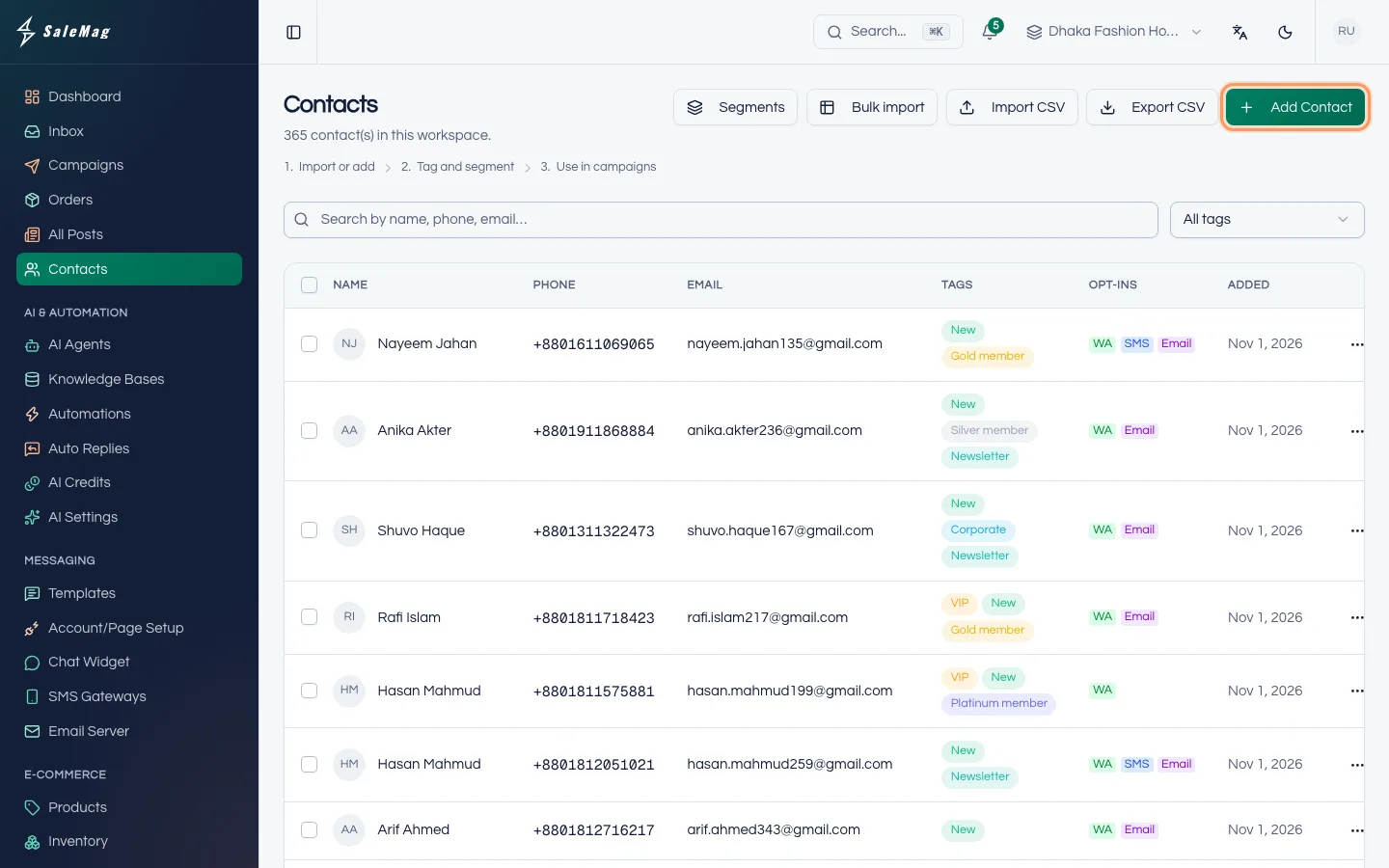
In the left menu, press Contacts. You see every contact in this workspace, with their phone, tags and opt-ins.
Step 2 — Add one contact
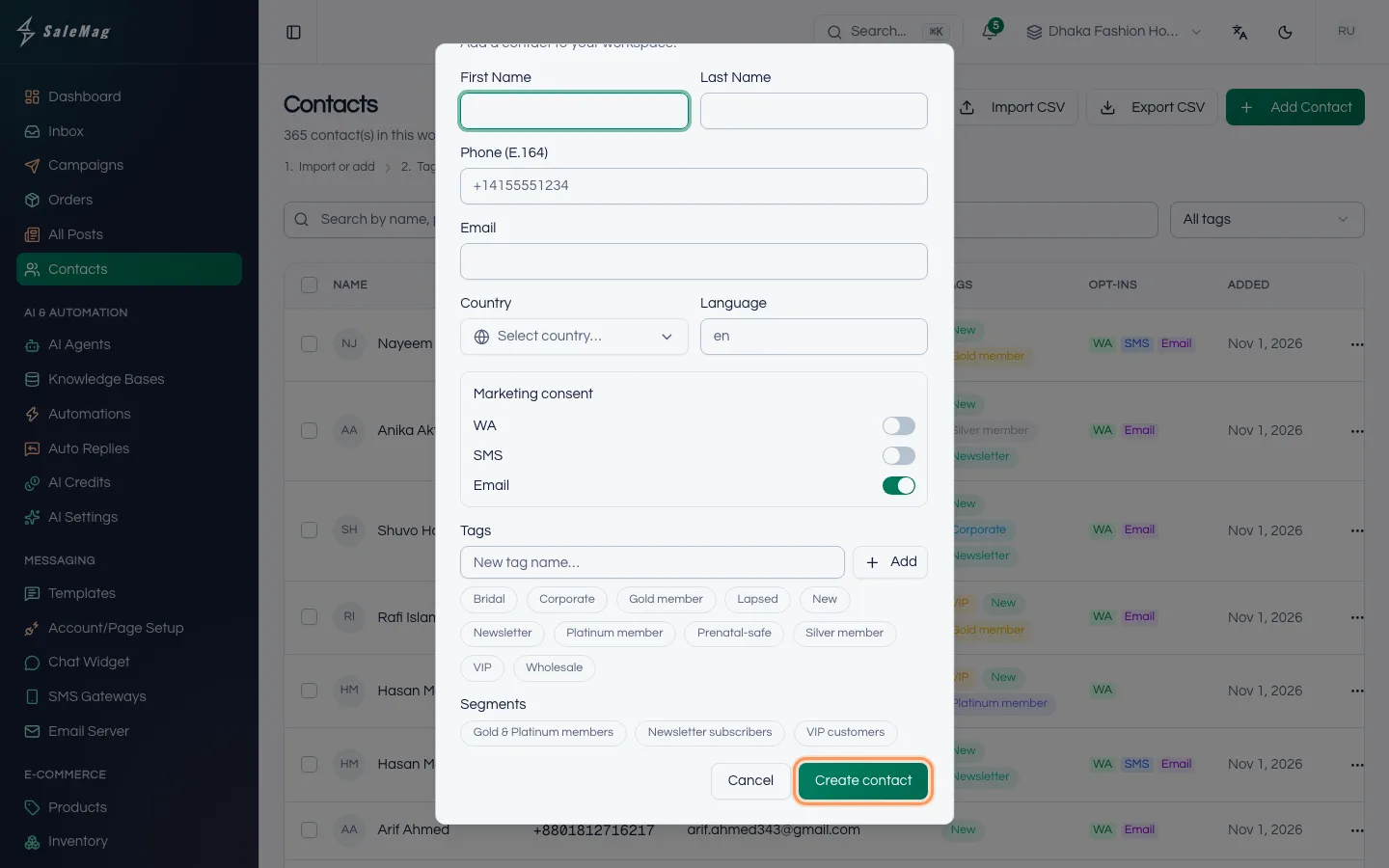
Press Add Contact and fill in what you know:
- First Name and Last Name.
- Phone (E.164): the number with a
+and the country code, for example+8801712345678. E.164 is simply the international phone format. When you pick a Country, its code is added for you. - Email, Country and Language (optional).
- Marketing consent: switch on WA (WhatsApp), SMS or Email only if the customer agreed to get campaigns there.
- Tags and Segments (optional).
Press Create contact. You will see "Contact created."
Step 3 — Upload a CSV file
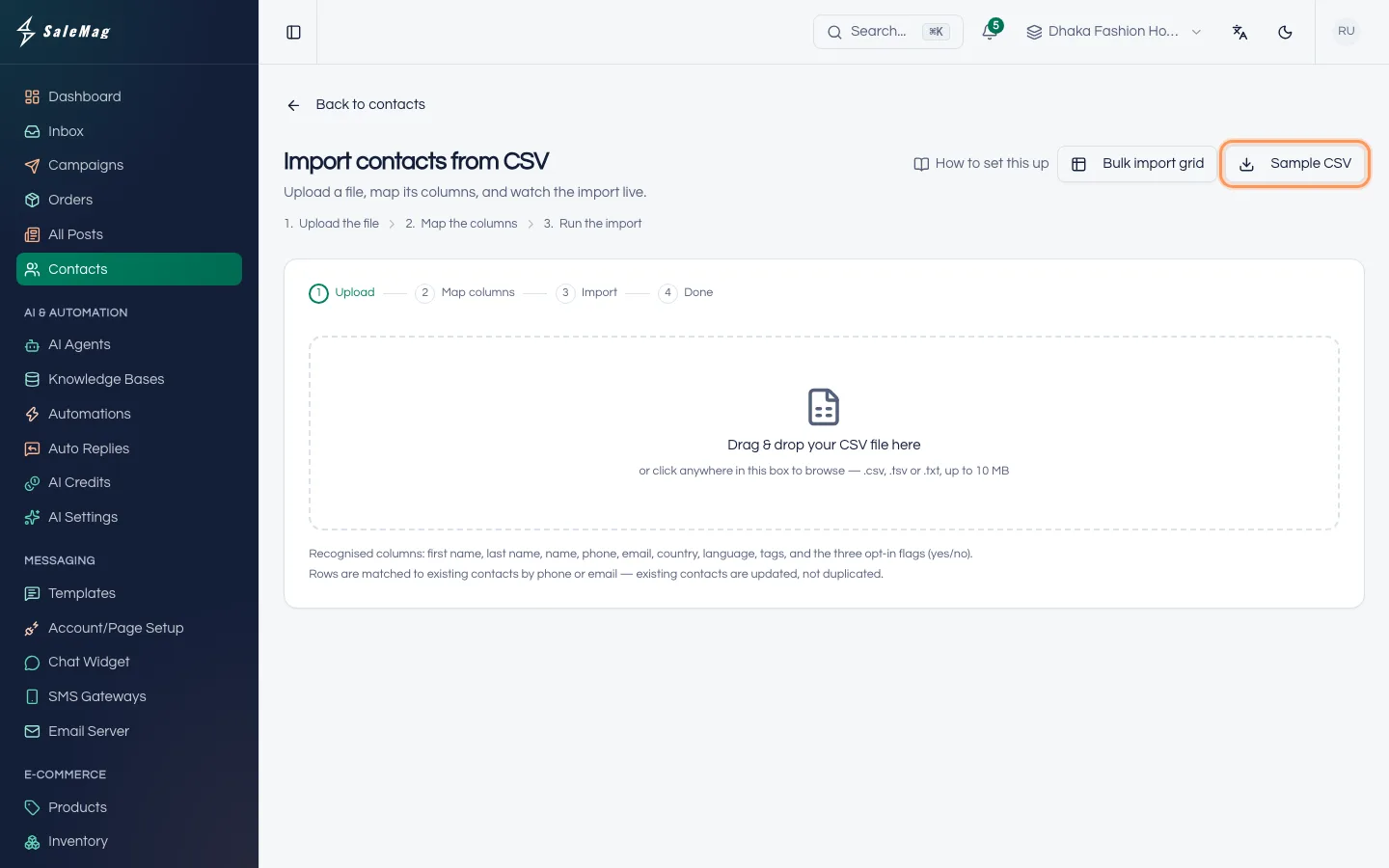
A CSV file is a simple spreadsheet file. In Excel or Google Sheets, use Save as or Download and choose CSV.
Press Import CSV. Drag your file into the box, or click the box to choose it. You can use .csv, .tsv or .txt files up to 10 MB. Not sure about the layout? Press Sample CSV to download an example.
Step 4 — Map the columns
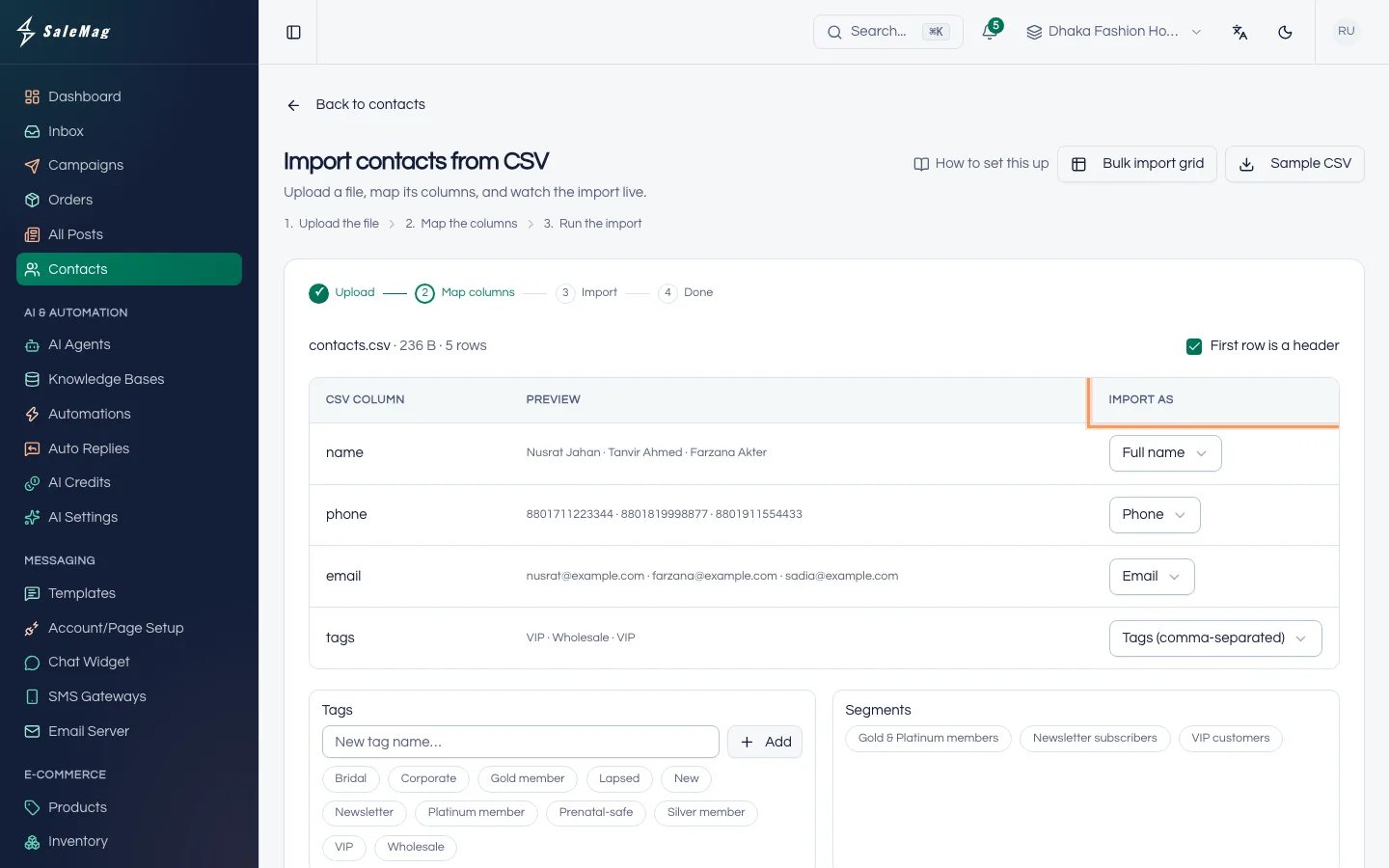
On the Map columns step, SaleMag shows each column of your file. Next to each one, under Import as, choose what it is: Phone, Email, First name, Full name, Tags (comma-separated), an opt-in, or Don't import.
- Leave First row is a header ticked if the first row holds column names.
- Map at least one Phone or Email column.
- Optional: pick Tags or Segments to add to every imported contact.
Press Import {count} rows.
Step 5 — Check the result
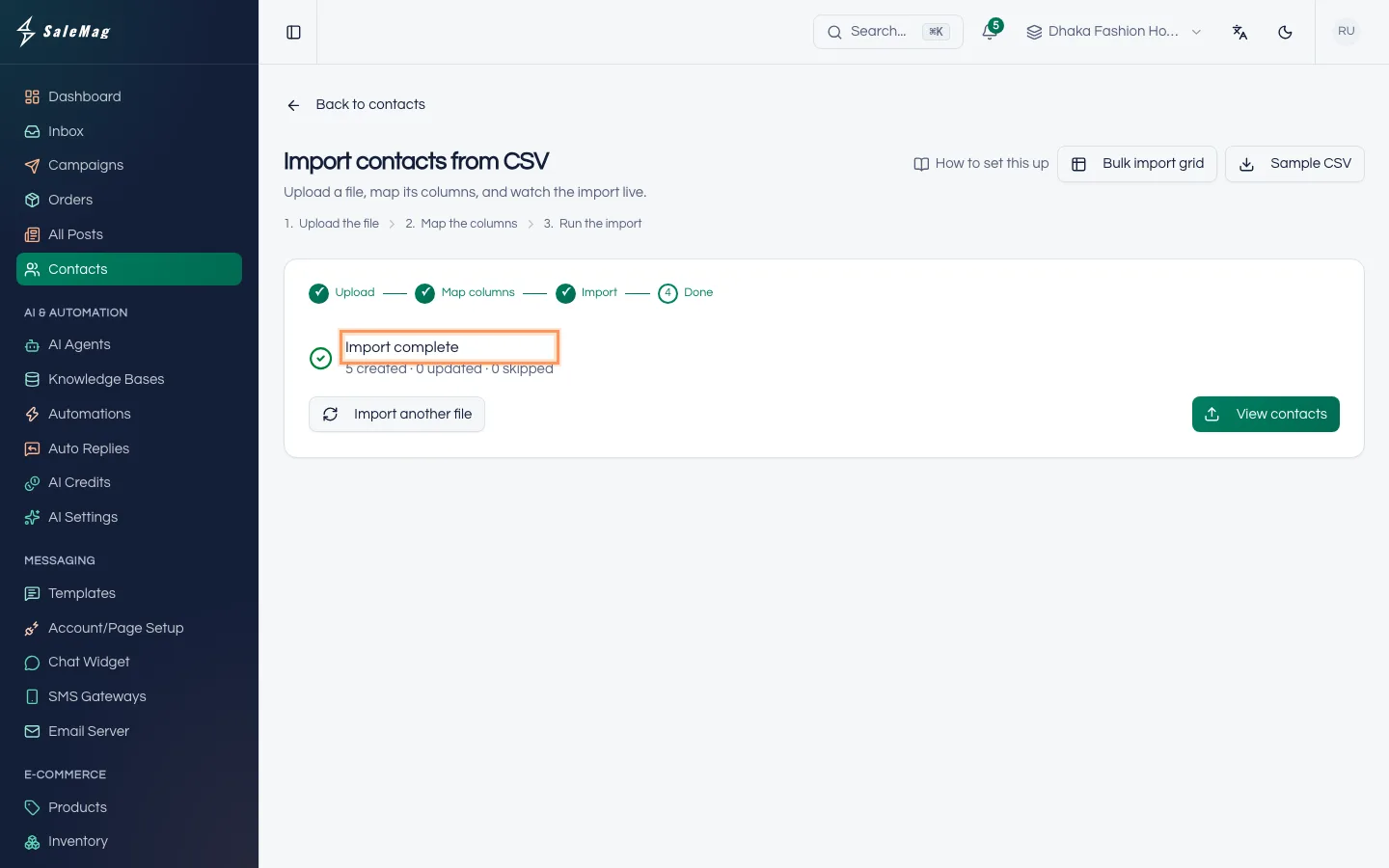
The import runs while you watch. When it finishes, you see Import complete and a line such as "120 created · 15 updated · 3 skipped". Rows with problems are listed with their row number. Press View contacts to see your list.
Step 6 — Or paste a list with Bulk import
For a quick list, press Bulk import on the Contacts page. Paste cells straight from Excel or Google Sheets with the columns Name, Phone, Tag and Segment, or press Load file to open an .xlsx or CSV file. Sample workbook downloads an example. You can add up to 500 rows at a time.
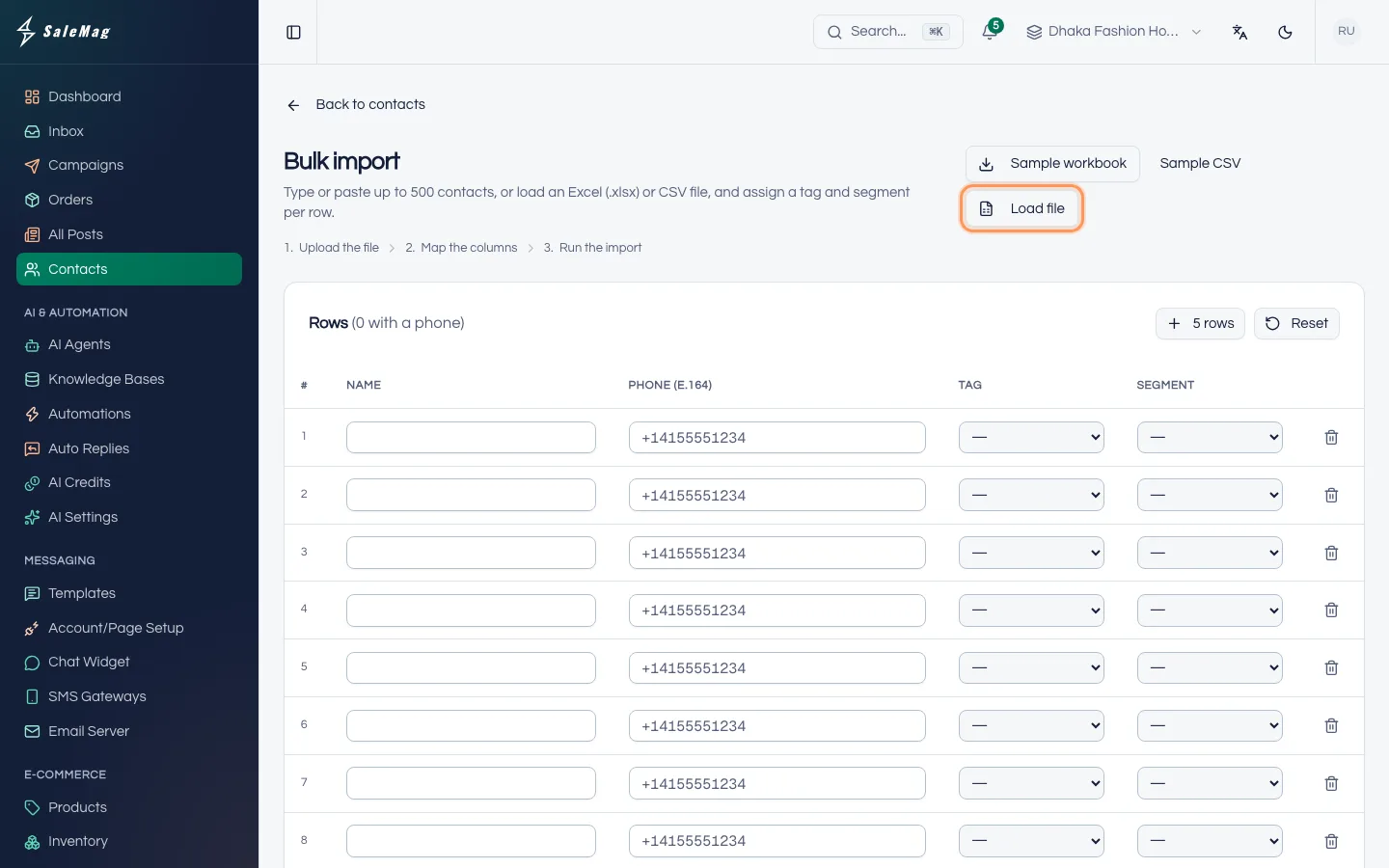
Press Import {count} contacts. Rows without a phone number are left out. Tags and segments must already exist; unknown ones are ignored.
Step 7 — Sort contacts with tags and segments
A tag is a short word on a contact, such as "VIP" or "Dhaka". A segment is a group of contacts you can send a campaign to. Here you can add contacts to static segments only.
Tick the contacts you want, then press Tags or Segments in the bar that appears. Choose what to add or remove and press Apply to {count} contact(s). To see one tag only, use the All tags menu above the list.
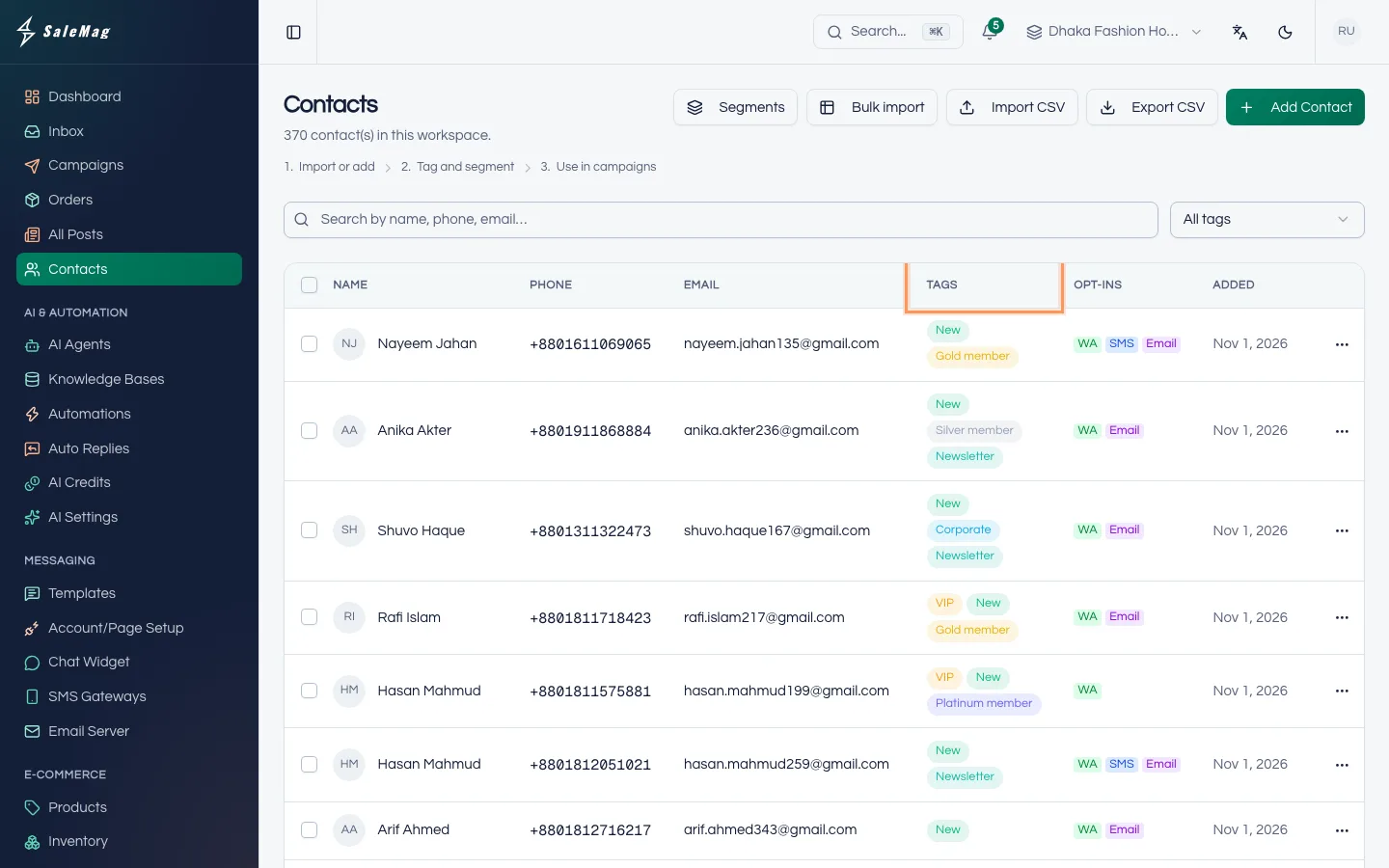
To create segments, press Segments at the top of the Contacts page (or go to CRM → Segments) and press New Segment. A Static segment is a fixed list you fill yourself. A Dynamic segment fills itself from rules.
Step 8 — Export your contacts
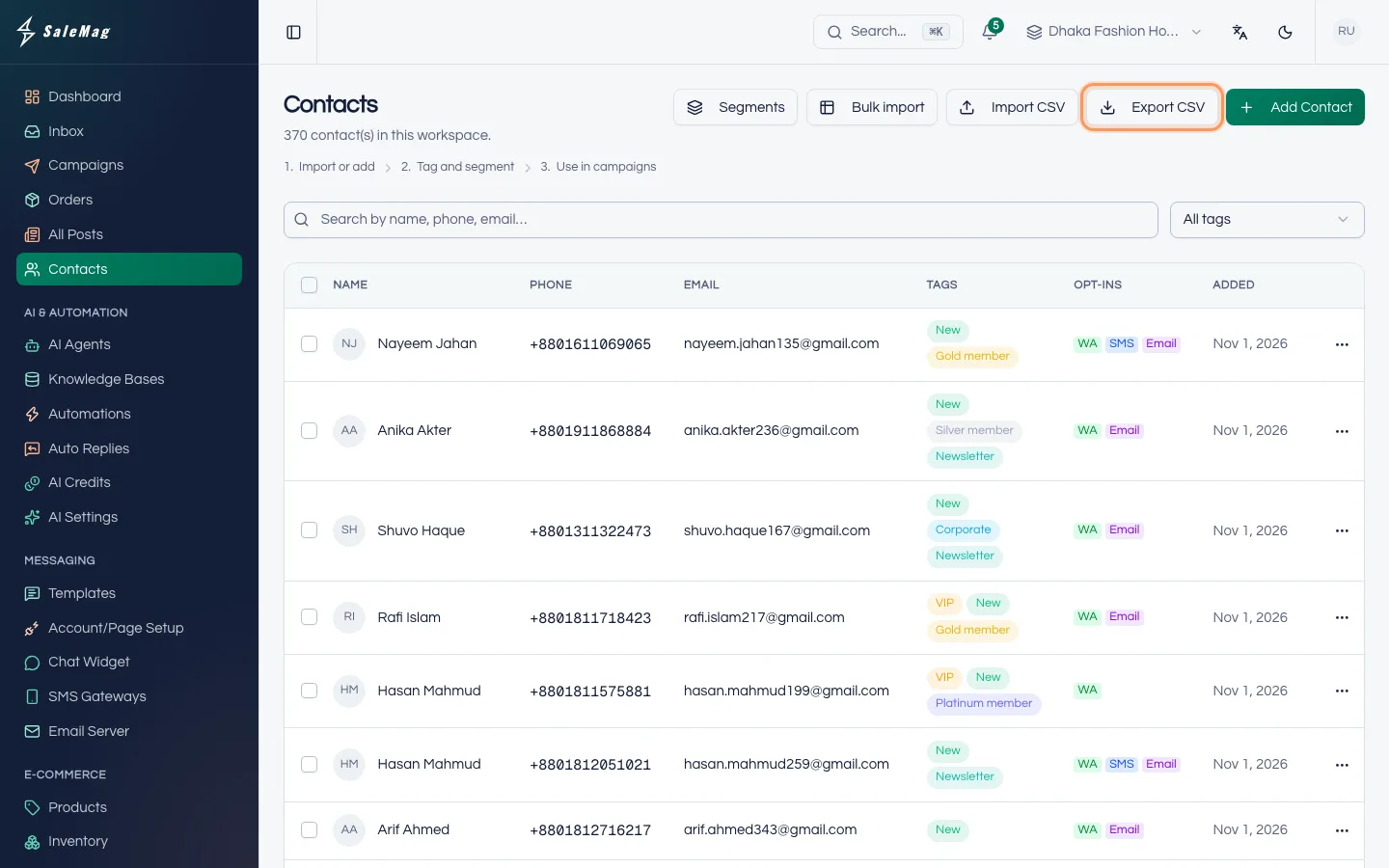
Press Export CSV to download the contacts on screen. If you searched or picked a tag first, only those contacts are exported. To export a few, tick them and press Export selected.
What happens next
Click any contact to open their page. There you see their tags, segments, Custom fields and Recent Conversations. To talk to a contact, start a chat from the inbox; see use the inbox.
Important: Only contacts who are opted in receive campaigns. When a new customer messages you on WhatsApp, they are opted in for WhatsApp automatically.
If something goes wrong
"Map at least one Phone or Email column to continue.": choose Phone or Email under Import as for the right column.
Many rows were skipped: those rows had no valid phone number or email. Phone numbers need the country code; a number that starts with 0 is not accepted.
"That file is larger than 10 MB.": split the file into smaller files and import them one by one.
"Legacy .xls workbooks are not supported": open the file in Excel and save it as .xlsx.
The Import CSV, Bulk import or Export CSV buttons are missing: your role can't manage contacts. Ask an Administrator.
Frequently asked questions
Do I need to add customers who message me?
No. When someone messages you on a connected channel, SaleMag creates the contact automatically. Use import for customers who have not messaged you yet.
My numbers start with 01. Will they import?
Not as they are. Add the country code first: 01712345678 becomes +8801712345678 or 8801712345678. In Excel you can add 88 in front of every number with a formula, such as ="88"&A2.
Will importing the same file twice make duplicates?
No. Rows are matched to existing contacts by phone or email, and those contacts are updated instead of copied.
What is an opt-in?
Permission to send campaigns on that channel: WhatsApp, SMS or Email. Only opted-in contacts receive campaigns. Opt-ins don't affect normal chat replies.
Can I change a contact's phone number?
No. The phone number can't be edited after the contact is created. Create a new contact with the right number, and delete the old one if you don't need it.
Was this article helpful?