This guide connects your business WhatsApp number to SaleMag through Meta's official WhatsApp API. At the end, customer messages arrive in your SaleMag inbox, your team can reply from there, and your AI agent can answer for you.
If you already use the number in the WhatsApp Business app, you can keep using the app. SaleMag works on the same number at the same time.
Step 1 — Open the Channel Setup page
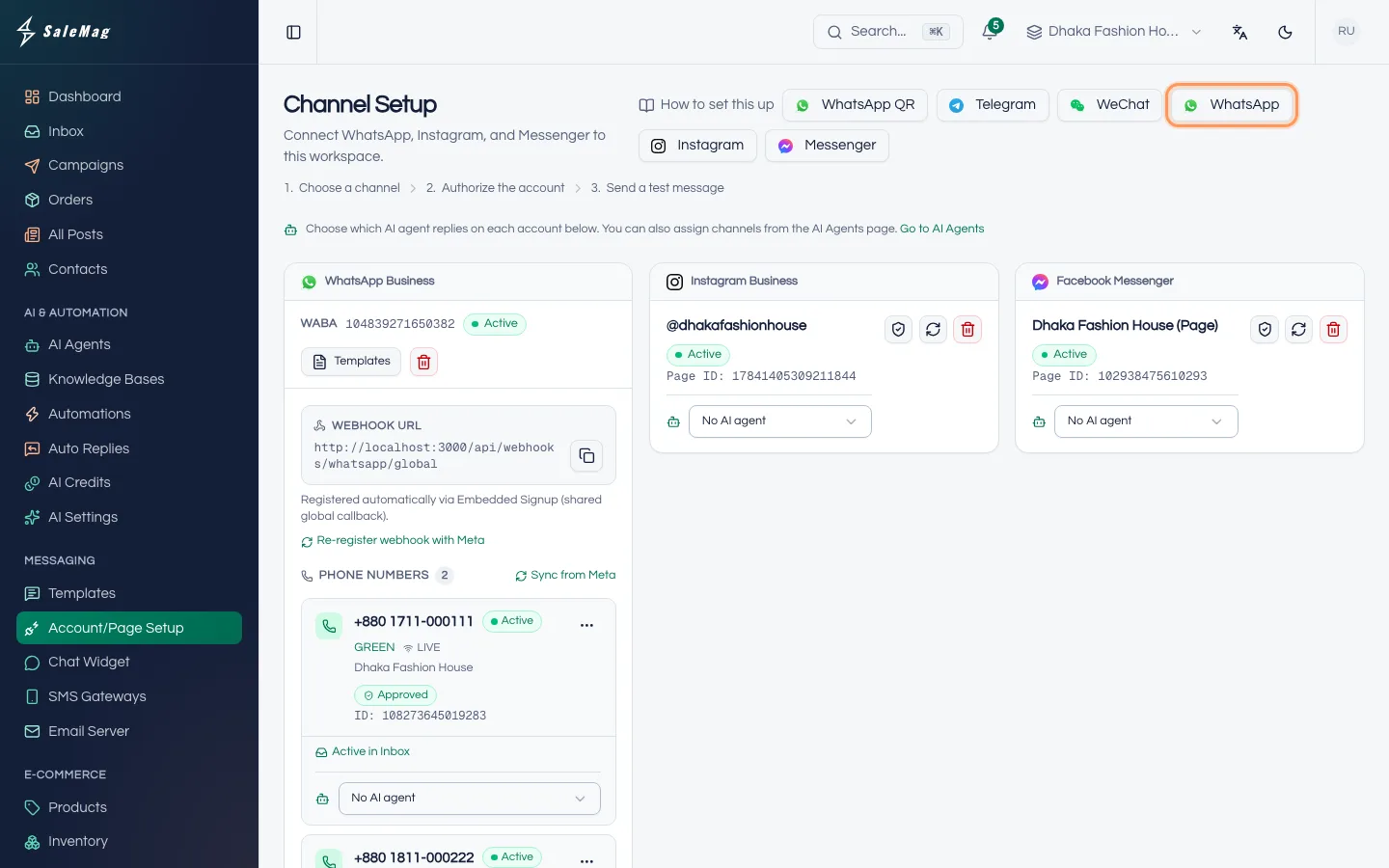
In the left menu, go to Messaging → Account/Page Setup. The page that opens is called Channel Setup.
If you don't see this menu, your role can't connect channels. Ask your workspace Administrator.
Step 2 — Open the WhatsApp window
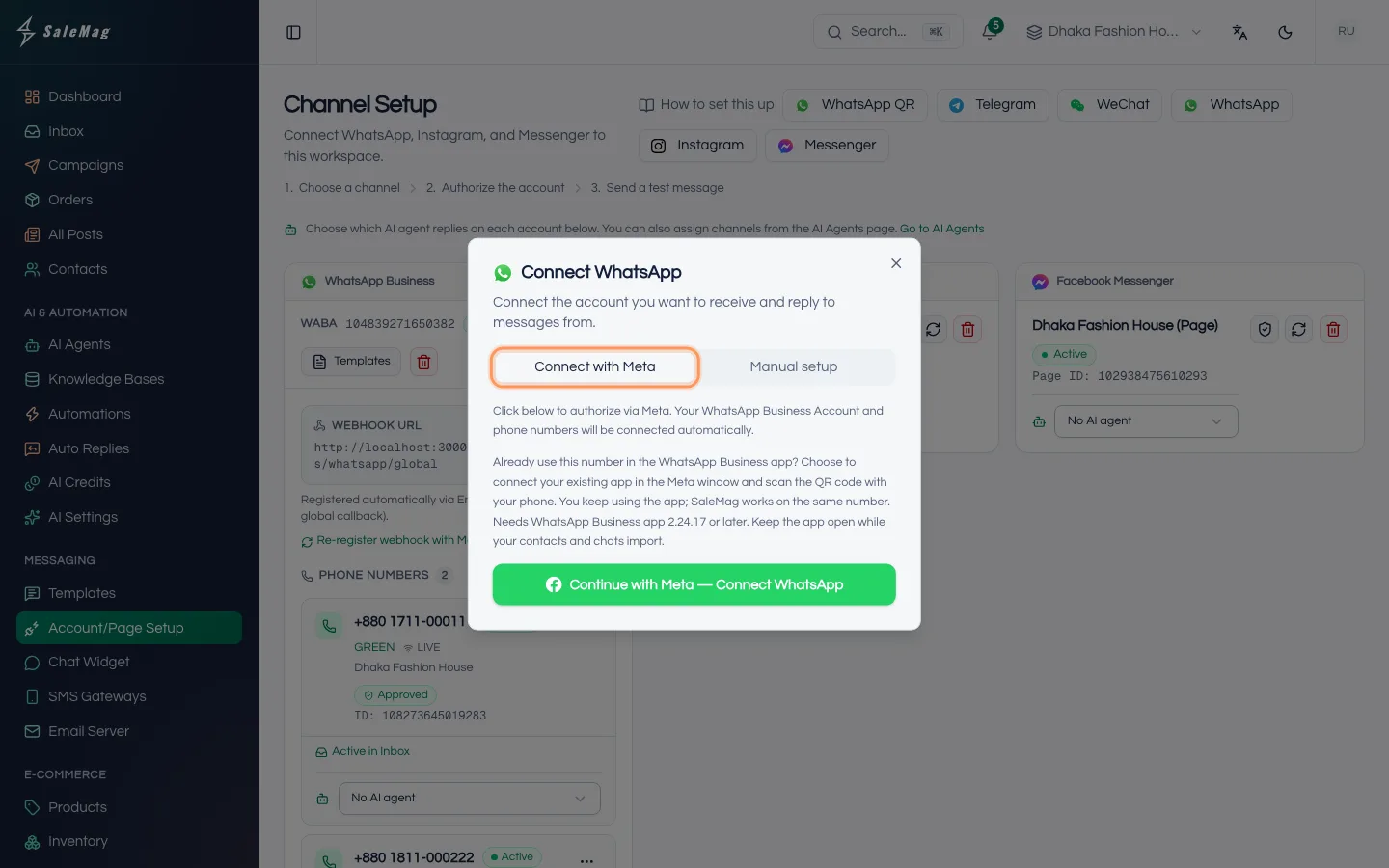
Click WhatsApp at the top of the page. A window called Connect WhatsApp opens with two tabs: Connect with Meta and Manual setup. Stay on Connect with Meta.
Tip: If you also see a WhatsApp QR button, that is a different, unofficial way to link a phone. For your main business number, use the official way on this page. See link WhatsApp with a QR code for the difference.
Step 3 — Click Continue with Meta
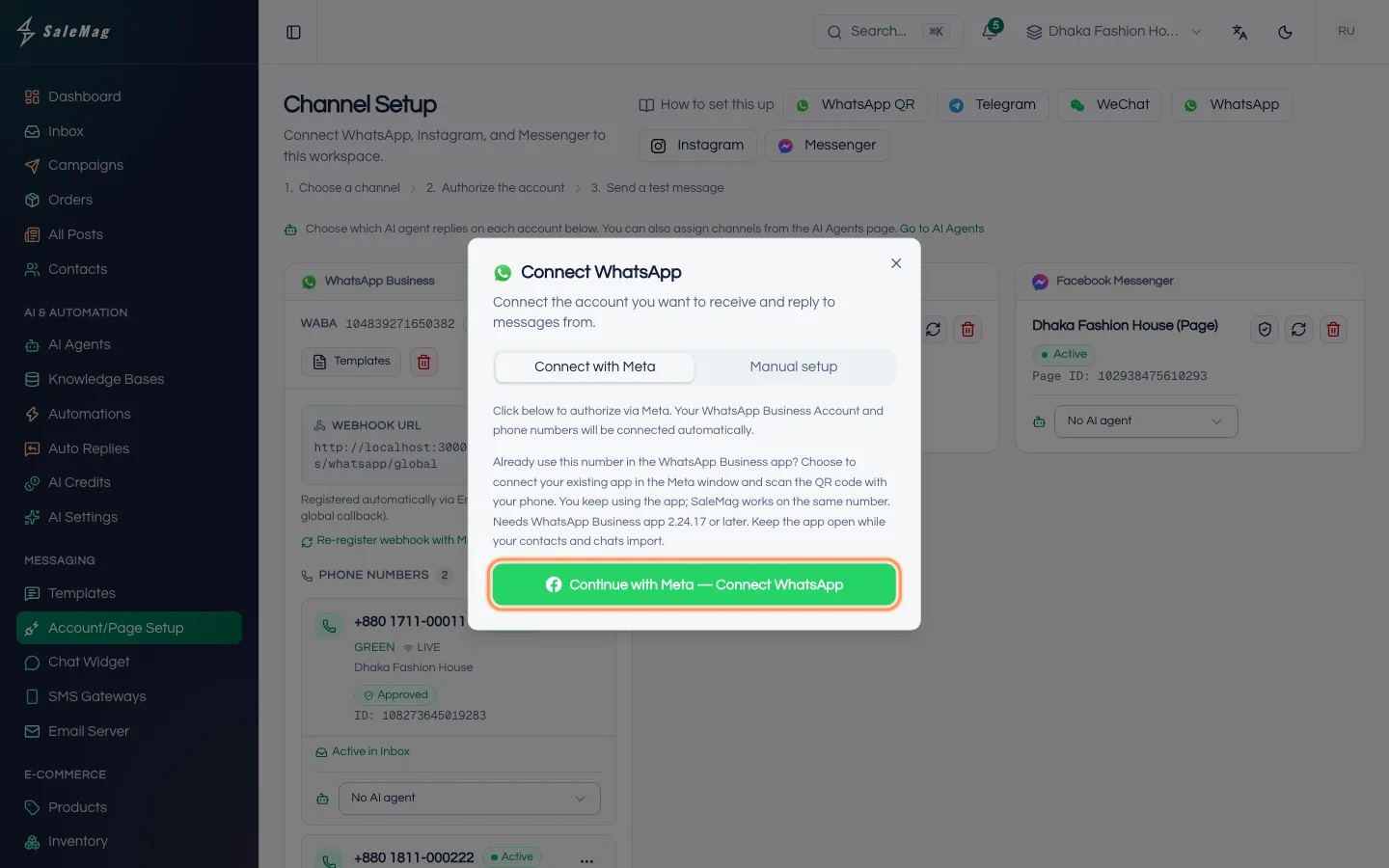
Click Continue with Meta — Connect WhatsApp. Meta's window opens on top of SaleMag. If nothing opens, allow pop-ups for SaleMag in your browser and click again.
Step 4 — Finish the steps in Meta's window
Meta's screens change often, so here is what you do in plain words:
- Log in to Facebook.
- Pick your business portfolio, or create one with your business name.
- Add your phone number, or choose the number you already use in the WhatsApp Business app.
- Enter the display name customers will see.
- Verify the number with the code Meta sends by SMS or call.
- Allow SaleMag the access Meta asks for, and finish.
Already using the WhatsApp Business app? In Meta's window, choose to connect your existing WhatsApp Business app. Meta shows a QR code. Scan it with the WhatsApp Business app on your phone and follow the app. If the app asks about sharing your chat history, allow it to bring your past chats into SaleMag.
Important: Keep the WhatsApp Business app open on your phone while your contacts and chats import. Don't close Meta's window before the last step, or SaleMag can't find your number.
Step 5 — Check your number on the Channel Setup page
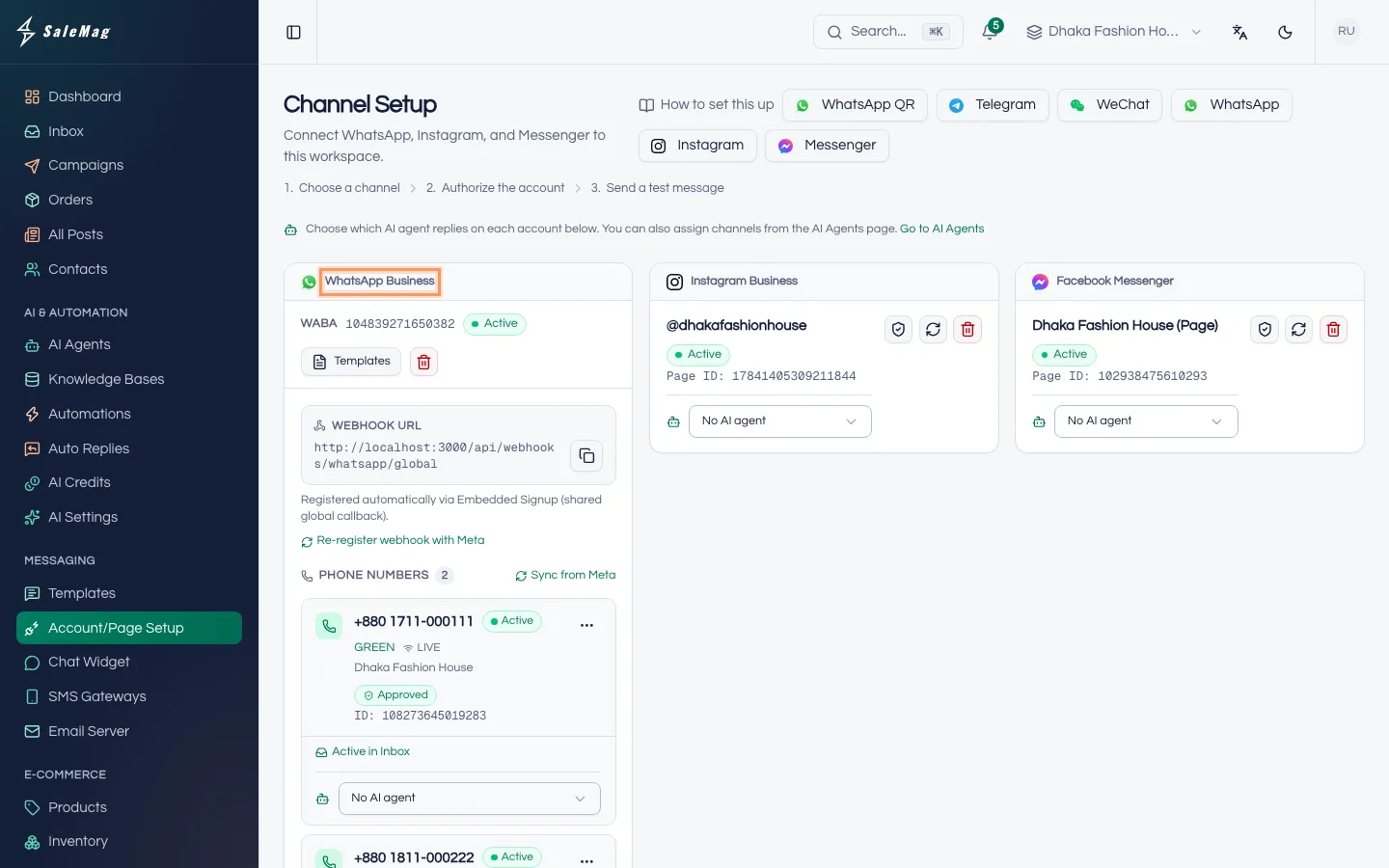
When Meta's window closes, SaleMag shows WhatsApp Business Account connected. A WhatsApp Business card appears. Your number is listed under Phone Numbers with a status, such as Active, and the line Active in Inbox.
If you connected your WhatsApp Business app, the number also shows Also on WhatsApp Business app. Under it you see the import, for example Importing contacts and chat history… 40%, and later Contacts and the last 180 days of chats imported.
If your number is not listed, click Sync from Meta on the card.
Step 6 — Choose the AI agent for this number
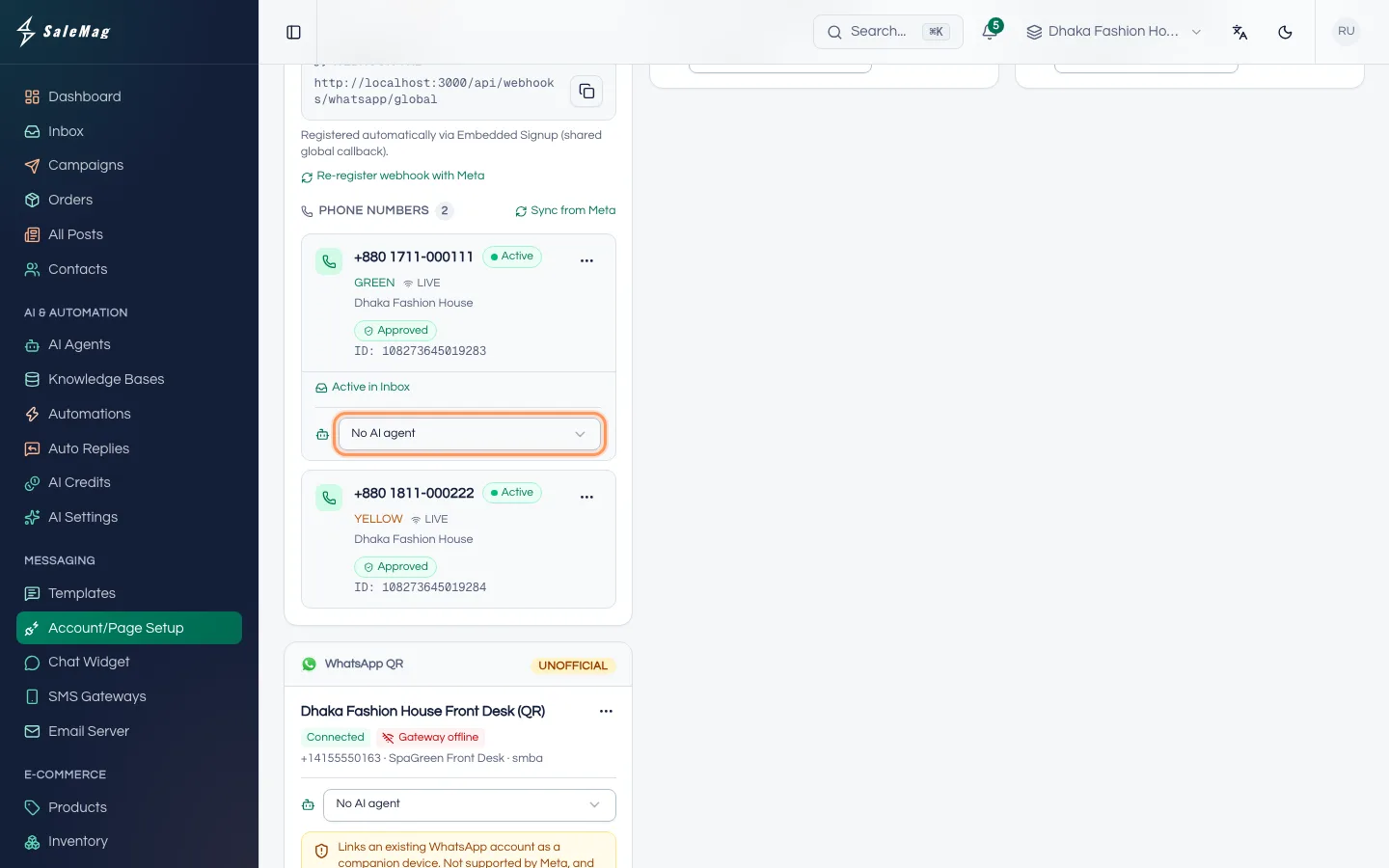
Under the number, open the drop-down that says No AI agent and pick your AI agent. SaleMag shows AI agent assigned. Each number is answered by one AI agent.
If you don't see the drop-down, none of your AI agents is turned on yet. Click Go to AI Agents, or follow create your AI agent first.
Step 7 — Register the number, only if it says Not verified
SaleMag registers new numbers for you. If the number's status says Not verified, or messages don't send:
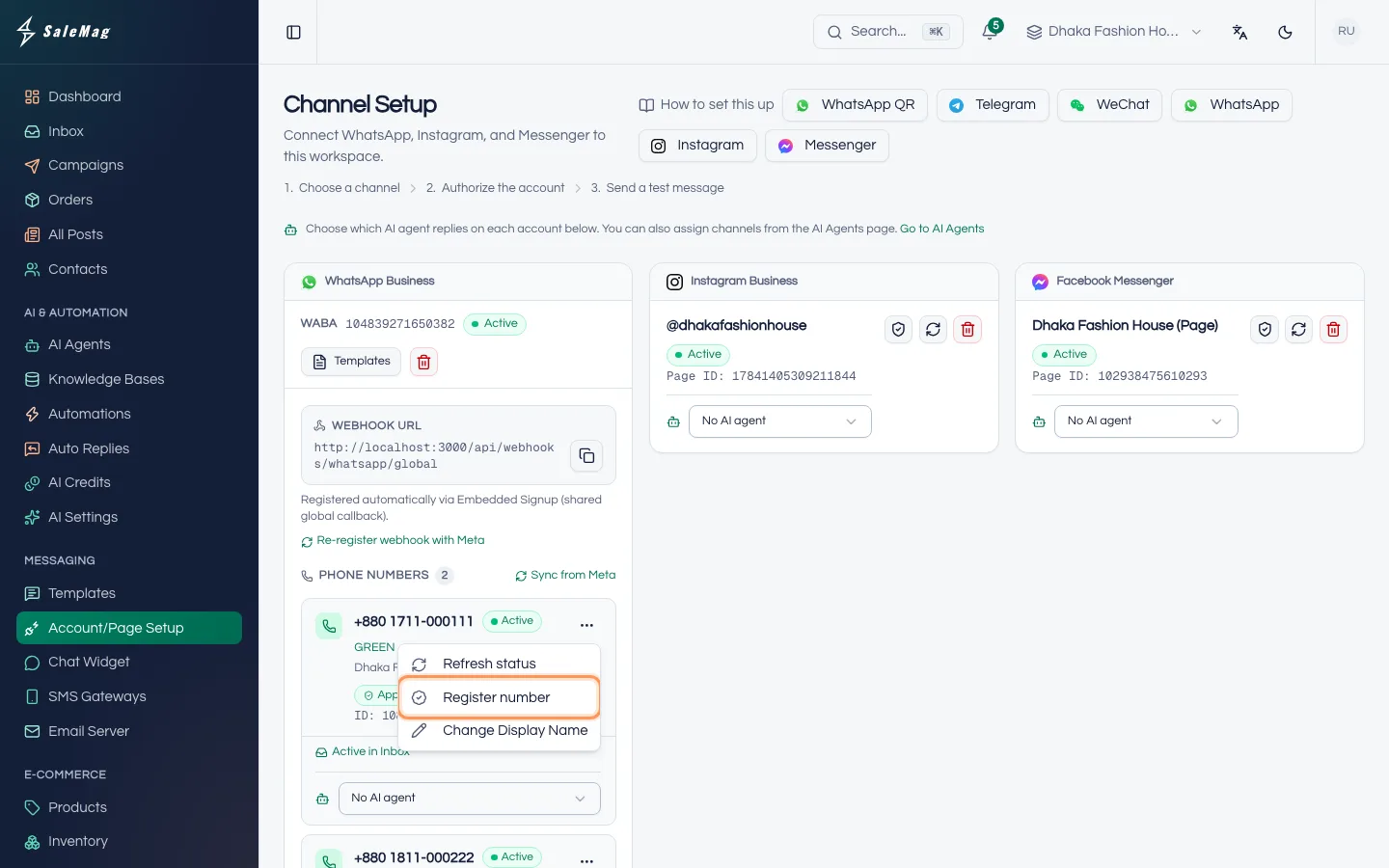
- Click the ⋯ (three dots) button next to the number.
- Click Register number.
- In Two-step PIN, type a 6-digit PIN. If your number already has a two-step verification PIN, type that one. Otherwise the PIN you type becomes the number's PIN, so write it down.
- Click Register. SaleMag shows Phone number registered.
Numbers that are also in the WhatsApp Business app don't have this option, because the app has already registered them.
Change the name customers see
Click ⋯ next to the number, then Change Display Name. Type the new name and click Submit. Meta reviews it, which takes a few minutes to 24 hours. Meanwhile the number shows Name under review. The name must match a real business. If Meta declines it, you see Name declined: submit a different name from the same menu.
The 24-hour rule, in plain words
WhatsApp gives you 24 hours from the customer's last message to reply freely. You, your team and your AI agent can send anything in that time.
After 24 hours, WhatsApp only lets you send an approved template: a message you wrote earlier and Meta checked. The inbox then shows 24-hour session closed — use a WhatsApp template to re-engage this contact. When the customer writes again, a new 24 hours starts.
To make templates, go to Messaging → Templates (or click Templates on the WhatsApp card), write your message and click Submit for approval. This rule applies to official WhatsApp only.
Advanced: Manual setup
Most shops never need this. If you have your own Meta developer app, open the Manual setup tab. Fill in WhatsApp Business Account ID and Access Token (a permanent System User token with the whatsapp_business_management and whatsapp_business_messaging permissions). Leave Phone Number ID (optional) empty to bring in every number. Click Connect. Then copy the Webhook URL and Verify Token that SaleMag shows into your Meta app, under WhatsApp → Configuration.
What happens next
New WhatsApp messages arrive in your Inbox. If an AI agent is assigned and live, it answers them. Send a message from another phone to try it: see test and go live. If you reply from the WhatsApp Business app, the AI turns off for that chat. Here is how the AI switch works.
If something goes wrong
"Meta App is not configured…": WhatsApp connection isn't set up on the server. Contact SaleMag support.
"Authorization cancelled or failed. Please try again.": Meta's window was closed or blocked. Allow pop-ups and start again from Step 3.
"Could not detect your WABA ID from the Meta popup. Please try again.": Meta's steps weren't finished. Run them again to the last screen.
Messages don't arrive in the inbox: on the WhatsApp card, click Re-register webhook with Meta. Wait for Webhook re-registered., then send a test message.
"Disconnected because the WhatsApp Business app was not opened for about 14 days…": open the app on your phone, then connect again from Step 2.
"Past chats can only be imported within 24 hours of connecting…" or "History sharing is turned off in the WhatsApp Business app…": your new chats still work. To try the import again, connect the number again and allow history sharing.
The AI doesn't reply: check that the number has an AI agent (Step 6), and that the AI switch is on in that chat.
Frequently asked questions
Can I keep using the WhatsApp Business app on my phone?
Yes. If the number is already in the WhatsApp Business app (version 2.24.17 or later), choose to connect your existing app in Meta's window and scan the QR code with your phone. You keep using the app, and SaleMag works on the same number.
Will my old chats come into SaleMag?
Only when you connect a number that is already in the WhatsApp Business app and allow history sharing. SaleMag then imports your contacts and the last 180 days of chats. This works only within 24 hours of connecting.
Can I connect more than one WhatsApp number?
Yes. Run Continue with Meta again for each number. Every number appears on the Channel Setup page, and each one can have its own AI agent.
What is the difference between this and WhatsApp QR?
This is the official WhatsApp API from Meta: no ban risk from linking, message templates and campaigns work. WhatsApp QR links a phone the unofficial way, so the number can be banned and templates and campaigns don't work.
How do I disconnect WhatsApp?
On the WhatsApp Business card, click the red bin icon (Remove WABA), then Confirm. Your phone numbers are removed from SaleMag, but existing inbox conversations are kept.
Was this article helpful?