This guide sets the stock rules for your whole shop and the shop details your AI agent can quote. When you finish, your team hears when products run low or sell out, and your AI agent can answer questions about returns, delivery time and your opening hours.
Delivery fees and payment numbers are on their own pages. See delivery and payment settings.
Step 1 — Open the Shop settings page
In the left menu, go to E-Commerce → Shop settings. You see two cards: Stock and Shop information.
Step 2 — Set your stock rules
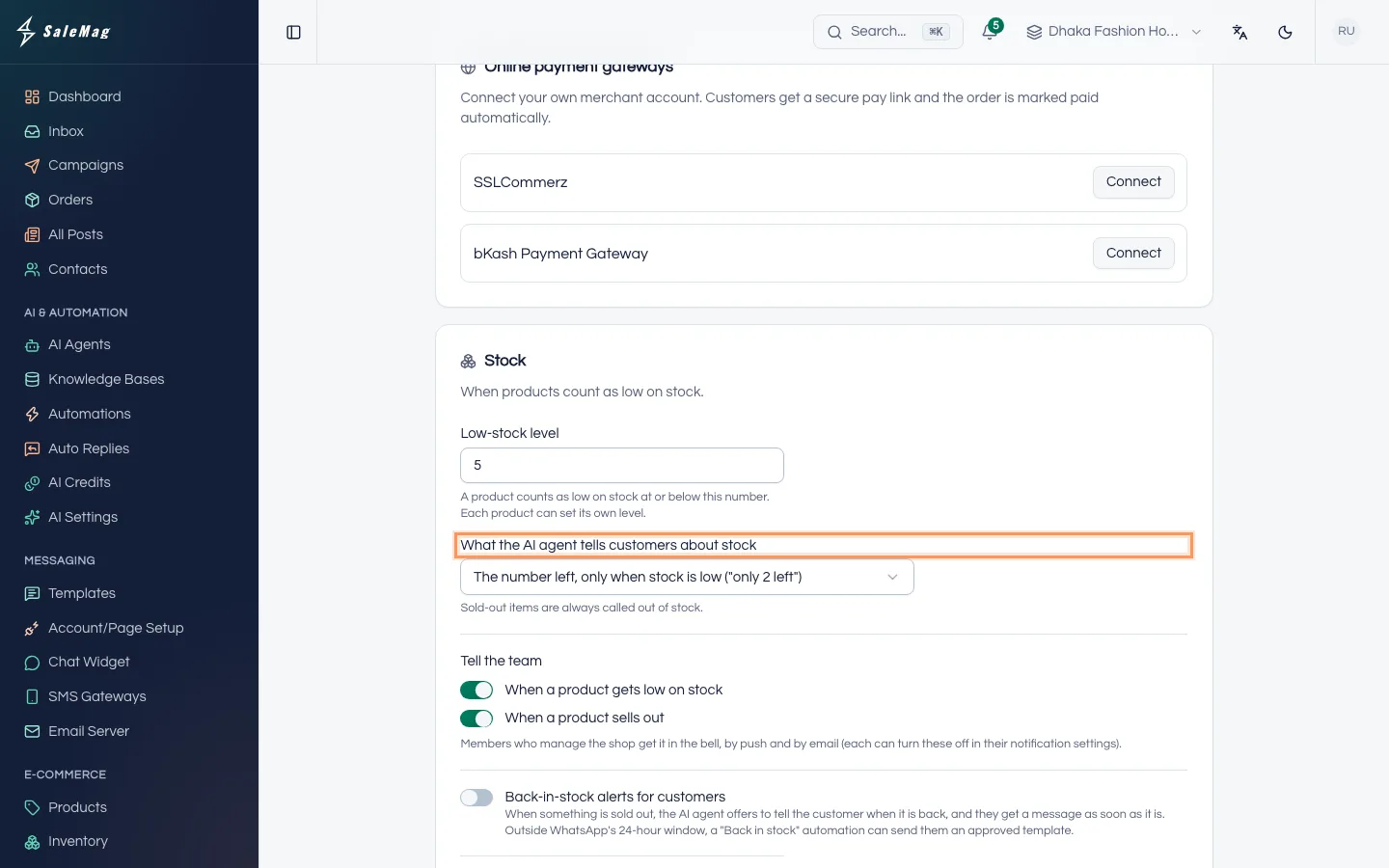
The Stock card holds the stock rules for the whole shop:
- Tell the team: turn on When a product gets low on stock and When a product sells out to alert the people who manage the shop by bell, push and email.
- Back-in-stock alerts for customers: when this is on and something is sold out, the AI agent offers to tell the customer when it is back. Customers wait for up to (days) sets how long the request is kept (30 days to start).
- Cancel unconfirmed cash-on-delivery orders after (hours): orders your team hasn't confirmed by then are cancelled, their stock goes back and the customer is told. Leave it empty to never cancel.
When a product counts as low on stock (Low-stock level) and what the AI agent tells customers about its stock are set on each product, in its Inventory card. See add products, Step 5.
Step 3 — Fill in your shop information
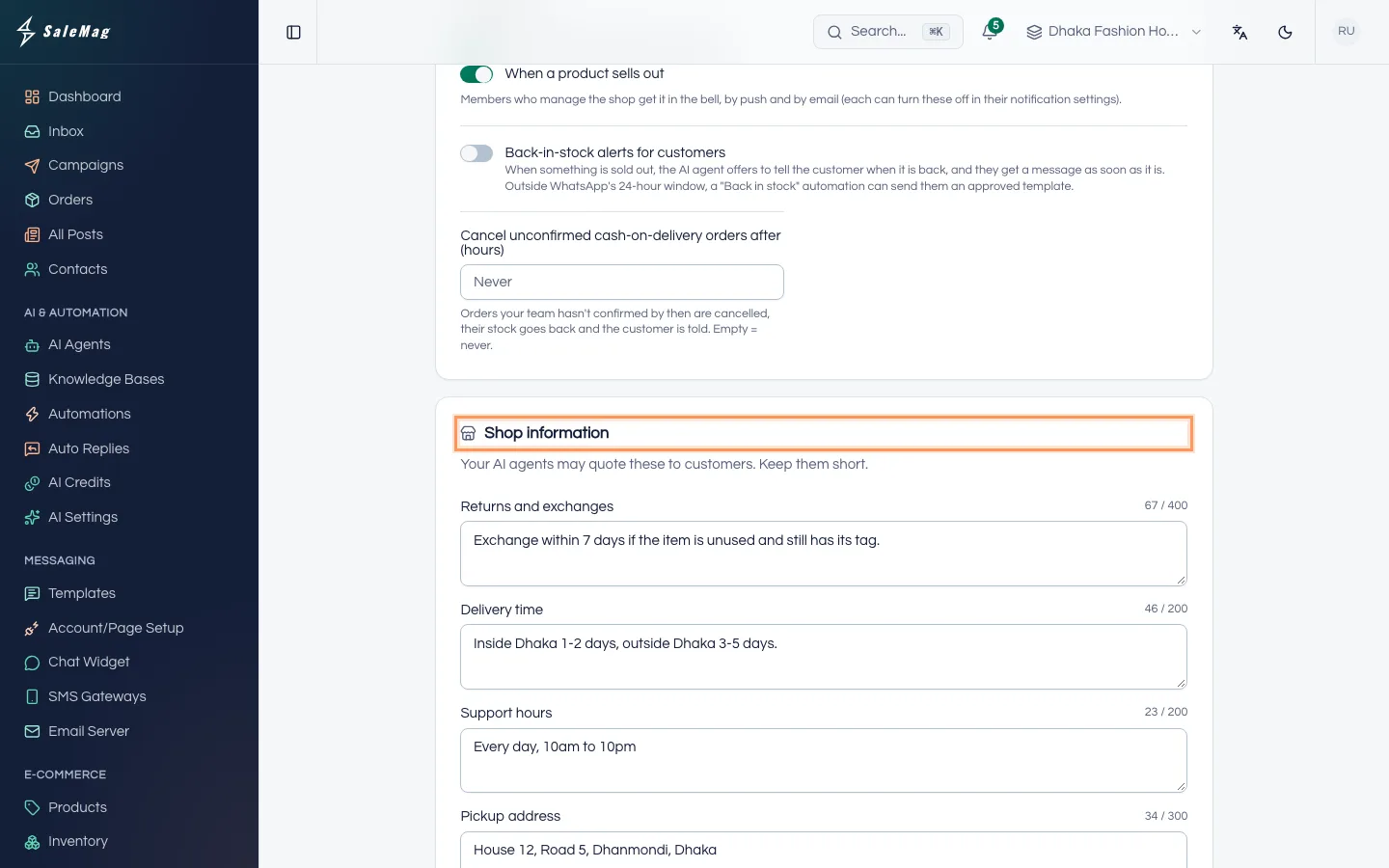
In the Shop information card, write short answers to what customers often ask. Your AI agent may quote them.
- Returns and exchanges, for example "Exchange within 3 days if the item is unused and has its tag."
- Delivery time, for example "Inside Dhaka 1-2 days, outside Dhaka 3-5 days."
- Support hours, Pickup address and Other information.
Step 4 — Save
Click Save at the top or bottom of the page. You see "Settings saved."
This page saves only the stock rules and shop information. Your delivery zones and payment details stay as they are.
What happens next
From now on, your AI agent can answer questions about returns, delivery time, support hours and pickup using what you wrote. Your team gets the stock alerts you turned on. To check that the AI agent uses your shop information, try it as described in test and go live.
If something goes wrong
The fields are grey and there is no Save button: your role can only view this page. Ask an Administrator for the Manager role.
"Enter the waiting time as a whole number of days from 1 to 180.": Customers wait for up to (days) is empty or out of range. Type a number such as 30.
"Enter the hours as a whole number from 1 to 720, or leave it empty.": Cancel unconfirmed cash-on-delivery orders after (hours) has letters or a number out of range. Type a number such as 48, or leave it empty.
A customer asked to hear when an item is back but got no message: customers whose WhatsApp 24-hour window has closed cannot be messaged.
Frequently asked questions
Will my AI agent tell customers my return policy?
Yes. Whatever you write under Shop information, such as Returns and exchanges, your AI agent may tell customers when they ask.
Where do I set when a product counts as low on stock?
On each product. Open E-Commerce → Products, open the product and set its Low-stock level in the Inventory card. The same card sets what the AI agent tells customers about its stock.
Where are delivery fees and payment numbers now?
On their own pages: E-Commerce → Delivery settings and E-Commerce → Payment settings. See the delivery and payment settings guide.
Was this article helpful?