Your AI agent needs an AI model to write its answers. SaleMag gives you two ways: use Platform AI and pay with credits, or connect your own API key from an AI company. This guide shows how to choose, how credits work, and how to buy more.
Credits in plain words
- A credit is a small unit SaleMag uses to count AI work. Each time Platform AI does a job, a few credits are used. Bigger jobs use more.
- Jobs that use credits include: an AI agent reply, a reply while taking an order, understanding a customer's photo, turning a voice message into text, reading a document, writing a social post or email, and searching your knowledge base.
- Plan credits come with your plan every month. They are used first. Whatever is left expires at the end of the month.
- Purchased credits are credits you buy. They never expire, and they are used after your plan credits.
- Each workspace has its own credits.
- With your own API key, no credits are used.
Step 1 — Open AI Settings
In the left menu, go to AI & Automation → AI Settings. The page is also called AI Settings.
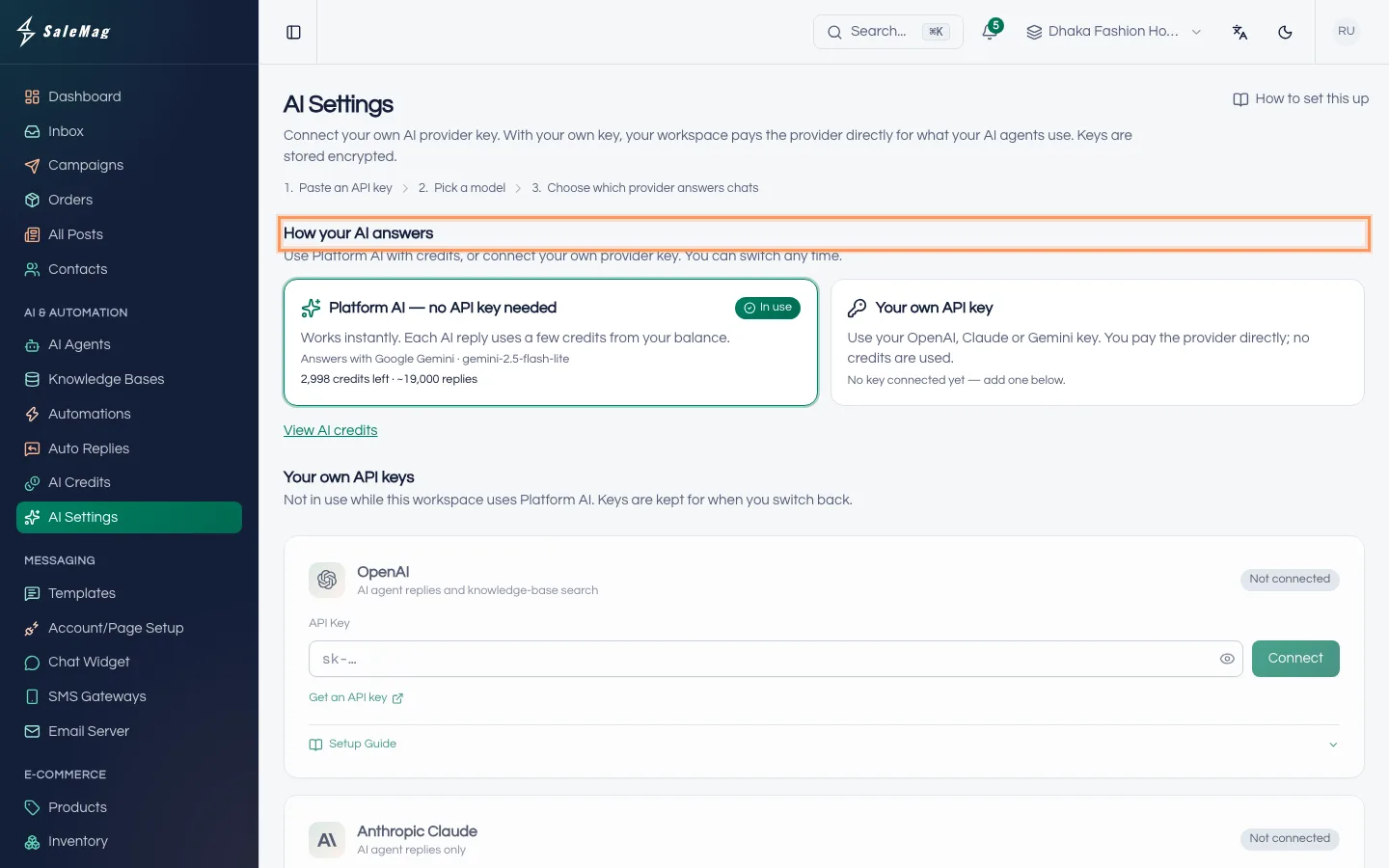
Step 2 — Choose how your AI answers
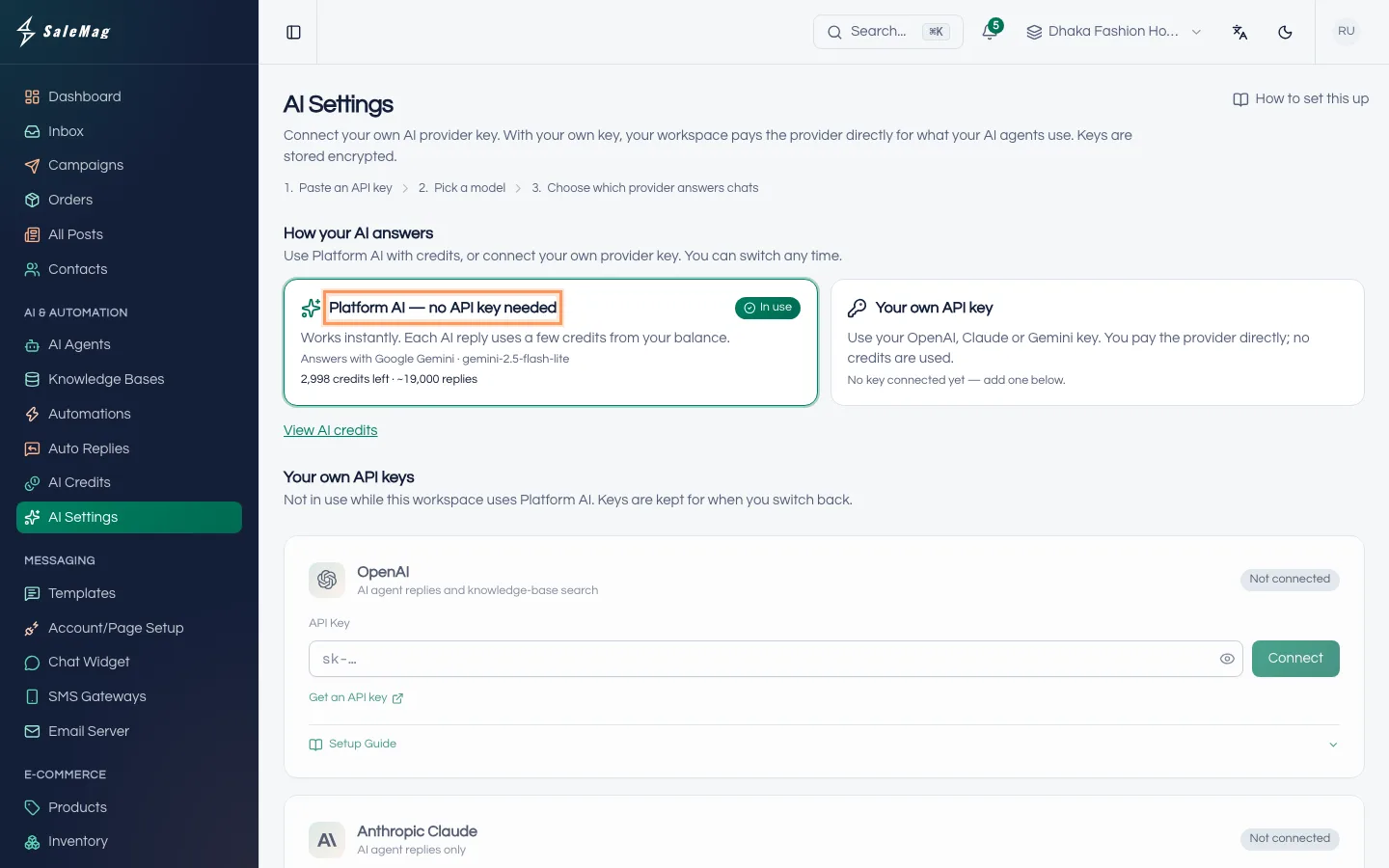
Under How your AI answers, click one of the two cards:
- Platform AI — no API key needed: works at once. Each AI reply uses a few credits from your balance. New workspaces start here.
- Your own API key: you use your OpenAI, Claude or Gemini key and pay that company directly. No credits are used.
The card you chose shows In use. If the choice can't work yet, for example you pick your own key before adding one, SaleMag warns you. Click Switch anyway to go ahead, or Cancel.
Step 3 — Connect your own key (only if you chose it)
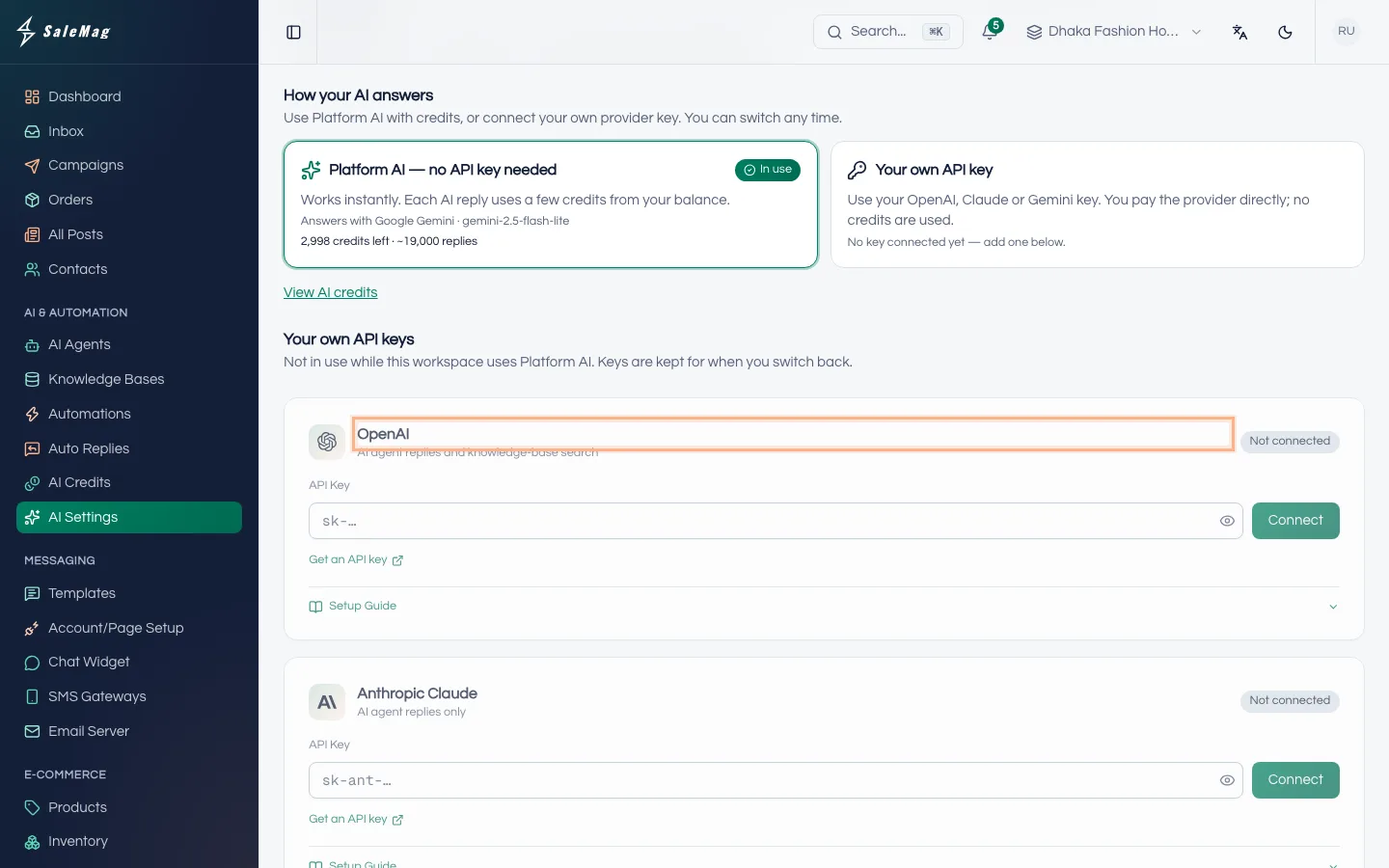
An API key is a password that lets SaleMag use your account at an AI company. Under Your own API keys, find the company's card: OpenAI, Anthropic Claude or Google Gemini.
- Click Setup Guide on the card for the steps to get a key, or click Get an API key.
- Paste the key into API Key and click Connect. SaleMag checks the key with the company, which takes a few seconds.
- When the card says Connected, choose a Model. Smaller, cheaper models are fine for customer chat.
- If you connected more than one company, click Use for AI agent replies on the one that should answer.
To change a key later, use Replace key. To remove it, use Disconnect.
Tip: Anthropic Claude can answer chats, but it doesn't do smart knowledge-base search or voice messages. For voice messages, connect OpenAI or Google Gemini.
Step 4 — Check your credit balance
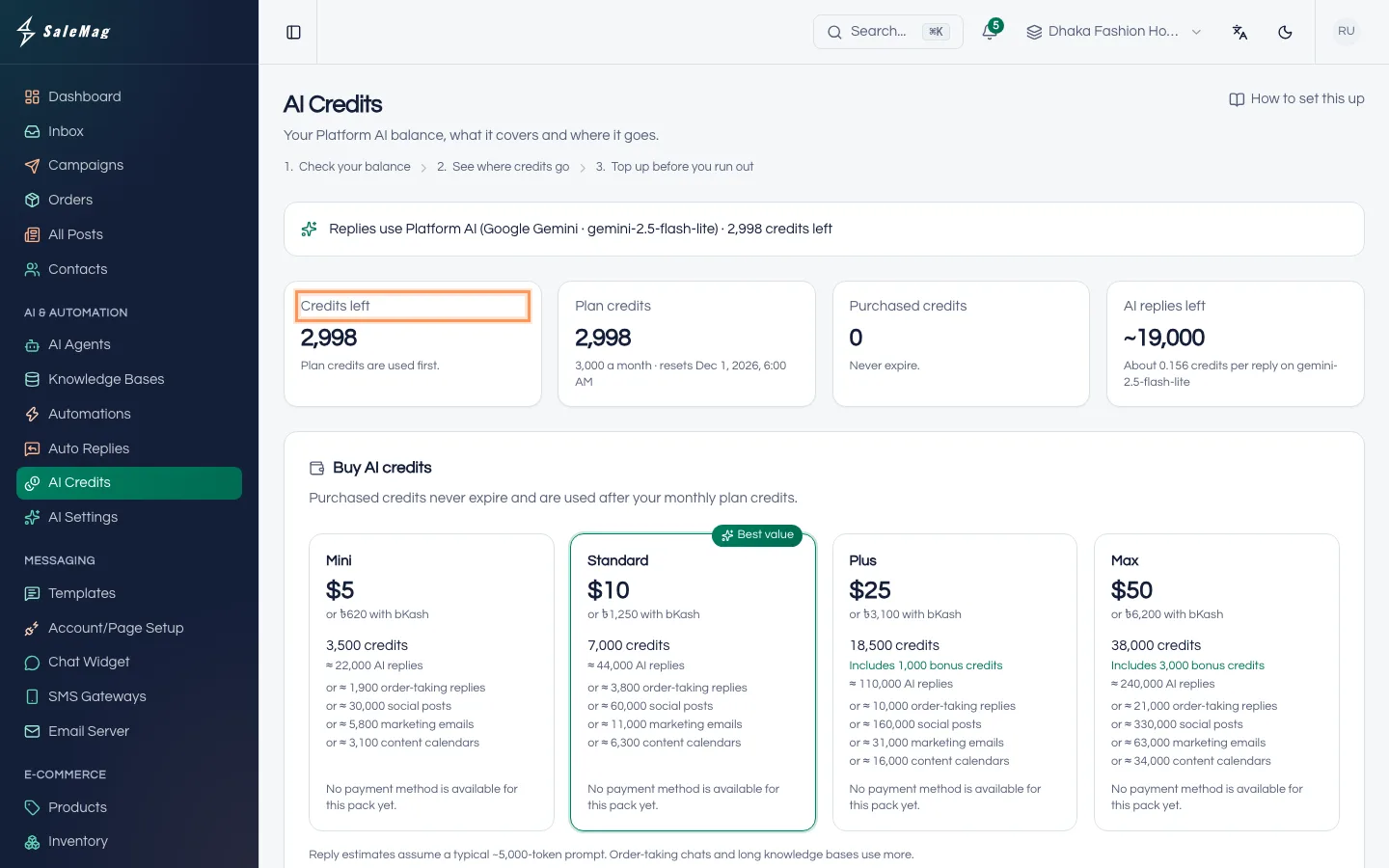
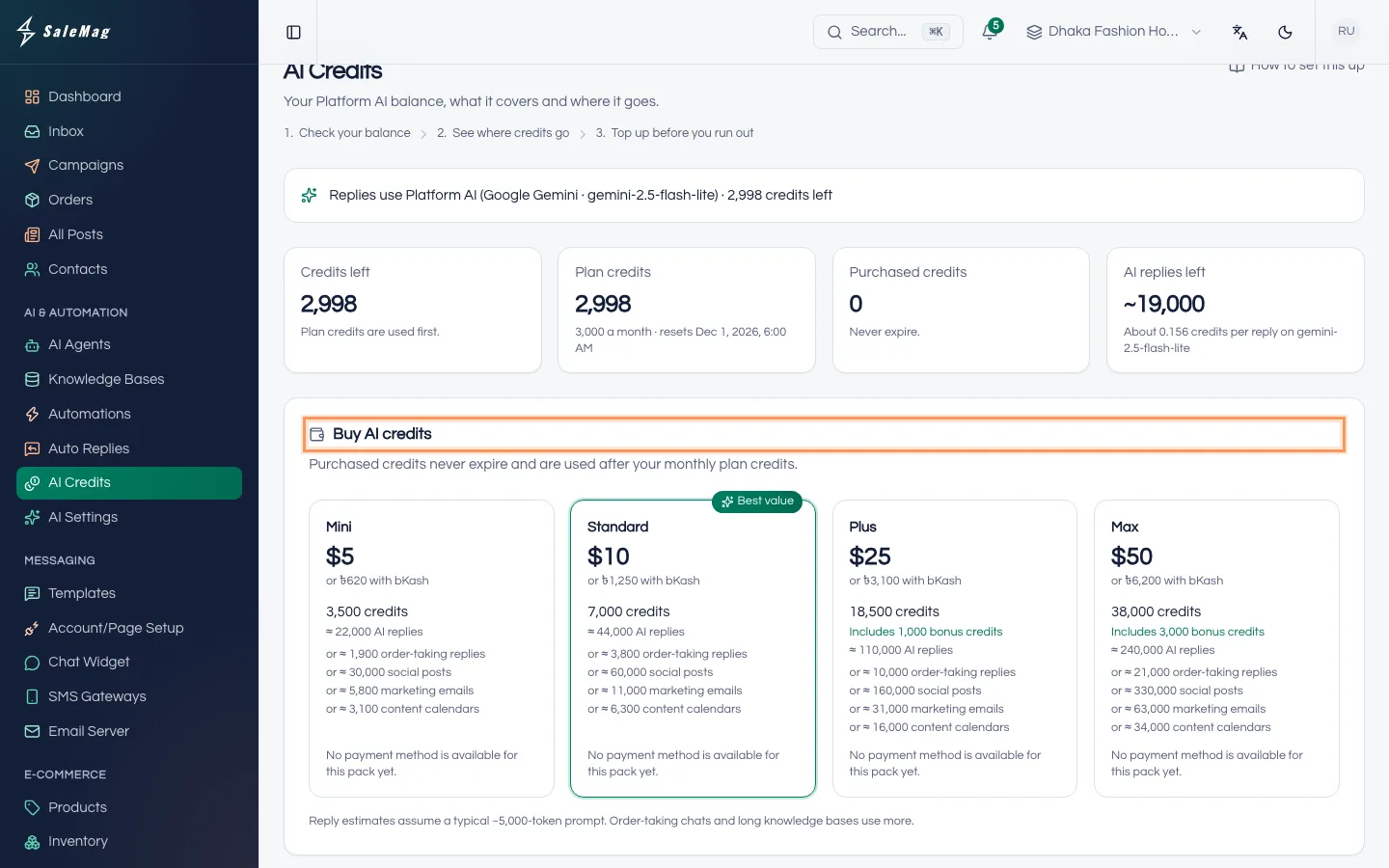
Go to AI & Automation → AI Credits. At the top you see four numbers:
- Credits left: everything you have now. Plan credits are used first.
- Plan credits: this month's credits from your plan, and the date they reset.
- Purchased credits: credits you bought. They never expire.
- AI replies left: about how many customer replies your balance covers.
Further down, What your credits buy shows the usual cost of each AI job. Usage shows what you spent in the last 30 days, and Credit history lists monthly credits, expiries, purchases and refunds.
Step 5 — Buy more credits
On the same page, find Buy AI credits and pick a pack. Click Pay … by card or Pay … with bKash (the button shows the price). Finish the payment on the card or bKash page.
Back in SaleMag you see Payment received. Your credits are on your account. With bKash you may see We're confirming your payment with bKash. Your credits appear within a few minutes.
Only people with billing access can buy. Others see Ask a teammate with billing access to buy credits.
What happens when credits run out
When your balance gets low, SaleMag shows AI credits are running low. People with billing access get a notification and an email.
At zero, you see You're out of AI credits and AI agents are handing chats to your team and AI tools are paused until you buy credits. When a customer writes, your AI agent sends its fallback message and hands the chat to your team in the Awaiting folder. See how handover works.
To get the AI answering again, buy credits, switch to your own API key, or wait for next month's plan credits.
What happens next
Your AI agents answer with the option you chose. Check Usage on the AI Credits page now and then to see where your credits go.
If something goes wrong
There is no "How your AI answers" section: Platform AI isn't available right now. The AI Credits page then says Platform AI isn't available right now. Use your own API key.
The key isn't accepted: copy the whole key again, with no spaces, and check that billing is set up at that AI company.
"No payment method is available for this pack yet.": contact SaleMag support.
"Payment cancelled. No money was taken.": nothing was charged. Try again when you're ready.
You don't see AI Settings in the menu: you need the Administrator or Manager role.
Frequently asked questions
Do unused credits carry over to next month?
Purchased credits do: they never expire. Plan credits don't: whatever is left of them expires at the end of each month, and your plan gives you new ones.
Which credits are used first?
Plan credits are used first. Purchased credits are used only after your plan credits for the month are gone.
Can I pay with bKash?
Yes, for AI credit packs. Each pack has a Pay with bKash button. Plans themselves can't be paid with bKash.
If I use my own API key, do I still need credits?
No. With your own key, no credits are used and you pay the provider directly. Your credits stay in your account in case you switch back.
How many replies will my credits give me?
The AI replies left number on the AI Credits page is an estimate. Order-taking chats, long messages and big knowledge bases use more credits per reply.
Was this article helpful?