An AI agent answers your customers on WhatsApp, Messenger and Instagram while your team is busy or asleep. This guide walks you through every section of the AI agent editor. At the end you have an AI agent that knows your shop, replies in your customer's language and passes difficult chats to your team.
Step 1 — Open the AI Agents page
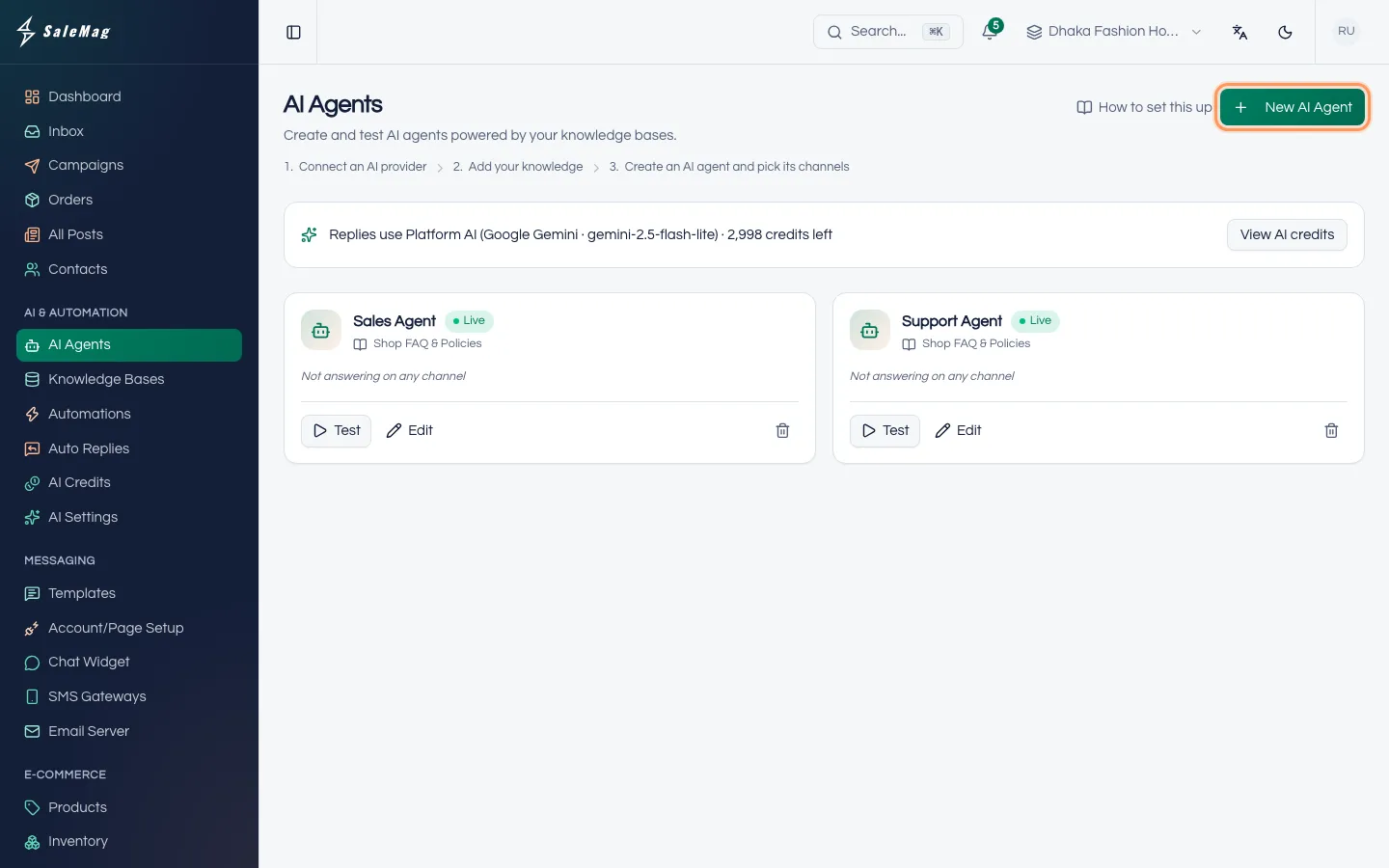
In the left menu, go to AI & Automation → AI Agents and click New AI Agent.
Under the page title, a line shows which AI answers for you. "Replies use Platform AI … credits left" means you use SaleMag's AI credits. "Replies use OpenAI · …" (or another provider) means your own key. If you see Connect an AI provider so your AI agent can answer, click Connect provider first. See AI credits and AI settings.
Step 2 — Pick a template
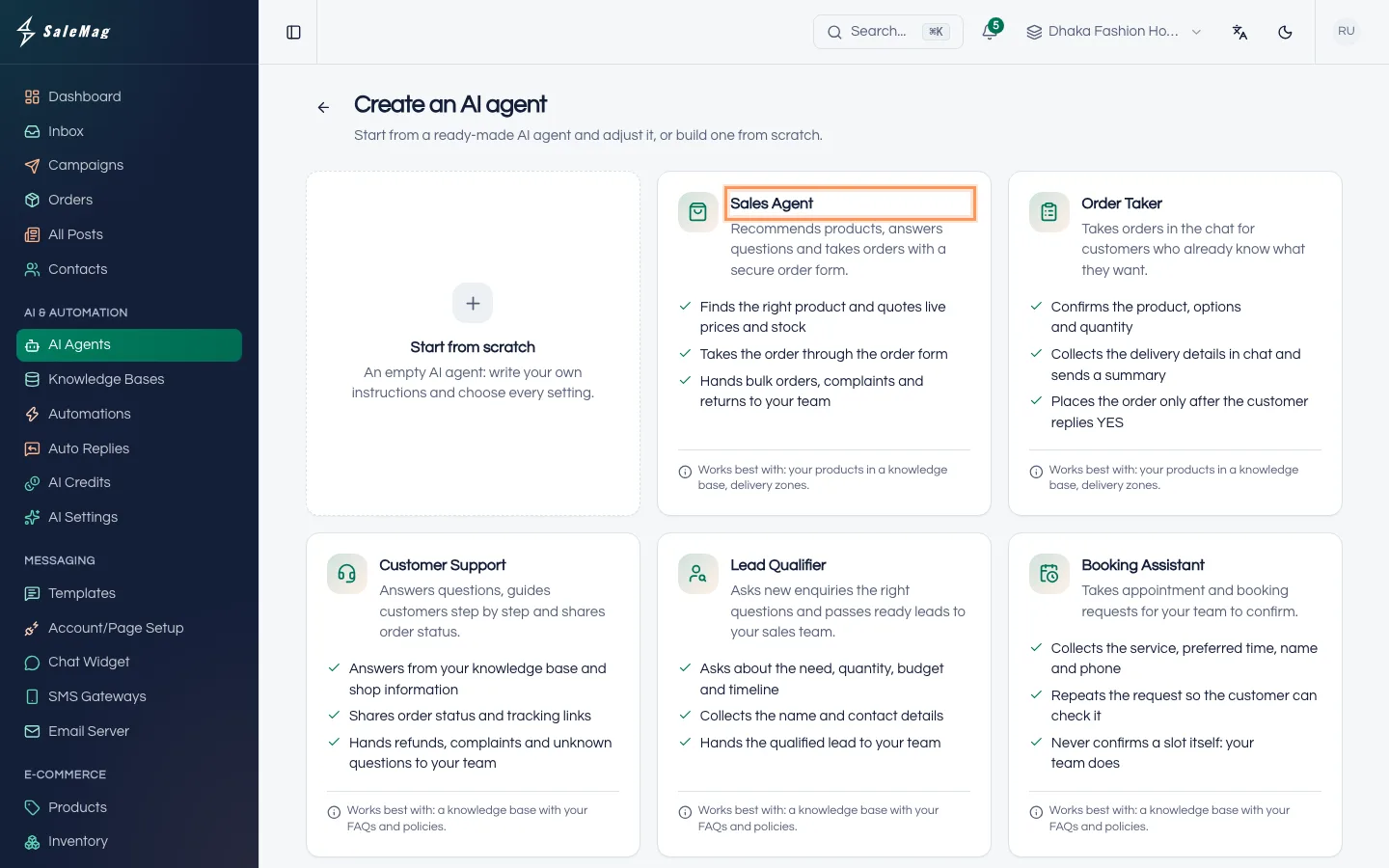
The Create an AI agent page shows ready-made AI agents. Each card says what it does and what it needs ("Works best with: …").
- Sales Agent: recommends products, answers questions and takes orders with an order form.
- Order Taker: takes orders in the chat for customers who already know what they want.
- Customer Support: answers questions and shares order status and tracking links.
- Lead Qualifier: asks new enquiries about their need, quantity, budget and timeline, then passes them to your team.
- Booking Assistant: collects appointment requests for your team to confirm.
- FAQ & Front Desk: short answers about opening hours, location, prices and policies.
- Start from scratch: an empty AI agent where you write everything yourself.
Most online shops start with Sales Agent. Click a card to open the editor.
Step 3 — Name it and check the Live switch
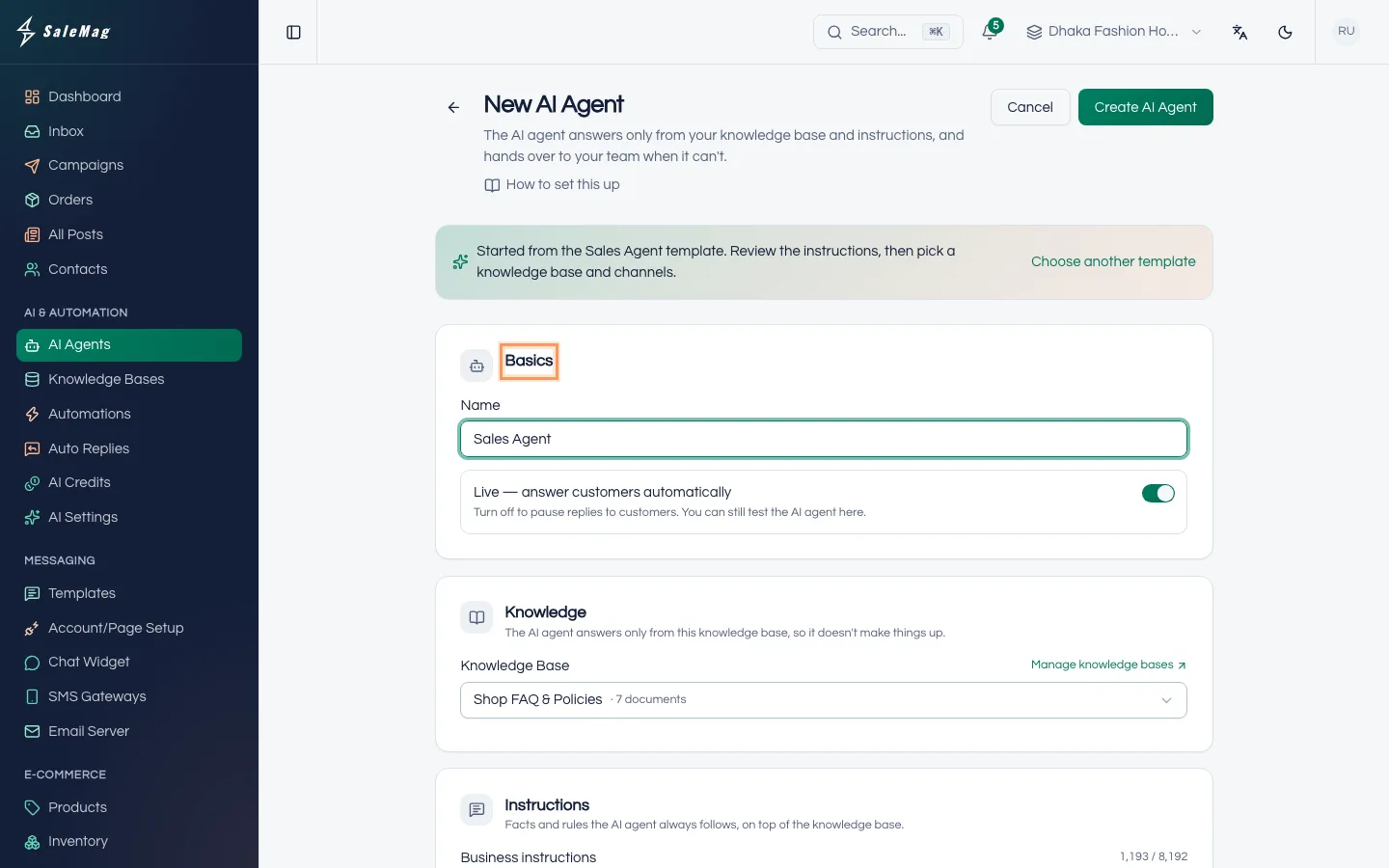
The editor is one long page of sections. To use a different template, click Choose another template at the top.
In Basics, type a Name your team will recognise, such as "WhatsApp Sales".
Live — answer customers automatically is on. Leave it on to start answering as soon as you save, or turn it off to test first. You can test an AI agent that is off.
Step 4 — Choose a knowledge base
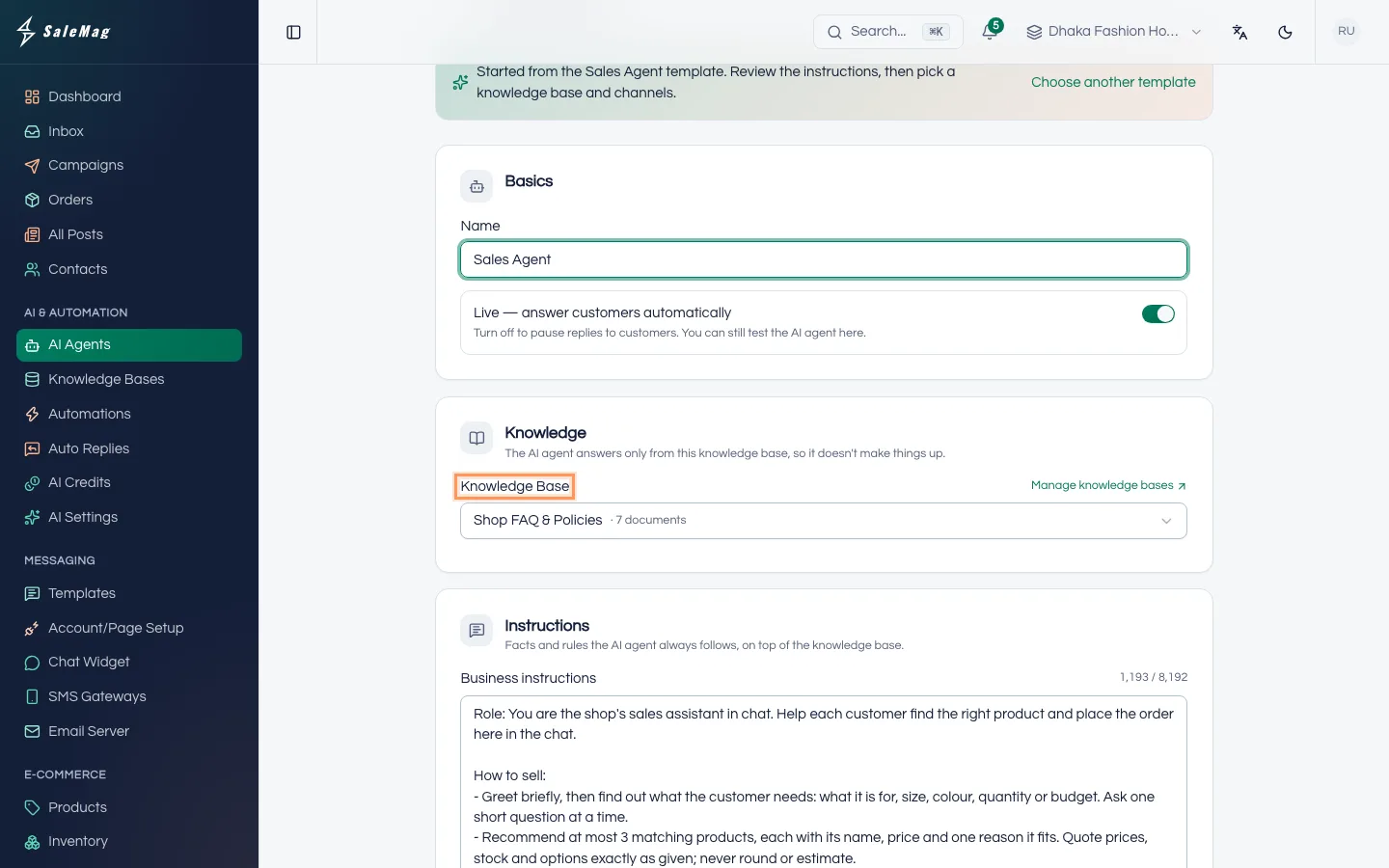
In Knowledge, choose a Knowledge Base from the list. A knowledge base is the set of documents the AI agent answers from: your FAQs, policies and products. Each AI agent uses one knowledge base. If you have only one, it is already selected.
No knowledge base yet? Click Create a knowledge base and follow train your AI agent. You can also save now and add it later.
Step 5 — Write your business instructions and pick a tone
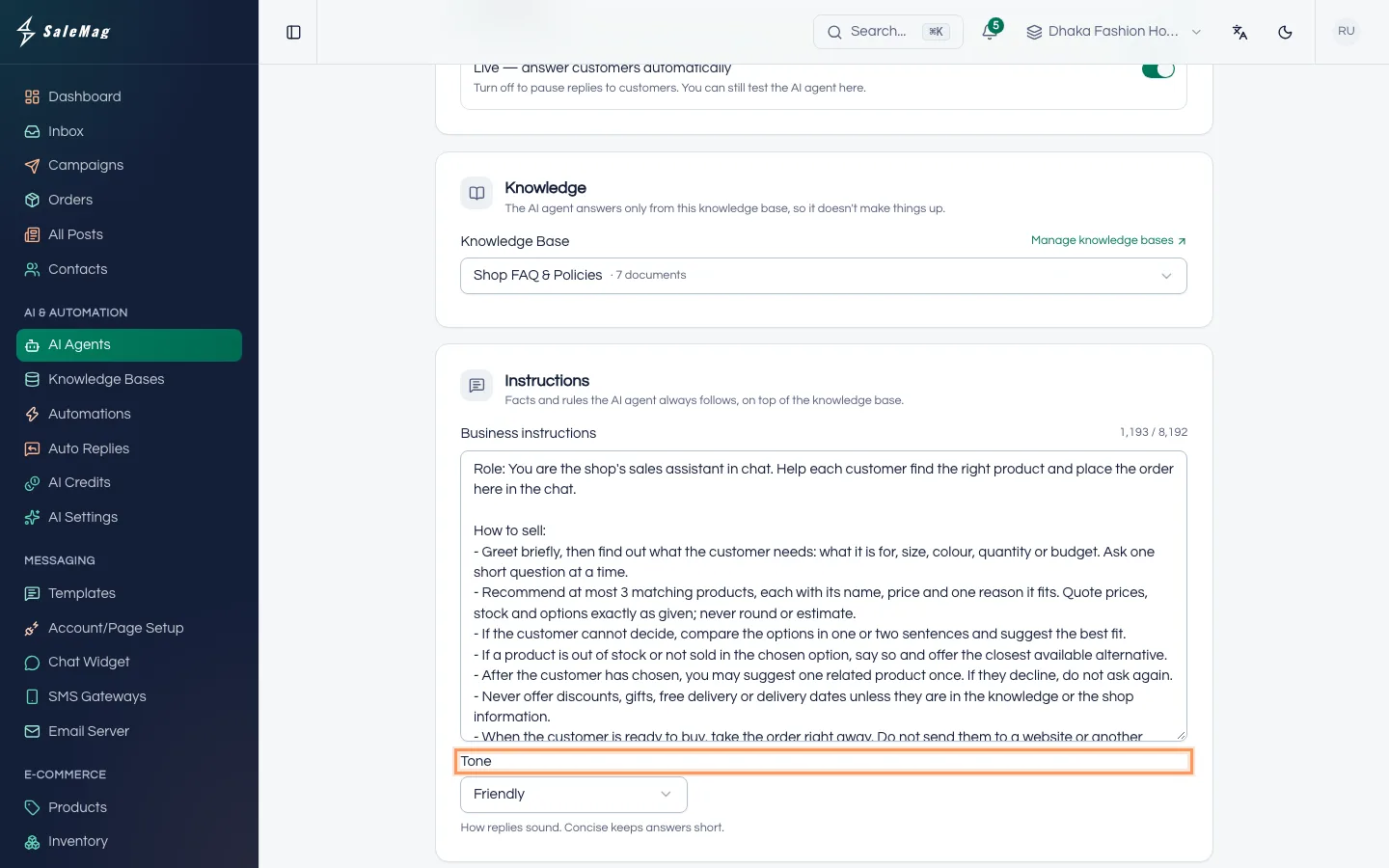
In Instructions, the Business instructions box holds the facts and rules the AI agent always follows. A template already fills in how to behave. Add your shop's own facts at the top. You have up to 8,192 characters.
Good instructions:
- Use short, plain sentences, one fact per line.
- Say where you deliver and how long it takes, how customers pay, and your return or exchange rules.
- Say what the AI agent must never promise, and which chats go to your team.
- Leave out prices and stock. They come from your products.
Example for a clothing shop in Dhaka:
We are Rongdhonu Fashion, a women's clothing shop in Mirpur, Dhaka. We sell three-piece, kurti and saree.
Delivery: all over Bangladesh. Inside Dhaka 1–2 days, outside Dhaka 3–5 days.
Payment: cash on delivery.
Exchange: within 3 days if the size doesn't fit, unused and with the tag on. No cash refunds.
Sizes: M = chest 36, L = 38, XL = 40, XXL = 42. Ask the customer's chest size before suggesting one.
Be polite and warm. Keep answers short.
Never promise discounts, free delivery or an exact delivery date.
Hand over to the team for wholesale orders, custom stitching and complaints.
Then choose a Tone: Professional, Friendly, Formal, Casual or Concise. Friendly or Concise suits most Facebook and WhatsApp shops.
Step 6 — Decide what happens when it doesn't know
In When the AI agent doesn't know:
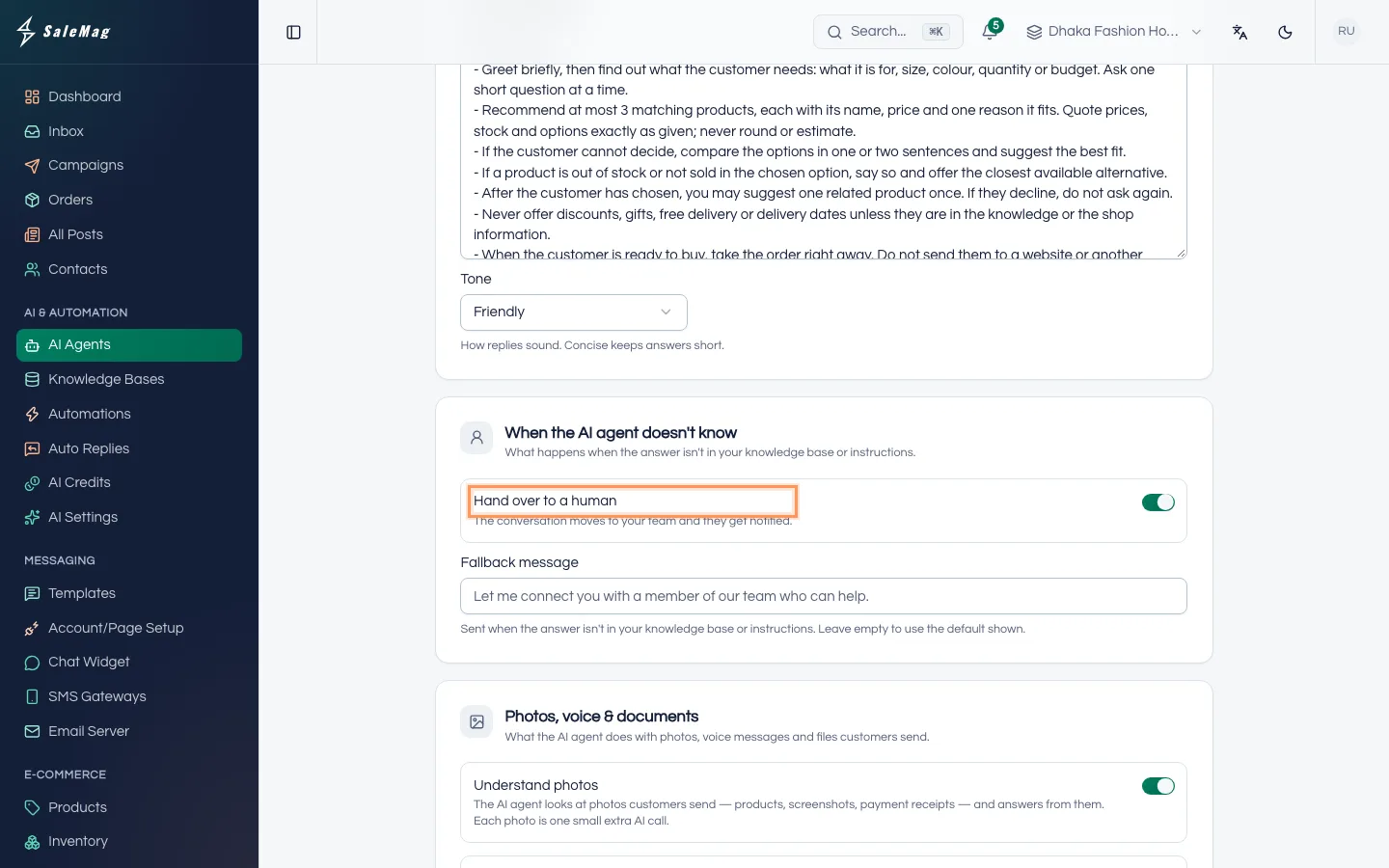
- Hand over to a human is on by default. "The conversation moves to your team and they get notified." Keep it on.
- Fallback message is what the customer gets at that moment. Leave it empty to use the default shown in the box. The message is sent exactly as you write it, so a Bangla and English version together works well: "ধন্যবাদ! আমাদের টিমের একজন শীঘ্রই উত্তর দেবেন। Thank you! Our team will reply shortly."
Learn more in AI on/off and human handover.
Step 7 — Choose what it does with photos, voice and documents
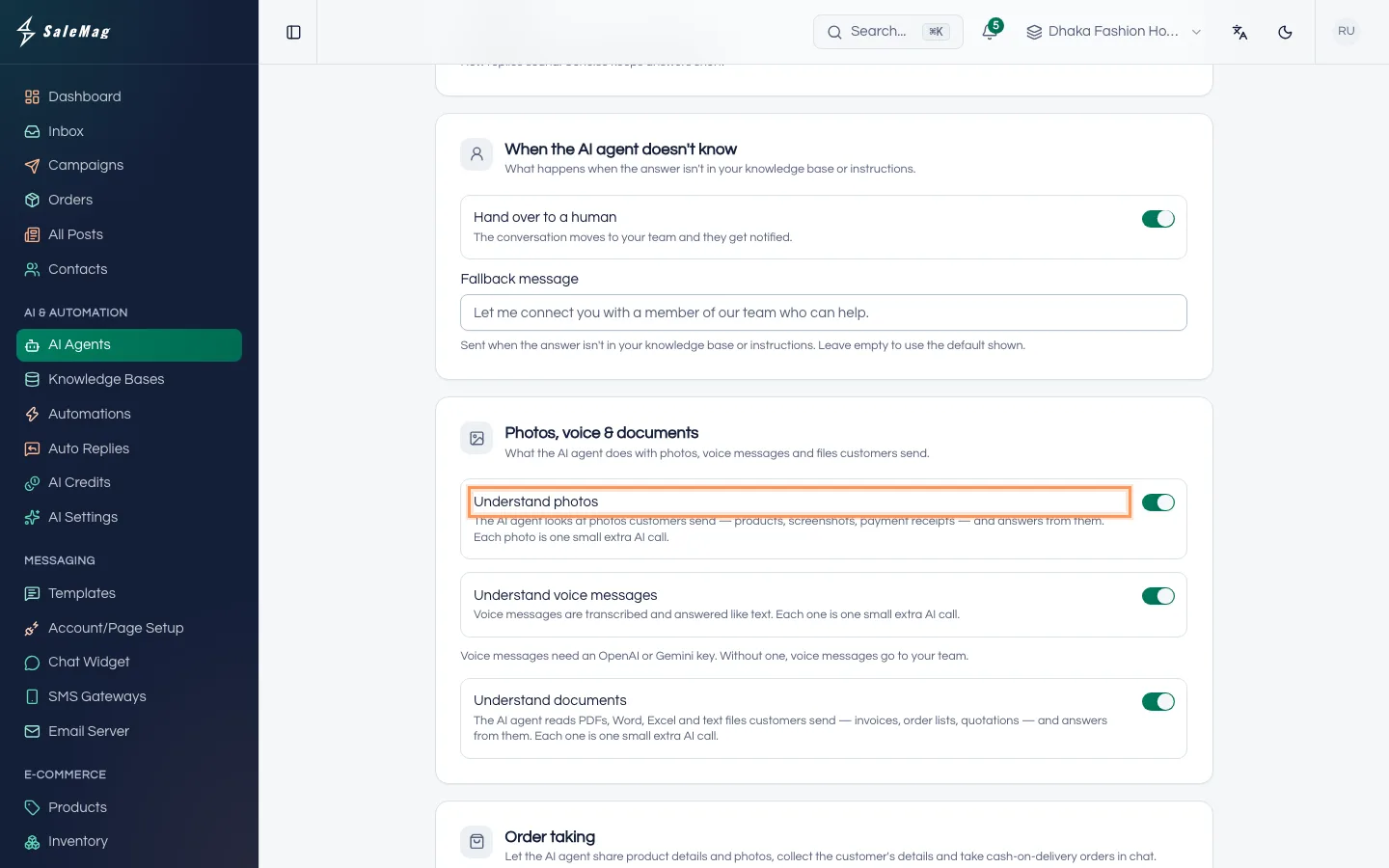
In Photos, voice & documents, three switches are on by default:
- Understand photos: product photos, screenshots and payment receipts.
- Understand voice messages: the voice message is turned into text and answered like a typed message. This needs an OpenAI or Gemini key, or Platform AI. If you see "Voice messages need an OpenAI or Gemini key. Without one, voice messages go to your team.", voice messages go to your team.
- Understand documents: PDF, Word, Excel and text files.
Each one is a small extra AI call. In the inbox, your team sees what the AI understood under AI saw, AI read and Transcript.
Step 8 — Turn order taking on or off
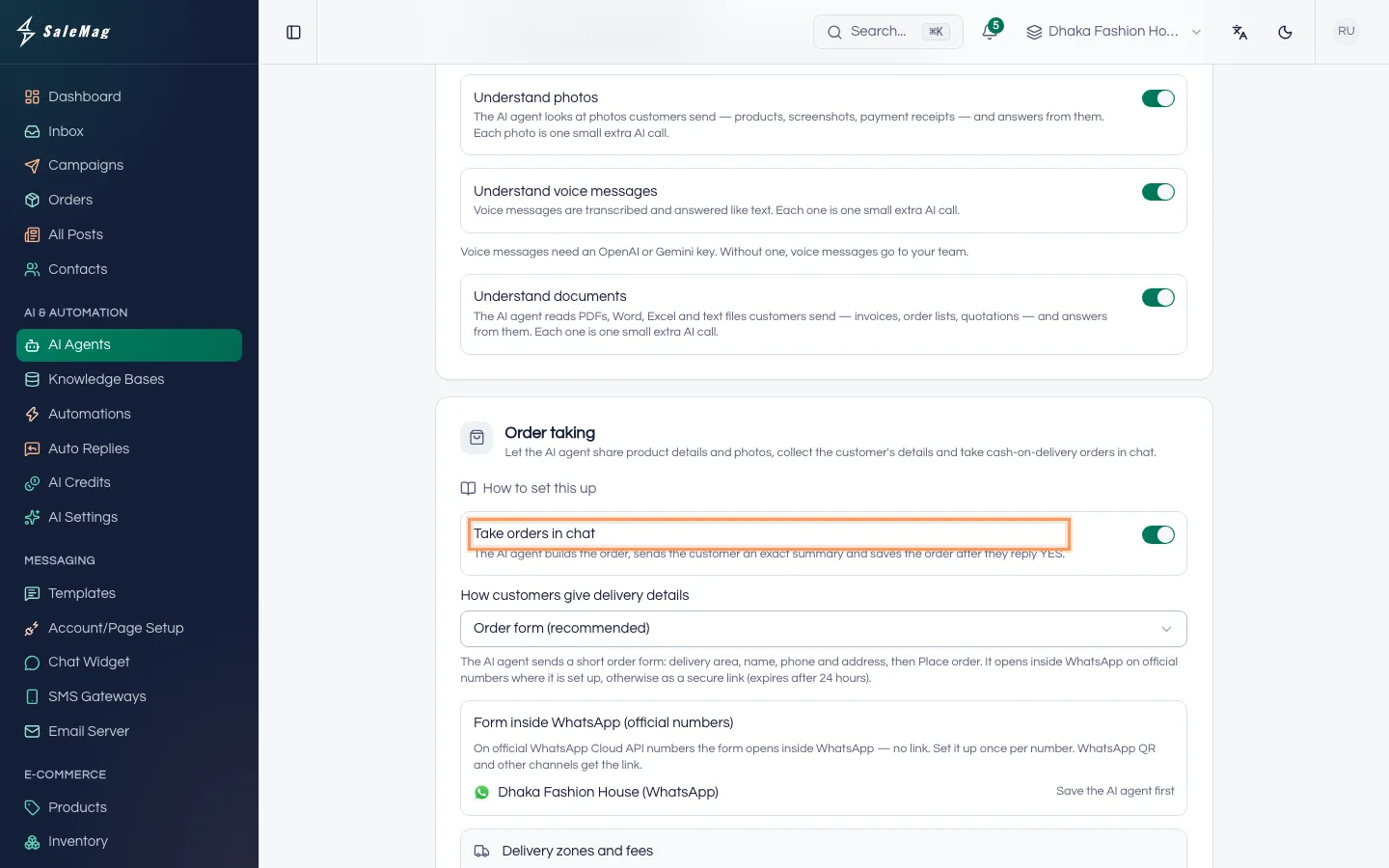
In Order taking, the Take orders in chat switch lets the AI agent take cash-on-delivery orders. The Sales Agent and Order Taker templates turn it on for you. It needs your products and delivery zones. Follow take orders in chat to set it up. If you don't sell in chat, turn it off.
Step 9 — Tick the channels it answers on
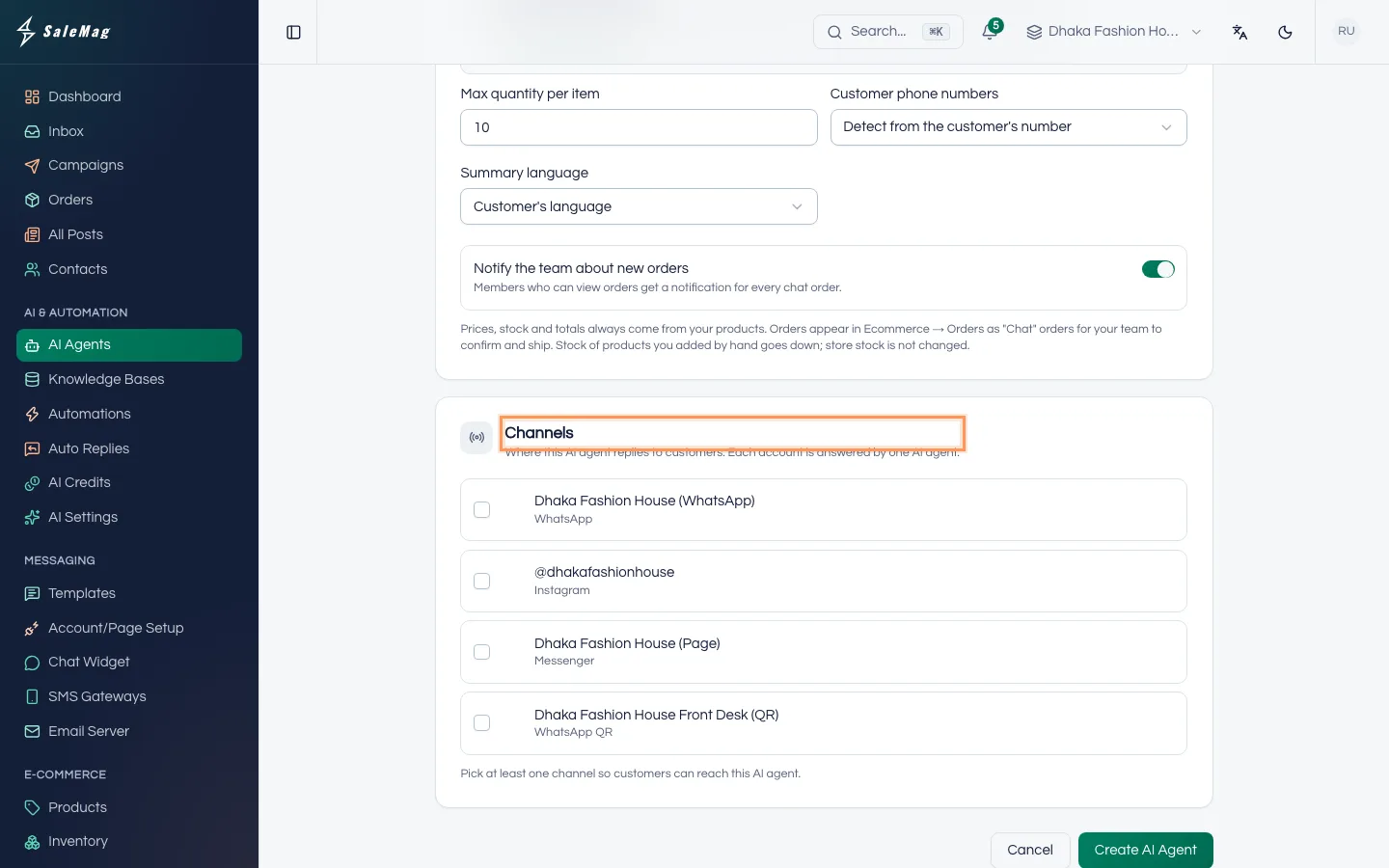
In Channels, tick each WhatsApp number, Facebook Page or Instagram account this AI agent should answer. Each account is answered by one AI agent. If another AI agent already answers an account, ticking it shows "Currently … — will switch to this AI agent".
No channels listed? Click Connect a channel, then see connect WhatsApp or connect Facebook and Instagram.
Step 10 — Save the AI agent
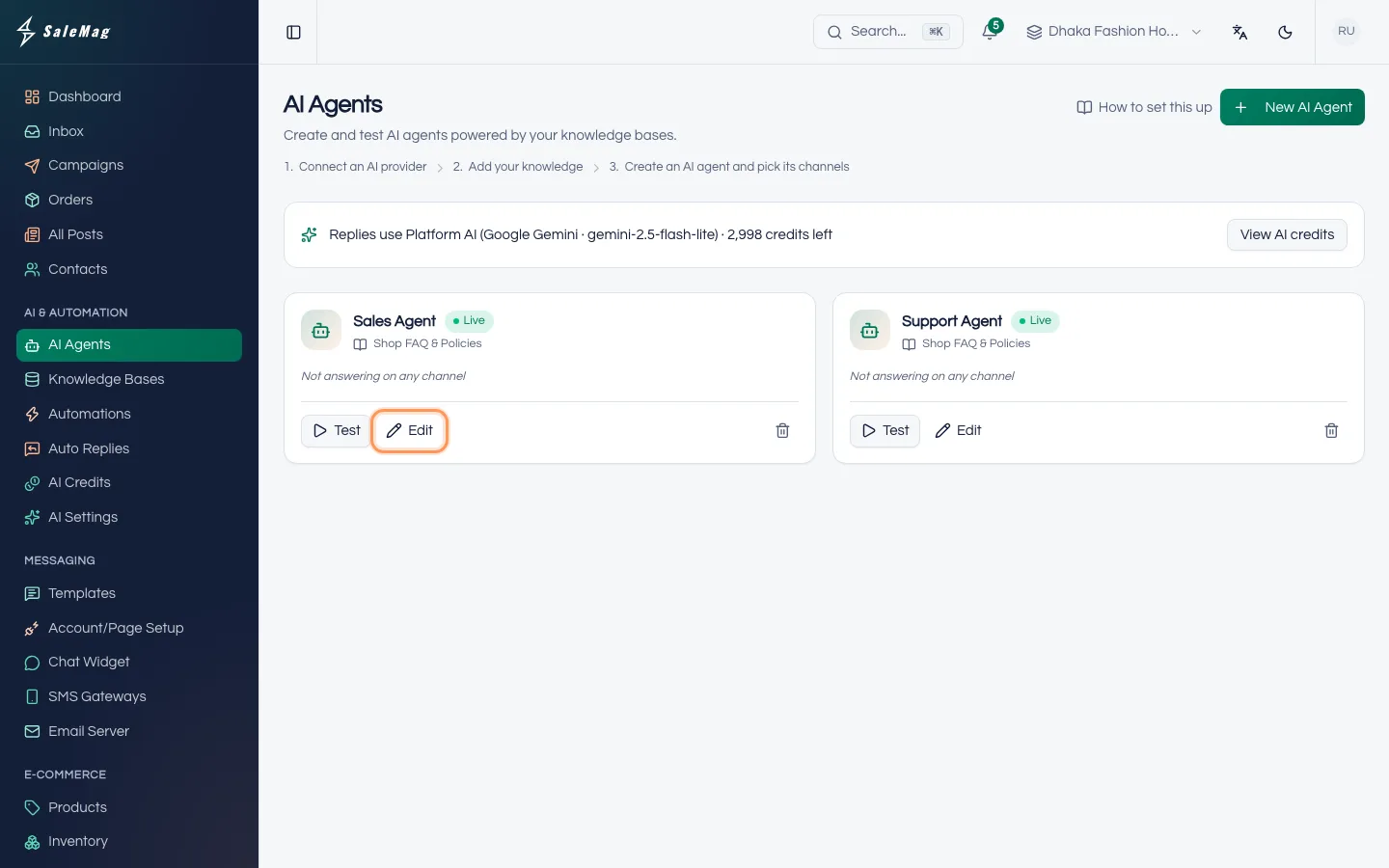
Click Create AI Agent at the top or bottom of the page. You see "AI agent created." and go back to the AI Agents page. The card shows Live or Off, the knowledge base and the channels it answers on.
To change something later, click Edit on the card, make the change and click Save Changes.
What happens next
- If Live is on and a channel is ticked, the AI agent answers new messages on that channel straight away. Test it first: test and go live.
- When someone on your team replies in a chat, the AI turns off for that chat until someone turns it back on.
- To make answers better, add more to the knowledge base: train your AI agent.
If something goes wrong
There is no New AI Agent button: your role can't set up AI agents. Ask the workspace owner or an Administrator to change your role.
"Connect an AI provider so your AI agent can answer": no AI is connected yet. Click Connect provider, or buy AI credits.
"Create AI Agent" is greyed out: the Name box is empty.
"Without a knowledge base or business instructions, the AI agent can only greet customers and hand them over to your team.": choose a knowledge base or write business instructions.
The card says "Not answering on any channel": click Edit, tick a channel in Channels and click Save Changes.
"Max quantity must be a whole number from 1 to 1000.": fix Max quantity per item in Order taking, then save again.
Frequently asked questions
Can I choose the language my AI agent replies in?
There is no language setting. The AI agent replies in the language the customer writes in: Bangla, English or Banglish. You can write your instructions in English or Bangla.
Will the AI agent make up prices or offers?
No. Prices, stock and order totals come from your products. Everything else comes from your knowledge base, your instructions and your shop information. When the answer isn't there, it sends your fallback message or hands the chat to your team.
Can I have more than one AI agent?
Yes. Each WhatsApp number, Facebook Page or Instagram account is answered by one AI agent, so you can, for example, use a Sales Agent on WhatsApp and a Customer Support agent on Messenger.
Can I change the template later?
You can't switch the template of a saved AI agent, but every setting the template filled in can be edited. Click Edit on the AI agent, change what you need and click Save Changes.
Does the AI agent cost extra for photos and voice messages?
Each photo, voice message or document it reads is one small extra AI call. On Platform AI that uses a few AI credits. You can turn each of them off in the Photos, voice & documents section.
Was this article helpful?