This guide connects your Facebook Page's Messenger and your Instagram DMs to SaleMag. At the end, messages from both arrive in your SaleMag inbox, and your AI agent can answer them.
Get Instagram ready first
Skip this part if you only use Messenger. In the Instagram app on your phone:
- Switch your account to a professional account (Business or Creator), if it isn't one already.
- Link it to your Facebook Page. You can also do this from your Facebook Page settings, under linked accounts.
- In your Instagram settings for messages, find Connected tools and turn on Allow access to messages. Without this, DMs don't reach SaleMag.
Step 1 — Open the Channel Setup page
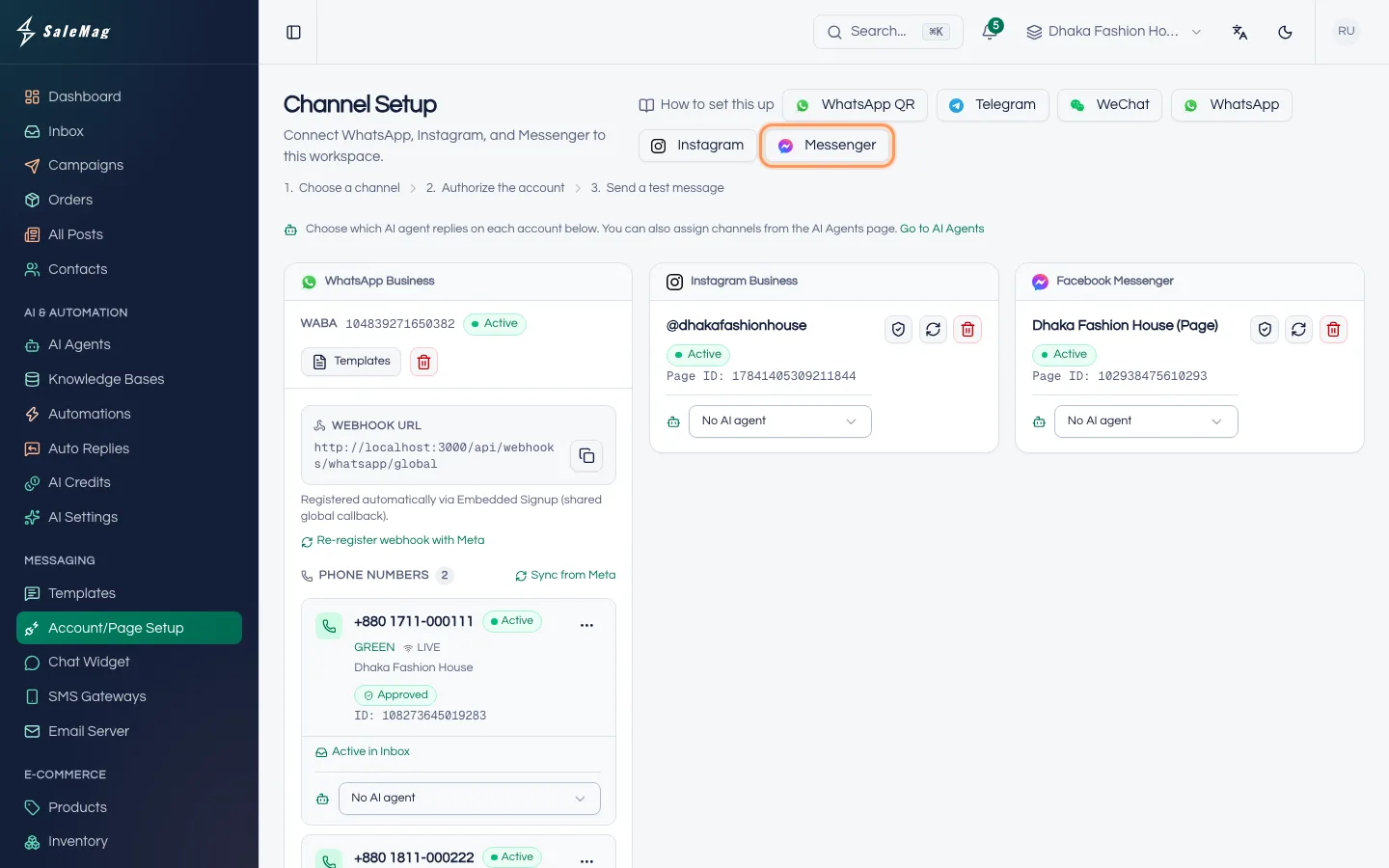
In the left menu, go to Messaging → Account/Page Setup. The page is called Channel Setup. Click Messenger at the top.
Step 2 — Click Continue with Meta
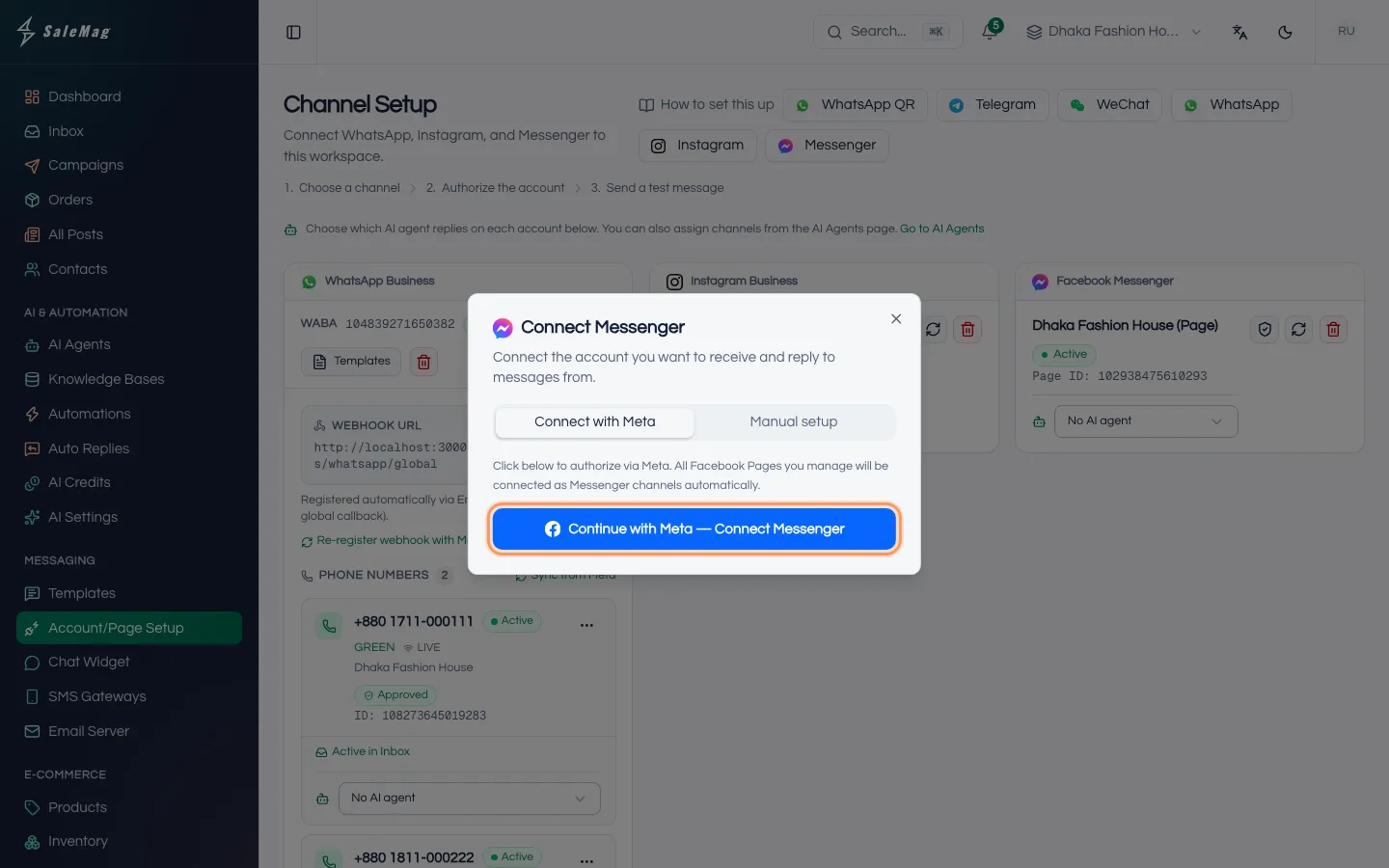
A window called Connect Messenger opens on the Connect with Meta tab. Click Continue with Meta — Connect Messenger. Your browser leaves SaleMag and opens Facebook.
Step 3 — Allow access on Facebook
On Facebook's screens:
- Log in with the Facebook account that is admin of your Page.
- If asked, pick your business portfolio.
- Tick every Page you want in SaleMag.
- Allow all the access Meta asks for. Don't switch off the message permissions.
Facebook then sends you back to SaleMag.
Step 4 — Check the Messenger card
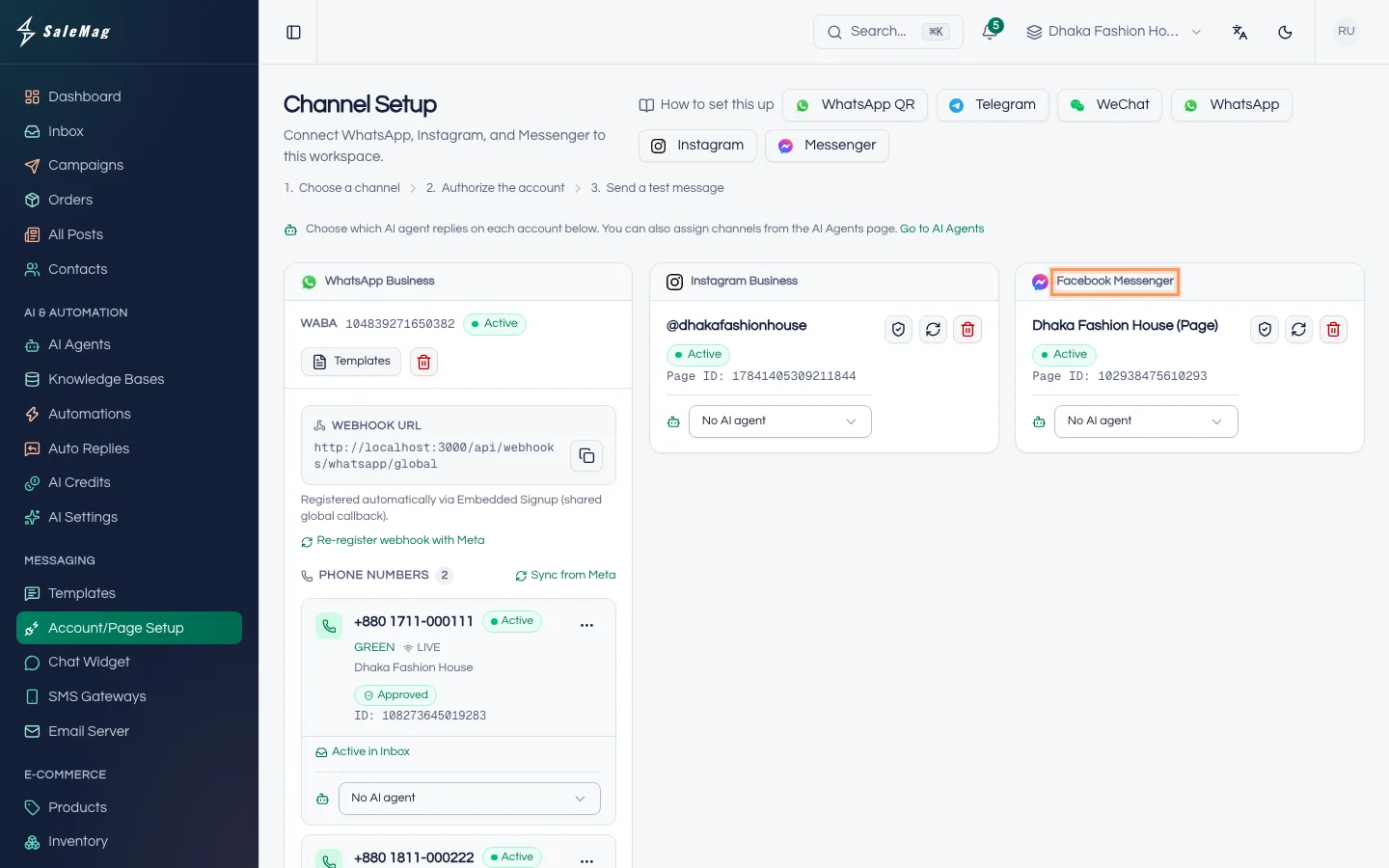
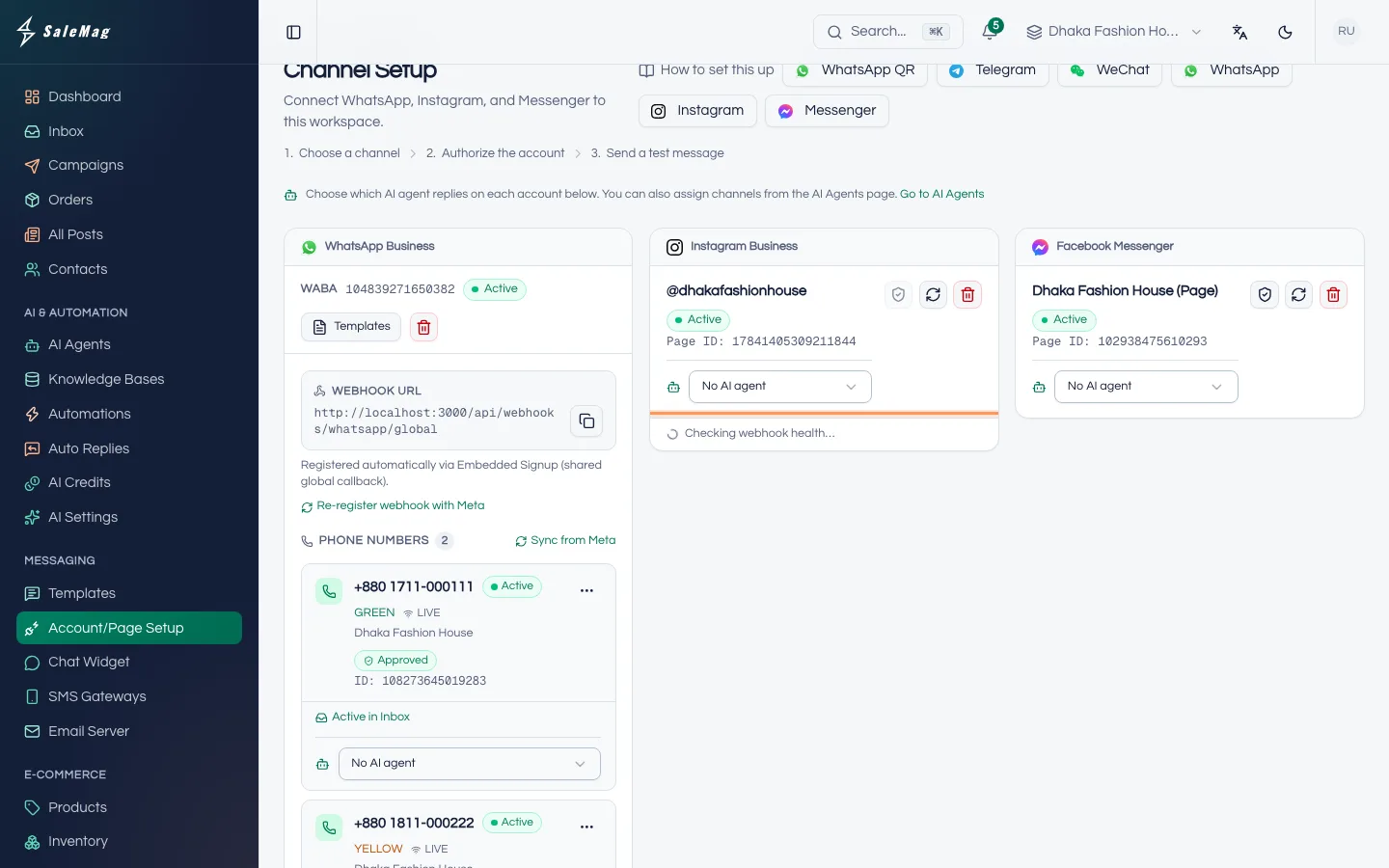
Back on Channel Setup, a message tells you how many accounts were connected. A Facebook Messenger card appears for each Page, with the Page name and Page ID:.
If a yellow warning says a Page "could not be subscribed to messaging webhooks", messages for that Page won't arrive yet. Fix it in Step 7.
Step 5 — Connect Instagram
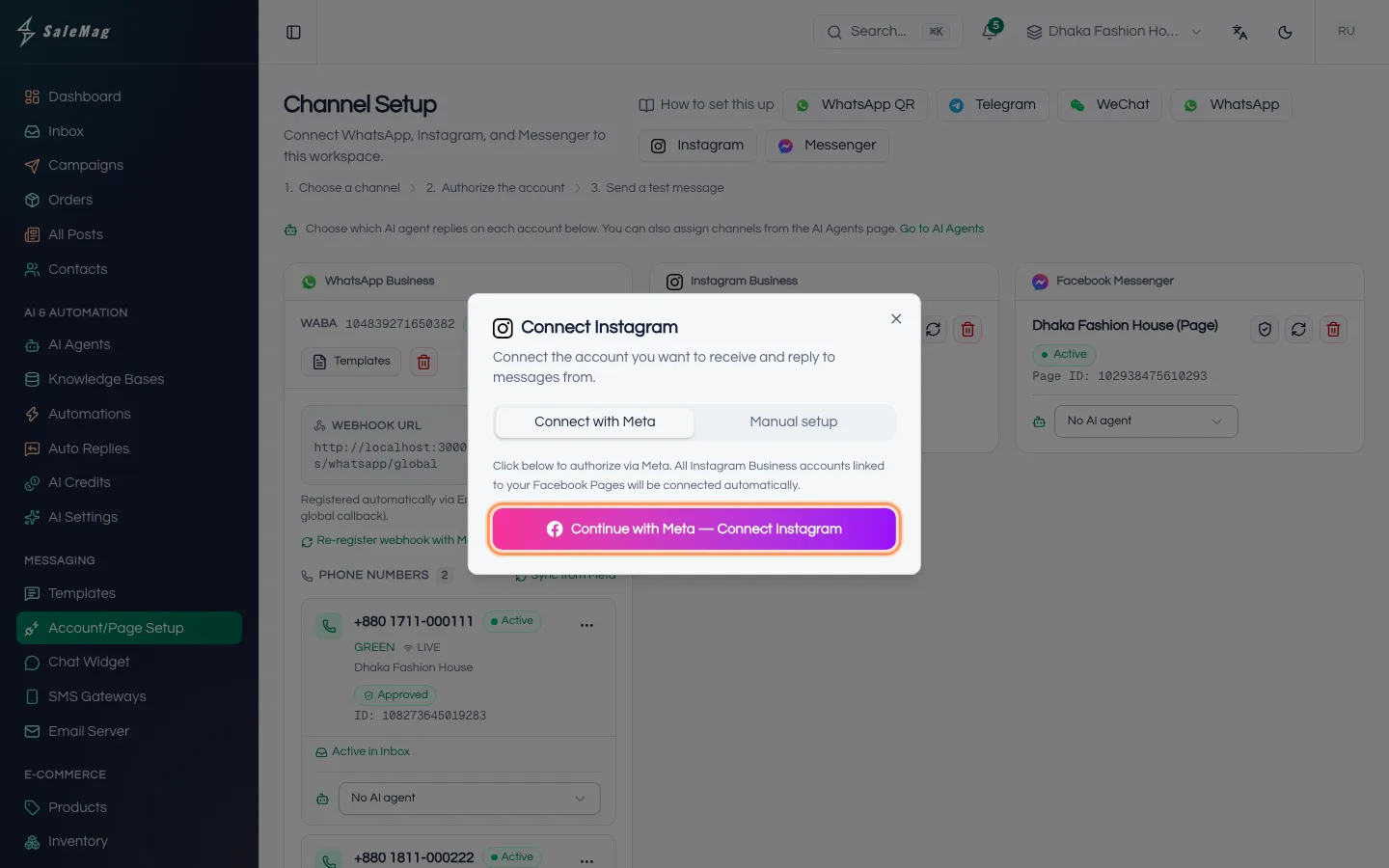
Click Instagram at the top of the page, then Continue with Meta — Connect Instagram. Repeat the Facebook steps. When Meta lists your Instagram accounts, tick yours.
Back in SaleMag, an Instagram Business card appears for each Instagram account linked to the Pages you allowed.
Step 6 — Choose the AI agent for each account
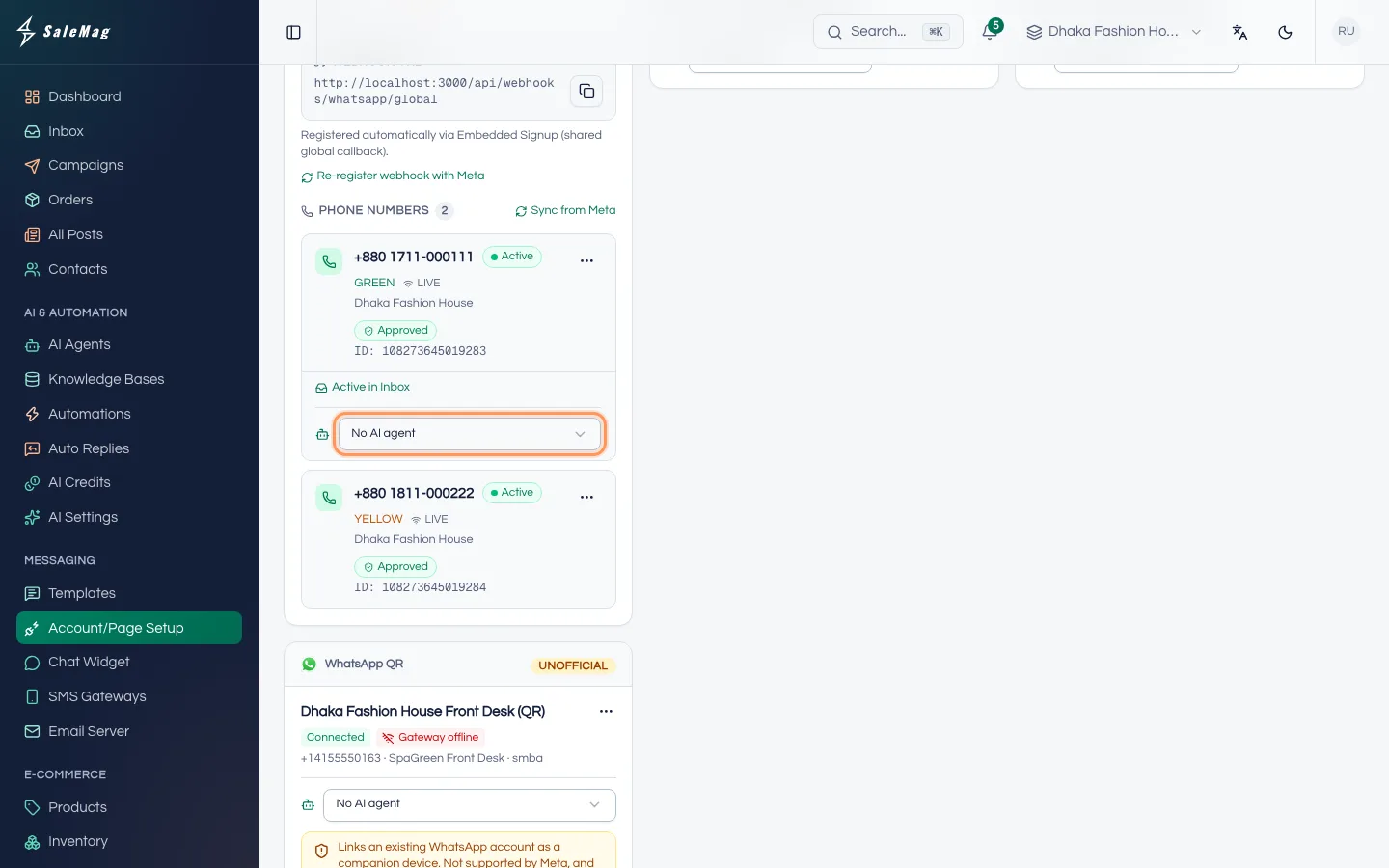
On each card, open the drop-down that says No AI agent and pick the AI agent that should answer there. SaleMag shows AI agent assigned. Each account is answered by one AI agent.
No drop-down? None of your AI agents is turned on yet. Click Go to AI Agents, or follow create your AI agent.
Step 7 — Check that messages can arrive
On a card, click the shield icon, Check webhooks. A Webhook health list appears: App credentials, App webhook subscription, Page webhook subscription, Queue worker and Last inbound message. A green tick means that part is fine.
If something is red or yellow, click the circular-arrows icon, Re-subscribe webhooks. SaleMag repairs the link and runs the check again. Then send a test message to your Page or Instagram from another account.
What happens next
Messenger messages and Instagram DMs arrive in your Inbox, and the AI agent answers them if one is assigned. When you reply from the Instagram app, the reply shows in SaleMag and the AI turns off for that chat.
Important: Replies you type in Facebook's own Page inbox (Meta Business Suite) don't show in SaleMag, and the AI stays on. Before you answer a Messenger chat there, turn the AI off for that chat in SaleMag. See turn the AI on or off in a chat.
If something goes wrong
"Meta App (Social) is not configured…": Facebook and Instagram connection isn't set up on the server. Contact SaleMag support.
"Meta authorization failed: …": you cancelled on Facebook, or Facebook stopped the login. Start again from Step 2.
"No Facebook Pages found on your account…" or "No Facebook Pages were returned…": you aren't an admin of a Page, or you didn't tick one. Connect again and tick your Page.
"None of the Facebook Page(s) you authorised … has an Instagram Business account linked.": your Instagram isn't a professional account, isn't linked to that Page, or wasn't ticked in Meta's window. Fix it as in "Get Instagram ready first", then connect again.
A Page or account is missing: connect again. In Meta's window, check that it is ticked. If Meta skips the list, look for the option to edit your earlier choices.
Messages stopped arriving: click Check webhooks, then Re-subscribe webhooks on that card.
Frequently asked questions
Do I connect Messenger and Instagram separately?
Yes. Messenger and Instagram are two connections. Click Messenger for your Facebook Page's messages, and Instagram for your Instagram DMs. You use the same Facebook login for both.
Can I connect more than one Page or Instagram account?
Yes. Every Page or Instagram account you tick in Meta's window becomes its own card, and each card can have its own AI agent.
Is there a 24-hour rule on Messenger and Instagram?
Meta expects you to reply within 24 hours of the customer's last message on these channels too. SaleMag doesn't show a timer for them, so answer while the chat is fresh. Your AI agent replies right away.
Why does Instagram connect but no DMs arrive?
Usually Allow access to messages is off in the Instagram app. Turn it on, then click Check webhooks on the Instagram card and send a test DM.
How do I disconnect a Page or Instagram account?
On its card, click the red bin icon (Disconnect), then Confirm. Existing conversations are kept; new messages stop coming in.
Was this article helpful?