This guide sets up how you deliver and how customers pay. When you finish, your AI agent adds the right delivery fee to every chat order, offers only the payment options you allow, and answers questions about delivery time, returns and your opening hours.
Everything on this page is saved with one Save button, except online payment gateways, which have their own Save and test button.
Step 1 — Open the Delivery & shop page
In the left menu, go to E-Commerce → Delivery & shop.
If you see a blue note saying the zones come from your AI agents and are not saved for the shop yet, check them in Step 2 and click Save at the end. Then they are used everywhere.
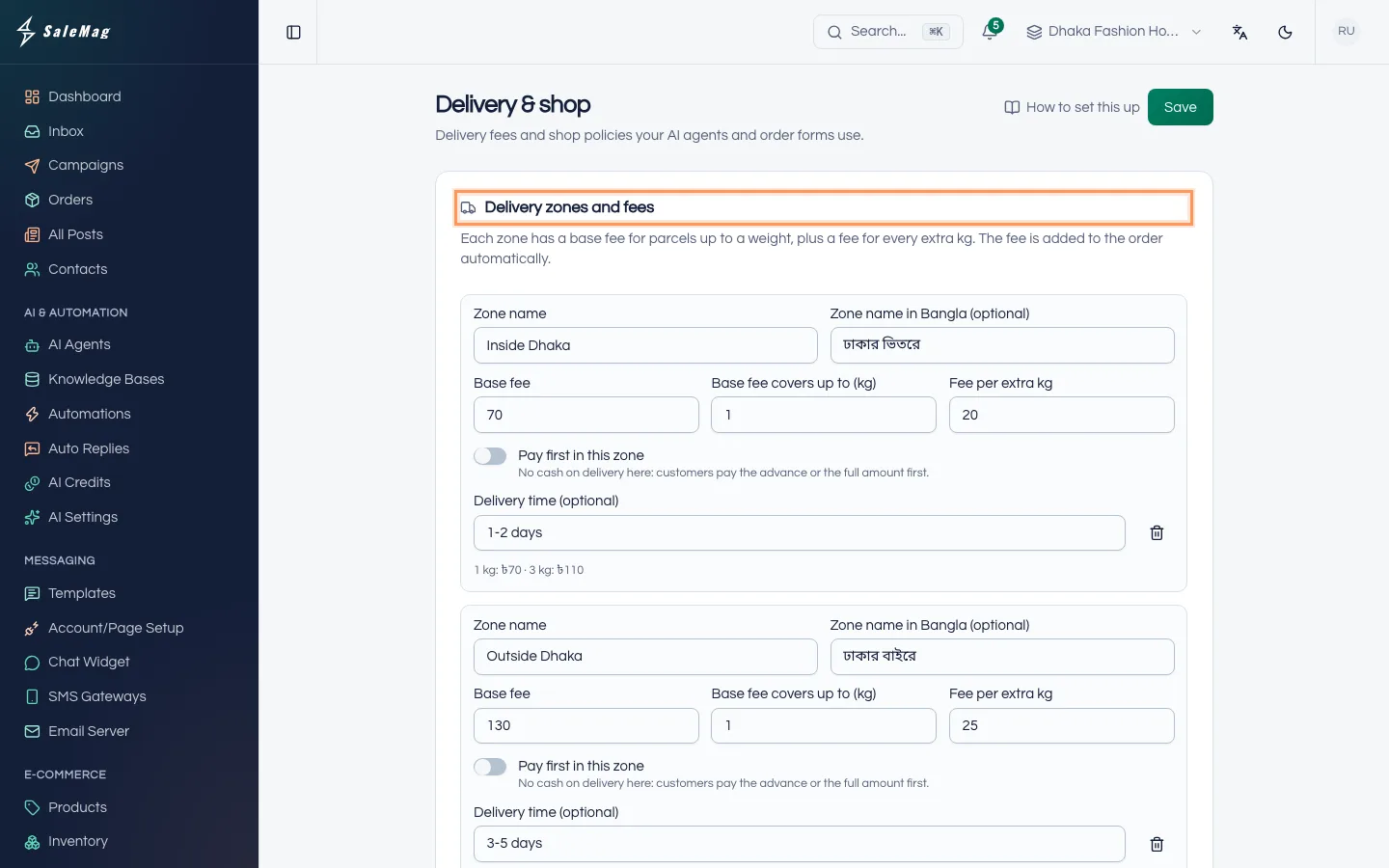
Step 2 — Add your delivery zones
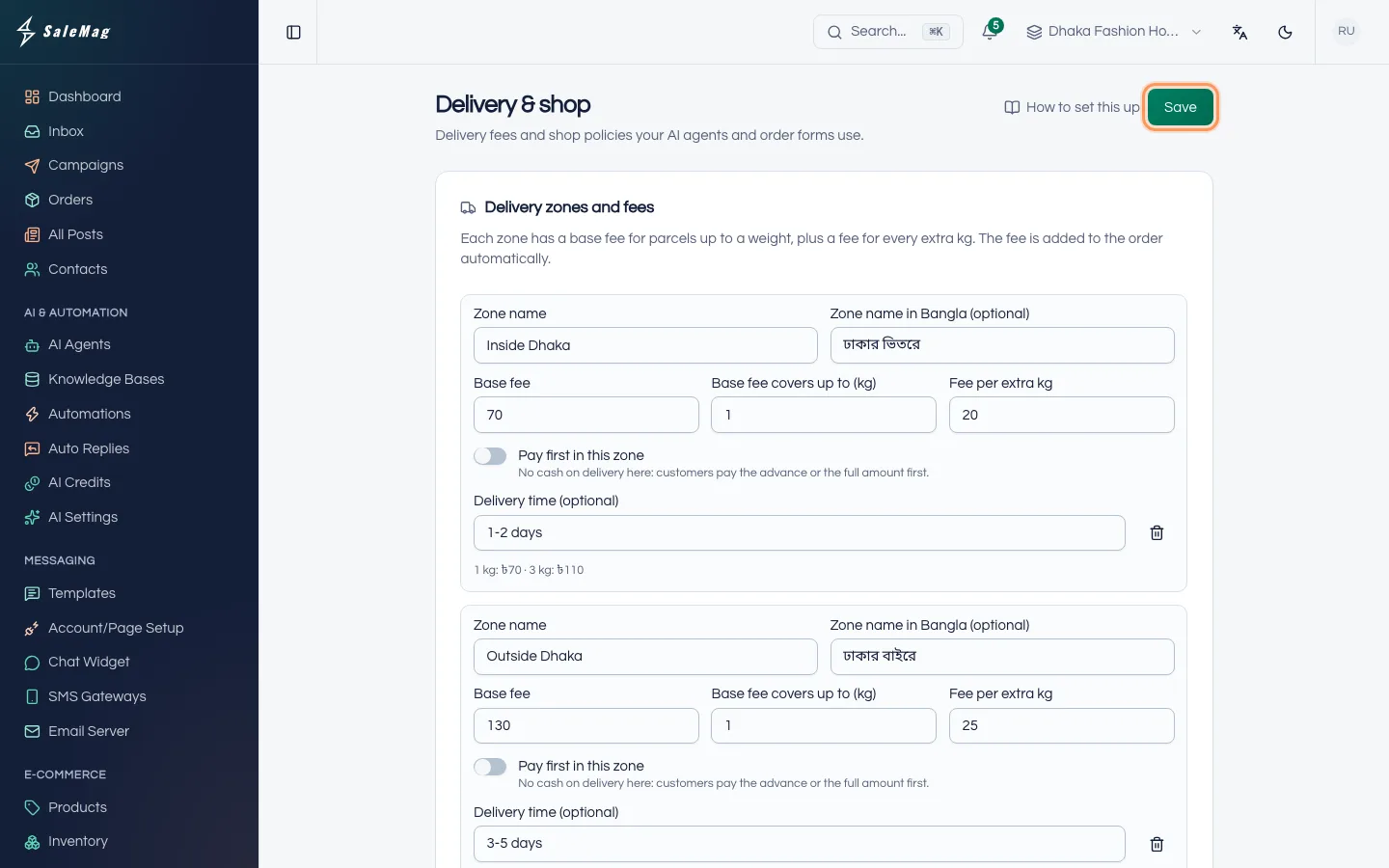
A zone is an area with its own delivery fee, such as Inside Dhaka. In the Delivery zones and fees card, click Add zone and fill in:
- Zone name: for example "Inside Dhaka".
- Zone name in Bangla (optional): for example "ঢাকার ভিতরে". It is shown to customers who order in Bangla.
- Base fee: the delivery charge, for example 70.
- Base fee covers up to (kg): the weight the base fee includes, for example 1. Leave it empty for one flat fee at any weight.
- Fee per extra kg: what each extra kg adds, for example 15. Part of a kg counts as a full kg.
- Delivery time (optional): for example "1-2 days".
Turn on Pay first in this zone if you don't take cash on delivery there. Customers in that zone then pay the advance or the full amount first.
A line under each zone shows the fee, for example "1 kg: ৳70 · 3 kg: ৳100", so you can check your numbers. Click Add zone again for the next area, for example Outside Dhaka with a base fee of 130. To delete a zone, click its bin icon (Remove zone).
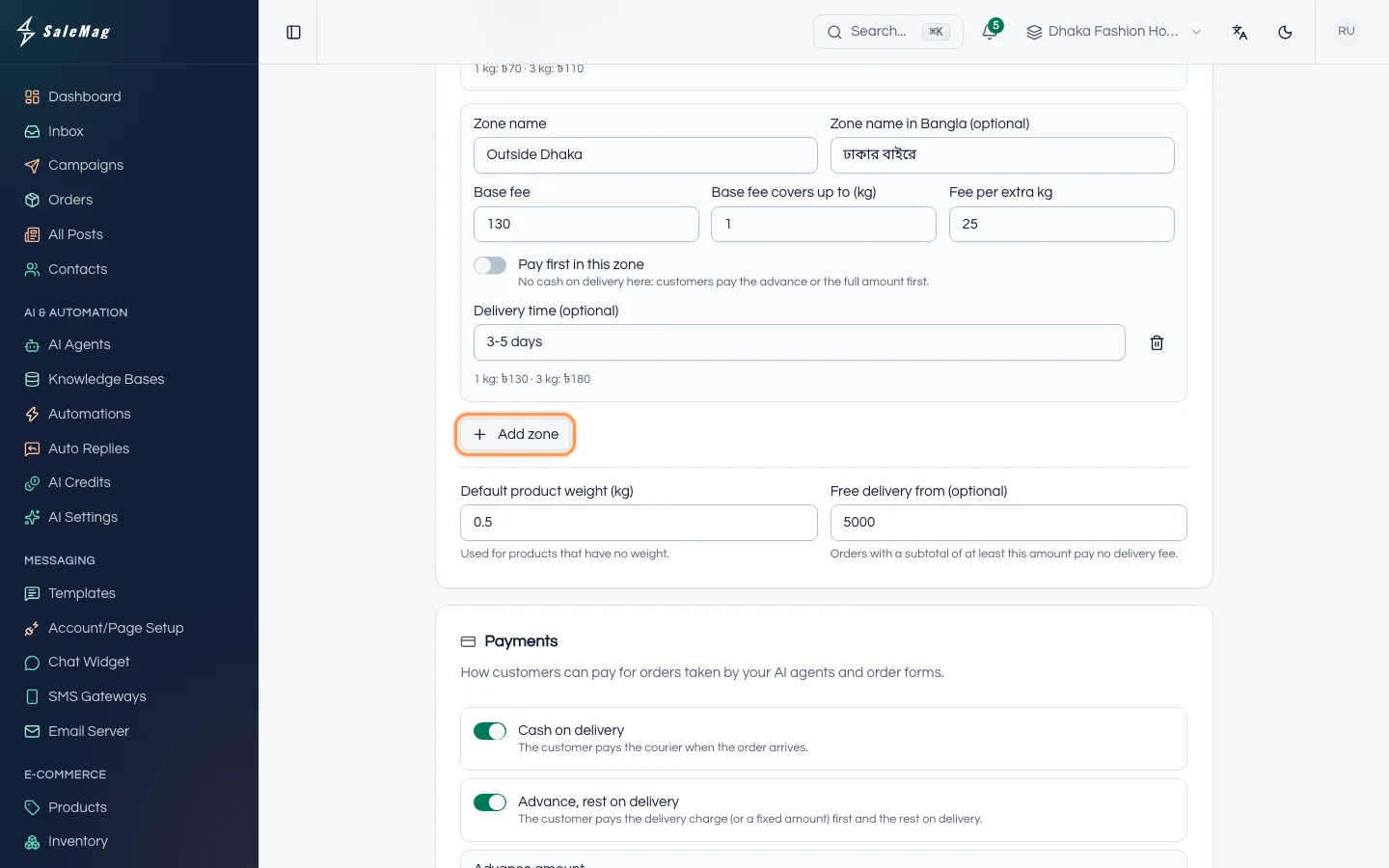
Step 3 — Set the default weight and free delivery
Below the zones:
- Default product weight (kg): used for products that have no weight. It starts at 0.5.
- Free delivery from (optional): orders with a subtotal of at least this amount pay no delivery fee, for example 3000. Leave it empty if you always charge delivery.
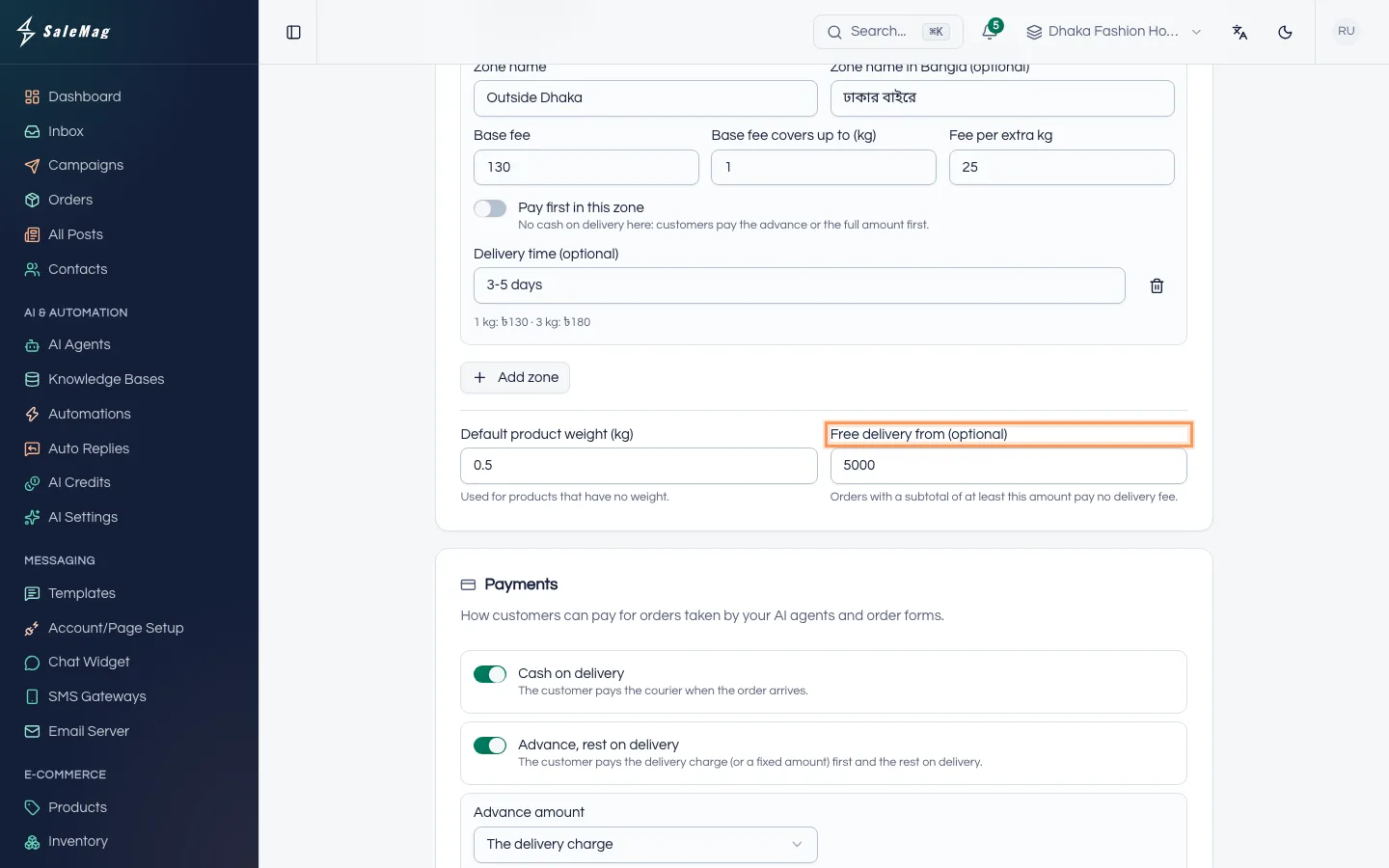
Step 4 — Choose how customers can pay
In the Payments card, turn on the options you accept. Keep at least one on.
- Cash on delivery: the customer pays the courier when the order arrives.
- Advance, rest on delivery: the customer pays part first and the rest on delivery. Under Advance amount, choose The delivery charge or A fixed amount. For a fixed amount, type it, for example 200.
- Full payment first: the customer pays the whole order before you send it.
Each product uses these options unless you changed its own Payment options.
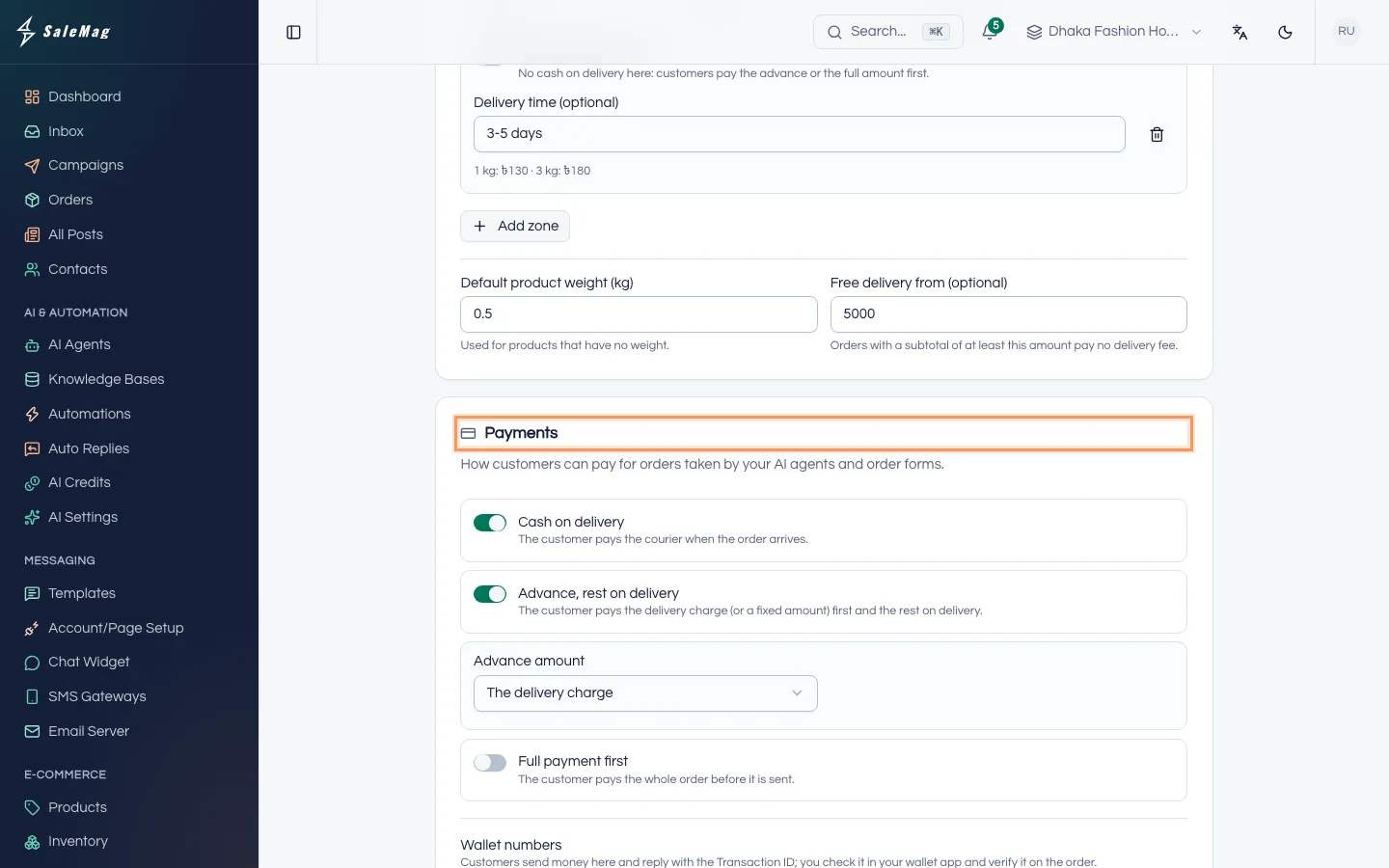
Step 5 — Add your wallet numbers
When advance or full payment is on, the Wallet numbers section appears. Customers send money to these numbers and reply in chat with the Transaction ID. You check it in your wallet app and verify it on the order.
- Click Add wallet number.
- Choose the wallet: bKash, Nagad, Rocket or Upay.
- Type the number, for example
01712345678. - Choose the account type: Personal (Send Money) or Merchant (Payment). This tells customers which option to use in their app.
You can add up to 5 numbers. Then:
- Payment instructions (optional): a short note sent with the numbers, for example "Write your order number in the reference."
- Cancel unpaid orders after (hours): orders that must be paid first and are not paid in time are cancelled, and their stock goes back. It starts at 23 hours, so the customer can still be told inside the 24-hour messaging window.
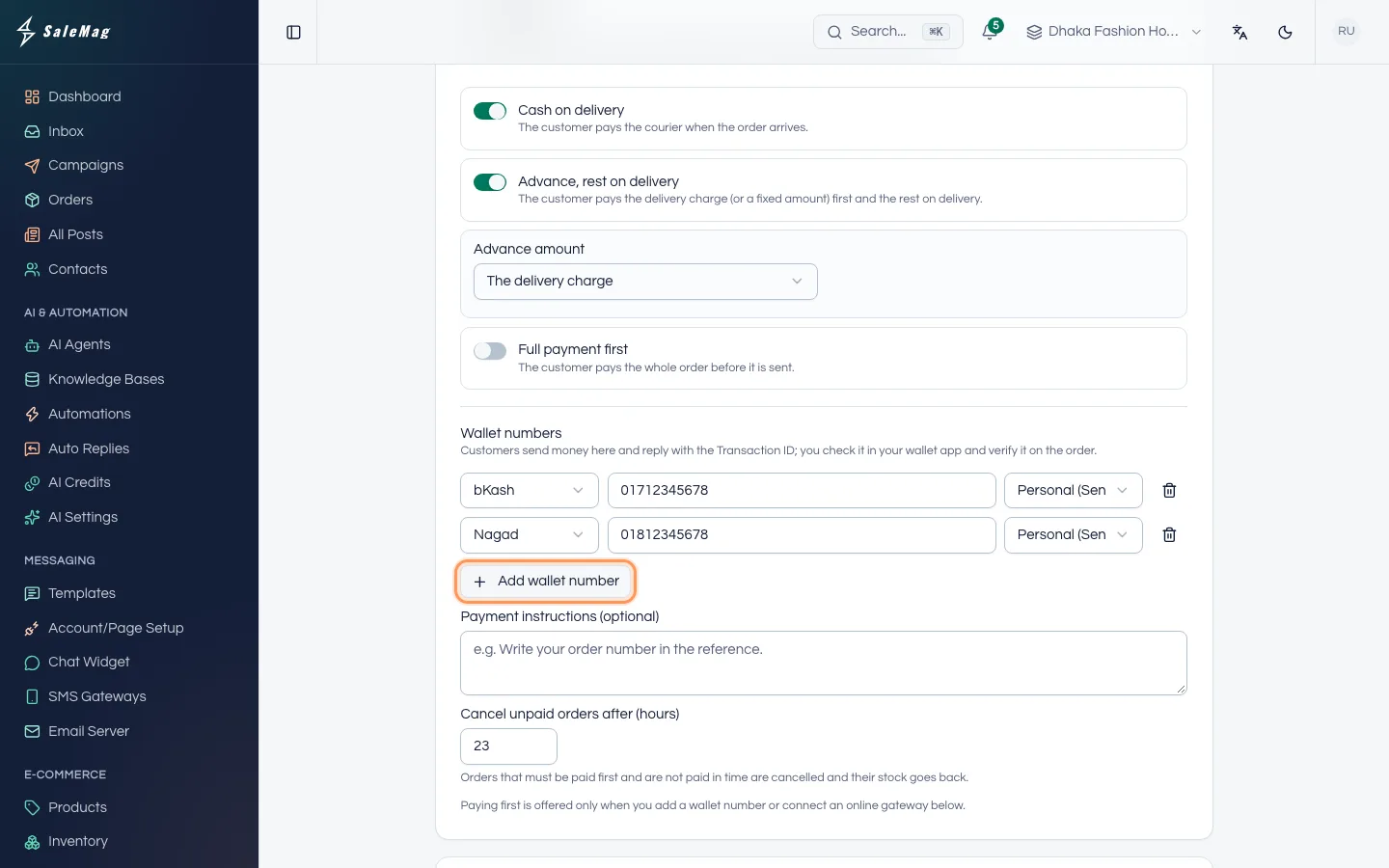
Important: Paying first is offered only when you add a wallet number or connect an online gateway (Step 6).
Step 6 — Connect an online payment gateway (optional)
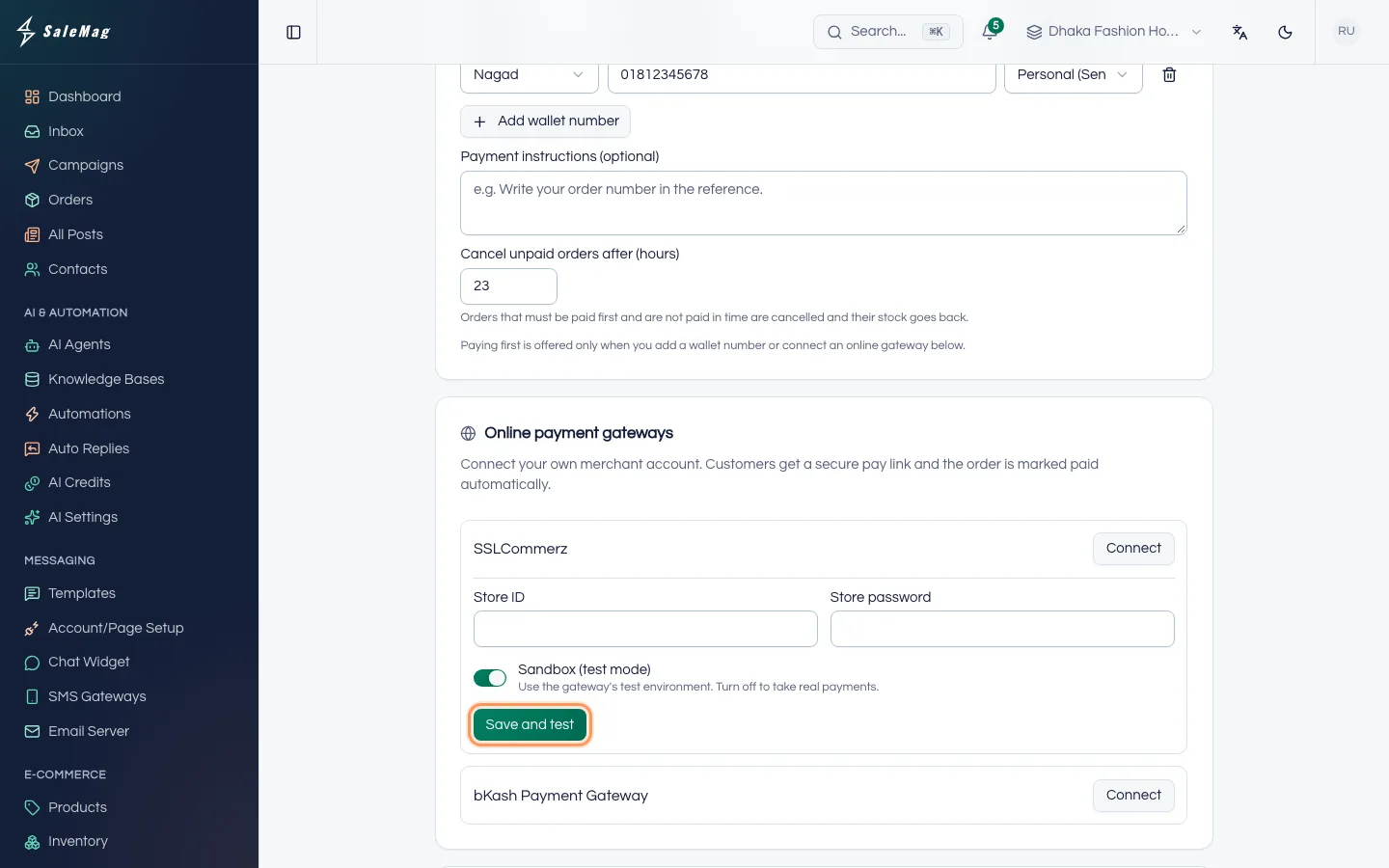
With a gateway, customers get a secure pay link and the order is marked paid on its own. You need your own merchant account with SSLCommerz or bKash. They give you the details below when they approve your account. Ask them for test (sandbox) details too.
- In the Online payment gateways card, click Connect next to SSLCommerz or bKash Payment Gateway.
- Fill in the fields. SSLCommerz: Store ID and Store password. bKash: App key, App secret, Username and Password.
- Keep Sandbox (test mode) on for your first try, with your test details.
- Click Save and test. If the test passes, the badge shows On · sandbox.
- When you are ready for real payments, click Edit, type your live details, turn Sandbox (test mode) off and click Save and test again. The badge shows On · live.
This card saves on its own. If the test fails, the gateway stays off and the reason is shown in red.
Step 7 — Set your stock rules
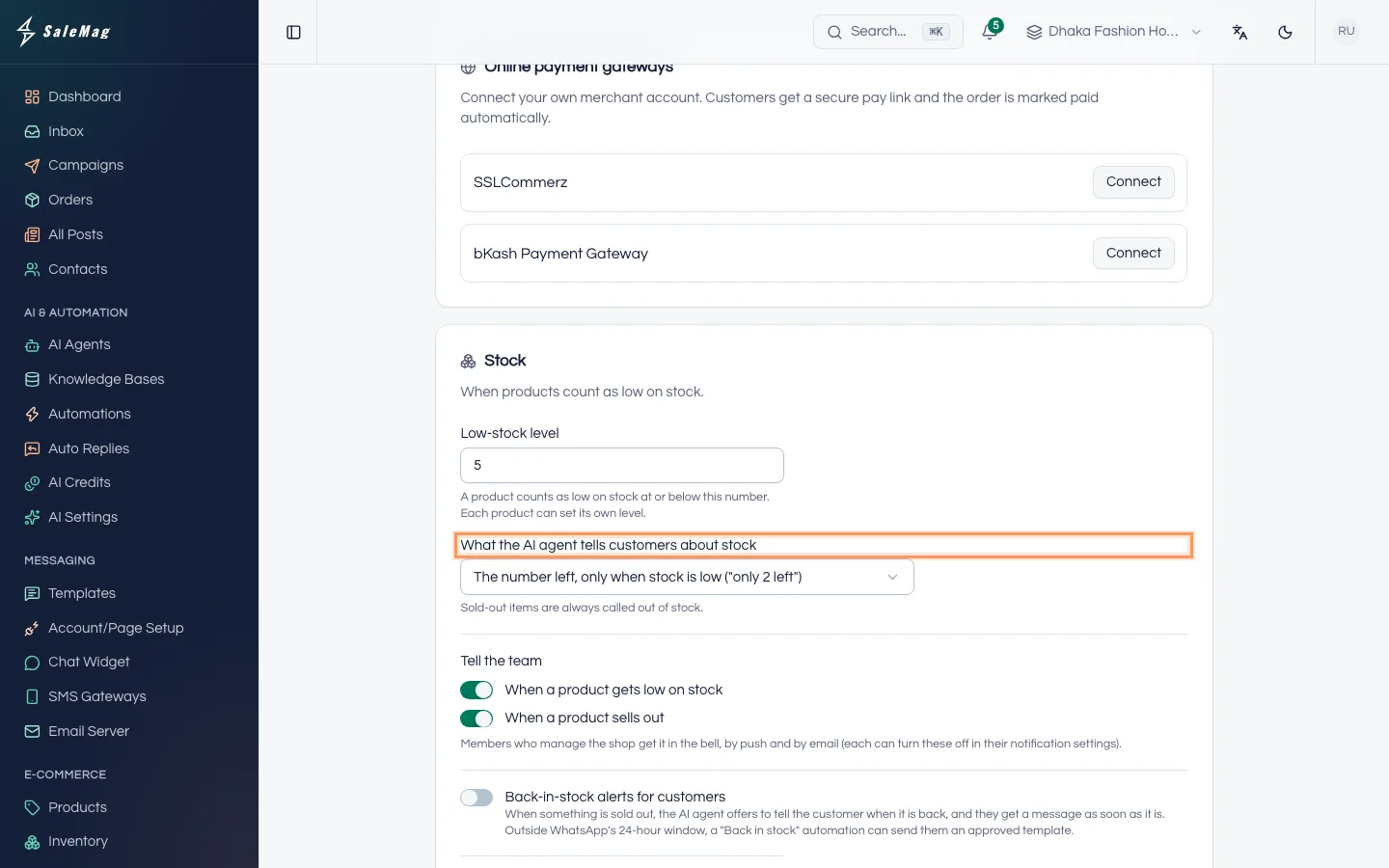
In the Stock card:
- Low-stock level: a product counts as low on stock at or below this number. It starts at 5. Each product can set its own.
- What the AI agent tells customers about stock: the number left only when stock is low ("only 2 left"), always the exact number, or never a number ("only a few left"). Sold-out items are always called out of stock.
- Tell the team: turn on When a product gets low on stock and When a product sells out to alert the people who manage the shop by bell, push and email.
- Back-in-stock alerts for customers: when this is on and something is sold out, the AI agent offers to tell the customer when it is back. Customers wait for up to (days) sets how long the request is kept (30 days to start).
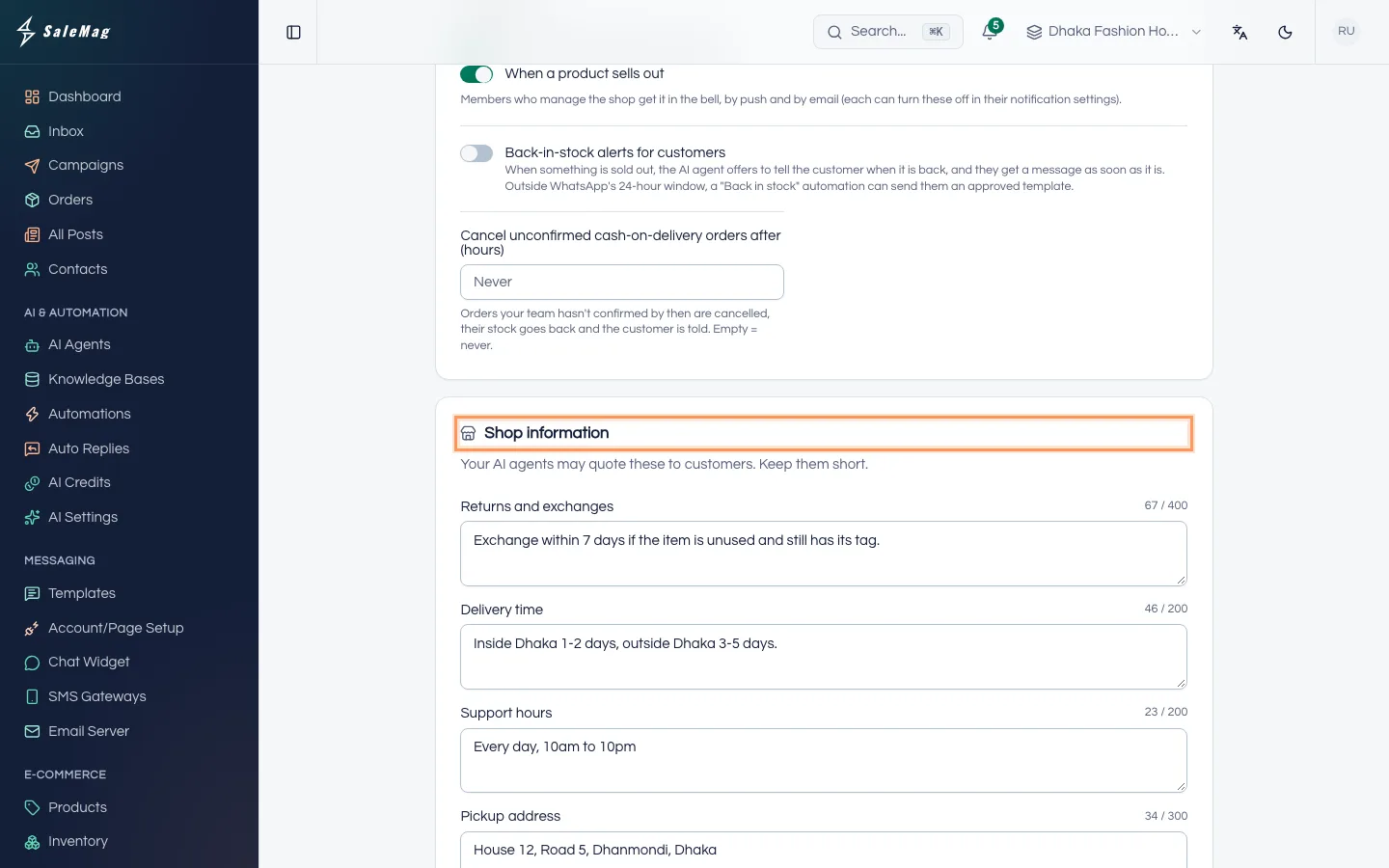
- Cancel unconfirmed cash-on-delivery orders after (hours): orders your team hasn't confirmed by then are cancelled, their stock goes back and the customer is told. Leave it empty to never cancel.
Step 8 — Fill in your shop information
In the Shop information card, write short answers to what customers often ask. Your AI agent may quote them.
- Returns and exchanges, for example "Exchange within 3 days if the item is unused and has its tag."
- Delivery time, for example "Inside Dhaka 1-2 days, outside Dhaka 3-5 days."
- Support hours, Pickup address and Other information.
Step 9 — Save
Click Save at the top or bottom of the page. You see "Settings saved."
What happens next
From the next chat order, your AI agent asks for the delivery area, adds the zone's fee, and offers the payment options you turned on. When a customer must pay first, the AI agent sends your wallet numbers or a pay link. To check and verify payments, see manage orders. To see the whole order flow from the customer's side, see take orders in chat.
If something goes wrong
The fields are grey and there is no Save button: your role can only view this page. Ask an Administrator for the Manager role.
"Every zone needs a name.": a zone has a fee but no name. Name it, or delete it with its bin icon.
"Check the fees and weight of …: use numbers such as 60 or 0.5.": a fee or weight has letters or symbols in it. Type numbers only, without ৳ or "kg".
"Enter a default weight in kg, such as 0.5.": the default product weight is empty or 0.
I don't see the Online payment gateways card: only Administrators and Managers see it.
The gateway test fails: read the red message under the gateway. Check that you used sandbox details with Sandbox on, and live details with it off.
Customers are not offered advance or full payment: add at least one wallet number or connect a gateway, then click Save.
Frequently asked questions
Do these settings apply to orders from my Shopify or WooCommerce store?
No. They are for orders your AI agent takes in chat, your order forms, and orders you create with New order. Your online store keeps its own delivery and payment rules.
What is the difference between Personal and Merchant numbers?
It tells customers which bKash, Nagad, Rocket or Upay option to use. For a Personal number they use Send Money. For a Merchant number they use Payment.
Can customers pay by bKash without me checking each payment?
Yes, if you connect the bKash Payment Gateway or SSLCommerz. The customer gets a secure pay link and the order is marked paid on its own. With a plain wallet number, you check each Transaction ID yourself.
Can I charge more for heavy parcels?
Yes. In each zone, set how many kg the base fee covers and a fee per extra kg. Part of a kg counts as a full kg. Make sure your products have a weight.
Will my AI agent tell customers my return policy?
Yes. Whatever you write under Shop information, such as Returns and exchanges, your AI agent may tell customers when they ask.
Was this article helpful?