This guide connects your Shopify, WooCommerce or BigCommerce store to SaleMag. When you finish, your products, customers and orders come into SaleMag on their own, and your AI agent can answer questions about what you sell and take orders in chat.
Step 1 — Open the Stores page
In the left menu, go to E-Commerce → Stores. The Connect a store box is on the right.
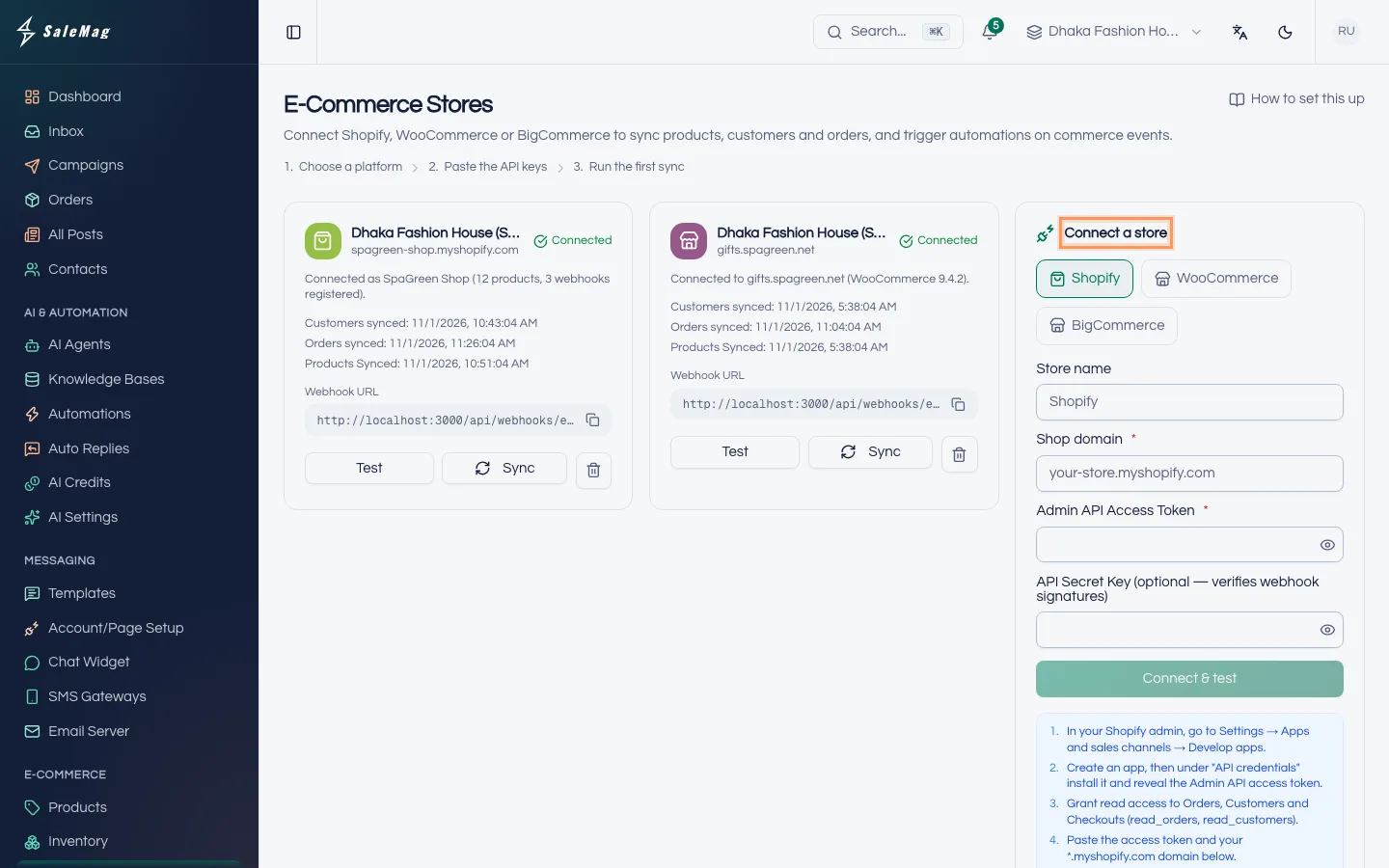
Step 2 — Pick your platform and enter your store address
- Click Shopify, WooCommerce or BigCommerce.
- In Store name, type a name you will recognise, such as your shop's name. This is optional.
- Fill in the address field. Its name depends on the platform:
- Shopify: Shop domain, for example
your-store.myshopify.com. Use the myshopify.com address, not your own domain. - WooCommerce: Store URL, for example
https://yourstore.com. - BigCommerce: Store Hash. Step 4 shows where to find it.
- Shopify: Shop domain, for example
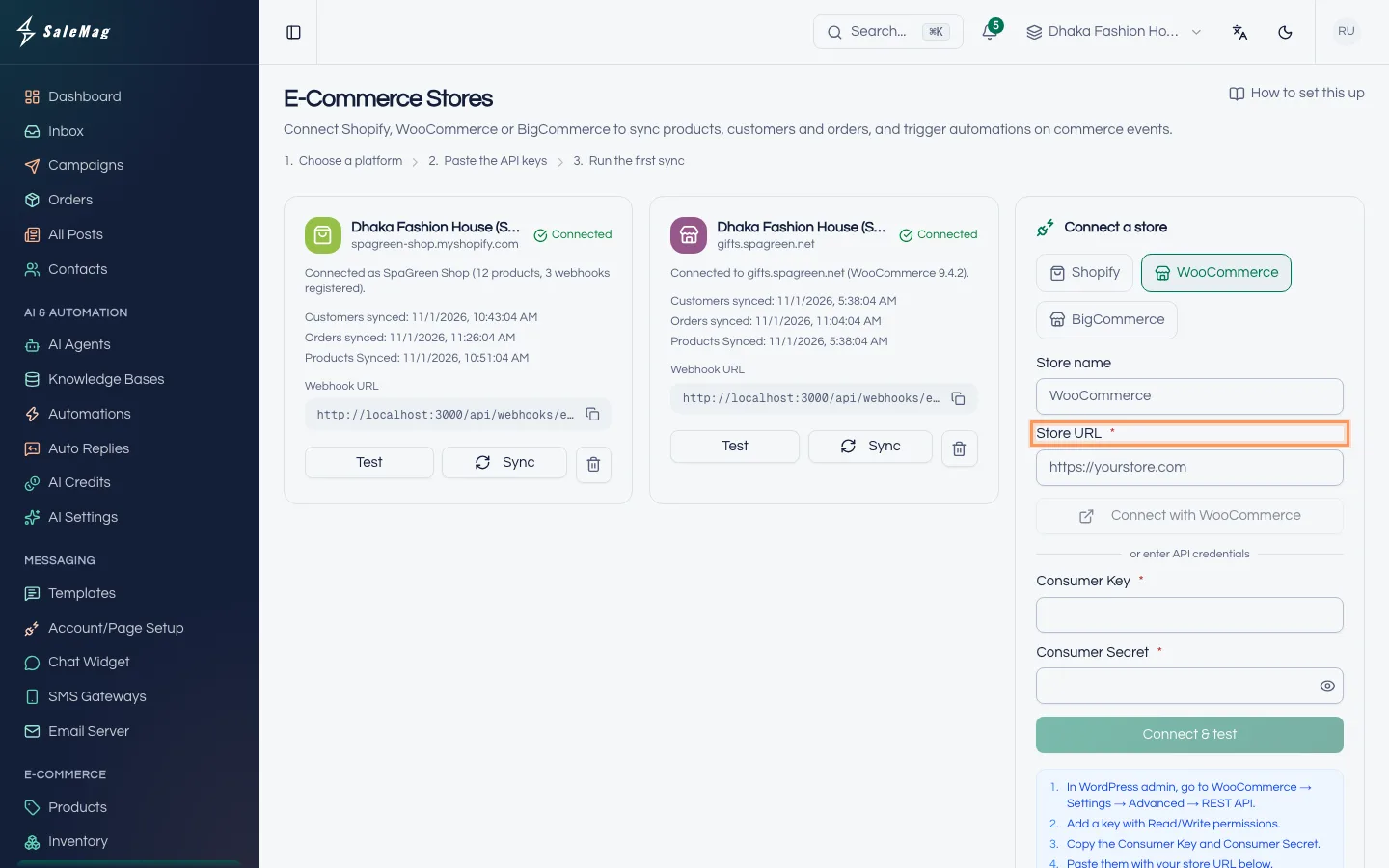
Step 3 — Use one-click connect if you see it
Some platforms can connect without keys:
- WooCommerce: click Connect with WooCommerce. Your WordPress site opens and asks you to approve SaleMag. Click Approve. You come back to SaleMag, and the store appears as soon as WooCommerce sends its keys.
- Shopify: if you see a Connect with Shopify button, use it and approve the app in Shopify.
- BigCommerce: if you see One-click install, install the app from your BigCommerce control panel under Apps → My Apps. You come back to SaleMag on your own.
If one-click worked, skip to Step 6. If you don't see the button, or it didn't work, continue with Step 4.
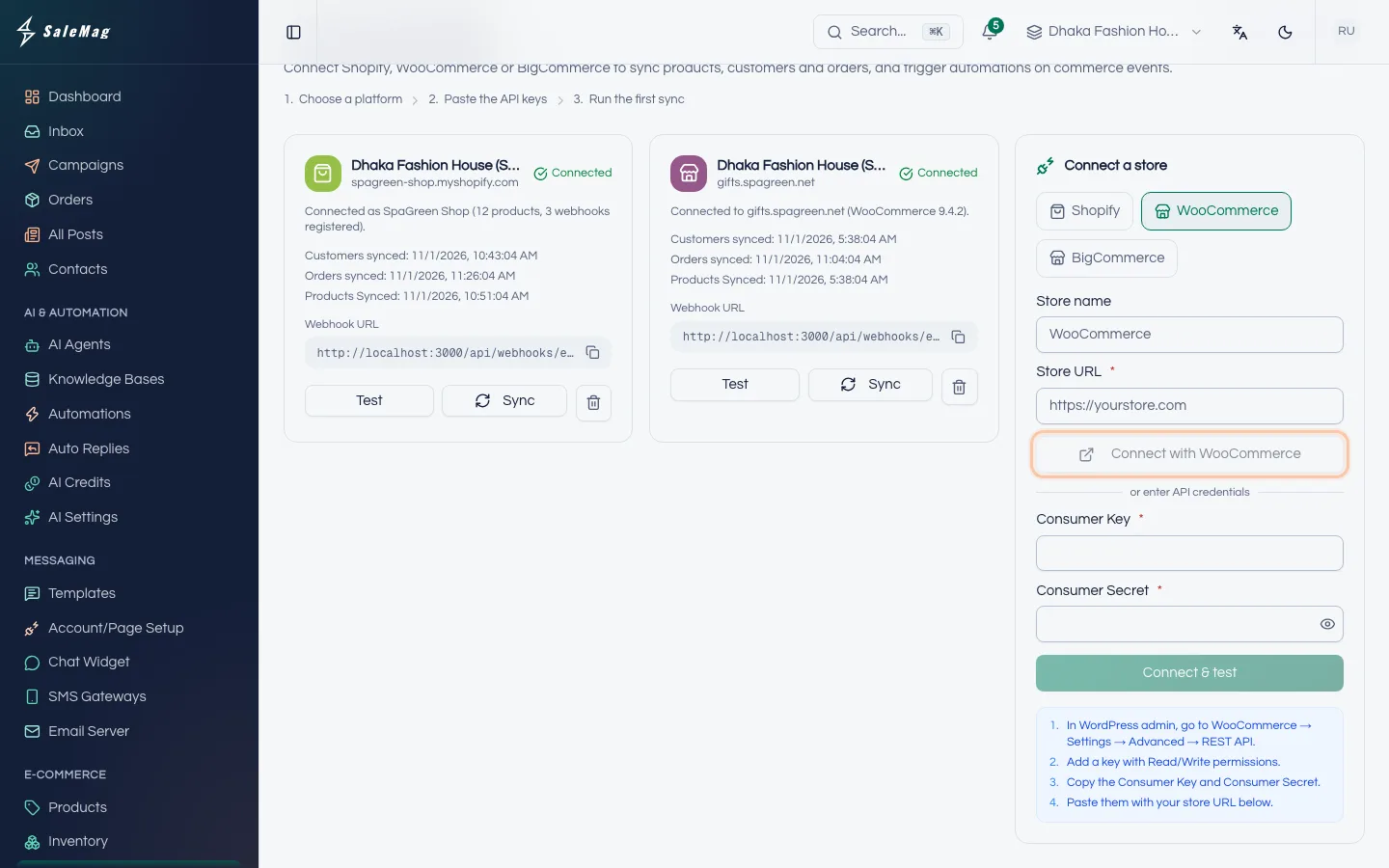
Step 4 — Get the API key from your store
An API key is a password that lets SaleMag read your store. You create it in your store's admin, then paste it into SaleMag. The same steps are listed in the blue box under the form.
Shopify
- In your Shopify admin, go to Settings → Apps and sales channels → Develop apps, and create an app.
- Give it Admin API access to read products, orders, customers and inventory (
read_products,read_orders,read_customers,read_inventory). If you want abandoned-cart reminders, also addread_checkouts. If you want Mark fulfilled in SaleMag to mark orders fulfilled in Shopify, also addwrite_ordersandwrite_fulfillments. - Install the app, then reveal the Admin API access token and copy it. Shopify shows it only once.
- Optional: copy the app's API secret key too. SaleMag uses it to check that updates really come from Shopify.
WooCommerce
- In your WordPress admin, go to WooCommerce → Settings → Advanced → REST API.
- Click Add key, give it a name such as "SaleMag", and set Permissions to Read/Write.
- Click Generate API key, then copy the Consumer key and Consumer secret. WooCommerce shows the secret only once.
BigCommerce
- In your BigCommerce control panel, go to Settings → API → Store-level API accounts and create an API account.
- Give it read access to Orders, Customers, Products and Carts, and modify access to Webhooks. Set Orders to modify if you want Mark fulfilled in SaleMag to mark orders shipped in BigCommerce.
- Copy the Access Token. Then find the API Path, which looks like
api.bigcommerce.com/stores/abcde1234/. The code after/stores/(hereabcde1234) is your Store Hash.
Step 5 — Paste the keys and click Connect & test
Back in SaleMag, paste what you copied:
- Shopify: Admin API Access Token, and if you have it, API Secret Key (optional — verifies webhook signatures).
- WooCommerce: Consumer Key and Consumer Secret.
- BigCommerce: the Store Hash in the address field and the API Access Token.
Click Connect & test. SaleMag checks the keys with your store. If they work, you see a message that the store is connected.
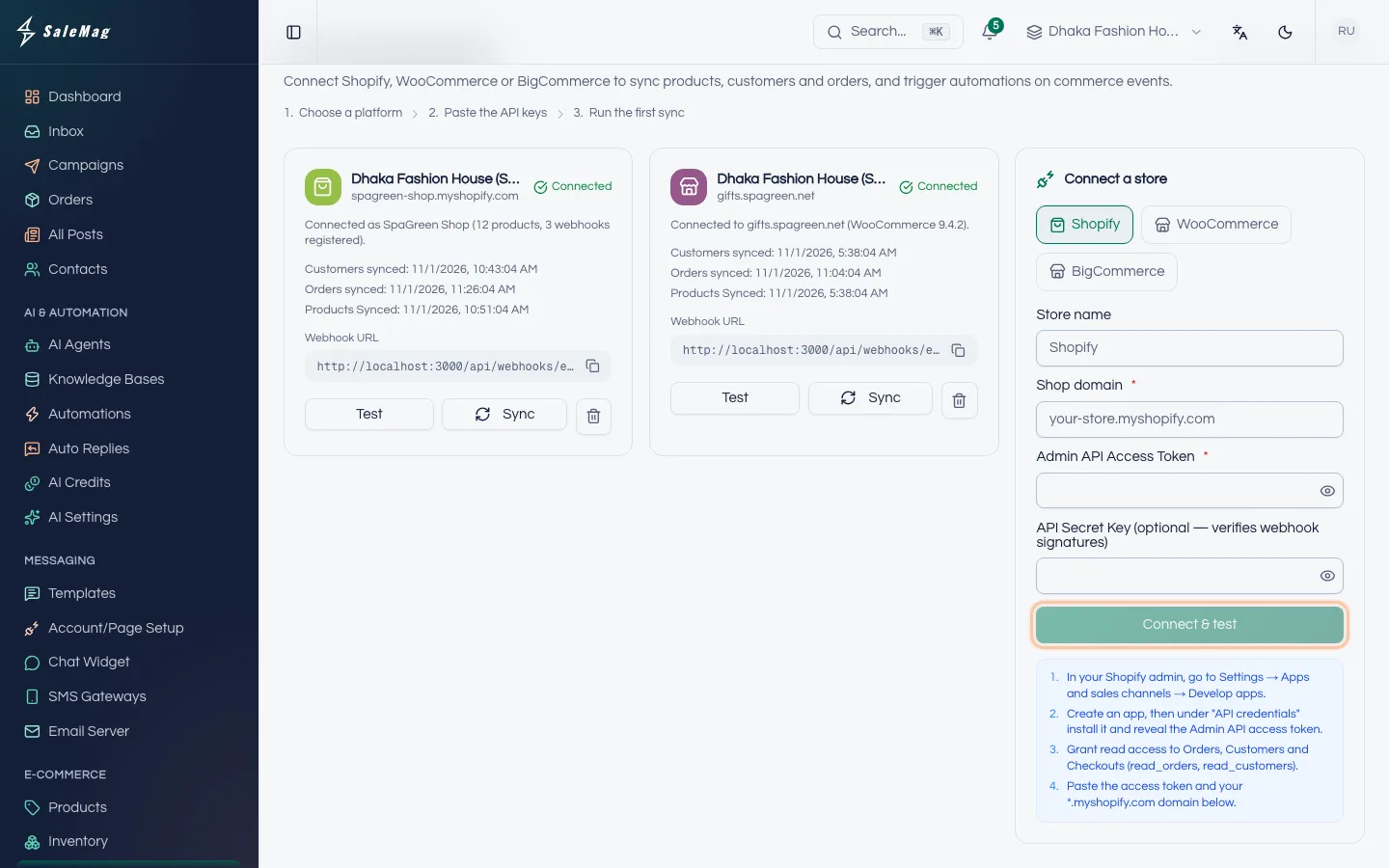
Step 6 — Check the store card
Your store now has a card on the left. It shows:
- The status: Connected, Error or Pending.
- When the last sync finished: Customers synced, Orders synced and Products Synced. A dash means the first sync is still running. Big stores can take a few minutes.
- The Webhook URL. SaleMag registers it in your store for you, so new orders and changes arrive on their own. You don't need to copy it.
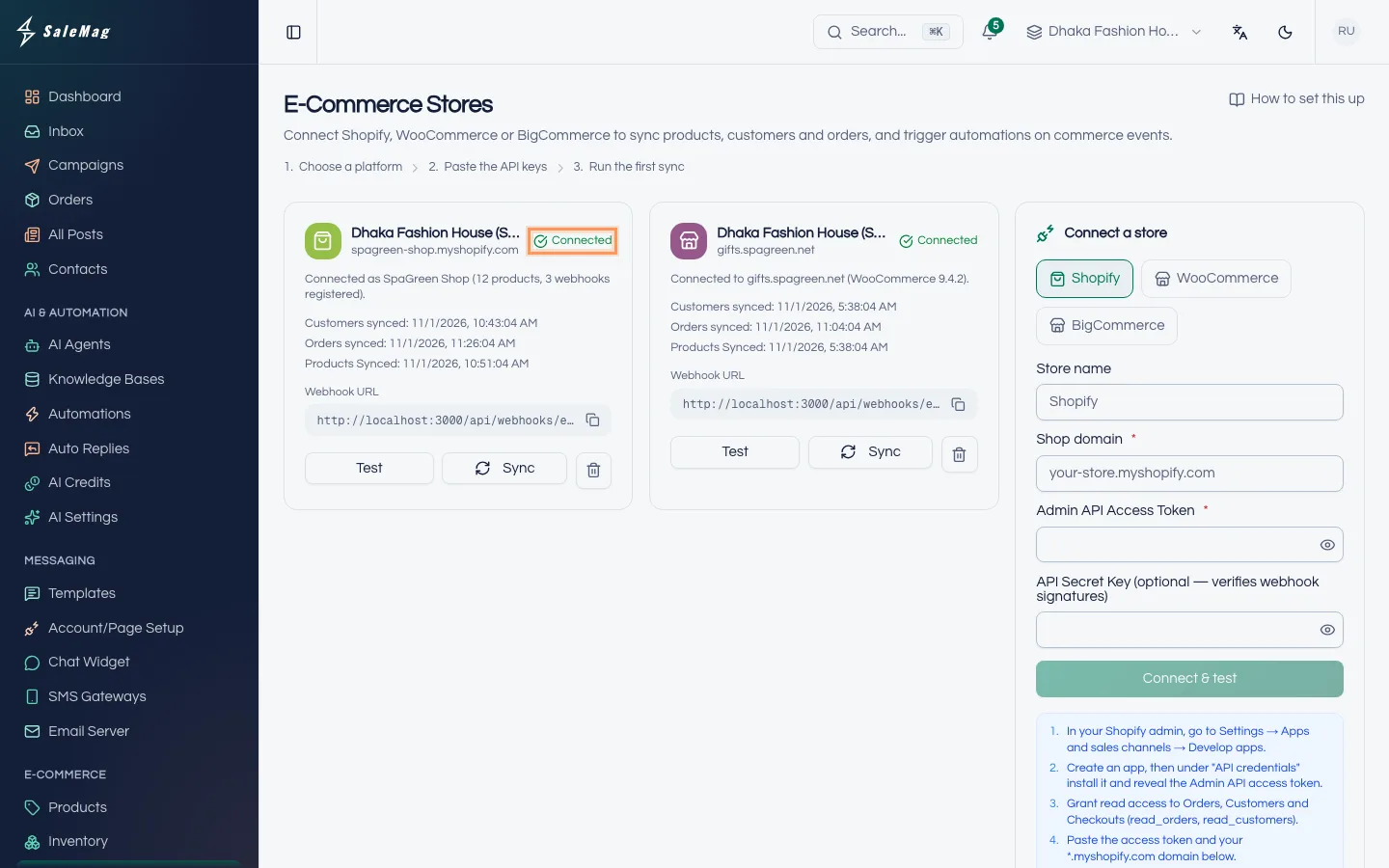
Step 7 — Check your synced products
Go to E-Commerce → Products. In the Source column, your store's products show your store's name.
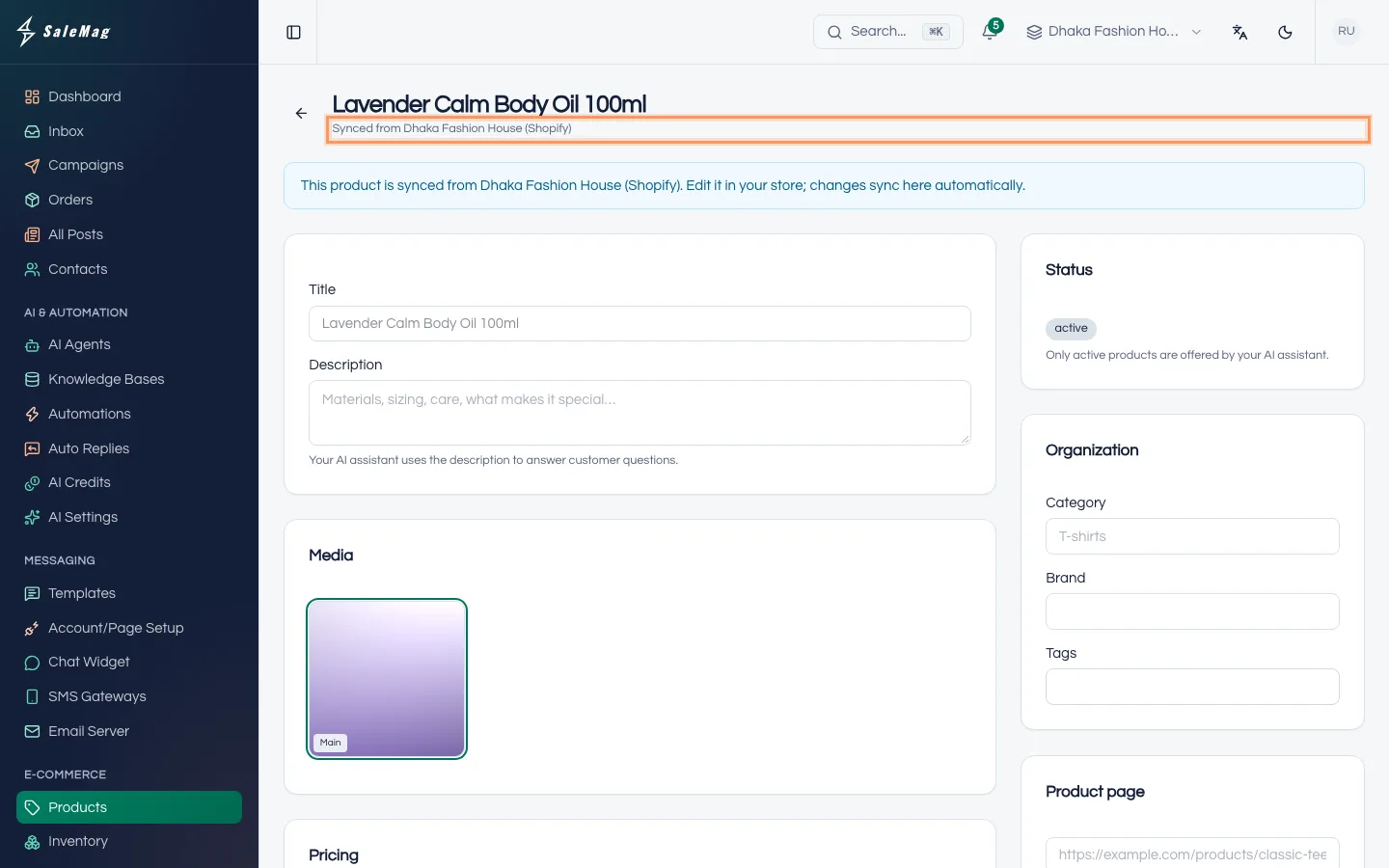
Open one. Under the title it says Synced from and your store's name, and a blue note says to edit the product in your store. You can still change three things that live only in SaleMag, each with its own button: the weight (Save weight), the payment options (Save payment options) and the cost price (Save cost). Set the weight if you use weight-based delivery fees.
Important: To let your AI agent answer questions about these products, add them to its knowledge base with Add to AI knowledge base on the Products page. See add products, Step 11.
What SaleMag changes in your store
SaleMag reads your store. It never changes your products, prices or stock there. Orders taken in chat lower the stock in SaleMag only, until your store's next update, so record chat orders in your store too.
There is one exception. When you click Mark fulfilled on a store order in SaleMag, SaleMag tells your store: Shopify marks the order fulfilled, WooCommerce sets it to Completed, and BigCommerce sets it to Shipped.
Test, Sync and Disconnect
Each store card has three buttons:
- Test checks that the keys still work. A green message means they do. A red one explains what your store said, and the same text stays on the card.
- Sync brings in your customers and products again, for example after big changes in your store. You see "Customer & product sync started."
- The bin icon (Disconnect) removes the store. SaleMag asks "Disconnect this store?" and warns that the store's synced orders and products will be removed. Click Disconnect to confirm.
What happens next
New orders from your store appear on the Orders page. Customers with a phone number or email are added to your Contacts, up to your plan's contact limit. You can also build automations on store events, such as Cart Abandoned, under AI & Automation → Automations.
If something goes wrong
"Could not connect: …": your store refused the keys. The text after the colon comes from your store. Check that you copied the whole key, that the address is right, and (for WooCommerce) that the key has Read/Write permission. The store card stays with the status Error: fix the keys and connect again.
"Stock updates from Shopify need inventory access.": your Shopify app can't read inventory. Add the read_inventory scope to the app in Shopify, then connect the store again.
The status says Pending for a long time: click Test. If the test passes, click Sync.
The Connect & test button stays grey: a required field (marked with *) is empty.
Products don't appear after a sync: wait a few minutes and refresh the page. From WooCommerce, only published products come in, so check the product's status in WordPress. Then click Sync again.
Products appear, but the AI agent doesn't offer them: products that are drafts or archived in your store come in with that status, and the AI agent offers only active products. Also check that they are in your AI agent's knowledge base.
Frequently asked questions
Can I edit a synced product in SaleMag?
Only the parts that live in SaleMag: the weight, the payment options and the cost price, each with its own save button. The title, description, photos, price and stock come from your store. Change them in your store and the change reaches SaleMag on its own.
Will SaleMag change the stock in my store?
No. SaleMag never changes products, prices or stock in your store. When your AI agent takes an order in chat, the stock goes down in SaleMag only, until your store sends its next update. Record chat orders in your store too, so both stay correct.
Can I connect more than one store?
Yes. Connect each store one after the other. Each one gets its own card on the Stores page, and its products show which store they came from.
What happens to my data if I disconnect?
The synced orders and products of that store are removed from SaleMag. Nothing is deleted in your store. Customers who were added to your Contacts stay there.
Can I also add products by hand?
Yes. Products you add yourself sit next to the synced ones. See the guide to add products.
Was this article helpful?