The Getting Started page is your setup to-do list. It shows seven steps, how many you have finished, and a button that opens the right page for each step. Use it on your first day, and come back whenever you are not sure what to do next.
Step 1 — Open the Getting Started page
In the left menu, go to Support → Getting started. You can also press the Getting started button in the top bar, which shows your progress, such as "2 of 7 completed".
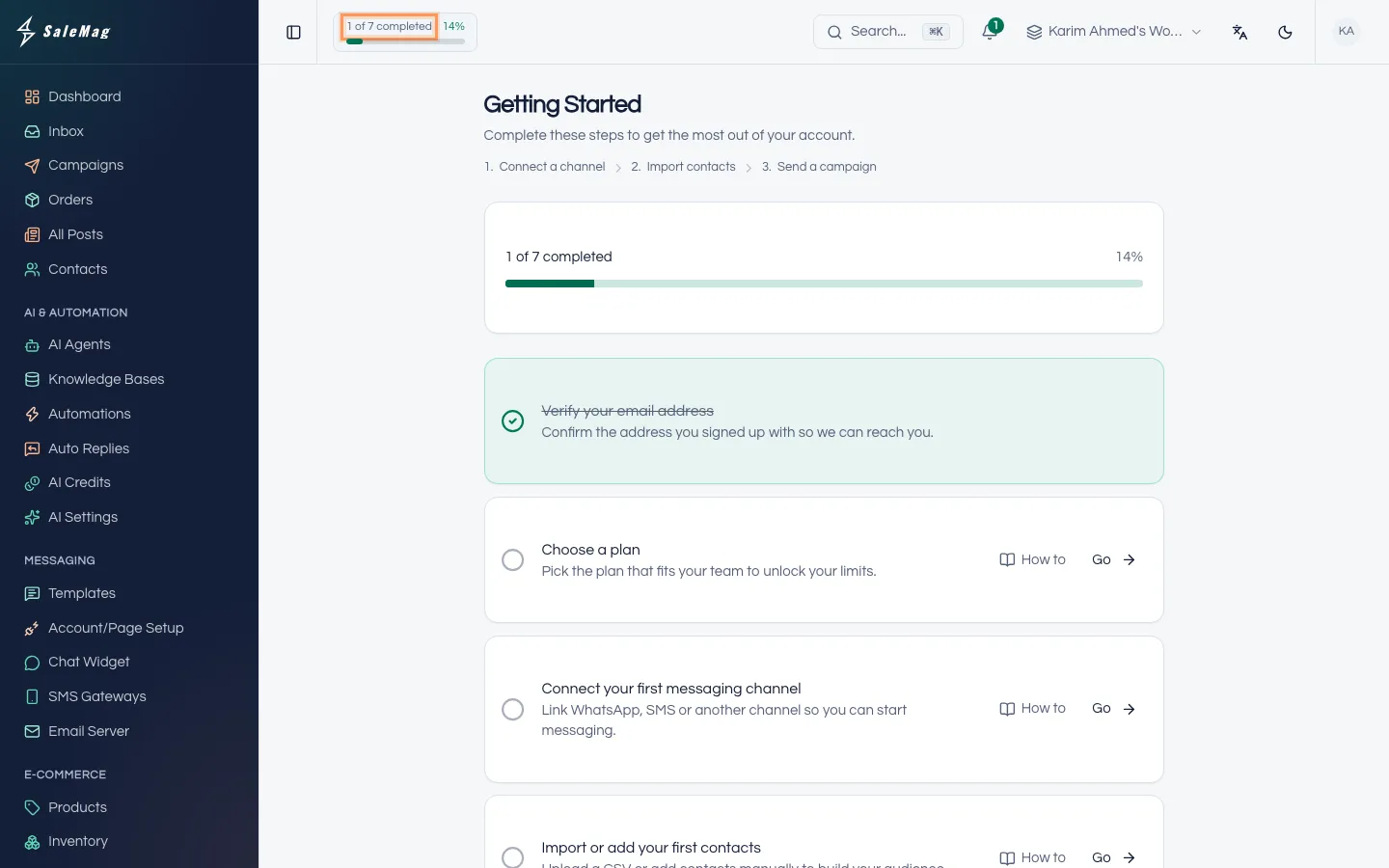
At the top you see a progress bar with "{done} of 7 completed" and a percentage. Finished steps are green, with a tick and a line through the name.
Step 2 — Go through the steps in order
Each unfinished step has a Go button that opens the page where you do that job. Here is what each step means and when it ticks itself:
| Step | What to do | Ticks itself when |
|---|---|---|
| Verify your email address | Click the link in the sign-up email. | Your email is verified. You must do this before you can use the app, so it is usually ticked already. |
| Choose a plan | Pick a paid plan, or press Continue with Free. | The workspace has a paid plan, or you chose to continue on Free. |
| Connect your first messaging channel | Connect WhatsApp, Messenger, Instagram or another channel on the Channel Setup page. | Any channel is connected to this workspace. |
| Import or add your first contacts | Add a contact by hand or import a file. | The workspace has at least one contact. |
| Send your first message | Send a campaign, or reply to a chat in the inbox. | Any message goes out from this workspace. |
| Train an AI agent | Create an AI agent and turn it on. | The workspace has an AI agent that is turned on. |
| Connect a social media account | Link a social account to schedule posts. | A social account is connected. |
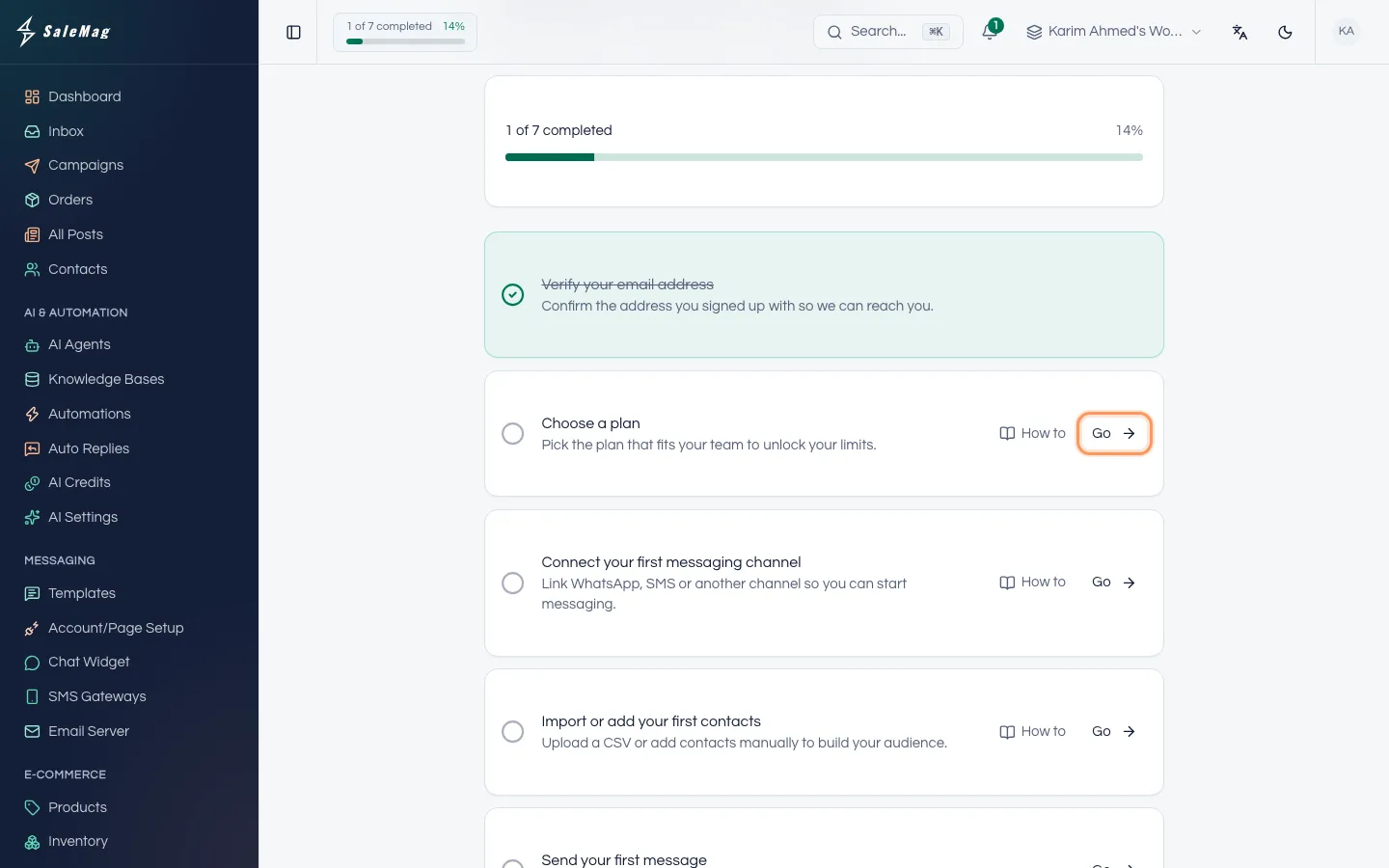
Press Go, do the work on that page, then come back. The step is ticked the next time the page loads.
Tip: The help articles follow the same order. For the channel step, see connect WhatsApp or connect Facebook and Instagram. For contacts, see add and import contacts. For the AI agent, see create an AI agent.
Step 3 — Mark a step done yourself
If a step does not apply to you, click the empty circle on the left of that step. Its tooltip says Mark done. The step turns green and the progress bar moves on.
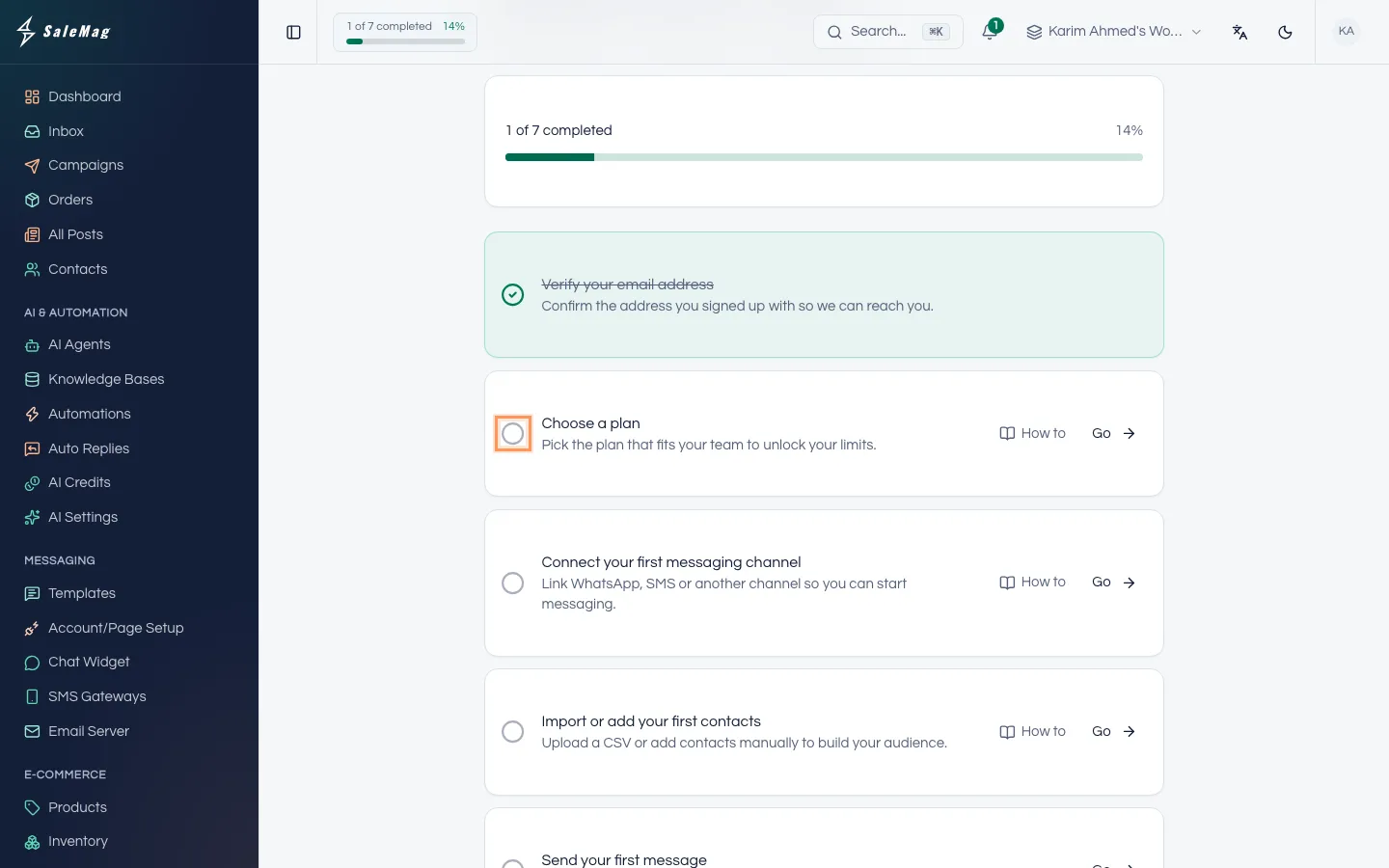
Important: Marking a step done only ticks the list. It does not connect anything or create anything for you.
Step 4 — Follow the next step from your dashboard
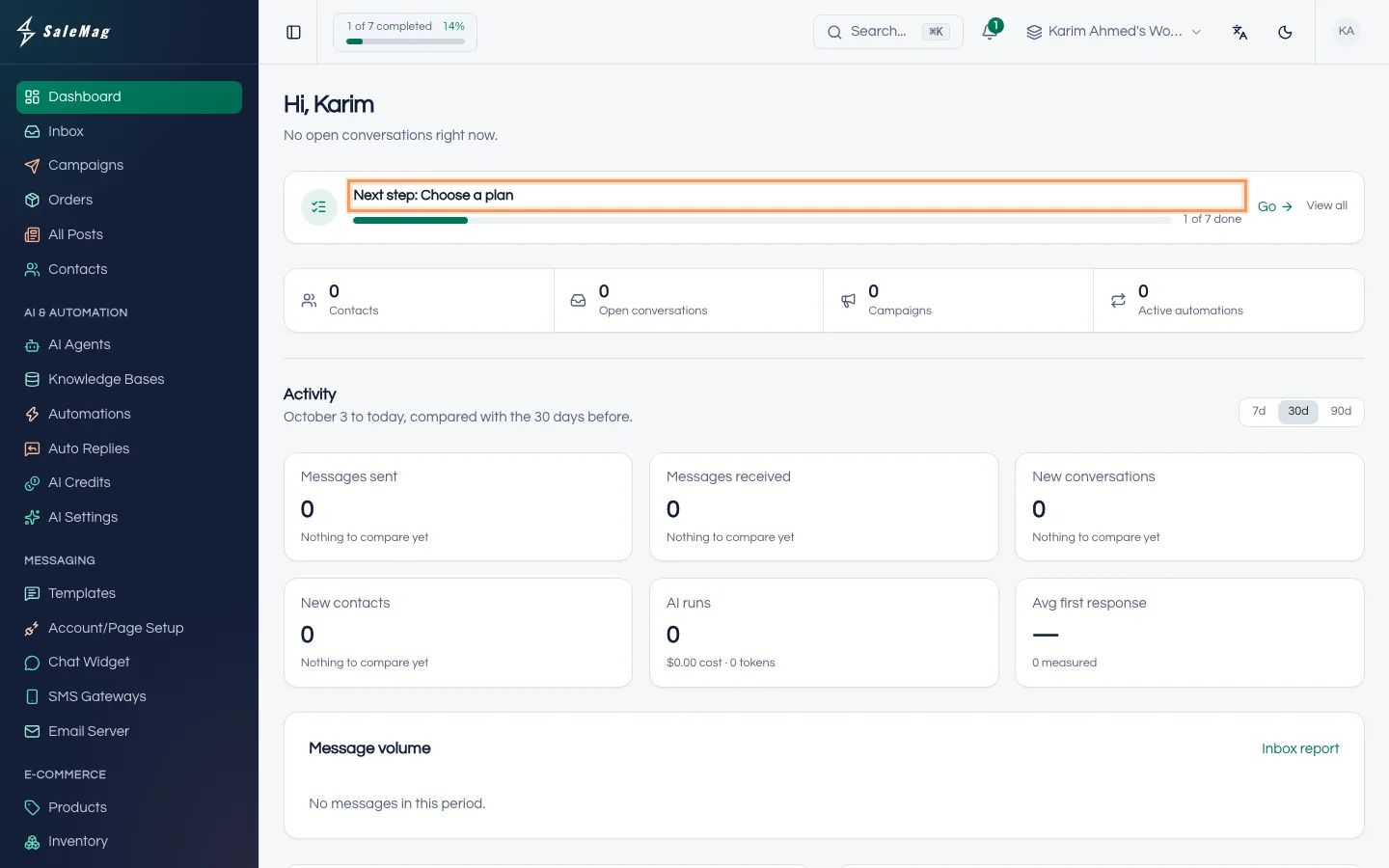
On the Dashboard, a small card shows Next step: with the name of your next unfinished step, a Go button and View all. Press Go to jump straight to that job, or View all to come back to the full list.
What happens next
When all seven steps are done, the page shows "You're all set! Onboarding complete." and the Getting started button disappears from the top bar. From then on, your daily work happens in the inbox: see use the inbox.
If something goes wrong
A Go button opens a page that says you don't have access: some steps need an Administrator. For example, only the workspace owner or an Administrator can choose a plan. Ask them to do that step.
A step stays unticked after you did the work: refresh the page. Make sure you did the work in the workspace shown in the top bar, because steps are checked for the workspace you are in.
"Verify your email address" is not ticked: press Resend email next to it and click the link in the new email.
Frequently asked questions
Do I have to finish every step?
No. The checklist is a guide. If a step does not apply to you, for example you don't post on social media, click its circle to mark it done.
I marked a step done by mistake. Can I undo it?
No, a step can't be unticked. It does not change anything in your account, so you can simply carry on and do the real work later.
Does my teammate see the same checklist?
Each person has their own checklist. Steps that SaleMag detects, such as a connected channel, are ticked for anyone who opens the page in that workspace. Steps you mark done yourself are ticked only for you.
The Getting started button in the top bar has gone. Where is it?
It hides itself once all seven steps are done. You can still open the page from Support → Getting started in the left menu.
Was this article helpful?