In SaleMag you pay per workspace, not per person. This guide explains how plans work, how to upgrade, change or cancel a plan, where to find your invoices and what to do when a payment fails. Prices and limits are always shown on the Plans page.
How plans work
- Each workspace has its own plan. A workspace is one business inside SaleMag.
- Your first workspace is free. It runs on the Free plan until you upgrade it.
- Every extra workspace needs its own paid plan. Without one it is read-only: you can view and export, but sending, AI replies, automations, campaigns and scheduled posts are paused.
- Your first paid plan can start with a free trial, if the plan offers one.
The workspace button in the top bar shows each workspace's state: Free, Trial, Read-only or Payment failed.
Step 1 — Open the Plans page
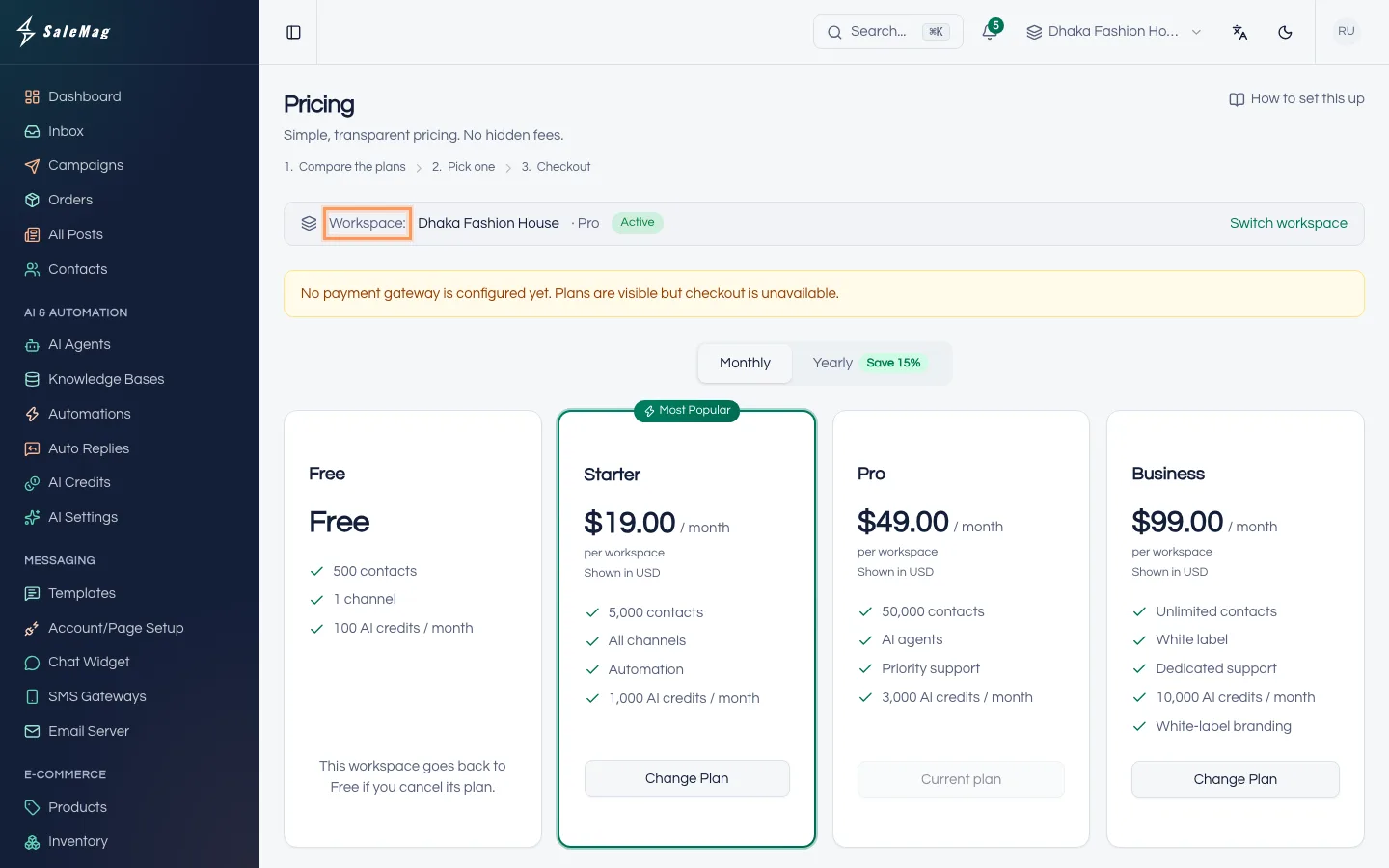
In the left menu, go to Billing → Plans. The page title is Pricing. At the top, check the line that says Workspace:. The plan you choose is for that workspace. To pick another one, press Switch workspace.
Step 2 — Choose a plan
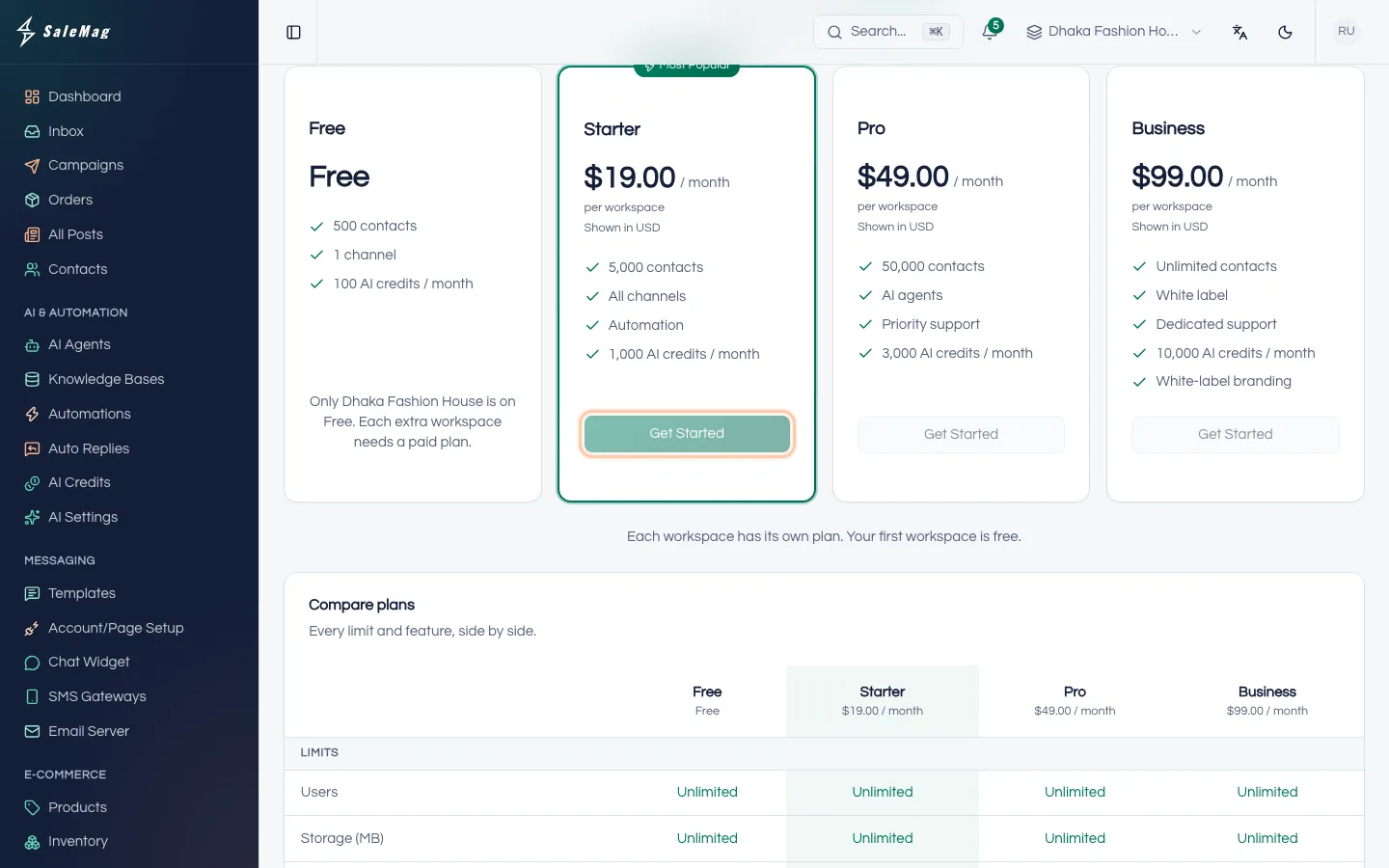
Choose Monthly or Yearly at the top. Read what each plan includes, then press the button on the plan you want:
- Start {days}-day free trial: shown when you can get a trial.
- Get Started: start the paid plan now.
- Continue with Free: stay on the Free plan in your free workspace.
Step 3 — Pay by card
The Checkout page shows your order summary and the total due today. Press Pay (or Start {days}-day free trial). You are taken to Stripe, our card payment partner, to enter your card. Your card details stay with Stripe and are never stored by SaleMag.
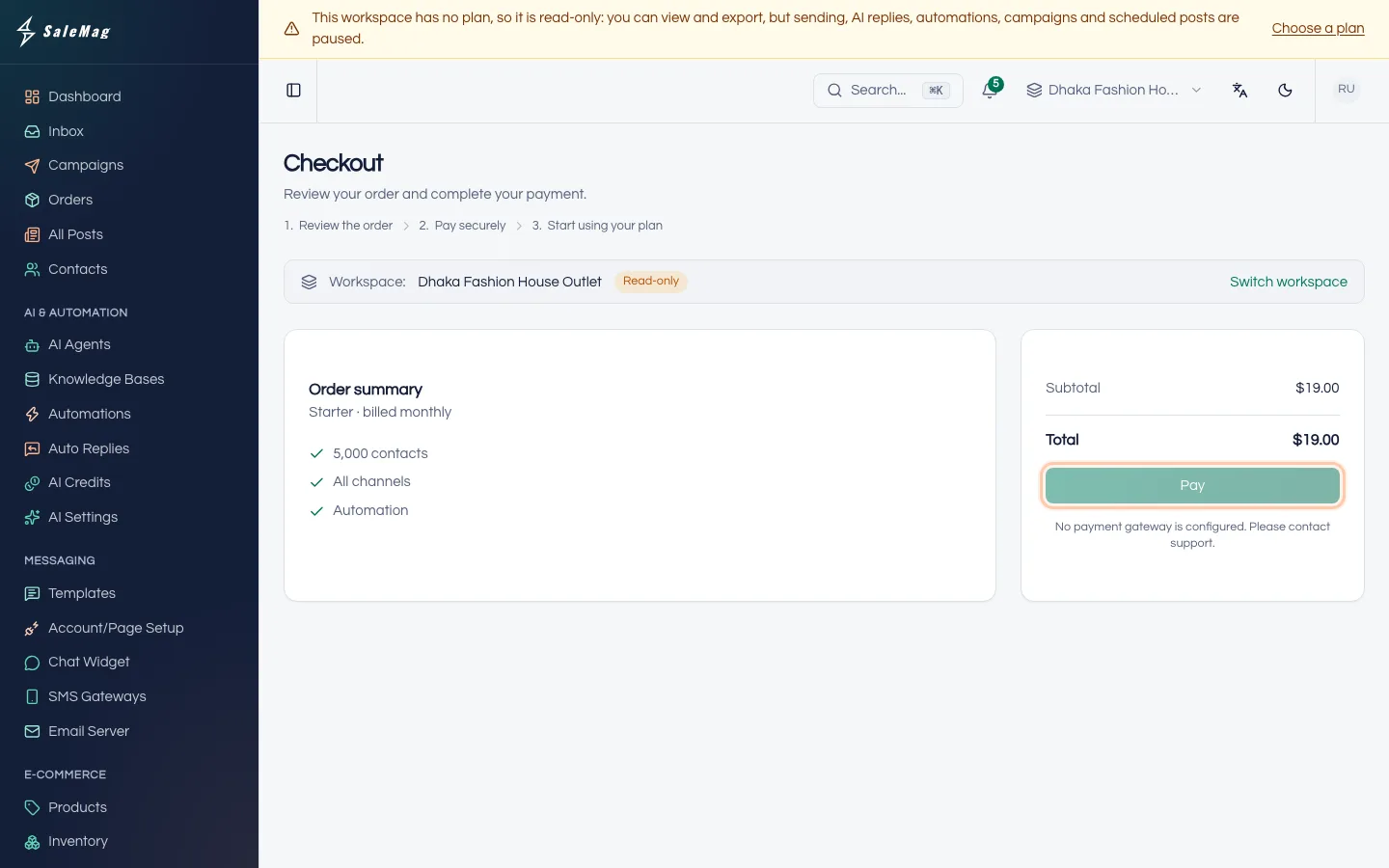
For a trial, you see "A valid card is required to start your trial." Nothing is charged today; the card is charged on the date shown, unless you cancel before then.
After paying, you come back to SaleMag and see "Payment received. {workspace} is now on its new plan."
Step 4 — Change your plan
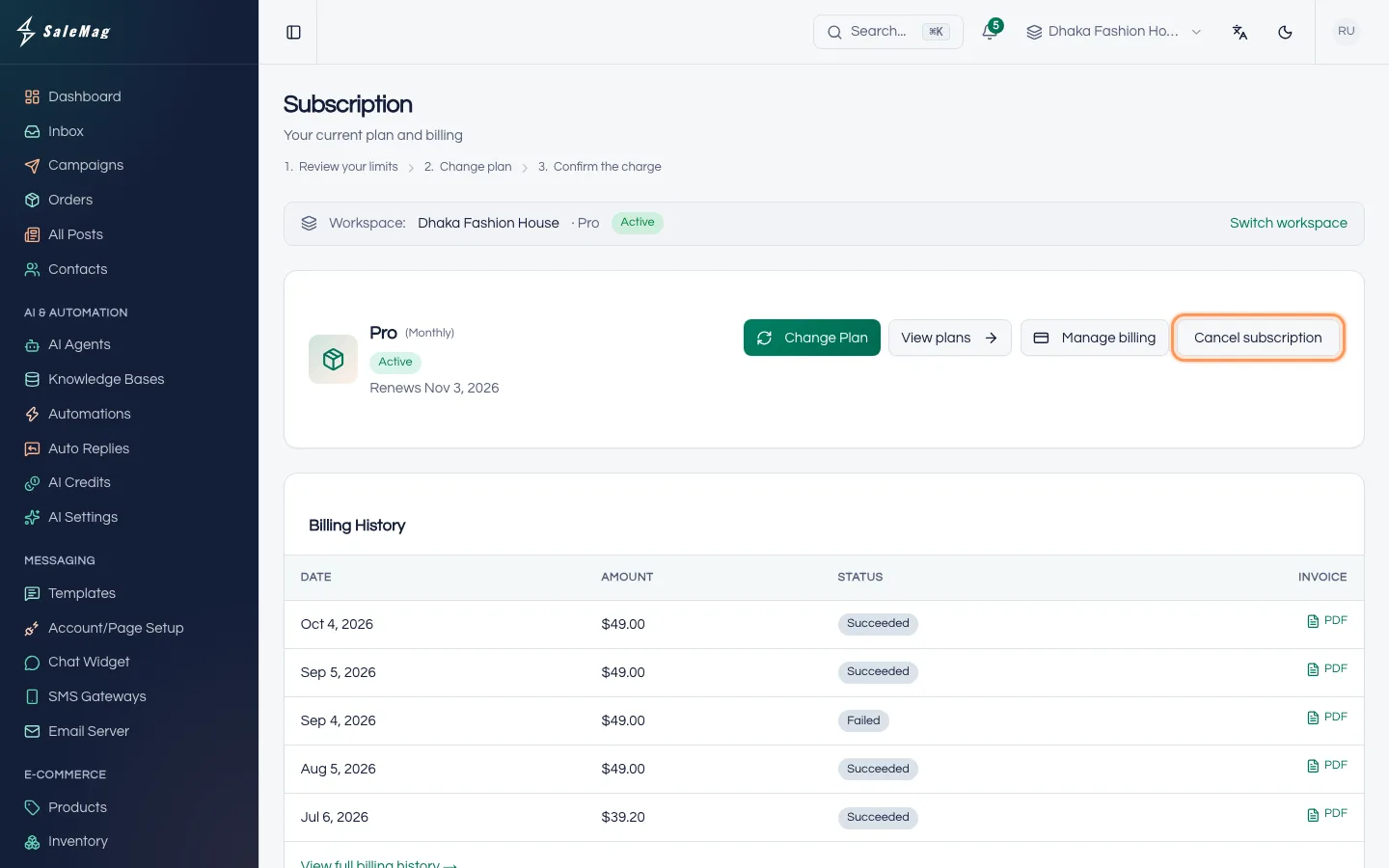
Go to Billing → Subscription and press Change Plan. Pick the new Plan and Billing Cycle. If you have a coupon, type it in Coupon Code (optional) and press Apply. Then press Confirm Change.
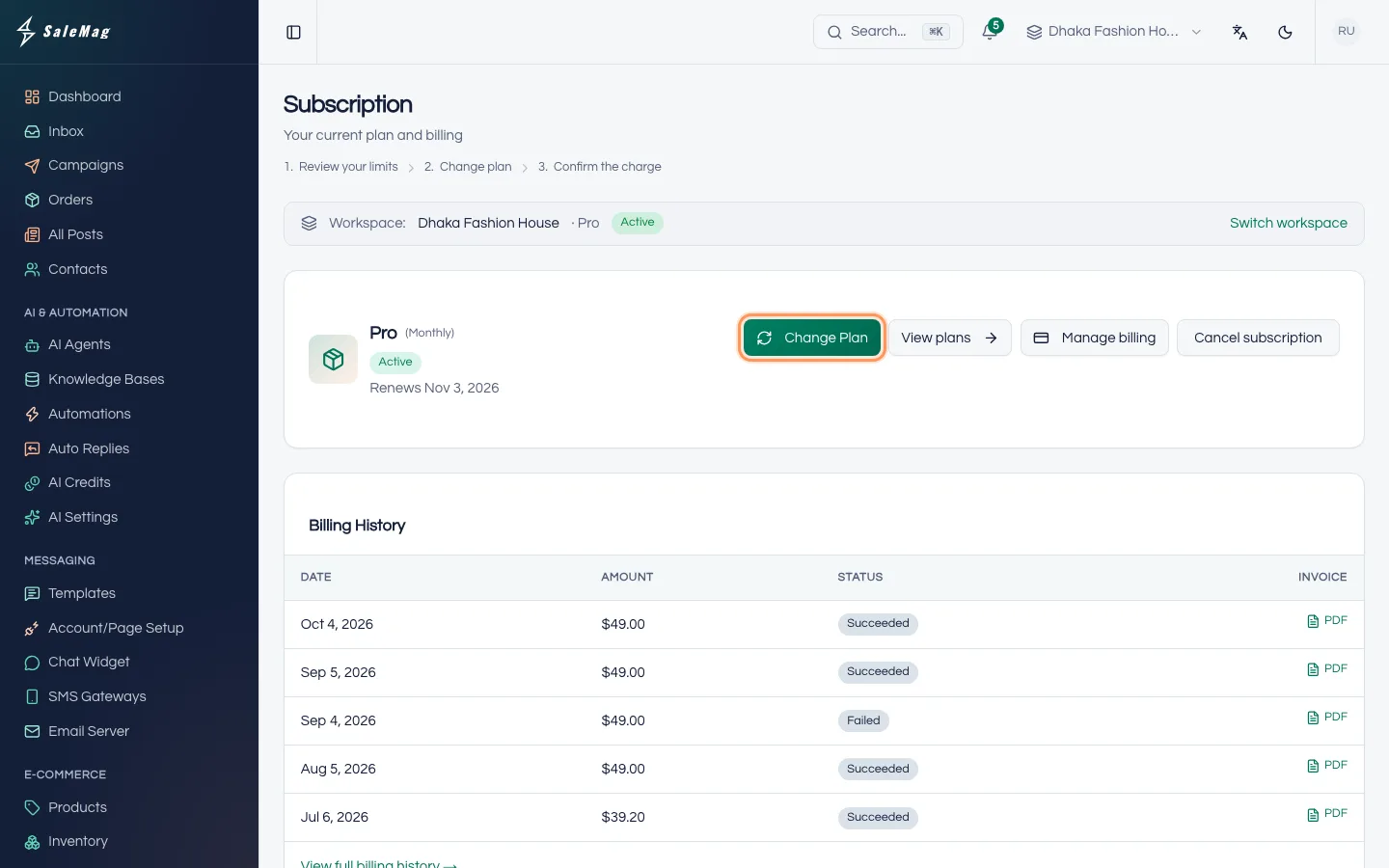
The change happens at once. Any difference in price is worked out for the days left and shows on your next invoice.
Step 5 — Cancel or resume
On Billing → Subscription, press Cancel subscription, then confirm. The plan keeps working until the end of the period you paid for; the page shows "Cancels {date}. You keep access until then." After that, your free workspace goes back to the Free plan, and an extra workspace becomes read-only.
Changed your mind before that date? Press Resume subscription.
Step 6 — Download invoices
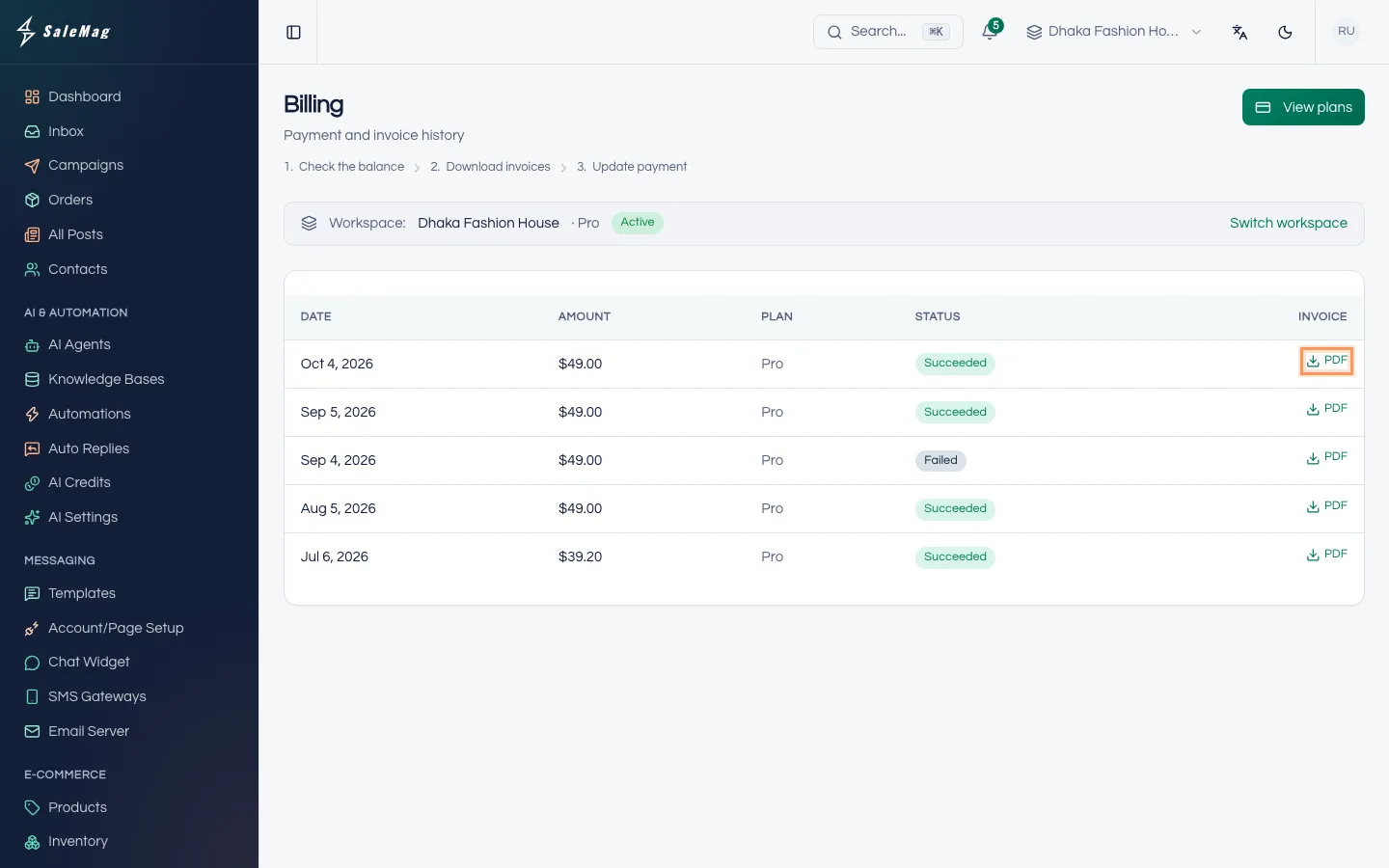
Go to Billing → Billing. Under Payment and invoice history you see each payment with its date, plan, amount and status. Press PDF to download the invoice.
Extra workspaces
To add a workspace for another business, go to Workspace → Workspaces. Under Create a new workspace, type a Workspace name and press Create workspace. You are taken to the Plans page to choose its plan.
On the Workspaces page, each workspace has Choose a plan or Manage plan. A workspace with no plan and no data can be deleted with Discard workspace.
What happens next
With a plan in place, all features in your plan work in that workspace. If your plan includes AI credits, they arrive every month; see AI credits and AI settings.
If something goes wrong
The workspace button shows "Payment failed": your last payment did not go through. The workspace keeps working for up to 30 days while the card is tried again. Press Update payment method in the red bar at the top or on the Subscription page, and update your card. If it is still unpaid after 30 days, the workspace becomes read-only.
"Ask a workspace admin to choose a plan.": only the owner or an Administrator can manage billing. Ask them.
"Managed by your organization admin": this plan was set up for you by SaleMag. Contact support to change it.
The Manage billing button is missing: only the person who paid for the plan can open the card portal. Ask them to update the card.
A plan says "Only {workspace} is on Free. Each extra workspace needs a paid plan.": the Free plan is already used by your first workspace. Choose a paid plan for this one.
Frequently asked questions
Can I pay for a plan with bKash?
No. Plans are paid by card only. bKash can be used to buy AI credit packs, not plans.
Do I pay for each team member?
No. You pay per workspace. See the Plans page for what each plan includes.
Who can get a free trial?
An organisation that has never had a paid plan before. The Plans page shows the trial button when you can use it. A card is needed to start the trial. Nothing is charged until the trial ends, and you can cancel before then.
What happens to my data if a workspace becomes read-only?
Nothing is deleted. You can still see and export everything, and new customer messages are still saved. Sending, AI replies, automations, campaigns and scheduled posts are paused until the workspace has a plan.
Can I choose which workspace is the free one?
The free plan is for the first workspace of your organisation. To move it to another workspace, contact support.
Was this article helpful?