Your AI agent only knows what you tell it. A knowledge base is where you put that information: your FAQs, policies, files, website pages and products. This guide shows how to create one, fill it, check it is ready and link it to your AI agent.
Step 1 — Open Knowledge Bases
In the left menu, go to AI & Automation → Knowledge Bases and click New Knowledge Base.
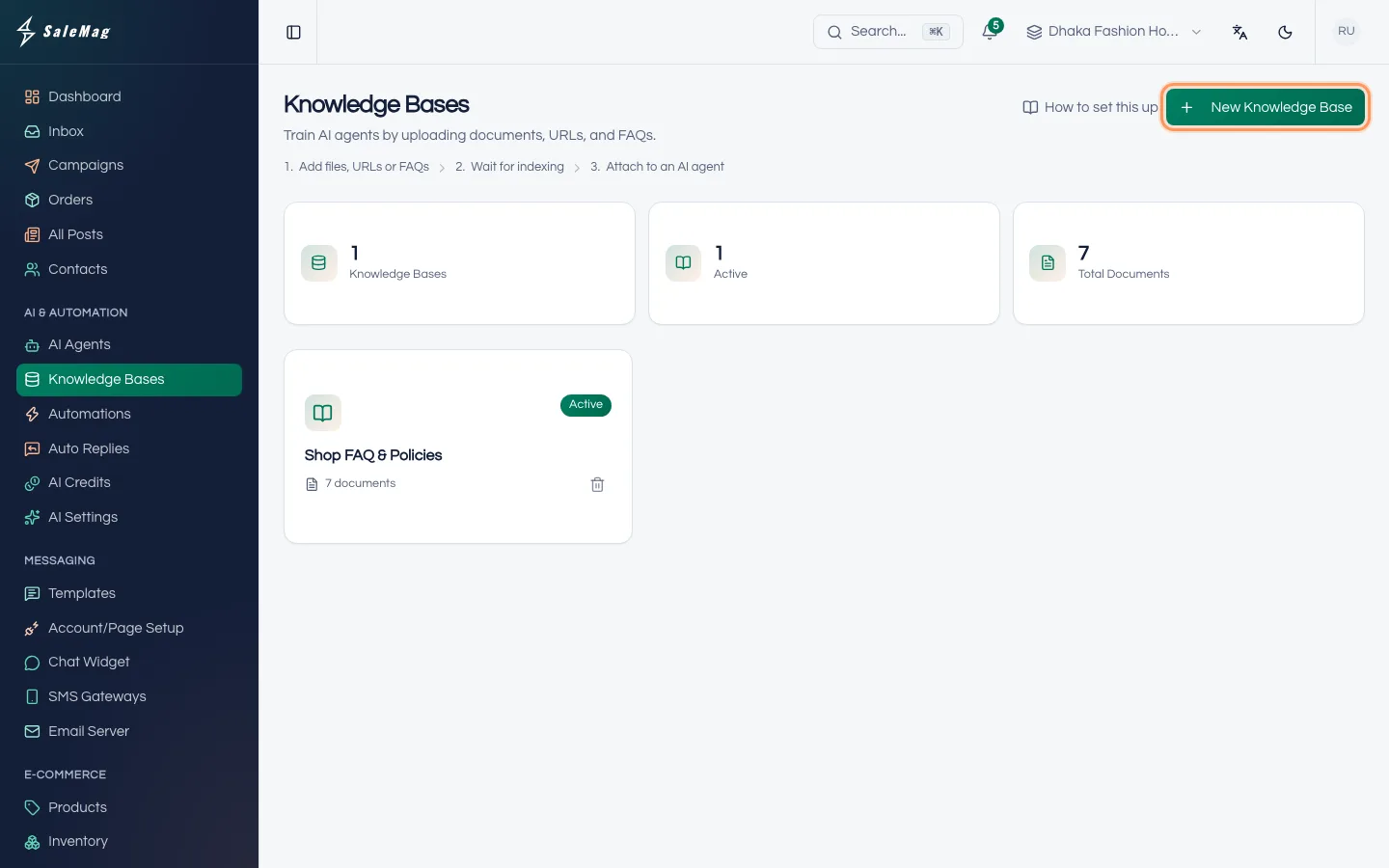
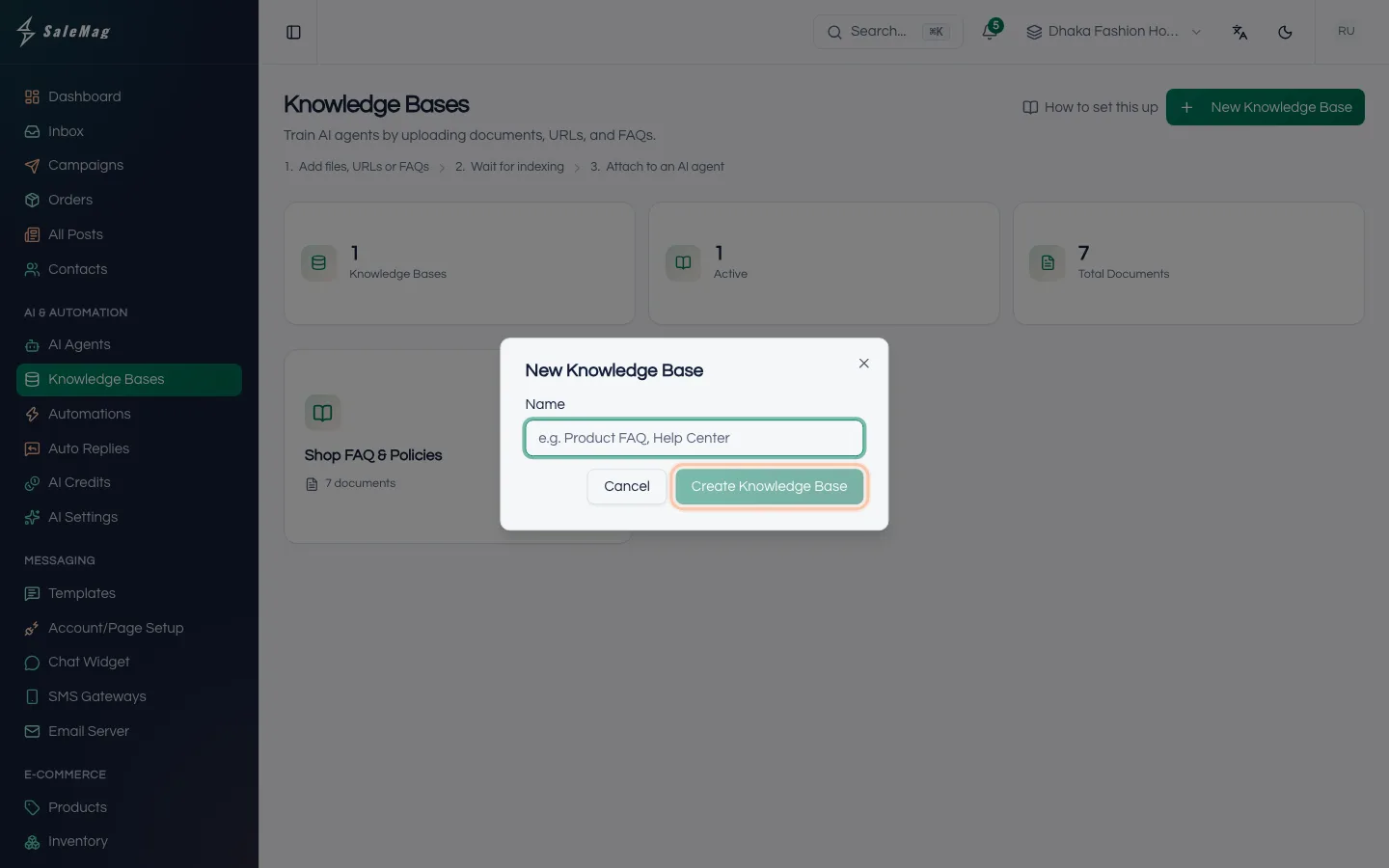
Step 2 — Name it and create it
Type a Name, for example "Shop FAQ and products", and click Create Knowledge Base. You see "Knowledge base created." and a new card appears. Click the knowledge base's name to open it.
Tip: One knowledge base per shop is usually enough. Put your FAQ, policies and products in the same one.
Step 3 — Click Add Document
A new knowledge base is empty. Click Add First Document (later, Add Document at the top right).
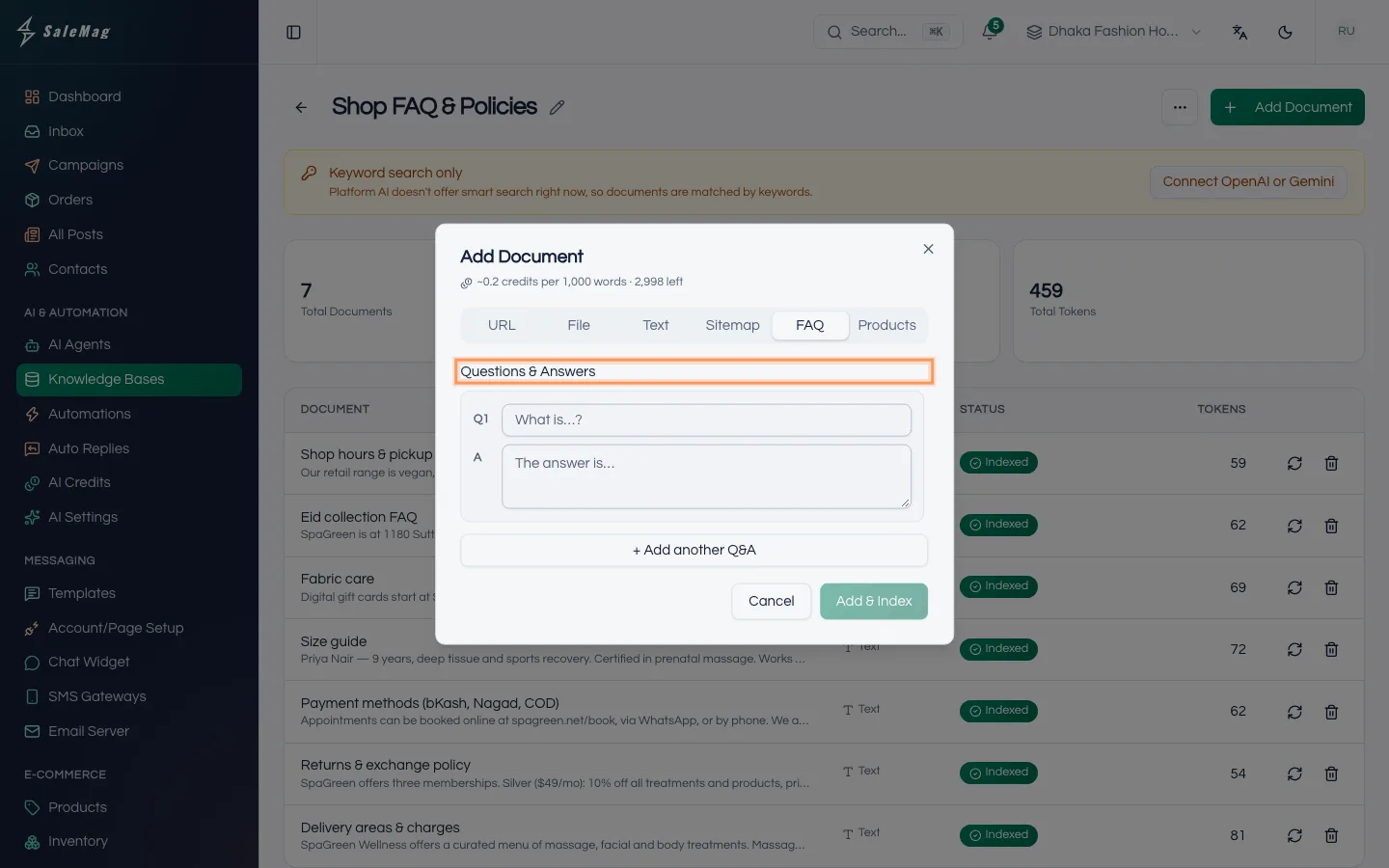
A window opens with six tabs, one for each kind of source:
- URL: one web page, such as your delivery policy page.
- File: a file from your computer. "PDF, DOCX, XLSX, TXT, MD, CSV, JSON — up to 20 MB".
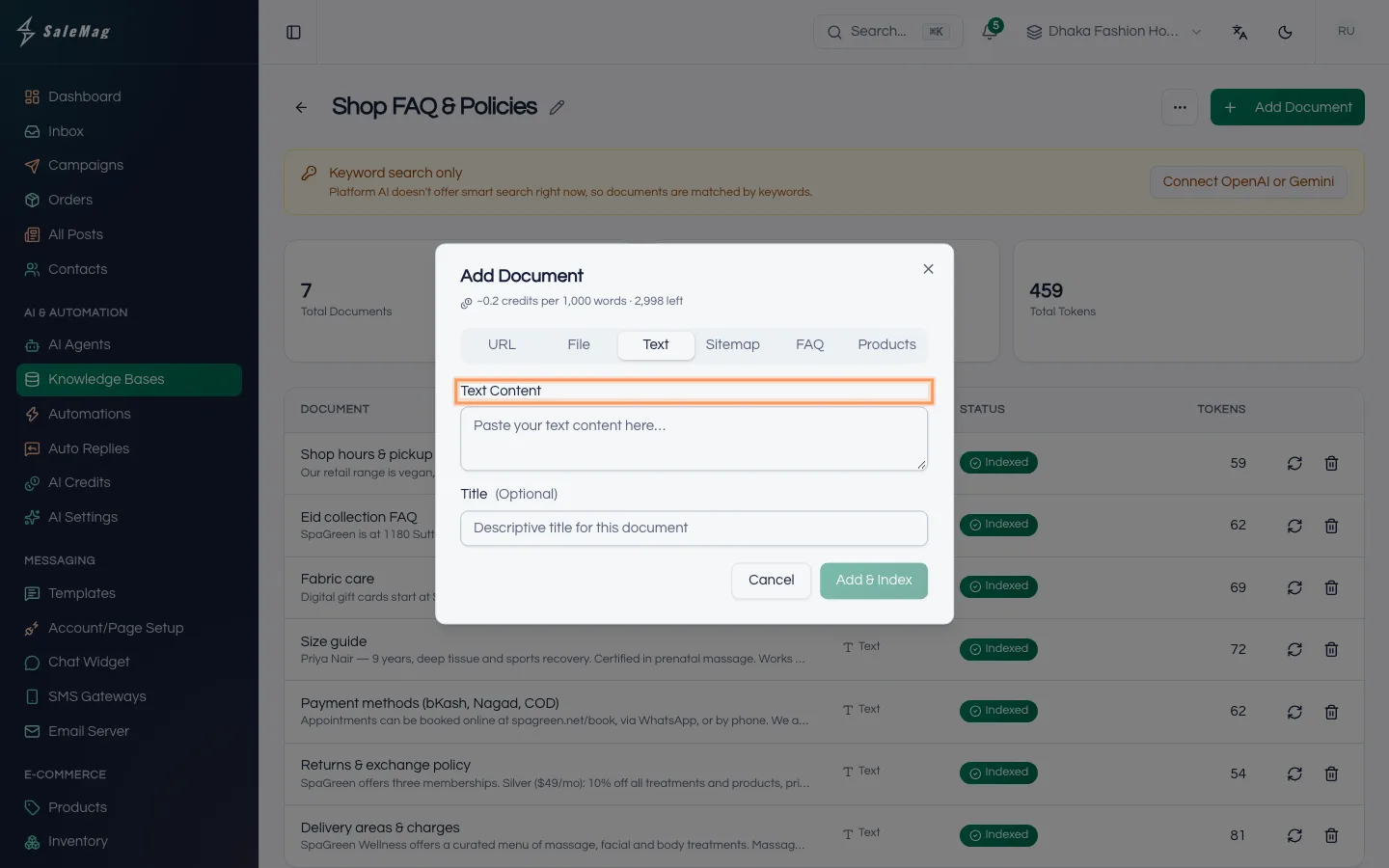
- Text: paste any text into Text Content.
- Sitemap: your website's sitemap link. "We'll crawl all pages listed in the sitemap and index them." Up to 200 pages, each added as its own document.
- FAQ: questions and answers, typed one pair at a time.
- Products: your products from SaleMag.
On Platform AI the window also shows about how many AI credits each 1,000 words uses.
Step 4 — Add your FAQ
Start with the questions customers ask you every day. Click the FAQ tab. Under Questions & Answers, type a question and its answer. Click + Add another Q&A for the next pair. When you're done, click Add & Index.
You see "Document queued for indexing." Indexing means SaleMag reads the document and breaks it into small pieces the AI agent can search.
Step 5 — Add your products
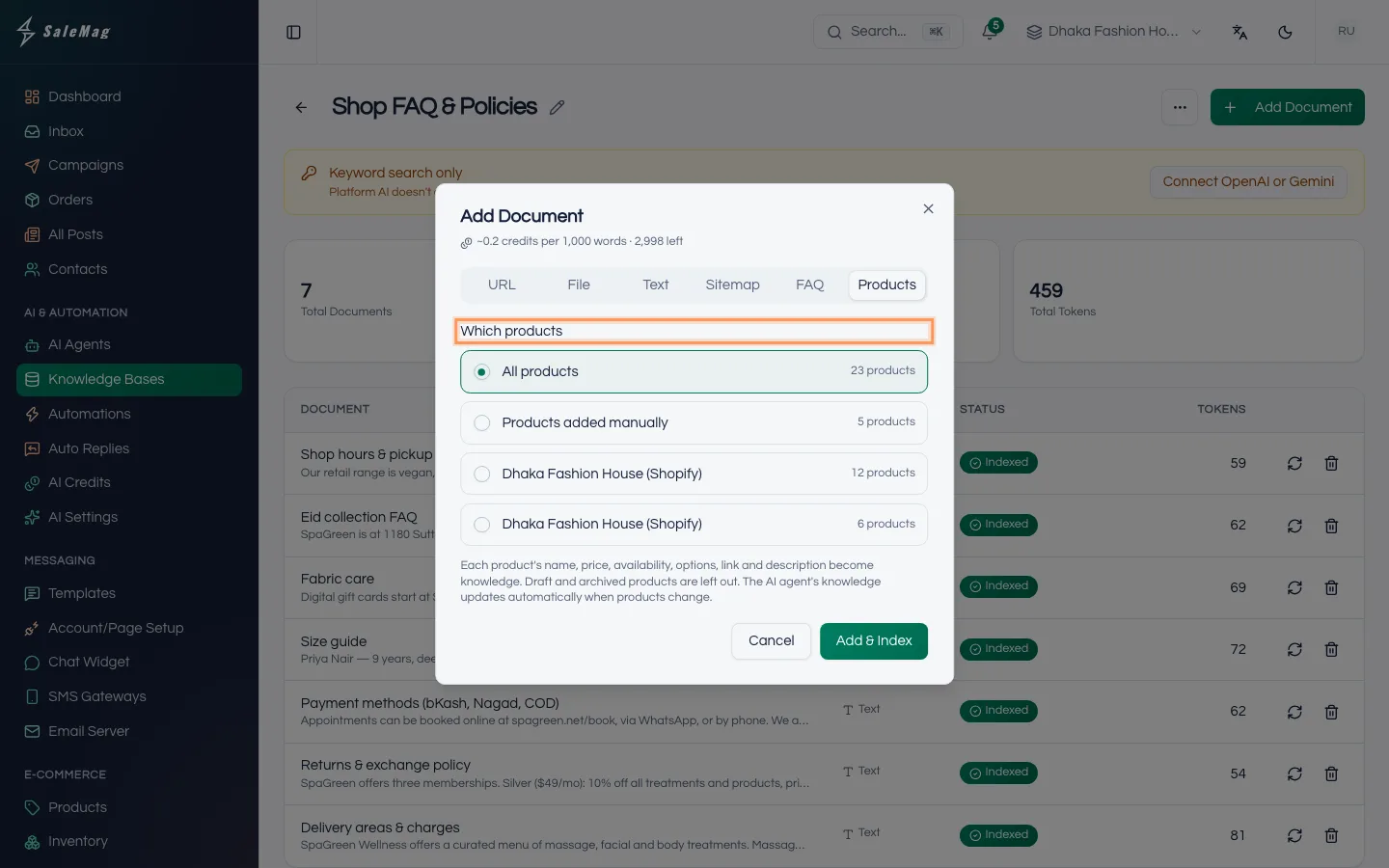
Click Add Document again and choose the Products tab. Under Which products, choose All products, Products added manually or one of your connected stores. Click Add & Index.
Each product's name, price, availability, options, link and description become knowledge. Draft and archived products are left out. The row says "Updates automatically when products change", so you never add products twice.
No products yet? Add them first: add products or connect your online store.
Tip: You can also do this from the Products page: click Add to AI knowledge base.
Step 6 — Add your policies, files and web pages
Add anything else customers ask about. Click Add Document each time:
- Paste your delivery, payment and return rules in the Text tab.
- Upload a price list, size chart or catalogue in the File tab.
- Add a single page from your website in the URL tab.
- Add a whole website in the Sitemap tab. The sitemap link usually ends in
/sitemap.xml.
For URL, File and Text you can type an optional Title, such as "Return policy". The title shows in the list and in test results. Click Add & Index, or Upload & Index for a file.
Step 7 — Wait until every document says Indexed
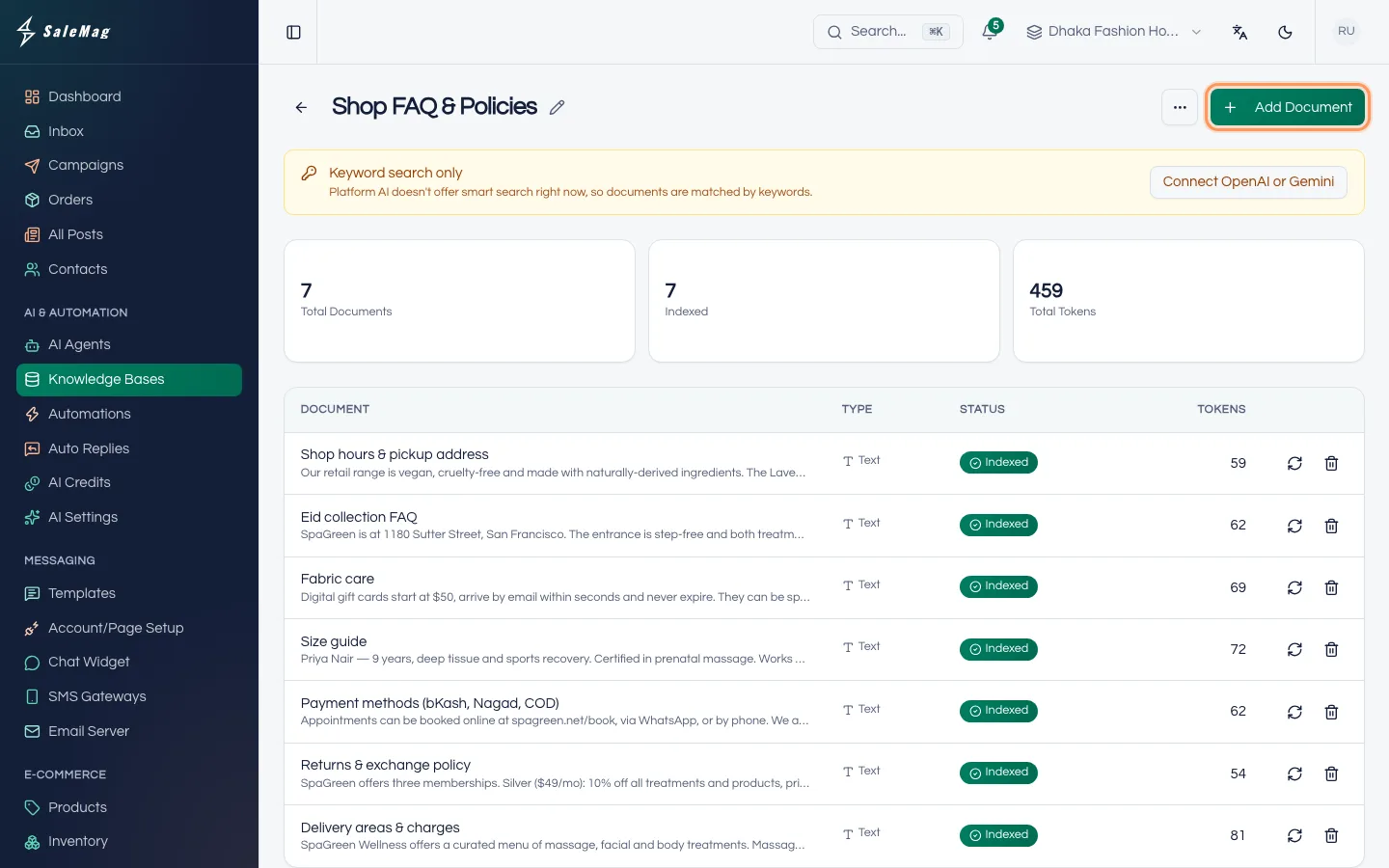
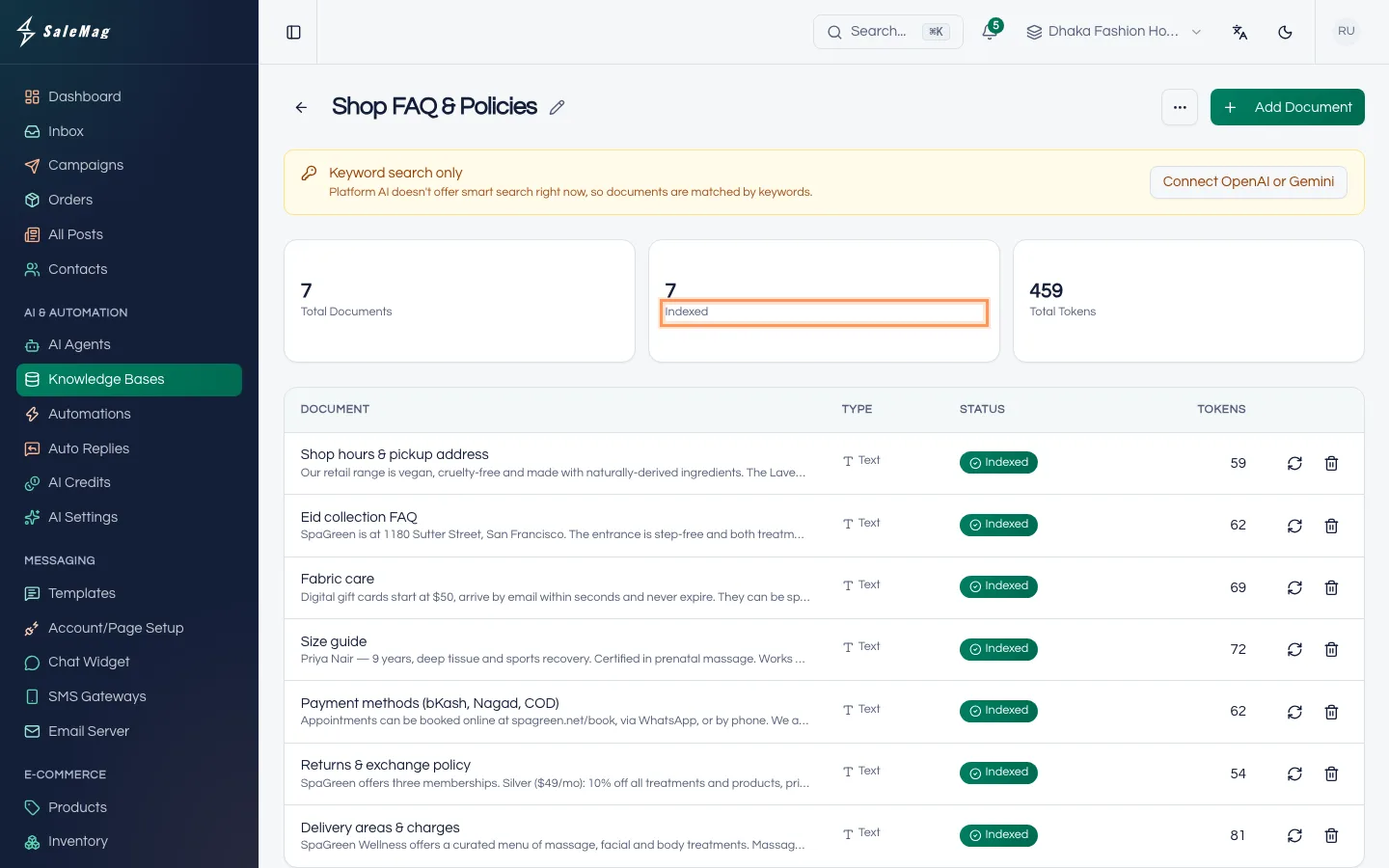
The table shows each Document, its Type and its Status:
- Pending and Indexing: still working. The page refreshes by itself.
- Indexed: ready. The AI agent can use it.
- Error: the source couldn't be read. The reason shows in red under the name. Fix the source, then click the re-index button (circular arrows) on that row.
The boxes at the top count Total Documents, Indexed and Total Tokens.
A coloured banner shows how the knowledge base is searched:
- Smart search is on: the AI agent finds answers by meaning, even when the customer uses different words. This is what you want.
- Keyword search only: it only finds answers that use the same words as the question. This happens when no OpenAI or Gemini key is available, for example with only an Anthropic key. Click Connect OpenAI or Gemini.
- Re-index to turn on smart search: some documents were added before a key was connected. Click Re-index all.
- Smart search is paused: you're out of AI credits. Click Buy credits.
To re-read every document, open More actions (the ⋯ button) and choose Re-index all, then confirm.
Step 8 — Link the knowledge base to your AI agent
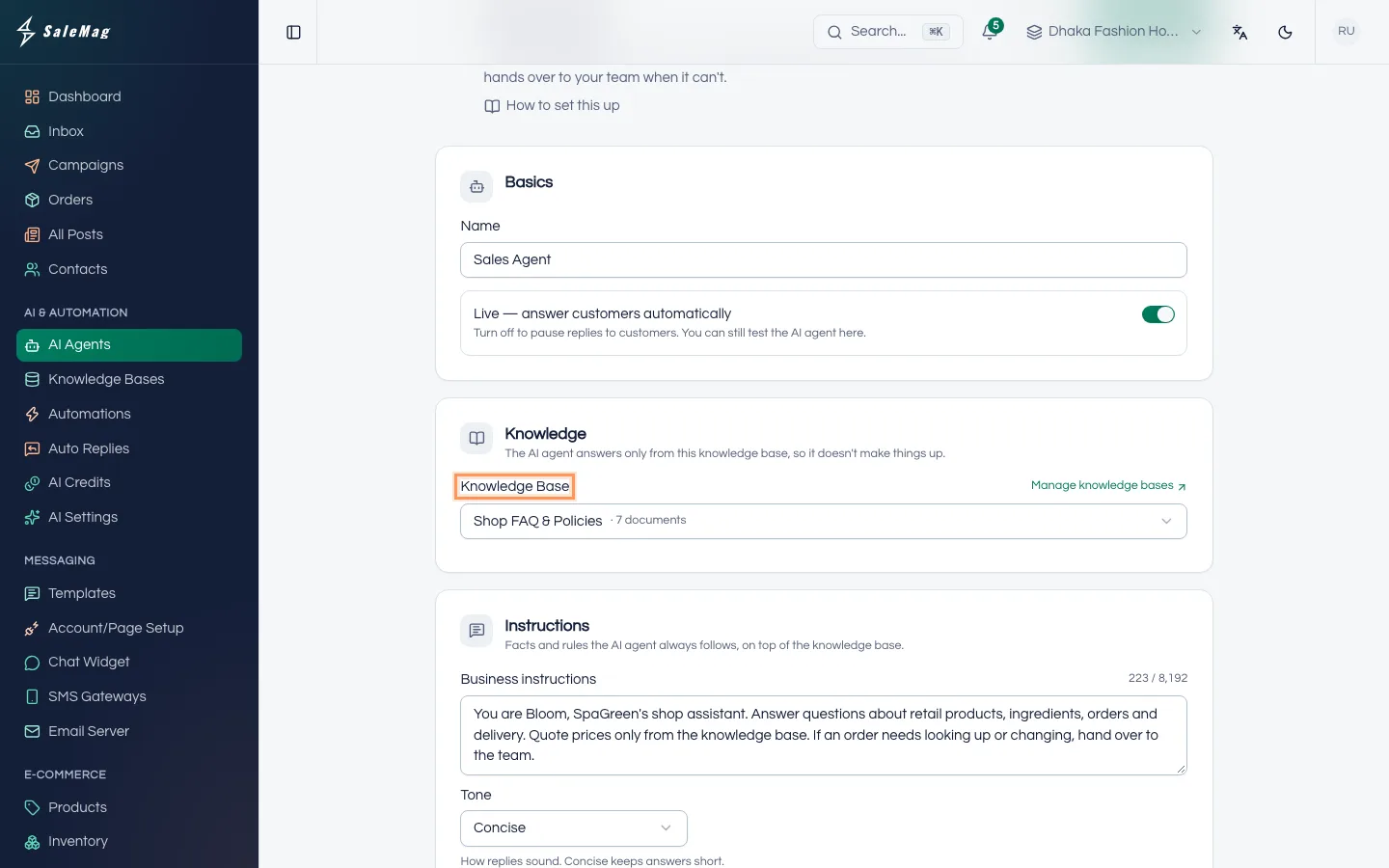
Go to AI & Automation → AI Agents and click Edit on your AI agent. In Knowledge, choose your knowledge base in the Knowledge Base list. Click Save Changes. The AI agent's card now shows the knowledge base's name.
Don't have an AI agent yet? See create your AI agent.
What makes good knowledge
- Write FAQs in both Bangla and English. Add the same question both ways: "ডেলিভারি চার্জ কত?" and "What is the delivery charge?". Add common Banglish too, like "delivery charge koto?".
- Be exact. "Inside Dhaka 1–2 days, outside Dhaka 3–5 days" is better than "fast delivery".
- Cover delivery, payment and returns. Areas, how long it takes, cash on delivery or bKash, exchange days, who pays return delivery.
- Let products carry the prices. Add your products instead of typing prices in an FAQ, so prices are always current.
- One topic per document. A short "Return policy" document works better than one long page about everything.
- Remove old information. Delete documents with old prices or offers so the AI agent never quotes them.
What happens next
Your AI agent starts answering from the knowledge base as soon as you save. Test it before customers do: test and go live. Each reply in the test shows "Sources: …", the documents it used.
If something goes wrong
There is no New Knowledge Base button: your role can't edit knowledge bases. Ask the workspace owner or an Administrator.
A document shows Error: the reason shows in red under its name, for example "No text could be extracted from the .pdf upload." A scanned PDF that is only a picture has no text to read. Type or paste the text into the Text tab instead, then remove the broken document.
"The file may not be greater than 20 MB.": split the file or paste the important parts as Text.
The AI agent ignores the knowledge base: check the AI agent's card shows this knowledge base and every document says Indexed.
"You have no products yet." on the Products tab: add products or connect a store first.
Frequently asked questions
Does the AI agent read my whole website?
Only what you add. A URL adds one page. A Sitemap adds the pages listed in your sitemap, up to 200. SaleMag doesn't follow links from page to page.
How do I update a document after my prices or policy change?
Products update on their own when you change them in SaleMag. For a URL or Sitemap, change your website and click the re-index button on that row. For Text and FAQ, remove the old document and add the new version.
Does adding documents cost AI credits?
On Platform AI, yes. The Add Document window shows about how many credits each 1,000 words uses. With your own OpenAI or Gemini key, your provider bills you instead.
Can two AI agents use the same knowledge base?
Yes. Each AI agent uses one knowledge base, but several AI agents can share it. Your plan sets how many knowledge bases you can create.
Should I write my FAQ in Bangla or English?
Both. Customers ask in Bangla, English and Banglish. A question written in both languages helps the AI agent find the right answer whichever way the customer asks.
Was this article helpful?